Stripe Radar
The Stripe Radar plugin scores every order and Stripe payment from 0 to 100, using Radar's verdict and your client's history in Blesta. Flag, hold or refund risky orders automatically, and review them all from one queue.
Free - View Pricing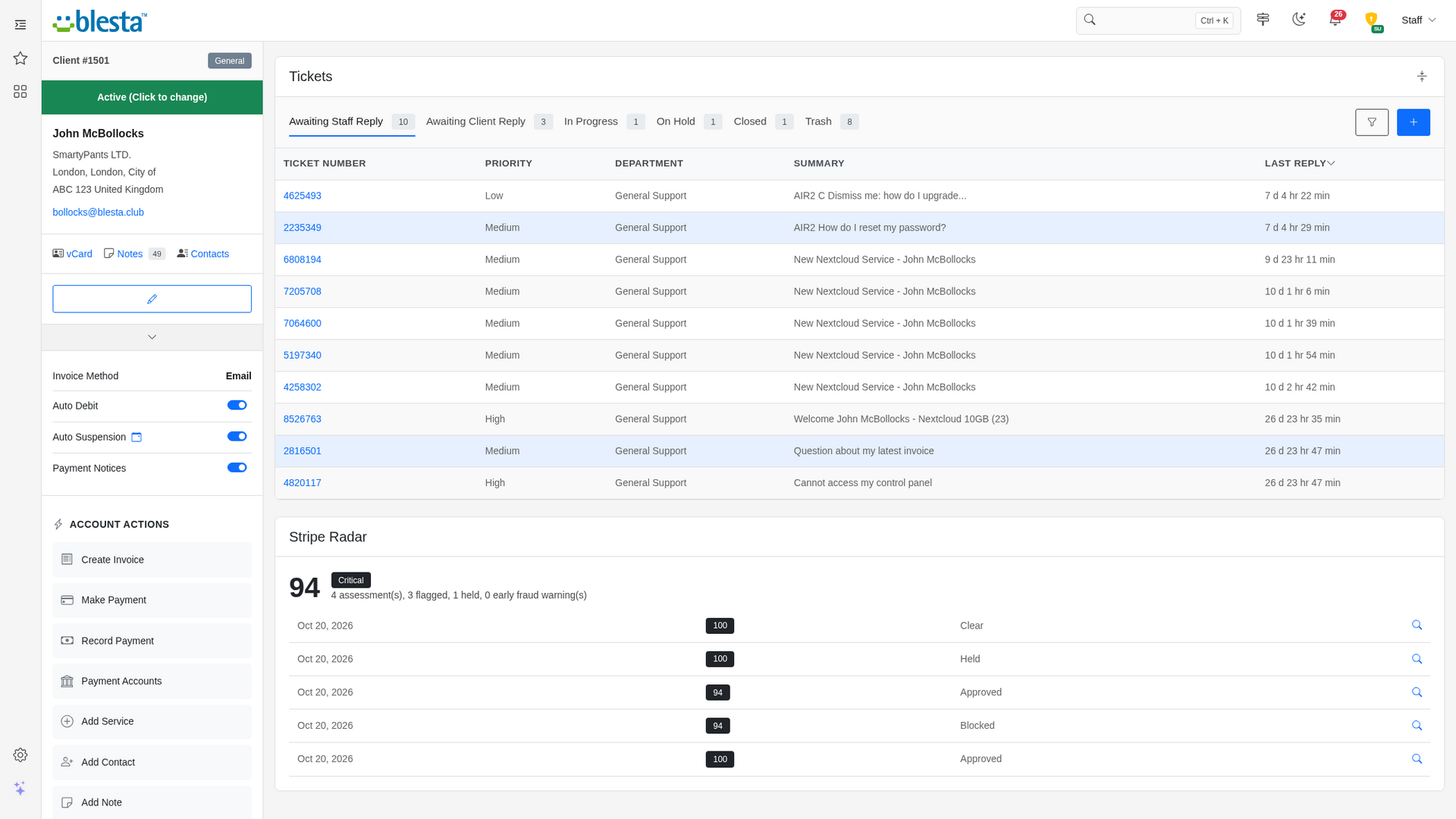
Features
What Stripe Radar gives you
Automatic Background Processing
Runs on Blesta's cron with no manual upkeep, so everything stays up to date on its own.
Per-Company Configuration
Configure it independently for each brand on a multi-company install, so every company runs with its own settings.
Fully Translatable
Every staff and client label ships in editable language files, ready to translate into any language or reword to match your brand.
Per-Staff-Group Permissions
Each staff action it adds is a separate permission you grant per staff group, so each team gets exactly the access it needs and nothing more.
Built-In Demo Mode
A built-in demo mode runs the whole extension from bundled sample data, so you can trial every screen and action before you have an account or API key.
Suspend as a Staff Member You Choose
Automatic suspensions are made as the staff member you pick, so Blesta's own unsuspend task does not lift them again as soon as the client's invoices are paid.
Editable Email Templates
The emails it sends install as standard Blesta templates in every language you have enabled, so you can reword them, restyle the HTML and choose which details they carry.
Risk Widget on the Client Profile
A widget on the staff client profile shows the client's peak score, risk level and counts of flagged and held orders, with a list of their latest assessments and a link to each.
Credentials Verified When You Save Them
Your API credentials are checked with the provider the moment you save them and the save is refused if they do not work, so a typo is caught immediately instead of the first time it matters.
Credentials You Already Have
The Stripe key is read from your installed Stripe gateway when there is one, or you can paste a secret or restricted key of your own. Saved secrets are never shown again and each has a box to clear it.
Write-Only Credential Fields
Stored credentials are never rendered back into the settings page, and leaving a field blank when you edit keeps the saved value, so a secret is never exposed in day-to-day admin work and cannot be wiped by accident.
One Readable Risk Score
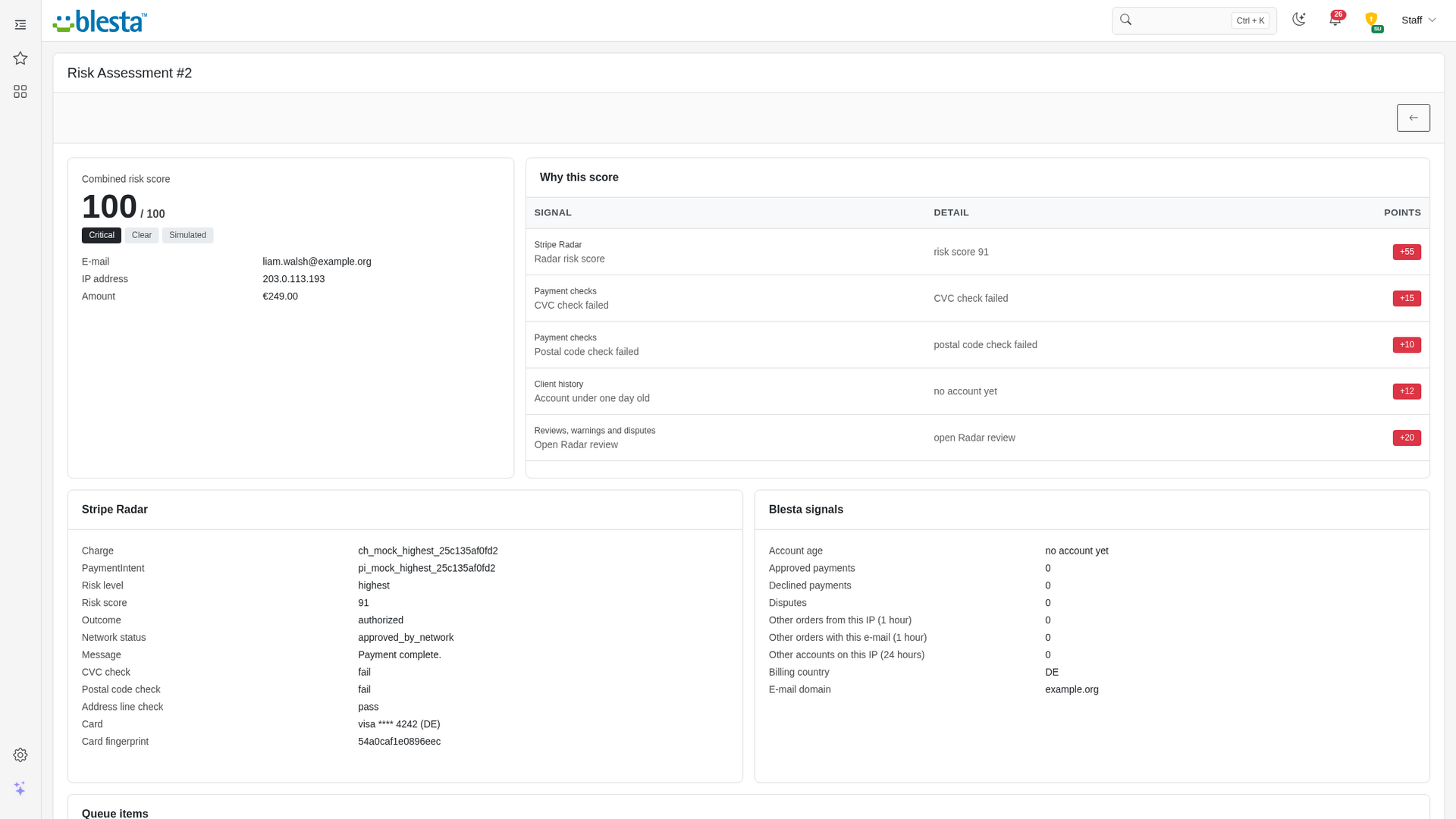
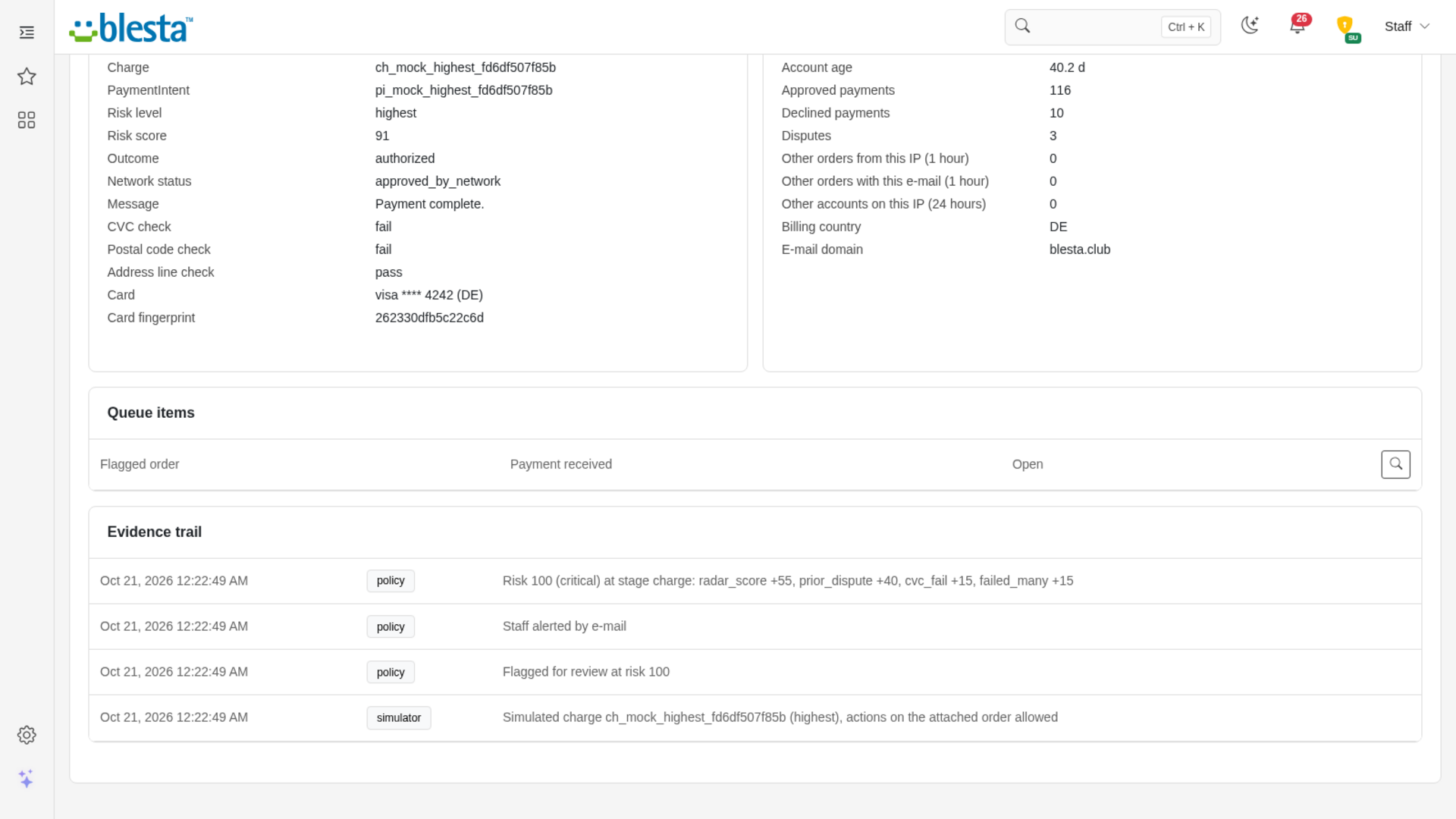
Every order and every Stripe payment gets a 0 to 100 score with a "Why this score" table listing each signal and the points it added or took away, so you can see exactly why something was flagged instead of trusting a black box.
39 Editable Score Weights
Change the points of every signal, from a failed CVC check to a disposable e-mail domain, a coupon on a first order or an account older than 90 days. Setting a weight to 0 switches that signal off, and the default is shown next to each one.
Early Fraud Warning Handling
A warning from the card issuer is flagged, e-mailed to your staff and can hold the order. You can let the plugin refund actionable warnings automatically, but only up to a maximum amount you set, and it also suspends the order's active services.
Self-Repairing Order Component
The plugin installs its Order anti-fraud check itself, restores it when an Order update removes it, and lets you repair or remove it from the settings page. If it is ever missing, checkouts are simply allowed through and payments are still scored.
Overview Dashboard
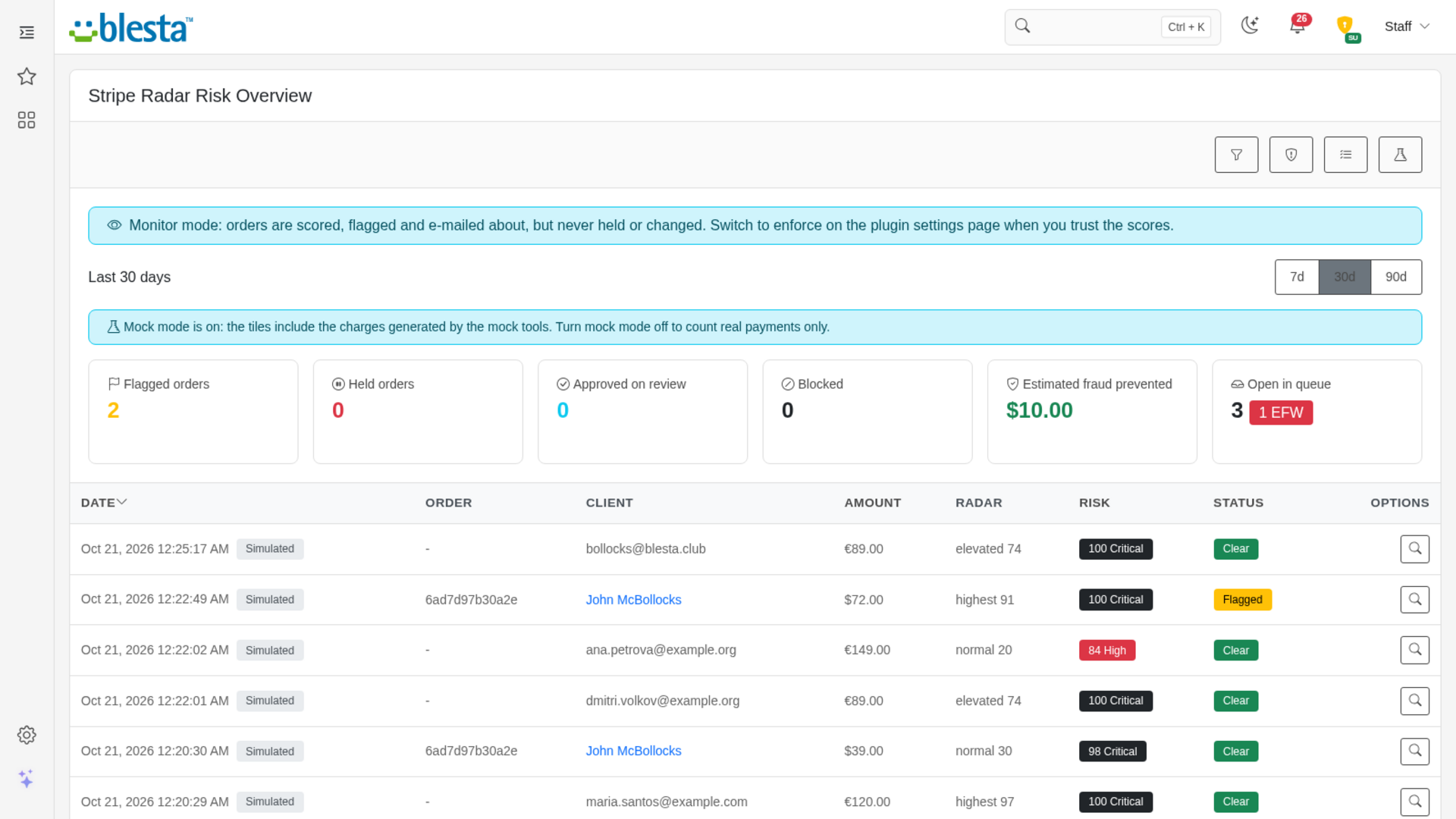
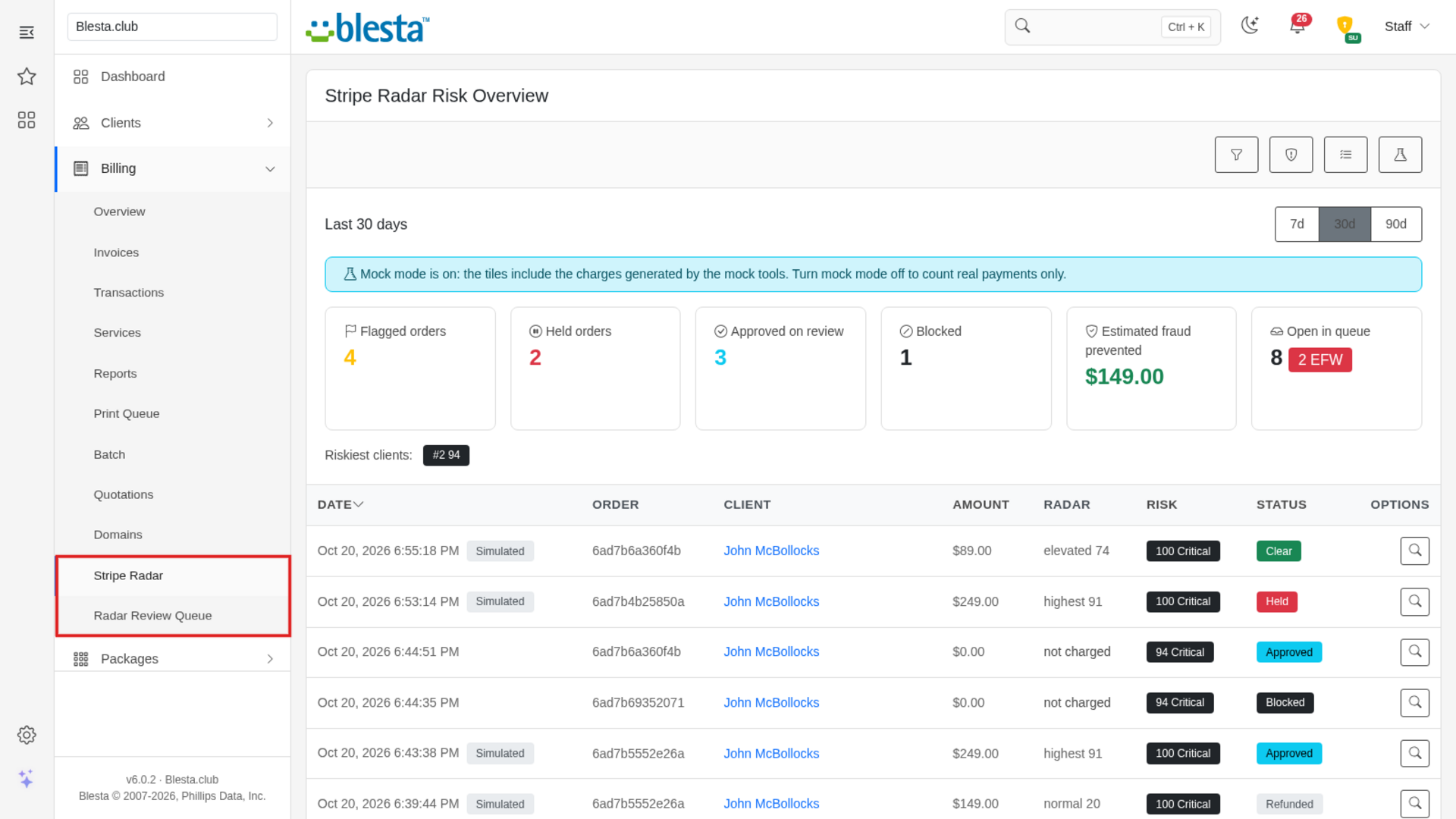
Tiles show flagged orders, held orders, orders approved on review, blocked orders, the estimated fraud prevented and what is open in the queue for the last 7, 30 or 90 days, with the riskiest clients and a sortable, filterable list of every assessment.
Monitor First, Enforce When You Trust It
Monitor mode only flags orders and e-mails your staff and never changes an order. Enforce mode adds holding orders, suspending services, marking fraud and refunding early fraud warnings, each with its own score threshold, and a threshold of 0 turns that action off.
Signed Webhook Intake
Review and early fraud warning events from Stripe are verified against your signing secret before anything is recorded, repeated deliveries are ignored, and without a secret the plugin re-fetches each event from Stripe by its id instead of trusting what was posted.
Staff Alert E-mails
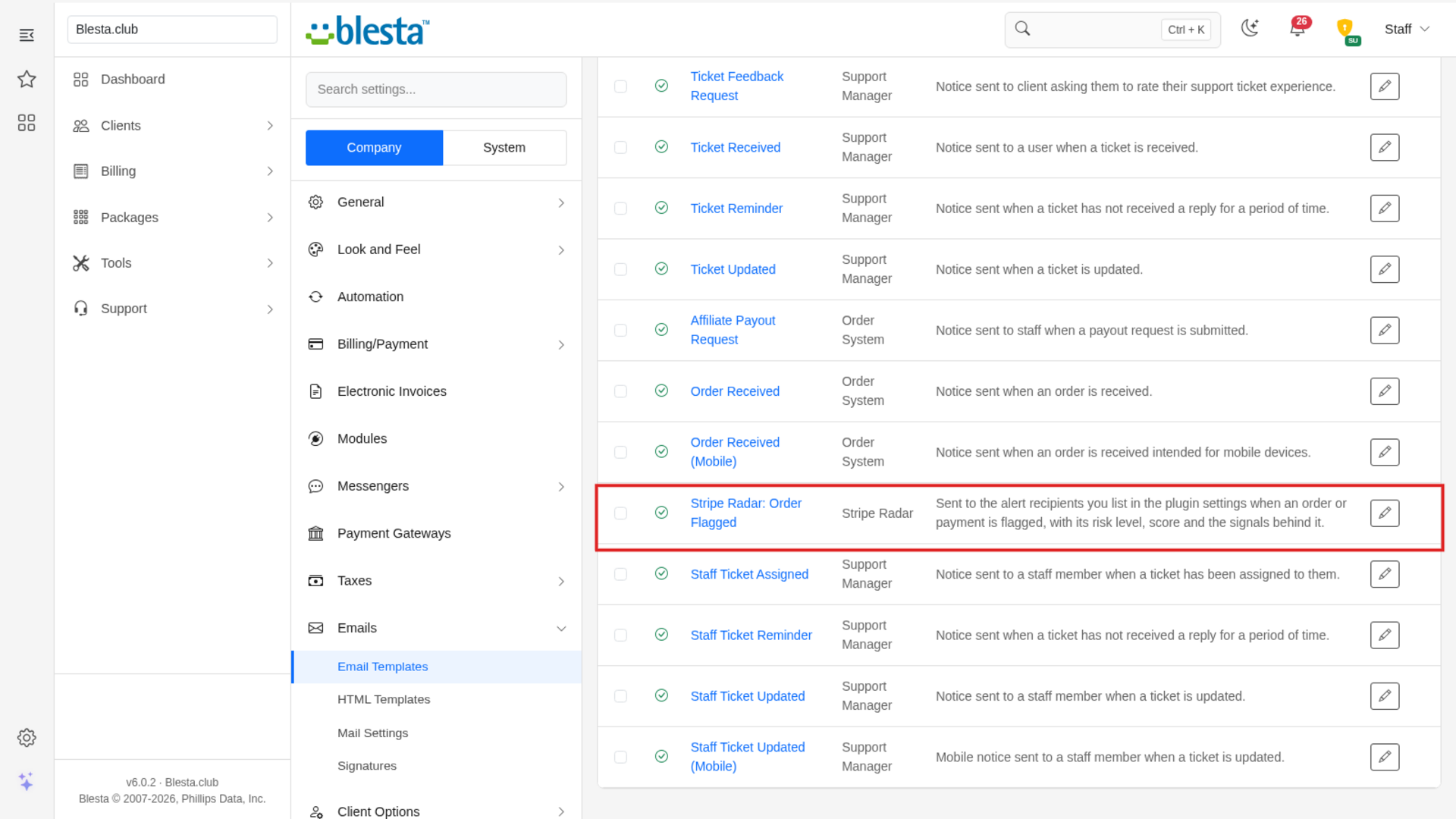
List the addresses that should be alerted and a standard, editable e-mail template tells them which order was flagged, the risk level and score, what the plugin did and the signals behind it. A failed send is not recorded as done and is retried on the next evaluation.
Block and Allow Lists
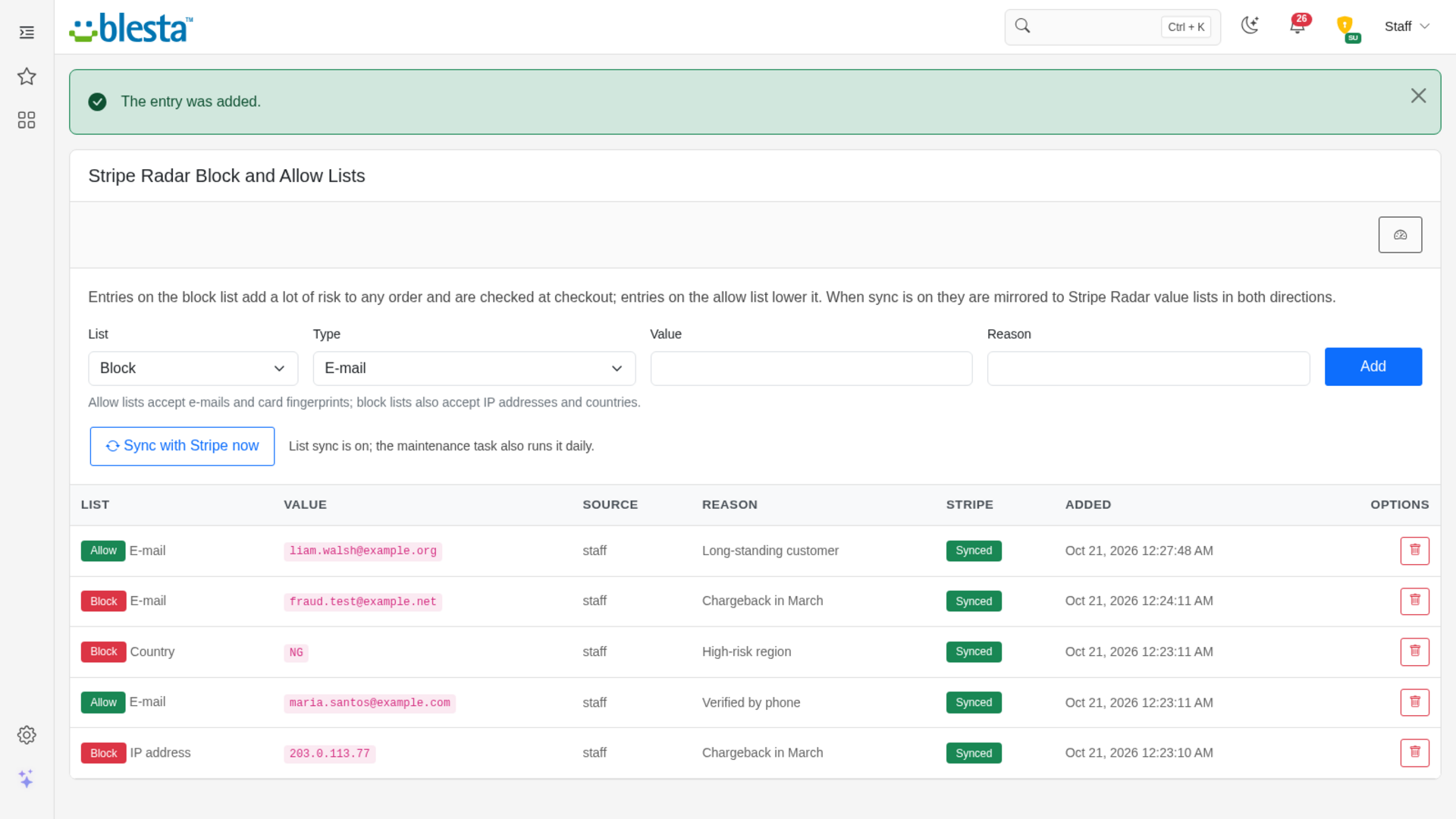
Keep your own block and allow lists of e-mails, IP addresses, card fingerprints and countries. A block-list hit adds heavy risk at checkout and on every payment, an allow-list hit lowers it, and with sync on the lists are mirrored both ways to Stripe Radar value lists.
Hold and Release Orders
A held order stays pending with a fraud status of review, so it is not accepted or provisioned until staff decide. Approving releases only orders the plugin itself held and puts the client's previous status back, and marking fraud is refused on an order whose invoice is already closed.
Review Queue for Staff
Stripe reviews, early fraud warnings and flagged orders land in one queue you can filter by state, type or Stripe id. Approve, allow a customer, refund in full or in part, block an e-mail, IP address or card, or dismiss, with the order, client, amount, risk and an evidence trail on each item.
Signals Tuned to Your Business
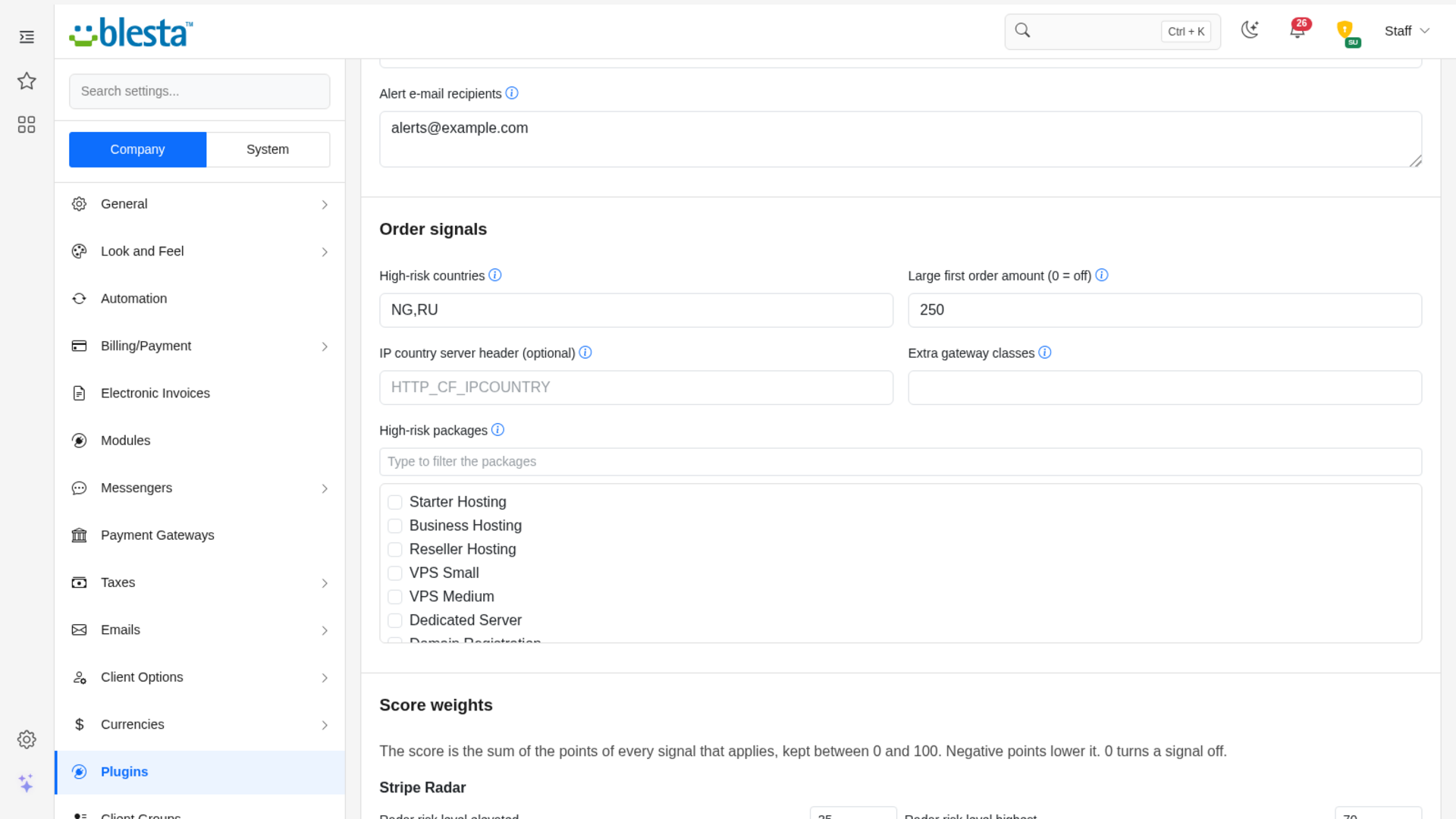
Mark packages as high risk, list high-risk countries, set the amount that counts as a large first order, and name the server header that carries the visitor's country when you run behind a proxy such as Cloudflare. If Chargeback Monitor is installed, its recorded disputes count against the client as well.
Mock Tools to Rehearse Safely
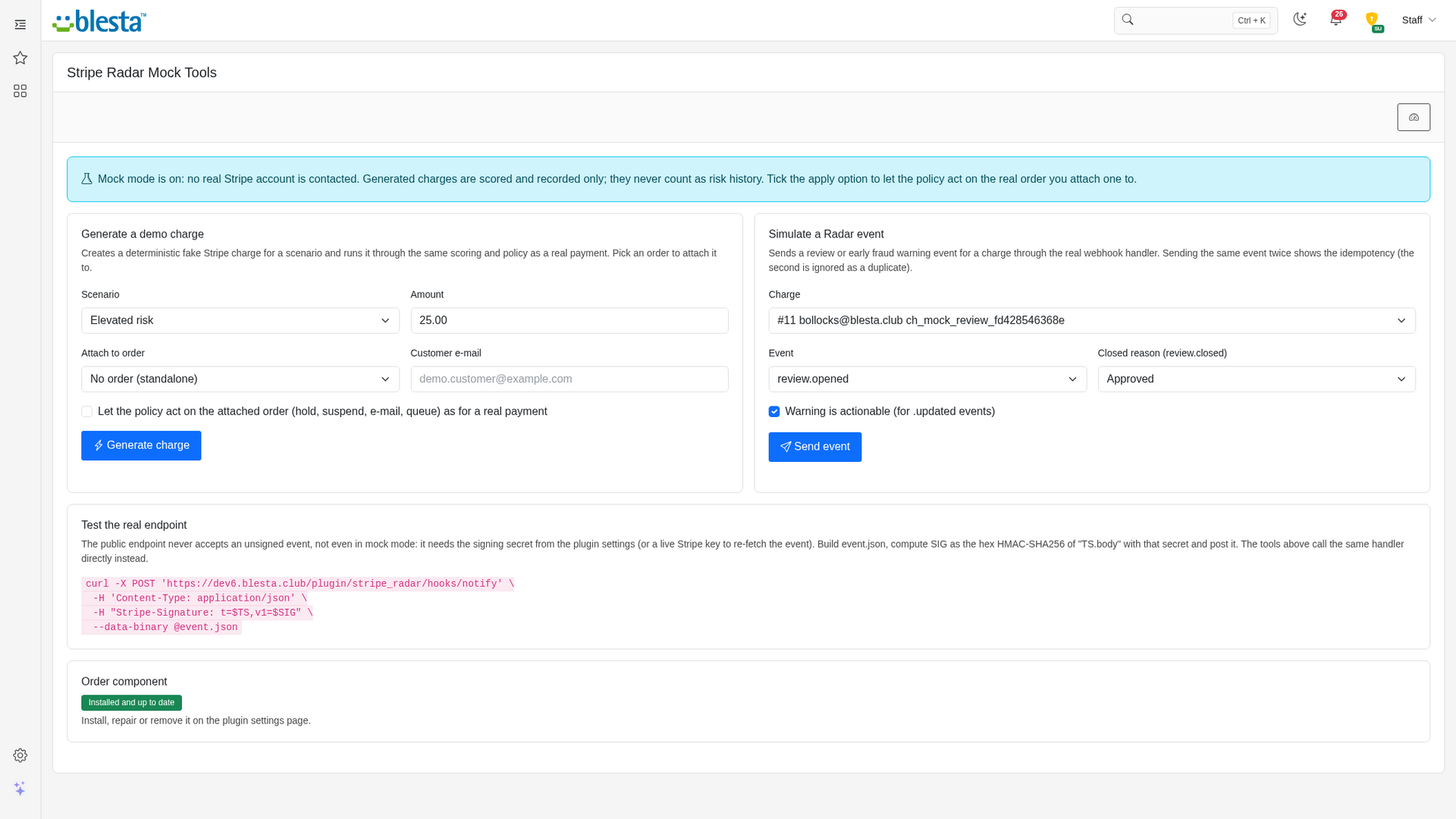
Generate a demo charge for any of seven scenarios, from normal to highest risk, review, blocked, failed CVC and early fraud warning, and send review and warning events through the real webhook handler. Demo charges are recorded but never act on a real order unless you tick the option, and they never count as risk history.
Radar Results From Every Stripe Payment
When a payment is recorded through a supported Stripe gateway, the plugin fetches Stripe's Radar risk level and score, the rule that fired, the CVC, postal code and address checks, 3-D Secure, wallet and card details, and merges them with Blesta's own signals. Fetches that fail are retried automatically, and recent Stripe payments recorded before you installed it are picked up too.
Checks Before the Customer Pays
An anti-fraud check for the Order plugin scores a checkout before payment from account age, payment history, disputes, orders per hour from the same IP address or e-mail, billing versus IP country, free and disposable e-mail, and your block and allow lists. Choose the score that sends an order to review and the score that refuses it, or run it in shadow mode to record without ever blocking a customer.

Stripe Radar
Catch fraudulent orders before they cost you money, with one readable risk score that combines Stripe Radar's verdict and everything Blesta knows about the customer.
What it does
Fraud usually costs you twice: the chargeback and the work of cleaning up after a service you provisioned for a stolen card. Stripe Radar already judges every card payment, but it knows nothing about your client's history, how many orders came from the same address this hour, or which packages attract abuse. Stripe Radar for Blesta pulls Radar's verdict for every Stripe payment into Blesta, adds those signals, and boils it all down to one 0 to 100 score that tells you why an order looks risky. You decide what happens at each score, from a quiet flag and an e-mail to holding the order until a person has looked at it.
It starts in a safe monitor mode that only flags and e-mails, so you can watch the scores for a few days before you let it touch a single order.
Key features
- One readable risk score: Every order and Stripe payment gets a 0 to 100 score with a table showing each signal and its points, so nothing is a black box.
- Radar plus Blesta data: Stripe's risk level, score and card checks are combined with account age, payment history, disputes, orders per hour from the same IP address or e-mail, billing versus IP country and free or disposable e-mail.
- Checks before payment: An anti-fraud check for the Order plugin scores a checkout before the customer pays, and can run in shadow mode that records without ever blocking anyone.
- Monitor first, enforce later: Flag and e-mail only, or also hold orders, suspend services, mark fraud and refund early fraud warnings, each with a threshold you set.
- Review queue: Stripe reviews, early fraud warnings and flagged orders in one queue, where staff can approve, allow, refund, block or dismiss.
- Block and allow lists: Your own lists of e-mails, IP addresses, card fingerprints and countries, optionally mirrored to Stripe Radar value lists.
- Dashboard and client widget: Tiles for flagged, held and blocked orders and the estimated fraud prevented, plus a risk widget on every staff client profile.
- Editable weights and alerts: Change the points of any of 39 signals and choose who is e-mailed when an order is flagged.
- Try it without a Stripe account: A built-in demo mode generates fake charges and Radar events so you can see every screen and action first.
Installing and updating extensions can now be done automatically through the Blesta Club Subscription Manager - this is the recommended way going forward.
Installing Stripe Radar
Before you start
- Stripe Radar requires Blesta 6.0 or later.
- If you are on the leased (subscription) licence, the Blesta Club Subscription Manager must be installed and your subscription active. The owned and owned-source licences have no such requirement.
- The Order plugin must be installed to use the checkout check and to hold orders. Without it the plugin still scores your Stripe payments.
- To read Radar results from Stripe you need a Stripe gateway installed in Blesta (Stripe Universal or Stripe Payment Intents), or a Stripe secret or restricted key to paste into the plugin. Without either, orders are scored on Blesta's own signals only.
1. Upload the files
Upload the extension folder into your Blesta installation so it lands under your Blesta directory at:
plugins/stripe_radar/For example, on a typical install: /var/www/html/blesta/plugins/stripe_radar/
2. Install it in Blesta
- Log in to your Blesta admin area with a staff account that has the Plugins permission (with Install Plugin and Manage Plugin) under the Settings group in Settings > System > Staff > Staff Groups. Blesta may ask you to confirm your password on an Access Verification page the first time you open that staff group screen in a session.
- Go to Settings > Company > Plugins and click the Available tab.
- Find Stripe Radar in the list and click Install.
Blesta confirms with "The plugin was successfully installed. It may have registered ACL permissions for various resources. You may need to grant your staff group access to these permissions in order to access these resources." The plugin then appears on the Installed tab with Settings, Manage, Disable and Uninstall buttons, and adds Stripe Radar and Radar Review Queue to the Billing menu.
Installing also adds:
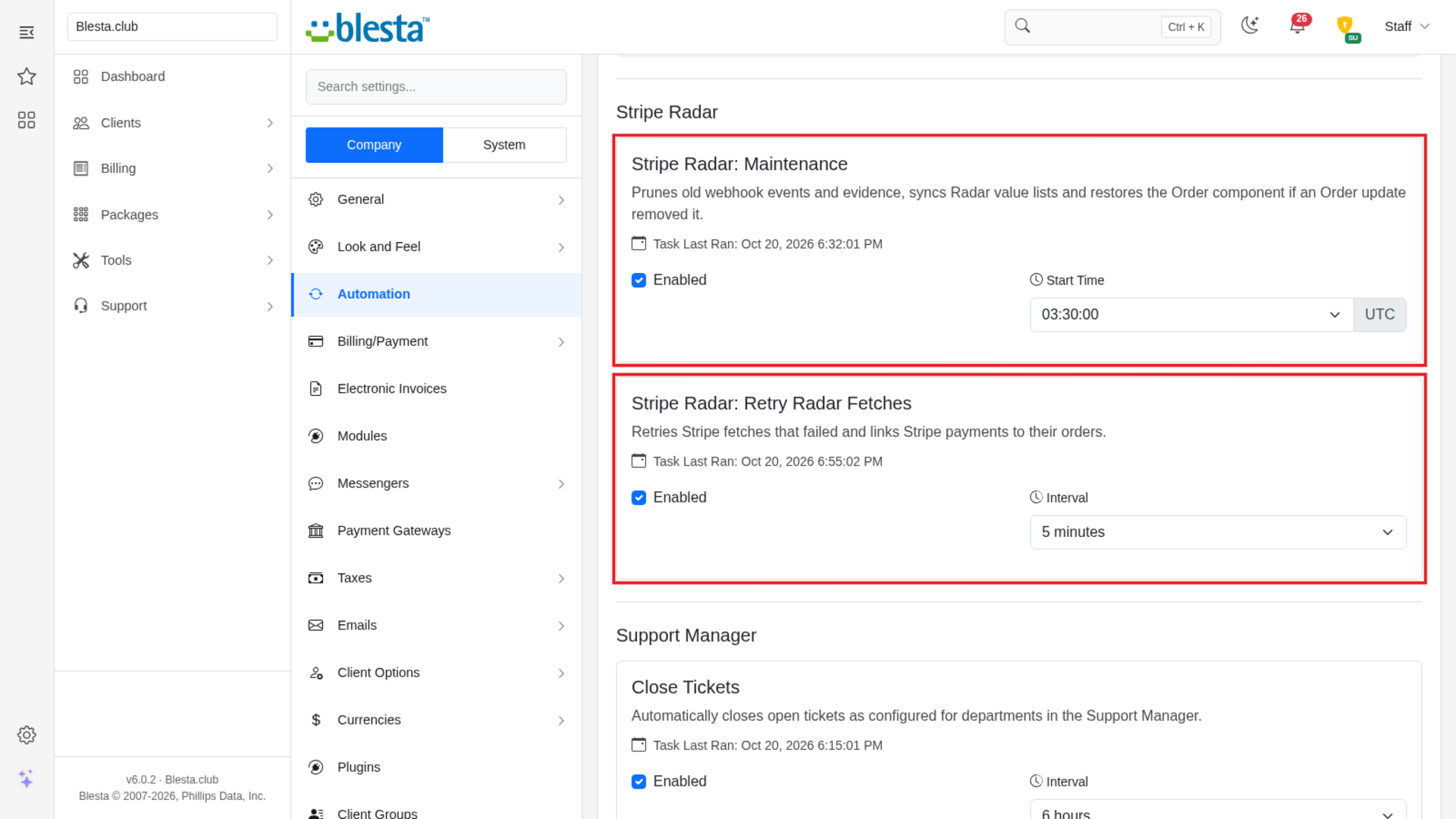
- Two scheduled tasks under Settings > Company > Automation, in the Plugin section: Stripe Radar: Retry Radar Fetches (every 5 minutes) and Stripe Radar: Maintenance (daily at 03:30 UTC). Blesta's cron runs them, so make sure cron is running.
- A staff alert e-mail template, Stripe Radar: Order Flagged, under Settings > Company > Emails > Email Templates, on the Plugin Emails tab.
- A copy of the Stripe Radar anti-fraud check inside the Order plugin.
3. Grant staff permissions
The plugin only declares its permissions: 17 of them in five groups. Blesta ticks them for the staff group of the person who installs it (usually Administrators); every other staff group has the boxes present but unticked. Go to Settings > System > Staff > Staff Groups, edit each other group that should use the plugin and tick what it needs:
- Stripe Radar Overview: View Overview, View Assessment
- Stripe Radar Review Queue: View Queue, View Queue Item, Approve Review or Order, Refund Charge, Block E-mail, IP or Card, Allow Customer, Dismiss Item
- Stripe Radar Lists: View Lists, Add List Entry, Delete List Entry, Sync Lists With Stripe
- Stripe Radar Mock Tools: View Mock Tools, Simulate Radar Events, Generate Fake Charges
- Stripe Radar Client Widget: View Client Risk Widget
4. Configure it
- On Settings > Company > Plugins, open the Installed tab and click Manage next to Stripe Radar. The page starts with a notice telling you where the Stripe key comes from. On a fresh install it says "No Stripe key found. Install a Stripe gateway or enter a key below; until then orders are scored on Blesta signals only."
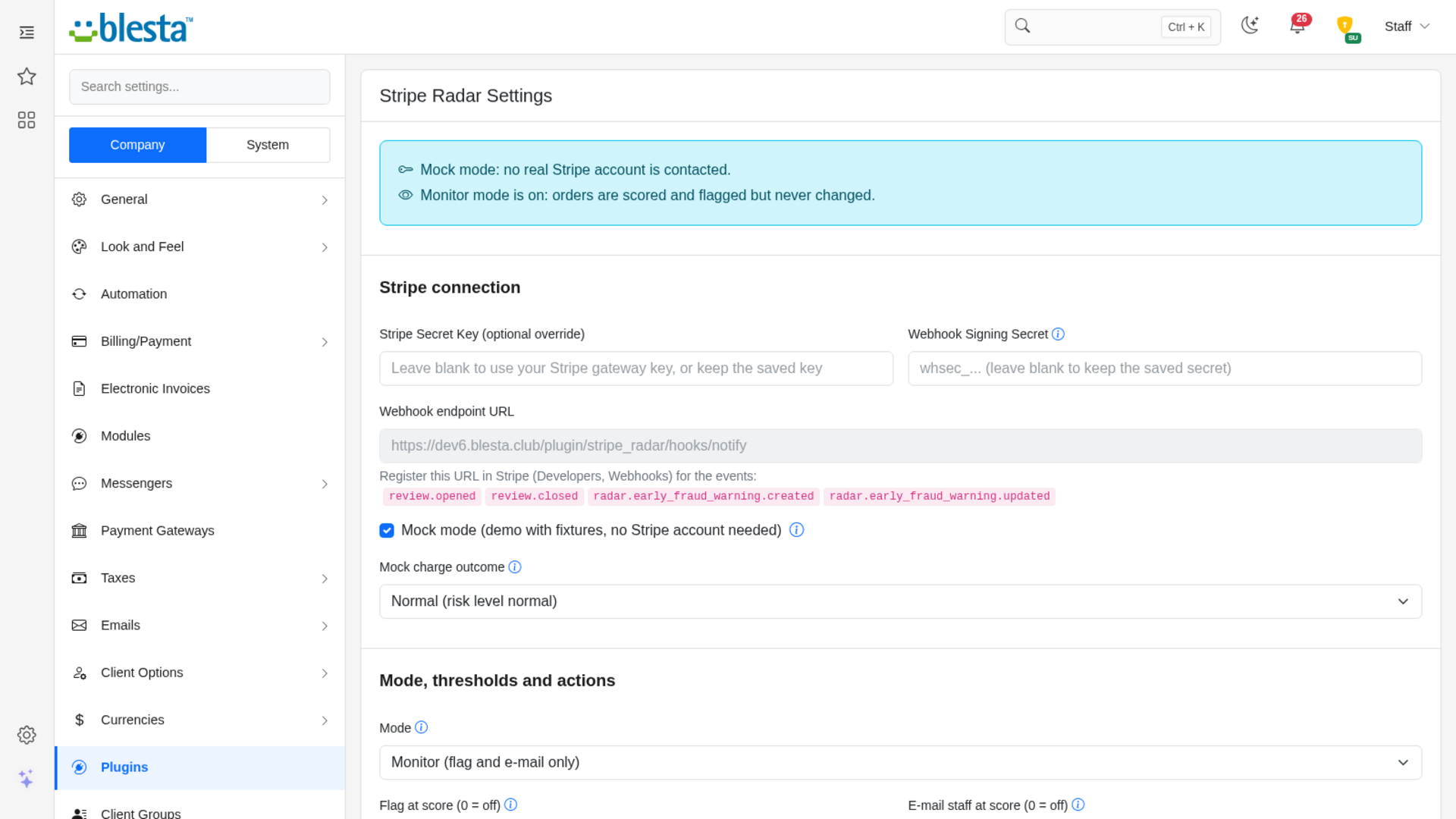
- Under Stripe connection, leave Stripe Secret Key (optional override) blank to use the key of your Stripe gateway, or paste a secret or restricted key. A restricted key needs Radar read access, refunds and, if you sync lists, value lists. A new key is checked with Stripe when you save.
- Copy the Webhook endpoint URL shown on the page. In your Stripe Dashboard go to Developers > Webhooks, add an endpoint with that URL for the events
review.opened,review.closed,radar.early_fraud_warning.createdandradar.early_fraud_warning.updated, then paste the endpoint's signing secret (it starts withwhsec_) into Webhook Signing Secret. The address must be reachable from the internet, so if your site sits behind a firewall or an access gate, allow it through. - Under Mode, thresholds and actions, leave Mode on Monitor (flag and e-mail only) for now. Type the staff addresses that should be told about flagged orders into Alert e-mail recipients.
- Review the thresholds, Order signals (high-risk countries and packages), Score weights, Radar lists and the Order anti-fraud component section, then click Save. Blesta shows "The Stripe Radar settings were saved." and returns you to the Installed list.
- To try everything without a Stripe account, tick Mock mode (demo with fixtures, no Stripe account needed) and choose a Mock charge outcome instead of entering a key. Mock mode is off on a fresh install; turn it off again before you take real payments.
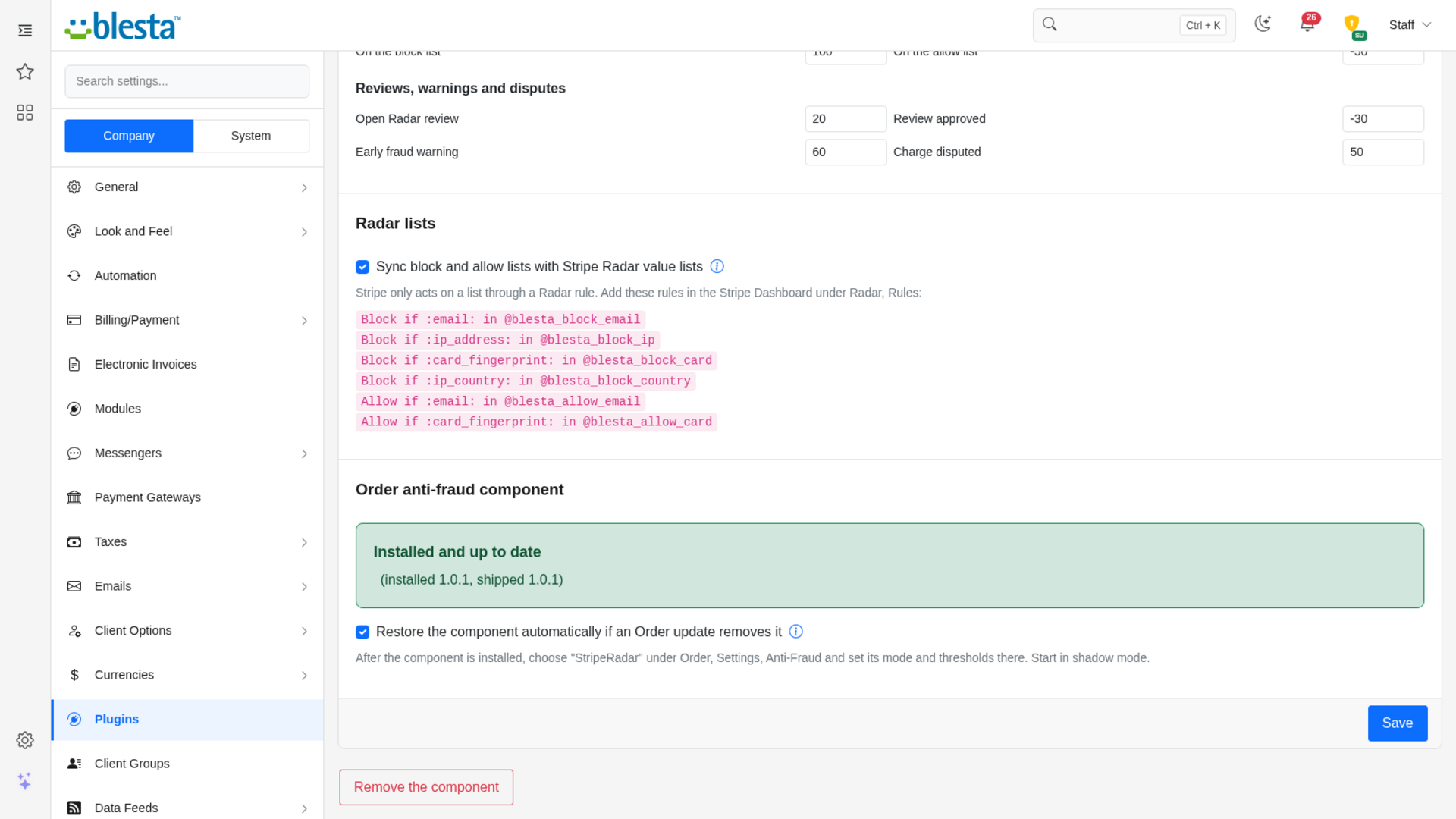
The Order anti-fraud component section shows whether the check is installed. When it is, a red Remove the component button is offered; Install or repair the component appears only when the check is missing or out of date. If the web server cannot write to the Order plugin's folder, the page shows the exact folder to copy by hand.
5. Turn on the checkout check
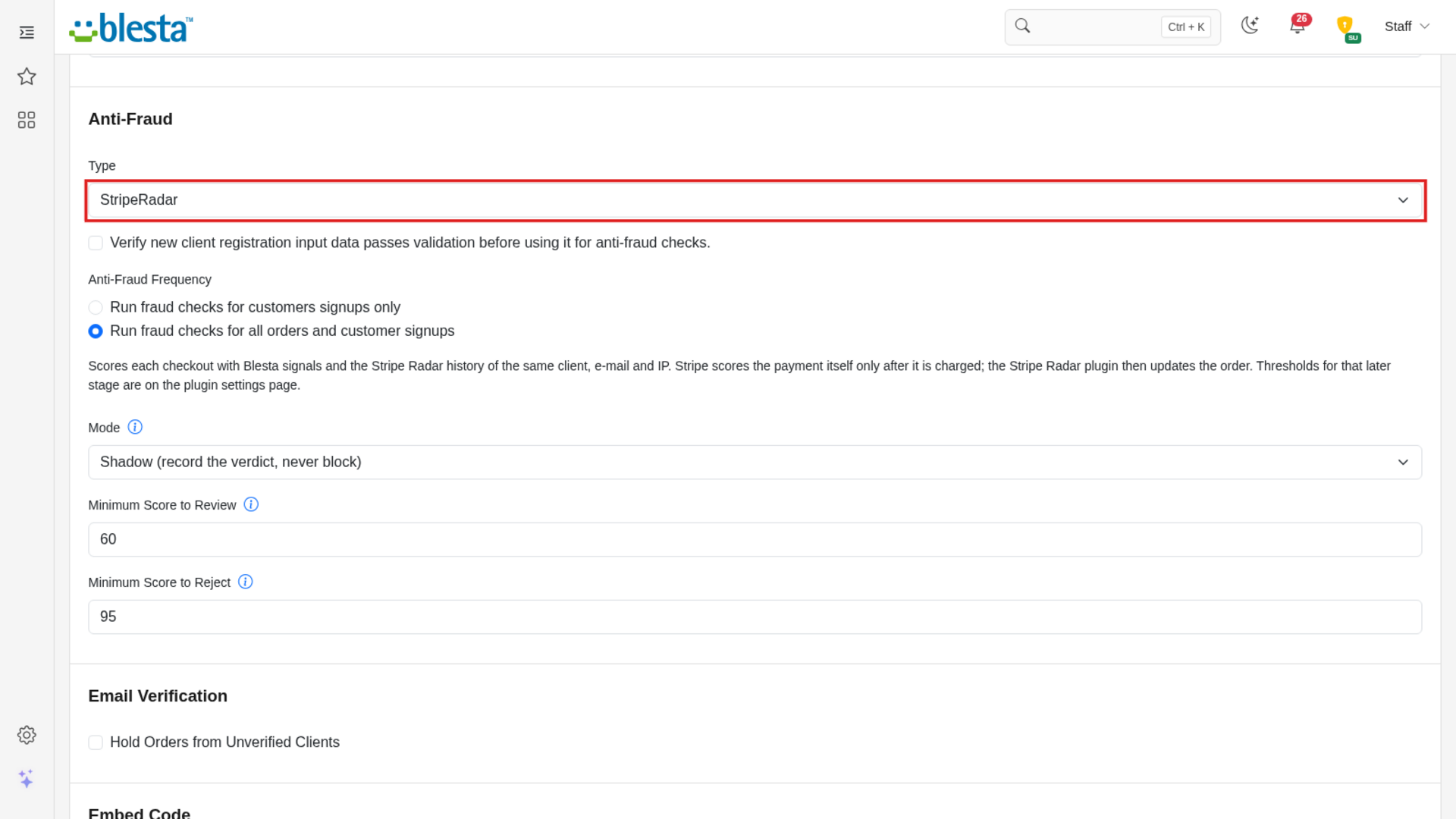
Go to Packages > Order Forms and click the Settings tab (next to Order Forms). In the Anti-Fraud section, set Type to StripeRadar. Three fields appear:
- Mode: Shadow (record the verdict, never block) or Enforce (review or reject orders). Keep it on Shadow.
- Minimum Score to Review: 60 by default.
- Minimum Score to Reject: 95 by default.
Save. Leave everything in monitor and shadow mode for a few days, read the Stripe Radar overview and review queue, then switch to Enforce when you trust the scores. Blesta does not check what you type in these two score fields: anything that is not a whole number from 0 to 100 is ignored and the default is used, and when the reject score is lower than the review score, an order that reaches the reject score is rejected.
You're ready to go - see the usage guide for a walkthrough of day-to-day use.
Installing and updating extensions can now be done automatically through the Blesta Club Subscription Manager - this is the recommended way going forward.
Updating Stripe Radar
Upgrading works just like installing: upload the new files over the old ones, then run the upgrade from the same page you installed it on.
- Back up your current extension files first - good practice before any upgrade.
- Upload the new version over the existing folder, replacing the old files.
- Log in to your Blesta admin area and go to Settings > Company > Plugins.
- Find Stripe Radar and click Upgrade to run the upgrade.
The upgrade also refreshes the Order anti-fraud check when its copy inside the Order plugin is out of date.
This upgrade is drop-in - no steps are needed beyond replacing the files and clicking Upgrade.
Good to know
- After updating the Order plugin: Open the Stripe Radar settings. If the Order anti-fraud component shows as missing or out of date, press Install or repair the component. The daily maintenance task also restores it when automatic restore is on, unless you removed it on purpose. Until then checkouts are not checked before payment, but payments are still scored.
- New permissions: When a release adds a permission, tick it on the staff group screen. Installing or updating never grants a permission by itself.
Using Stripe Radar
For your staff
The overview
Open Billing > Stripe Radar. The top of the page shows tiles for Flagged orders, Held orders, Approved on review, Blocked, Estimated fraud prevented and Open in queue, for the last 7, 30 or 90 days (switch with the buttons above the tiles), and a line of the riskiest clients. The Open in queue tile shows a red badge such as 2 EFW when early fraud warnings are waiting. Notices appear above the tiles when there is no Stripe key, when you are still in monitor mode, or when the Order anti-fraud component needs attention. Below the tiles is the list of every assessed order and payment, with its order, client, amount, Radar result, risk and status. Sort it by date, amount, risk or status. Four icon buttons sit in the header of the box: Toggle Filters (the funnel, which shows the status, risk level and e-mail, IP address or Stripe id filters, hidden until you click it), Review queue, Block and allow lists and Mock tools.
Why an order scored what it did
Click the magnifier on any row to open its assessment. Why this score lists every signal that applied and the points it added or took away, the Stripe Radar panel shows the risk level, risk score, outcome, rule and the CVC, postal code, address, 3-D Secure and wallet checks, and Blesta signals shows account age, approved and declined payments, disputes, orders from the same IP address or e-mail, and the countries involved. Further down you see the queue items for the order and an Evidence trail recording everything the plugin did and when. Until a payment is charged, Stripe has not scored it, so only Blesta's signals count.
The review queue
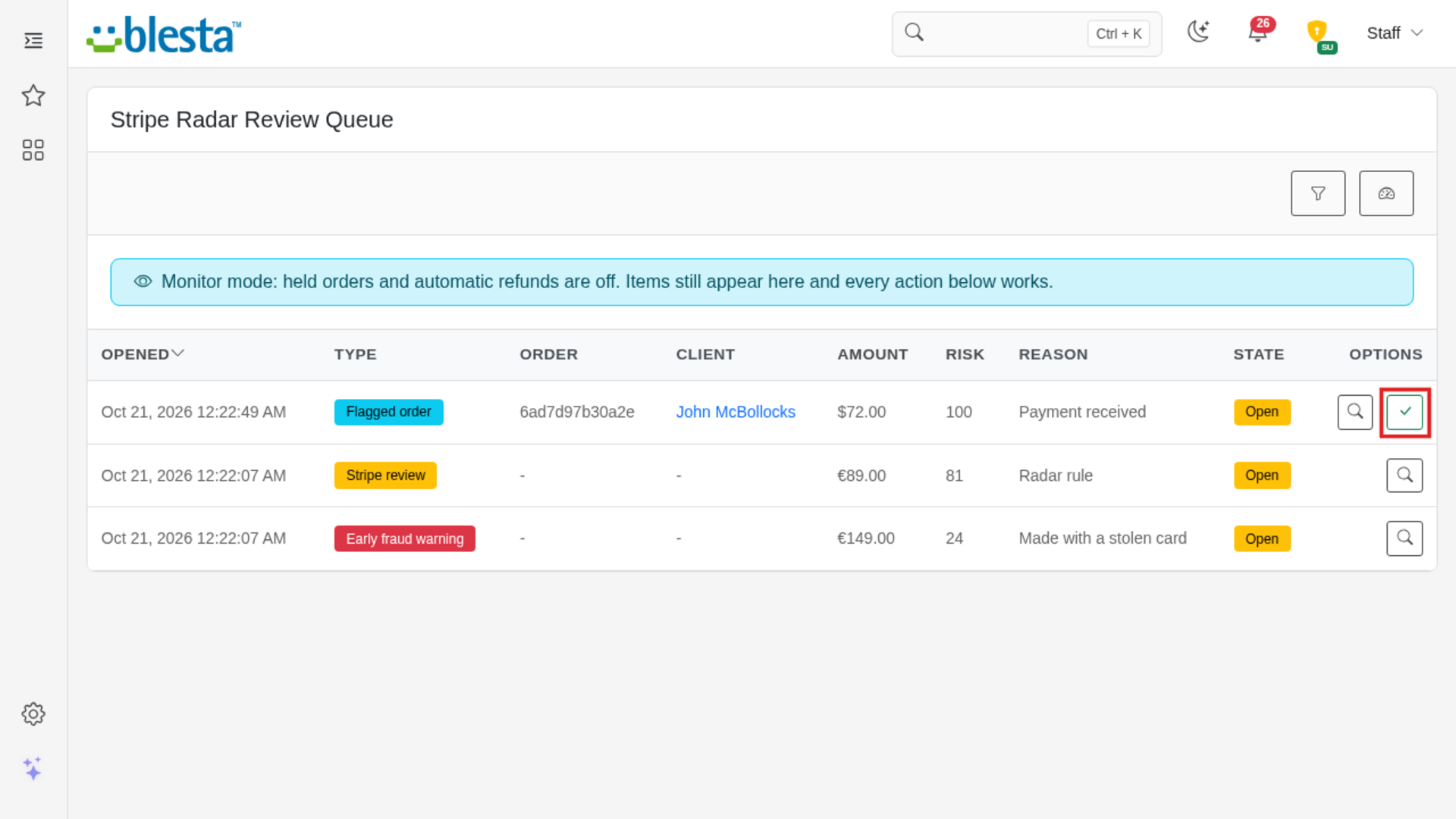
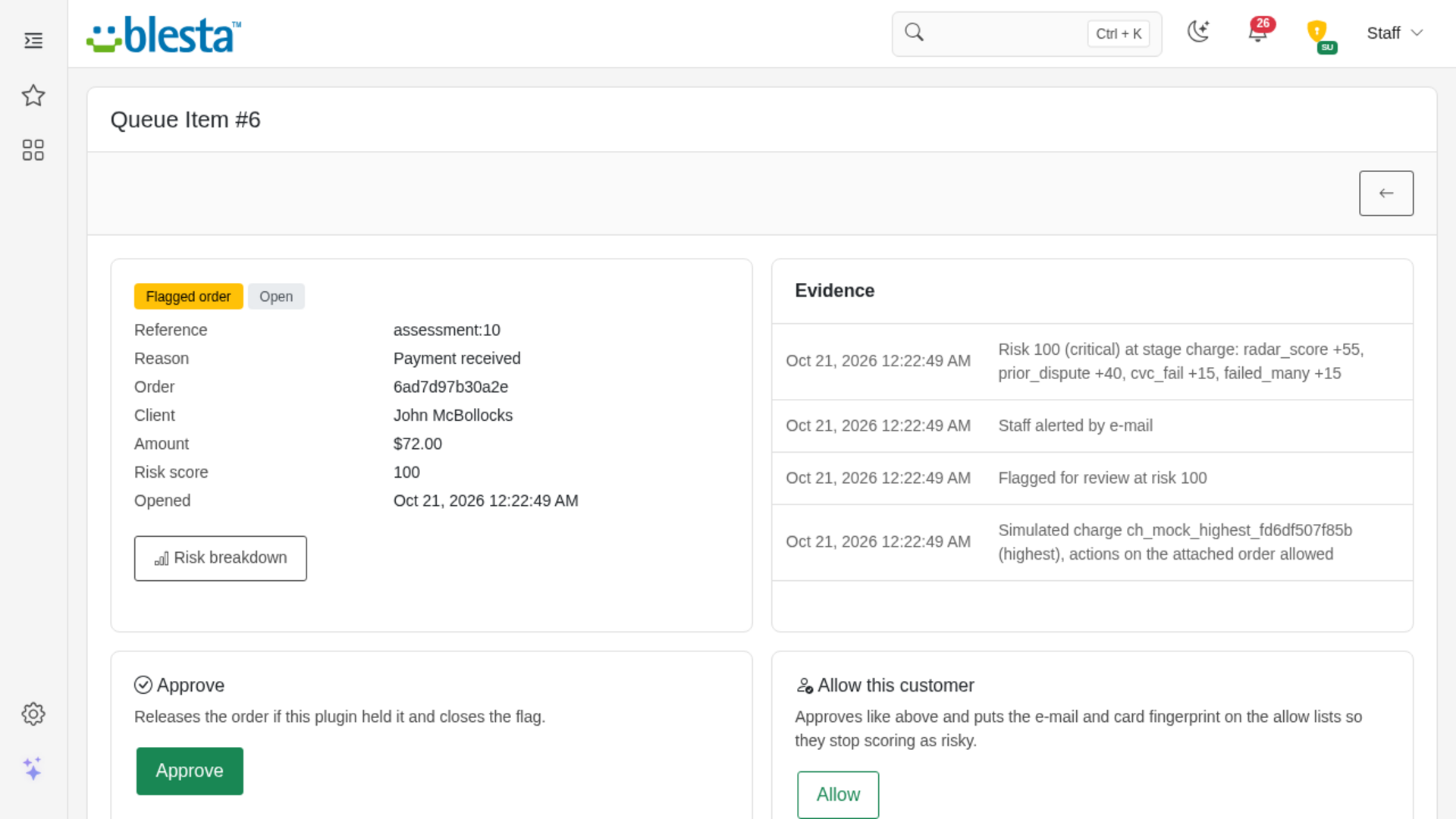
Open Billing > Radar Review Queue. It lists Stripe reviews, early fraud warnings and flagged orders that are still open. Use the filters to show resolved items or one type, or search by Stripe id. Click the magnifier to open an item, or the tick (Approve) to approve it straight from the list. The Reason column shows why the item was raised in plain words, for example "Radar rule" or "Made with a stolen card". The item page has a Risk breakdown button that shows why the order scored what it did. On an item you can:
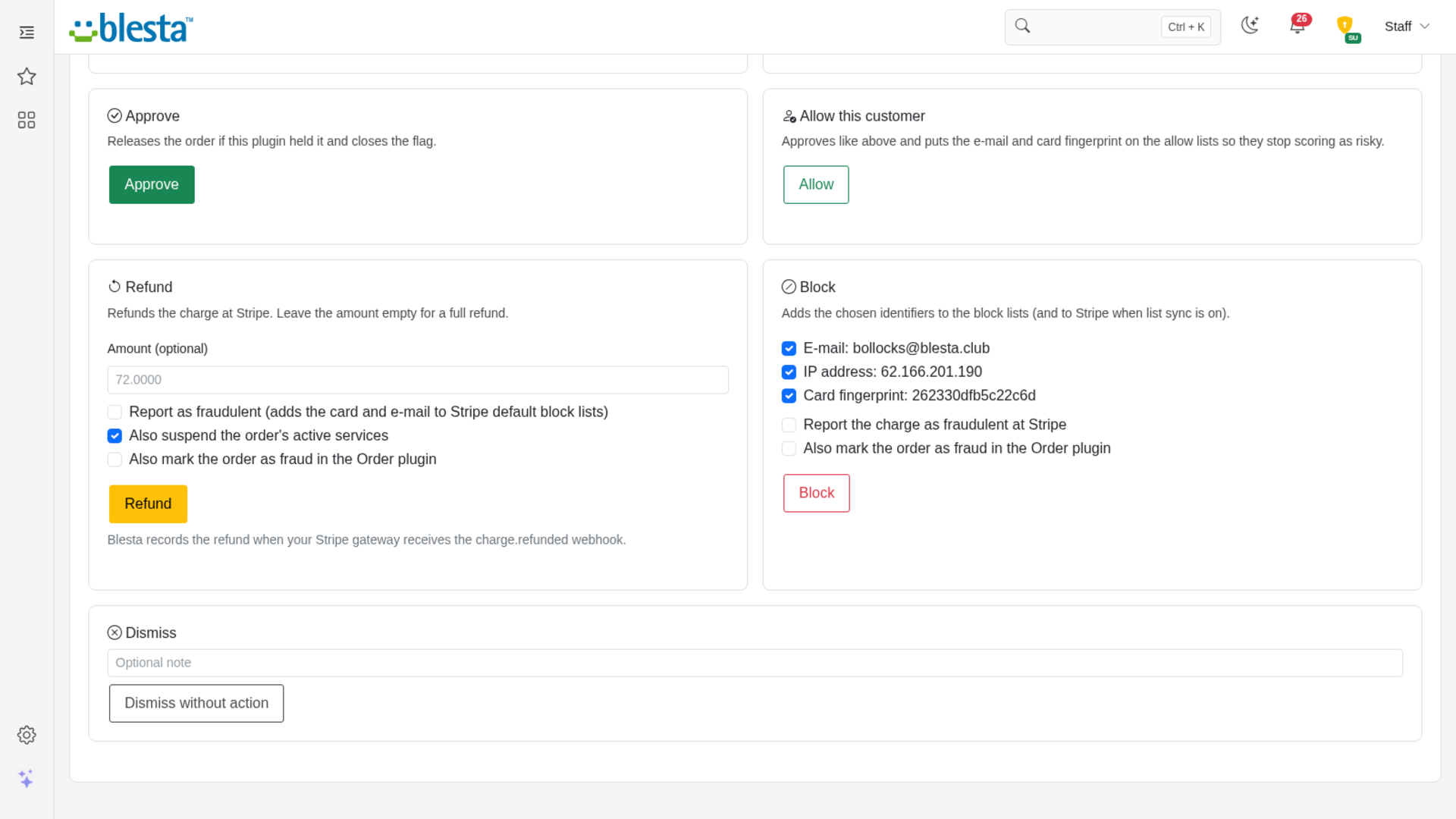
- Approve a review or flagged order. For a Stripe review this tells Stripe the payment is legitimate, and an order is released only if this plugin was the one holding it.
- Allow (in the Allow this customer card) to approve it and put the customer's e-mail and card on the allow lists, so their future payments score lower.
- Refund the charge at Stripe, in full or for an amount you enter, and optionally report it as fraudulent, mark the order as fraud and suspend the order's active services. The message afterwards names the amount refunded, for example "10.50 EUR was refunded at Stripe." Blesta records the refund when your Stripe gateway receives Stripe's refund notice.
- Block the e-mail, IP address and card, optionally reporting the charge to Stripe and marking the order as fraud.
- Dismiss without action, with an optional note, which closes the item and leaves the order as it is.
If you tick Also mark the order as fraud in the Order plugin and Blesta cannot do it, for example because the invoice is already paid, the refund or block still happens and the message tells you the order could not be marked as fraud. The amount you type in a refund is checked: it must be greater than zero, not above the charge, with at most two decimals, otherwise you see "Enter an amount greater than zero and not above the charge, with at most two decimals." Blocking with nothing ticked gives "Select at least one identifier that is known for this item." A dismiss note may be at most 200 characters.
Each action asks you to confirm and is its own staff permission, so a team without the permission does not see the button. An early fraud warning cannot be approved, only refunded, blocked or dismissed. An item for a Stripe charge that has no order or client in Blesta can only be dismissed.
The confirmation windows say, for example: "Approve this Stripe review? Stripe is told the payment is legitimate, and the order is released if this plugin was holding it." for Approve, "Dismiss this item? No action is taken and the order stays as it is." for Dismiss, and "Block the selected identifiers? ... matching orders score 100 and are flagged or held." for Block. The refund window explains that the amount typed in the field is refunded, or the full charge when it is empty.
Block and allow lists
Open the lists from the overview. Choose the list, the type (e-mail, IP address, card fingerprint or, for block lists, country), type the value and a reason (up to 255 characters), and click Add. A country must be a real two-letter country code; adding something that is already on the list tells you "The entry is already on the list." An entry on the block list adds a lot of risk to any order and is checked at checkout; an entry on the allow list lowers it. With list sync turned on in the settings, entries are pushed to Stripe Radar value lists, items added in Stripe are pulled in, and Sync with Stripe now runs it on demand and reports, for example, "Lists synced: 3 pushed, 0 pulled, 0 dropped." (the daily maintenance task also runs it). Stripe only acts on a list through a Radar rule, and the settings page shows the rule text to add in your Stripe Dashboard under Radar, Rules.
The settings
Open Settings > Company > Plugins, then Manage next to Stripe Radar.
- Mode: Monitor flags and e-mails only. Enforce also holds orders, suspends services, marks fraud and refunds early fraud warnings, according to the thresholds.
- Thresholds: Flag, e-mail, hold, suspend and mark-as-fraud scores. 0 turns that action off. Radar reviews and early fraud warnings always flag, and can hold the order through the options beneath.
- Early fraud warning refunds: Tick Automatically refund actionable early fraud warnings and set the Auto refund cap. Warnings on charges above the cap are never refunded automatically.
- Suspend services as this staff member: Choose who automatic suspensions are made as, so Blesta does not lift them again by itself.
- Order signals: High-risk countries, the amount that counts as a large first order, the server header that carries the visitor's country, extra Stripe gateway names, and the packages that add risk.
- Score weights: The points for each signal, grouped by topic. 0 switches a signal off; the default is shown beside each.
- Radar lists and Order anti-fraud component: Turn on list sync, and install, repair or remove the component that checks checkouts.
- Mock charge outcome: The Radar result that mock charges carry when mock mode is on.
- Handle events for charges Blesta does not know and Assess every new order, even when the Order anti-fraud component is not selected control how widely the plugin acts.
The client profile widget
On a client's profile in the staff area, the Stripe Radar widget shows their peak score and risk level and a line such as "4 assessment(s), 3 flagged, 1 held, 0 early fraud warning(s)", followed by up to five of their latest assessments (date, score, status and a magnifier that opens the assessment). It has no buttons of its own.
What happens at checkout
With the checkout check set to Shadow, the order goes through as normal and its fraud report records Stripe Radar, the Risk score and a Verdict such as "review (shadow mode, not enforced)". In Enforce, an order that reaches the review score looks complete to the customer but is held as pending with a fraud status of review, and an order that reaches the reject score is refused: the cart shows "Your order can not be processed at this time." The plugin can also hold an order at creation when the checkout check is not selected, because it assesses every new order unless you turn that off in the settings.
If a save is refused
The settings page tells you what to fix, for example: "The flag score must be a number from 0 to 100 (0 turns it off).", "Enter an auto refund cap above 0, or turn automatic refunds off.", "The weight for CVC check failed must be a whole number from -100 to 100.", "Enter valid e-mail addresses separated by commas.", "The signing secret must start with whsec." or "Either type a new Stripe key or tick the box to clear the stored one, not both." Text that cannot be used is refused rather than quietly changed: a Stripe key must start with sk or rk_, extra gateway names may only use lower-case letters, numbers and underscores, and the country codes must be two letters each and fit in 255 characters. On the Order settings page, Blesta itself accepts any text in the review and reject score fields; anything that is not a whole number from 0 to 100 is ignored and the default is used.
Trying it with mock mode
Tick Mock mode in the settings, then open Mock tools from the overview. Generate charge creates a fake Stripe charge for a scenario (normal, elevated, highest risk, review, blocked, CVC and postal code fail, early fraud warning), optionally attached to a real order; it is scored and recorded but does not touch the order unless you tick the option that lets the policy act. Send event sends a review or early fraud warning for a charge through the real webhook handler, using the same review or warning every time so you can open it and then close or update it on one queue item. Generating a charge needs an amount from 1.00 to 999999.99 with at most two decimals, and an optional valid e-mail address. The tools only run while mock mode is on.
Good to know
- Stripe scores a payment only when it is charged, so before payment only Blesta's own signals count. The plugin never makes up a Radar score.
- The Radar risk level needs a Radar plan that returns it, and the numeric score, manual reviews and custom lists need Radar for Fraud Teams or Radar Plus. Without them the plugin keeps working on Blesta's signals and your local lists.
- If an Order update replaces the Order plugin's folder, the anti-fraud check disappears and checkouts are simply allowed through until it is restored. The daily maintenance task restores it, or press Install or repair the component on the settings page.
- Holding an order keeps it pending with a fraud status of review, so Blesta's own order task does not accept it until staff release it.
- Refunds are made at Stripe only. Blesta's books follow when your Stripe gateway receives Stripe's refund notice.
v1.0.0 - 2026-10-31
PHP 8.2 - 8.4 · Blesta 6.x
- Initial release
Pricing Options
Get exactly what you need and want.
Requires PHP 8.2 - 8.4 · Blesta 6.x
Included In
Value: Free
- +28 Other Extensions
- Additional Discounts
- Included Support & Updates
Leased
- Partially Encoded
- Full Functionality
- Included Support & Updates
Owned - Source
- Source Available
- Buy Once Use Forever
- 1 Year Support & Updates
Not sure whether to lease or own? Our FAQ explains how the licence types differ.
Reviews
What our customers say
(0 customer reviews)
Seems like this extension doesn't have reviews yet...
Be one of the firsts to leave a review!
It is possible to leave a review only if you have purchased this extension or a Club tier which contains it.
We reserve the right to alter wording or formatting for presentation.
We will discuss any changes made and offer the option to withdraw review text if the changes can't be agreed on.
It may take up to 1 hour for a review to appear or update due to caching.
You might also like
More extensions to explore

Plugin
Announcements
Integrate the Announcements plugin to provide updates and news to your clients.
PHP 8.2 - 8.4 · Blesta 6.x


Plugin
Client Data Changelog
See what changed on a client's account, when it changed and who changed it.
PHP 8.2 - 8.4 · Blesta 6.x



Plugin
Credit Awards
Give your clients rewards based upon service purchases.
PHP 8.2 - 8.4 · Blesta 6.x