Server Profitability
The Server Profitability plugin weighs what each server, location and package costs against the revenue it earns in Blesta. It shows profit, margin and utilisation, with charts over time and alerts when something stops being profitable.
Free - View Pricing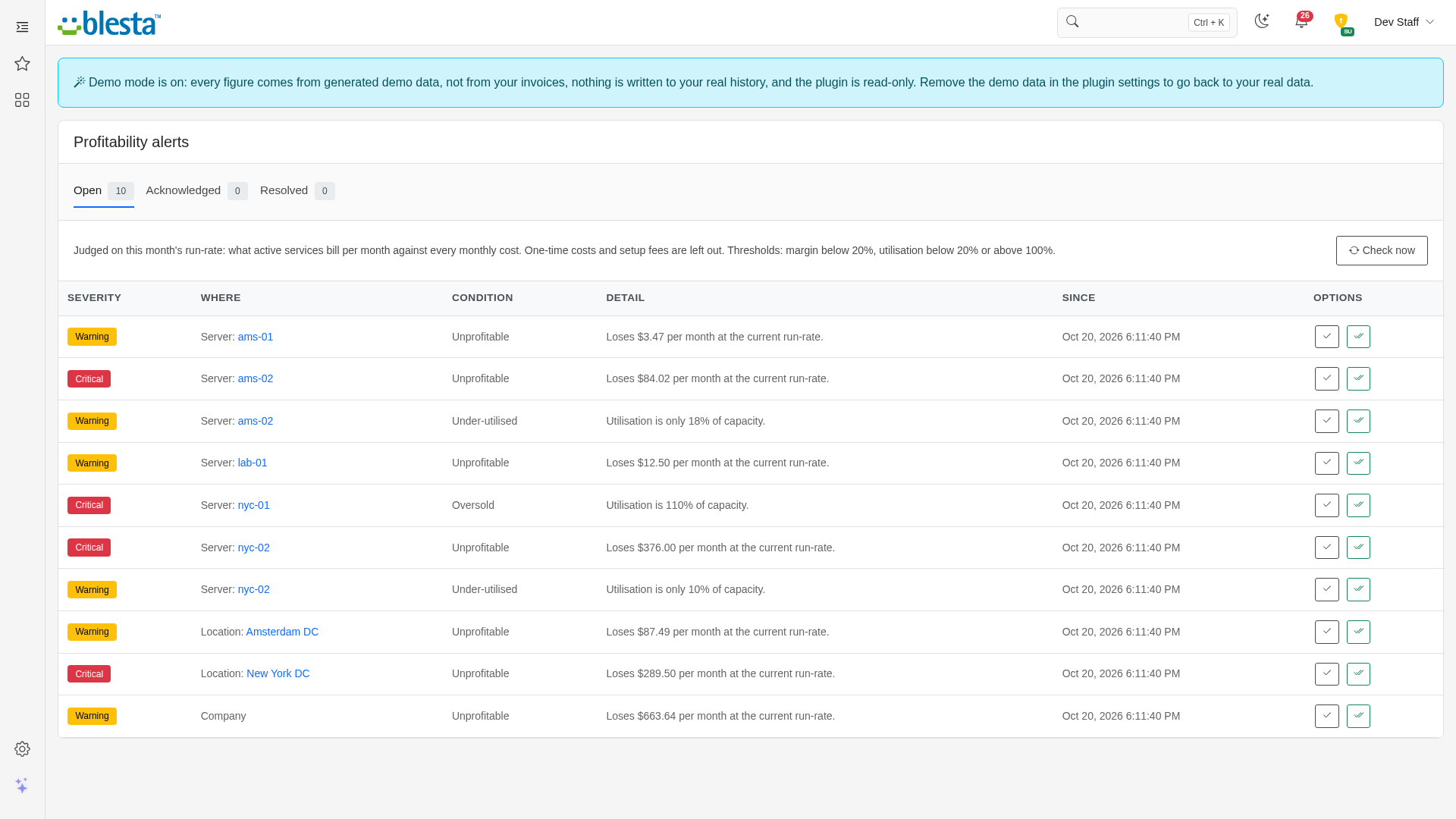
Features
What Server Profitability gives you
Automatic Background Processing
Runs on Blesta's cron with no manual upkeep, so everything stays up to date on its own.
Manual Service Overrides
Pin a single service to a server by hand when no rule can describe it. An override always wins over every rule.
Per-Company Configuration
Configure it independently for each brand on a multi-company install, so every company runs with its own settings.
Fair Monthly Proration
Costs follow the calendar, so a whole month always costs exactly one month whatever its length and a part month costs its share.
Fully Translatable
Every staff and client label ships in editable language files, ready to translate into any language or reword to match your brand.
CSV and JSON Export
Download the overview, servers, locations, packages, costs and history as CSV or JSON for your accountant or your own spreadsheets.
Feeds Advanced Statistics
Shares its profit figures with the Advanced Statistics plugin, so a profit tile can sit next to your subscription and revenue numbers.
Alert Emails
New, reopened and escalated alerts are emailed to the addresses you choose, and an email that fails to send is retried at the next check.
Package Profitability
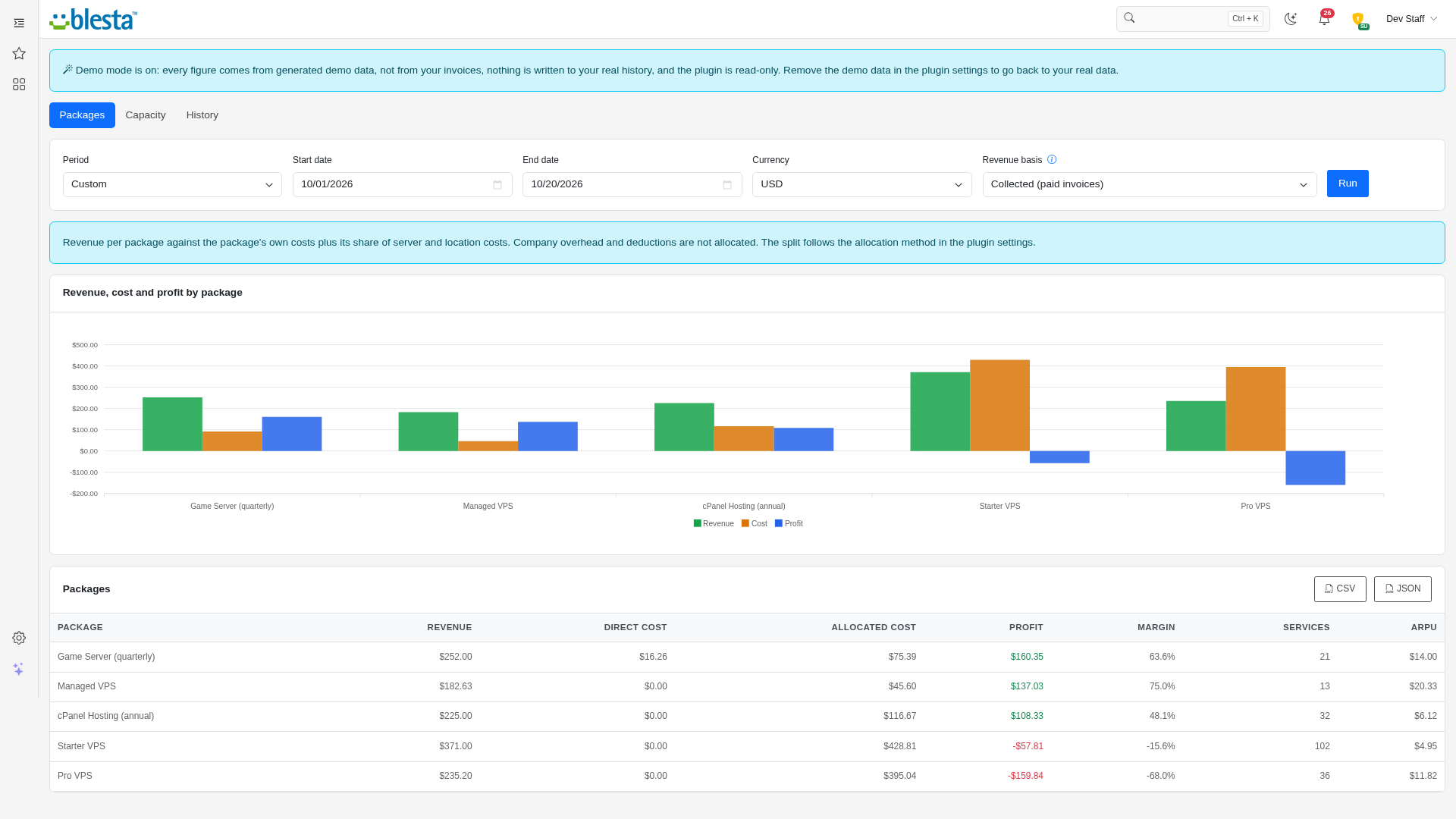
See profit per package, with server and location costs shared between the packages that run on them equally per service or by revenue share.
Per-Staff-Group Permissions
Each staff action it adds is a separate permission you grant per staff group, so each team gets exactly the access it needs and nothing more.
Reporting in Your Currency
Pick the reporting currency per report and everything is converted with your own Blesta exchange rates, with a warning when a rate is missing.
Demo Data to Explore With
Generate a fictional hosting business to try every screen before you enter your own costs, then remove it again without touching your own records.
Built-In Demo Mode
A built-in demo mode runs the whole extension from bundled sample data, so you can trial every screen and action before you have an account or API key.
Charts and Drill-Down
Charts show the revenue, cost and profit trend, where the money goes, profit by server, package results, utilisation and history, in light and dark mode.
Deductions Netted From Revenue
Add company-wide deductions such as payment processor fees, as a fixed amount, a percentage of revenue, an amount per paid invoice or an amount per service billing term.
Editable Email Templates
The emails it sends install as standard Blesta templates in every language you have enabled, so you can reword them, restyle the HTML and choose which details they carry.
Hardware Written Off Over Time
Enter what you paid for hardware, what you expect it to be worth later and how many months to write it off over, and the cost is spread evenly across that window and stops when it ends.
Capacity and Utilisation
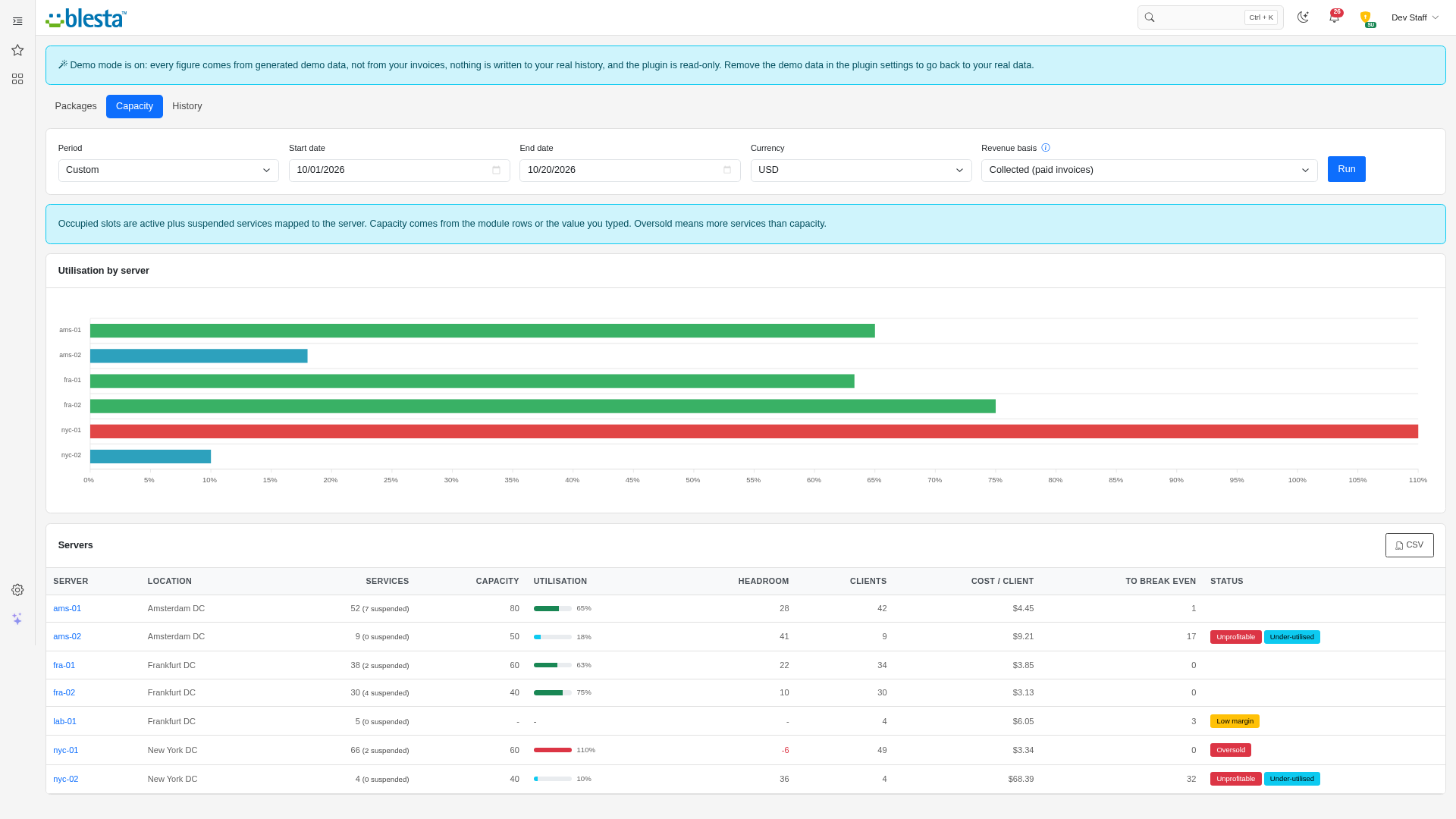
Read each server's capacity from the module rows mapped to it or type it in, then see utilisation, headroom, oversold and under-used flags, cost per client and how many services it takes to break even.
Collected or Run-Rate Revenue
Choose between revenue actually paid in the period and the monthly run-rate of your active services after recurring discounts, so a month that is not over yet is still judged fairly. Taxes are never counted.
Monthly History With Charts
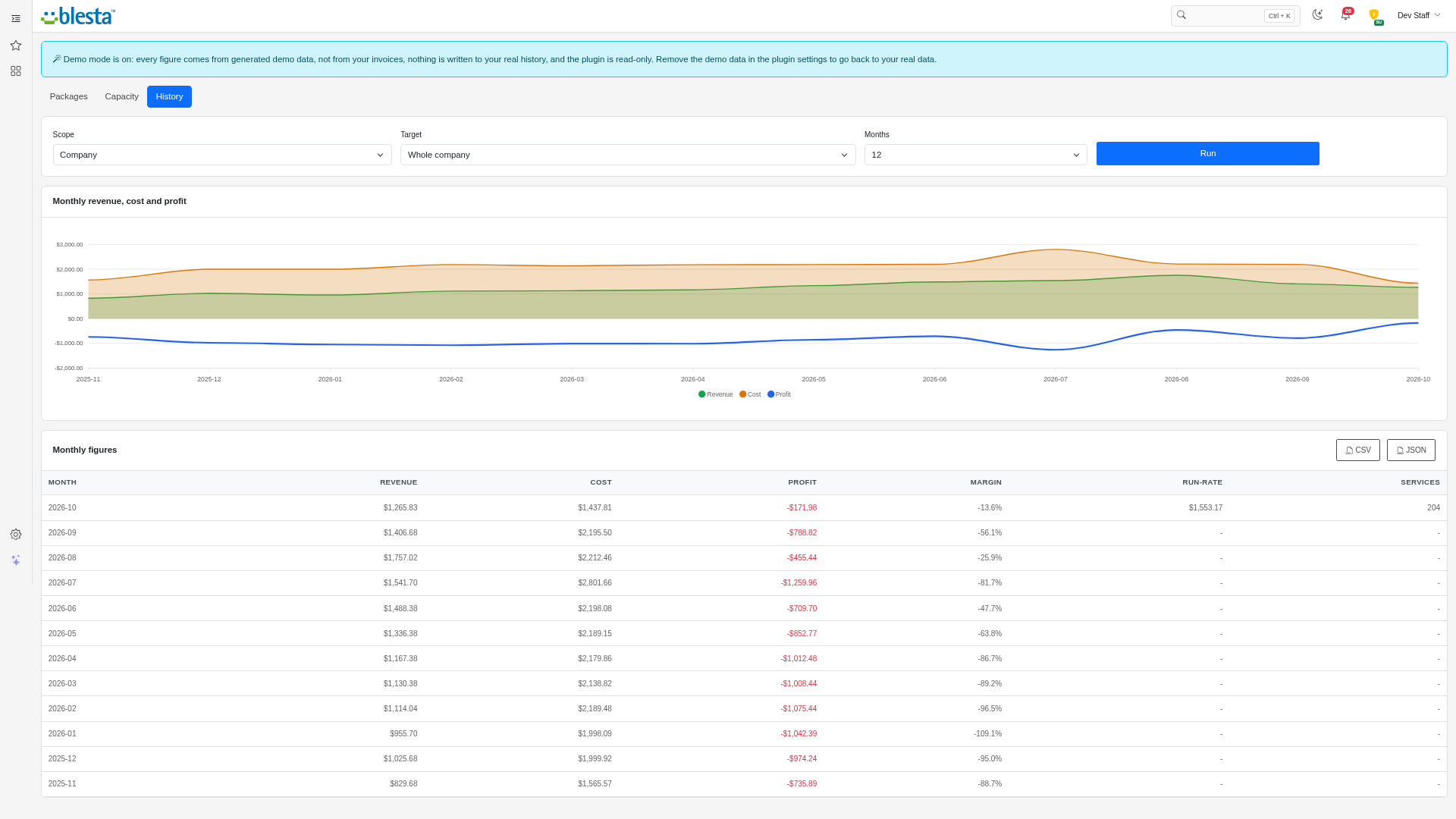
A background task stores the figures of each month so the history survives renames and deletions, with charts for any company, location, server or package, and a button to rebuild past months from your invoices.
Profit Per Server, Location and Package
An overview shows revenue, cost, profit and margin for every location and server, with the revenue and cost lines behind each figure one click away, so you can see exactly where the money comes from and where it goes.
Profitability Alerts
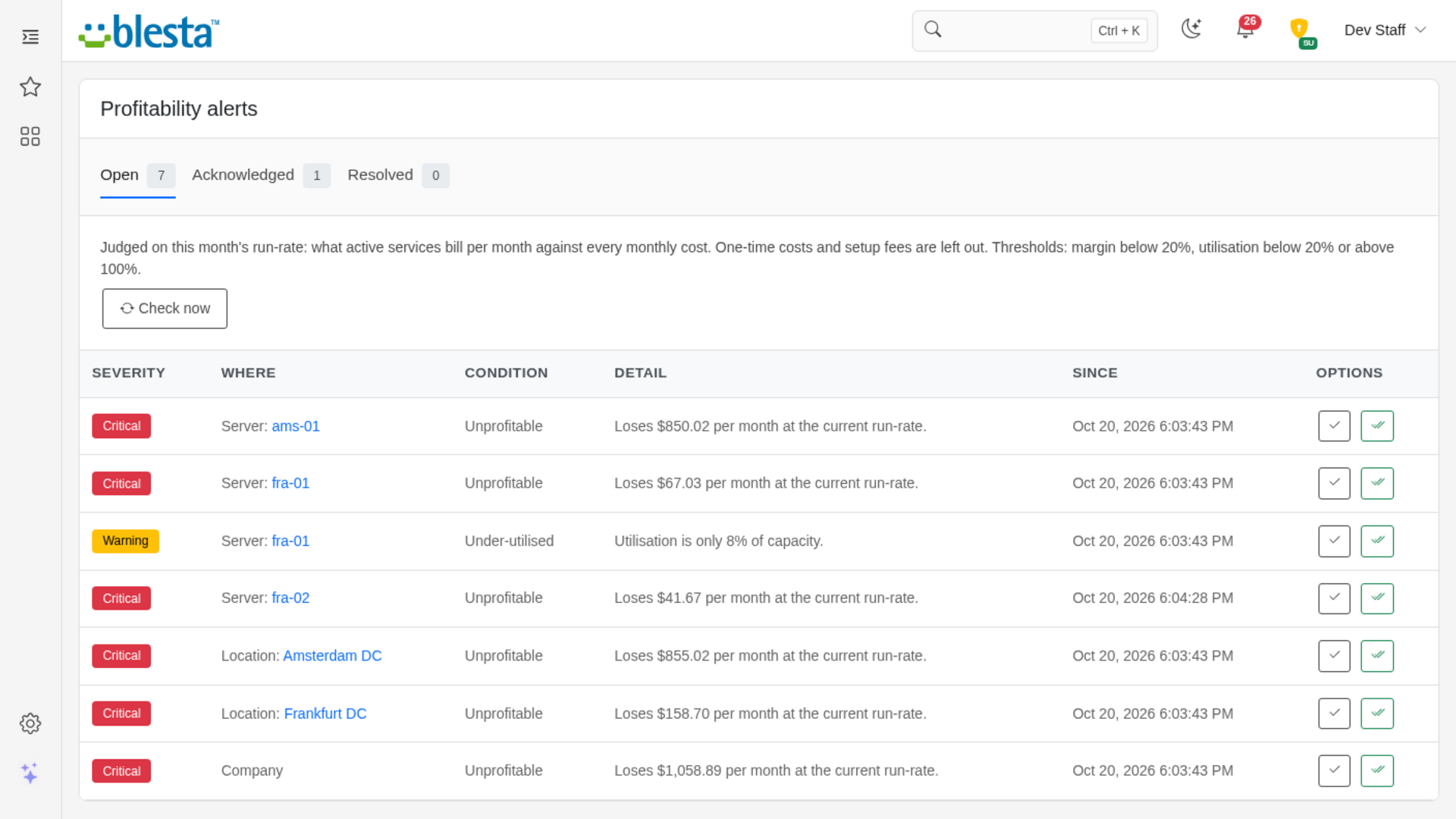
Get alerts for servers and locations that are unprofitable or below your margin, and servers that are oversold or under-used, then acknowledge them or mark them resolved. Thresholds are yours to set, with a different minimum margin per server if you want one.
Automatic Revenue Mapping
Map revenue to a server or location with ordered rules on a whole module, a module row, a package, a configurable option or the text of an invoice line, drag the rules into order, and preview what each one catches. Anything no rule claims is shown as not assigned.
Every Kind of Cost
Enter recurring, one-time and hardware costs against a server, a location, a package or the whole company, with a category, a billing cycle from monthly to every three years, an optional setup fee, a fixed quantity or a per-service multiplier for per-account licences.
What-If Calculator
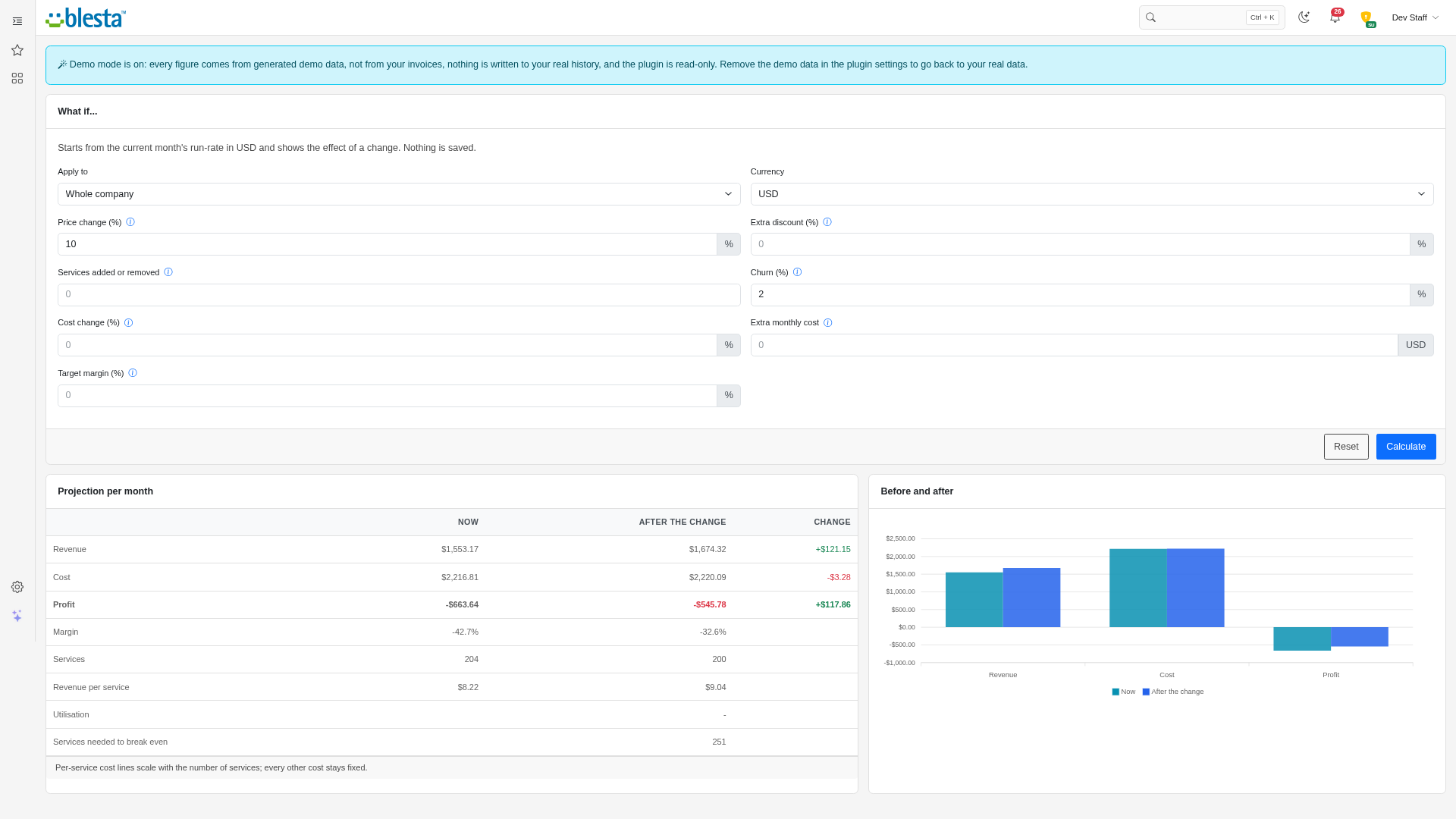
Try a price change, an extra discount, more or fewer services, churn, a cost change or an extra monthly cost on the company, a location, a server or a package, and see the effect before you commit. Enter a target margin and it tells you the price per service you would need.

Server Profitability
See which servers, locations and packages make you money and which ones lose it, by setting what each one costs against what it earns.
What it does
Blesta knows what your clients pay, but not what the servers behind those services cost you. Server Profitability closes that gap. You tell it which servers and locations you run and what you pay for them, it works out which of your services run where, and it shows you revenue, cost, profit and margin for every server, location and package. Nothing leaves your Blesta: revenue is read from your own invoices and services, and costs are the ones you type in.
Key features
- Profit per server, location and package: An overview with revenue, cost, profit, margin and utilisation for every location and server, and the lines behind each figure one click away.
- Automatic revenue mapping: Ordered rules attribute services to a server or location by module, module row, package, configurable option or invoice line text, with a preview of what each rule catches and manual overrides for the odd one out.
- Every kind of cost: Recurring, one-time and hardware costs per server, location, package or company, with billing cycles up to three years, setup fees, quantities, per-account licences and hardware written off over time.
- Collected or run-rate revenue: Judge a period on what was actually paid, or on what your active services bill per month, which is the fair view for a month that is not over yet.
- Capacity and break-even: Utilisation per server, oversold and under-used warnings, cost per client, and how many services it takes to break even.
- History and alerts: Monthly figures stored by a background task, charts over time, and alerts with optional email when a server or location becomes unprofitable, drops below your margin, or is oversold or under-used.
- What-if calculator: Test a price change, discount, churn, more services or a cost change before you commit.
- Export and demo data: Download any report as CSV or JSON, and explore a fictional hosting business first if you want to see every screen filled in.
Installing and updating extensions can now be done automatically through the Blesta Club Subscription Manager - this is the recommended way going forward.
Installing Server Profitability
Before you start
- Server Profitability needs Blesta 6.0 or later.
- If you are on the leased (subscription) licence, the Blesta Club Subscription Manager must be installed and your subscription active. The owned and owned-source licences have no such requirement.
1. Upload the files
Upload the extension folder into your Blesta installation so it lands under your Blesta directory at:
plugins/server_profitability/For example, on a typical install: /var/www/html/blesta/plugins/server_profitability/
2. Install it in Blesta
- Log in to your Blesta admin area with a staff account that has the Plugins permission (including Install Plugin) under the Settings group in Manage Staff Groups. The first Settings page you open in a session asks for your password again; this lasts for about five minutes after your last Settings page. The plugin's own pages never ask.
- Go to Settings > Company > Plugins and click the Available tab.
- Find Server Profitability in the list and click Install. Blesta confirms with "The plugin was successfully installed" and reminds you that you may need to grant your staff group access to its permissions. The plugin then moves to the Installed tab, where its row has the buttons Settings, Manage, Disable and Uninstall.
3. Configure it
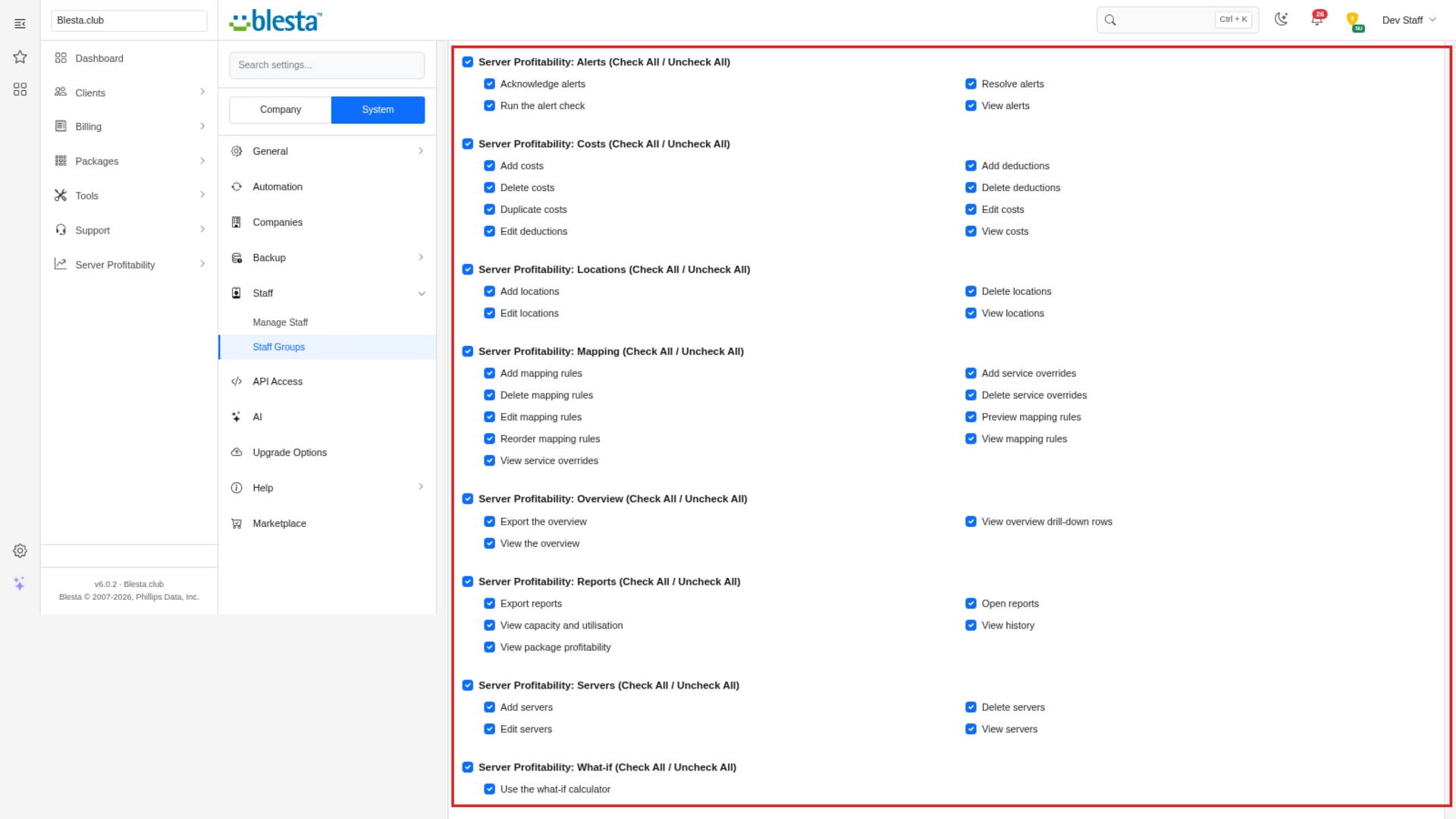
- Grant the new permissions. The plugin adds eight permission groups, one for each area: Server Profitability: Alerts, Costs, Locations, Mapping, Overview, Reports, Servers and What-if. The Administrators group is ticked for all of them automatically. Blesta never grants a new permission to any other group, so go to Settings > System > Staff > Staff Groups, edit each other group that should use the plugin (for example Billing), tick the Server Profitability permissions you want it to have and save. Until you do, the Server Profitability menu stays hidden for that group.
- Open the plugin settings: on the Installed tab, click Manage next to Server Profitability. (The Settings button on that row only shows the plugin's automation tasks.)
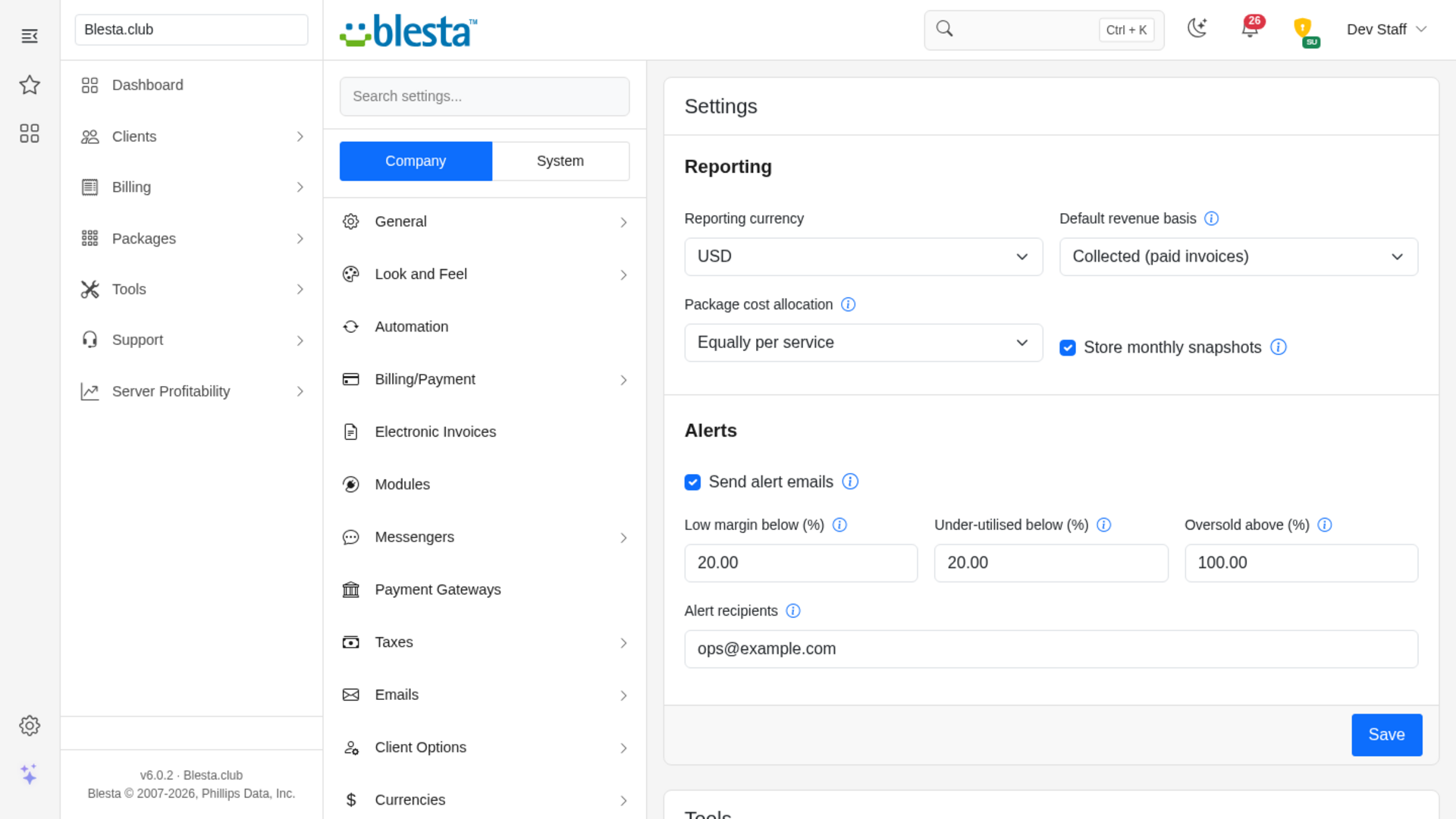
- Under Reporting, choose the Reporting currency (or leave it on your company default currency), the Default revenue basis (collected or run-rate), the Package cost allocation (equally per service or by revenue share) and whether to Store monthly snapshots.
- Under Alerts, tick Send alert emails if you want them, set the thresholds Low margin below (%), Under-utilised below (%) and Oversold above (%), and enter the email addresses (separated by commas) that should receive alerts in Alert recipients. Leave the recipients blank if you only want alerts listed inside Blesta.
- Click Save. Blesta takes you back to the Installed tab and shows "The settings were saved."
- Make sure Blesta's cron is running. The plugin registers two tasks that you can see under Settings > Company > Automation, on the Plugin tab in the Server Profitability group: Server Profitability: monthly snapshots, which stores the figures every night at 02:00 UTC, and Server Profitability: check alerts, which checks your alerts every morning at 06:00 UTC.
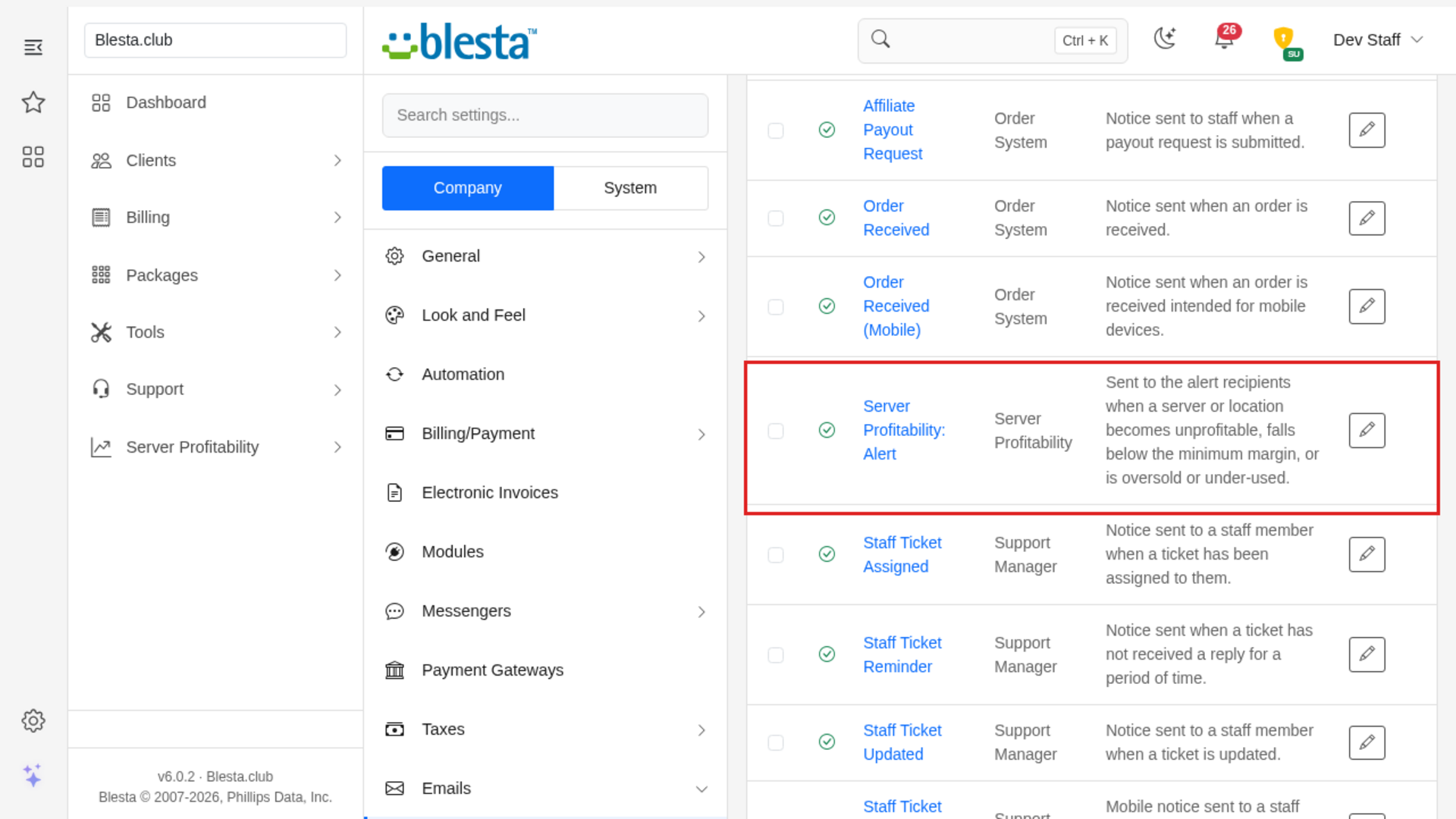
- The alert email is installed as a normal Blesta template. To reword it, go to Settings > Company > Emails, open the Plugin Emails tab and edit Server Profitability: Alert.
There is nothing to connect to: all revenue is read from your own Blesta data. If you would like to see the screens filled in before you enter your own servers and costs, use Generate demo data on the same Manage page.
You're ready to go - see the usage guide for a walkthrough of day-to-day use.
Installing and updating extensions can now be done automatically through the Blesta Club Subscription Manager - this is the recommended way going forward.
Updating Server Profitability
Upgrading works just like installing: upload the new files over the old ones, then run the upgrade from the same page you installed it on.
- Back up your current extension files first - good practice before any upgrade.
- Upload the new version over the existing folder, replacing the old files.
- Log in to your Blesta admin area and go to Settings > Company > Plugins.
- On the Installed tab, find Server Profitability and click Upgrade to run the upgrade.
This upgrade is drop-in - no steps are needed beyond replacing the files and clicking Upgrade. Your locations, servers, rules, costs, history and alerts are kept.
Using Server Profitability
For your staff
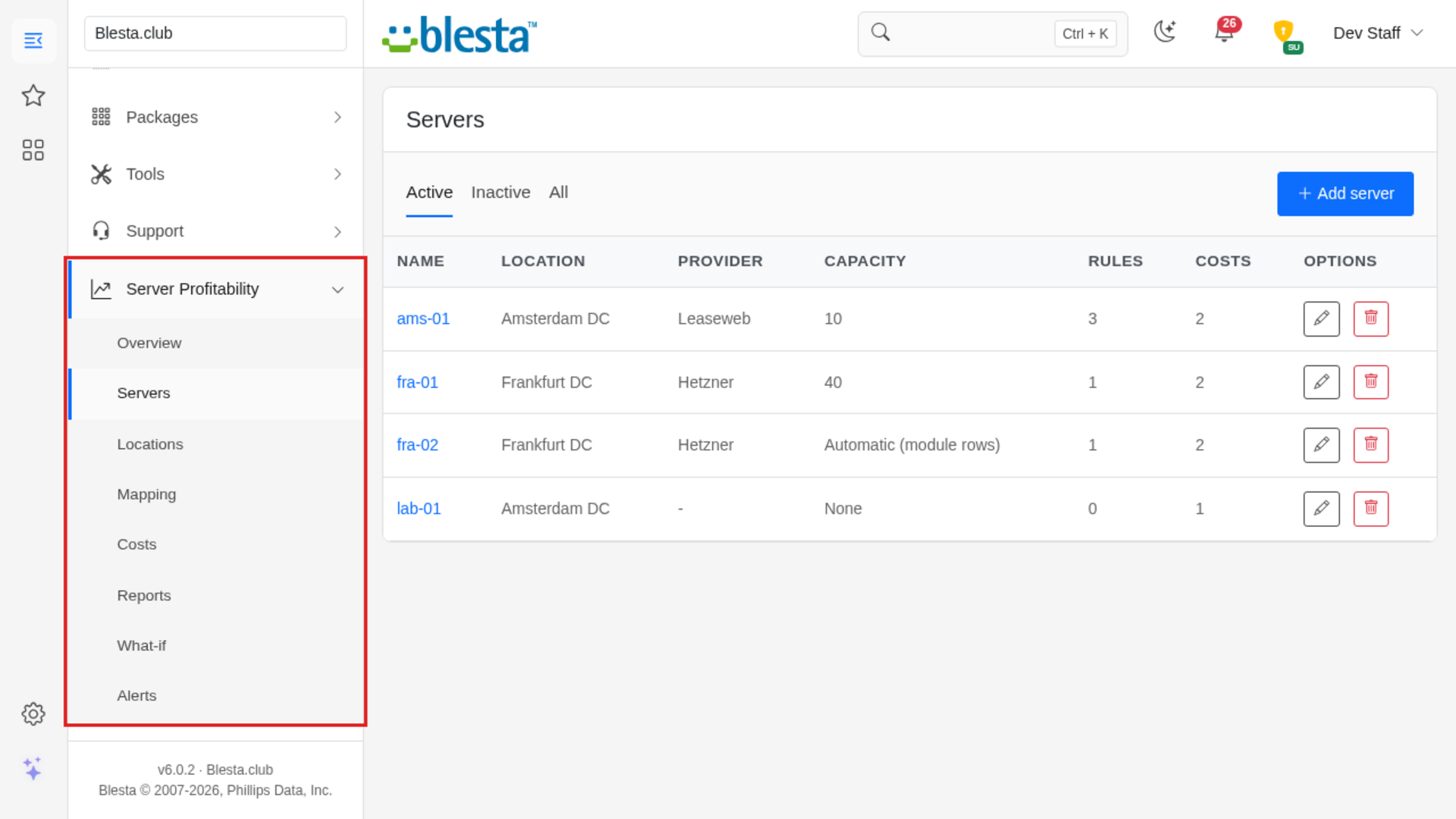
Server Profitability adds a Server Profitability entry to the staff menu with eight pages: Overview, Servers, Locations, Mapping, Costs, Reports, What-if and Alerts. A good order to set it up in is locations, servers, mapping, costs, and then the overview.
Locations
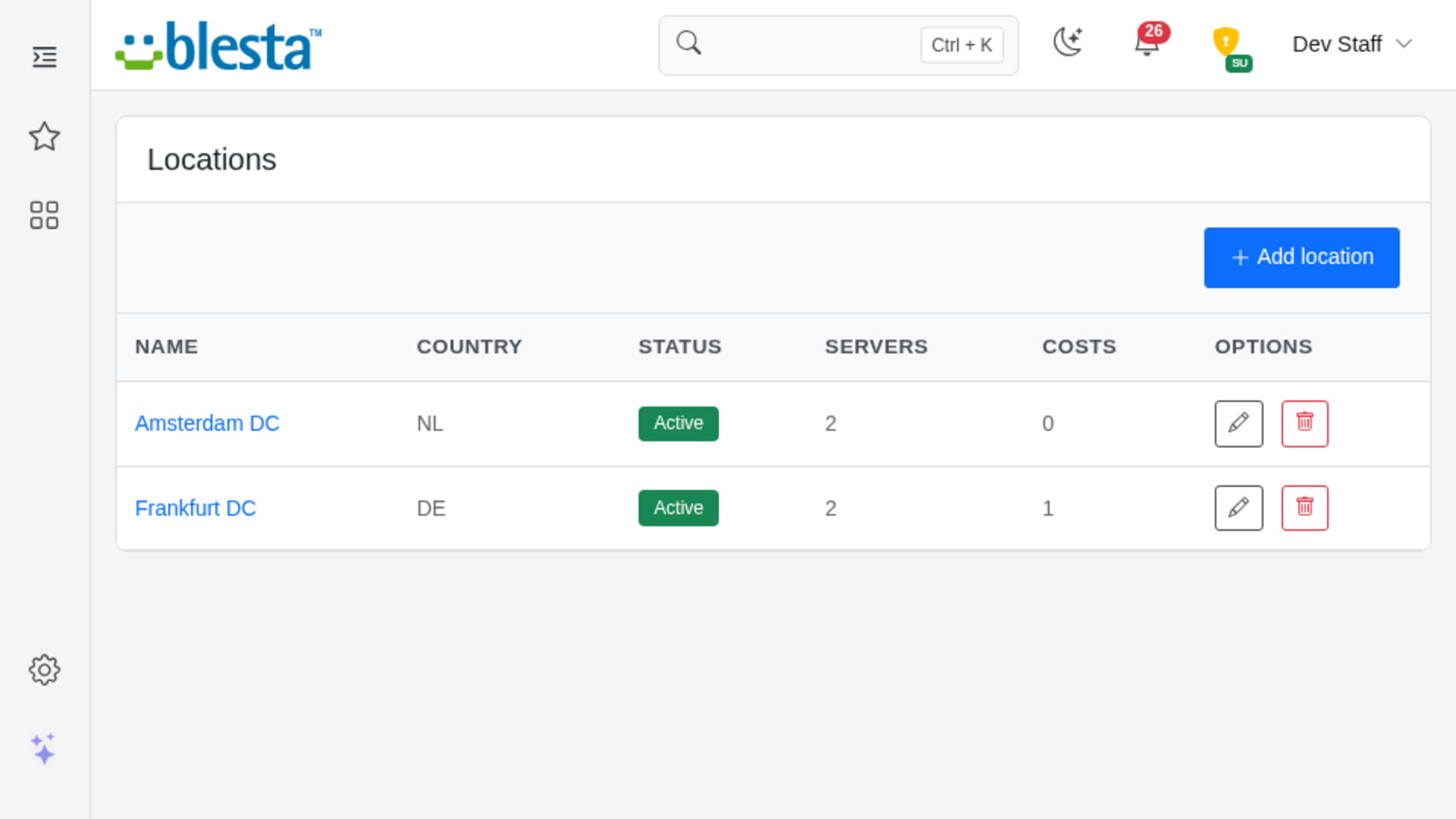
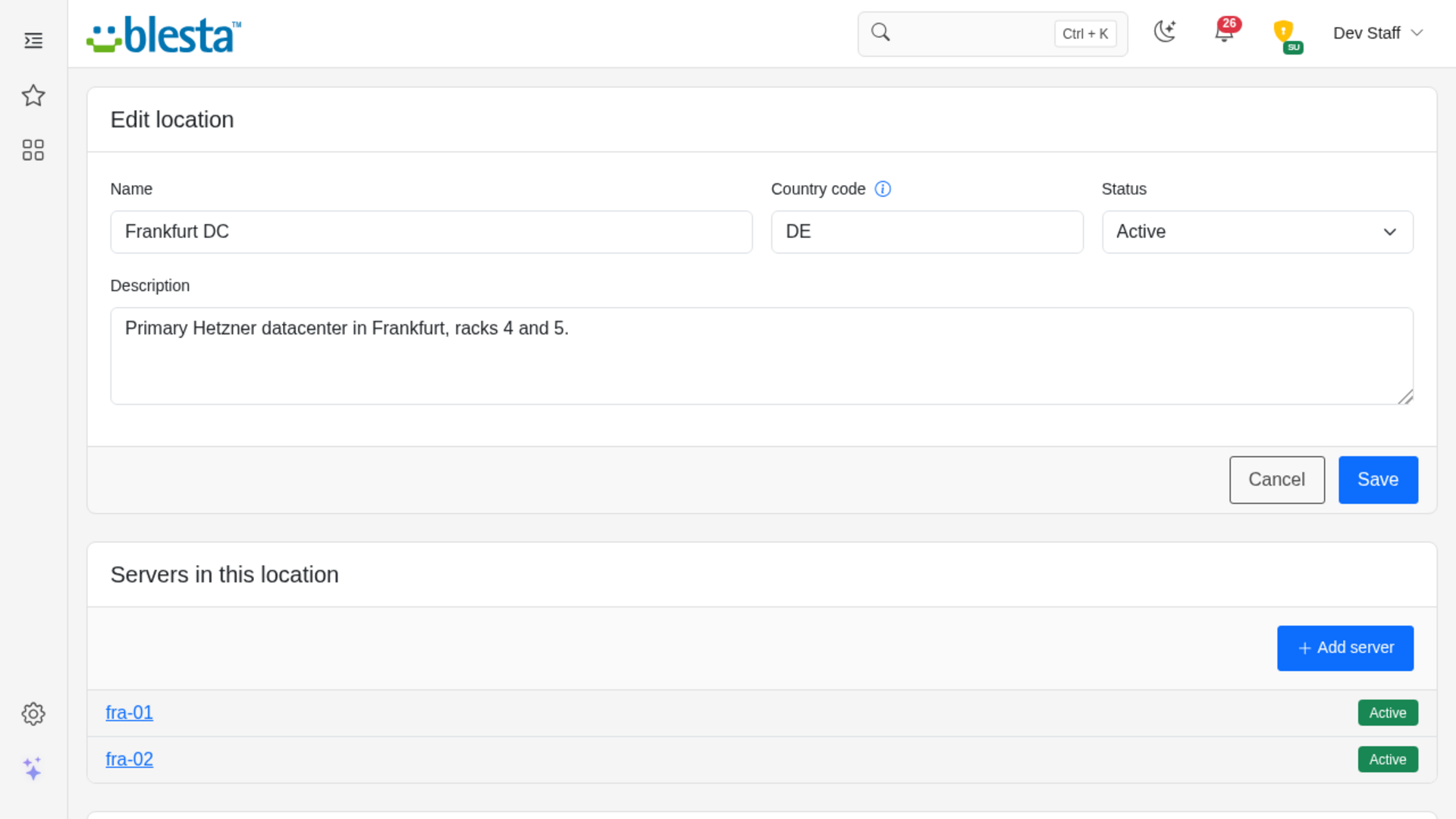
Open Locations and click Add location. A location is a datacenter, rack or region that holds servers. Give it a name, an optional two letter country code and a status. A location's page also lists the cost lines and mapping rules that point at it, with buttons to add more. A location cannot be deleted while it still has servers or mapping rules ("This location still has servers or mapping rules. Move or delete them first."), and deleting one removes its cost lines and its alerts.
Servers
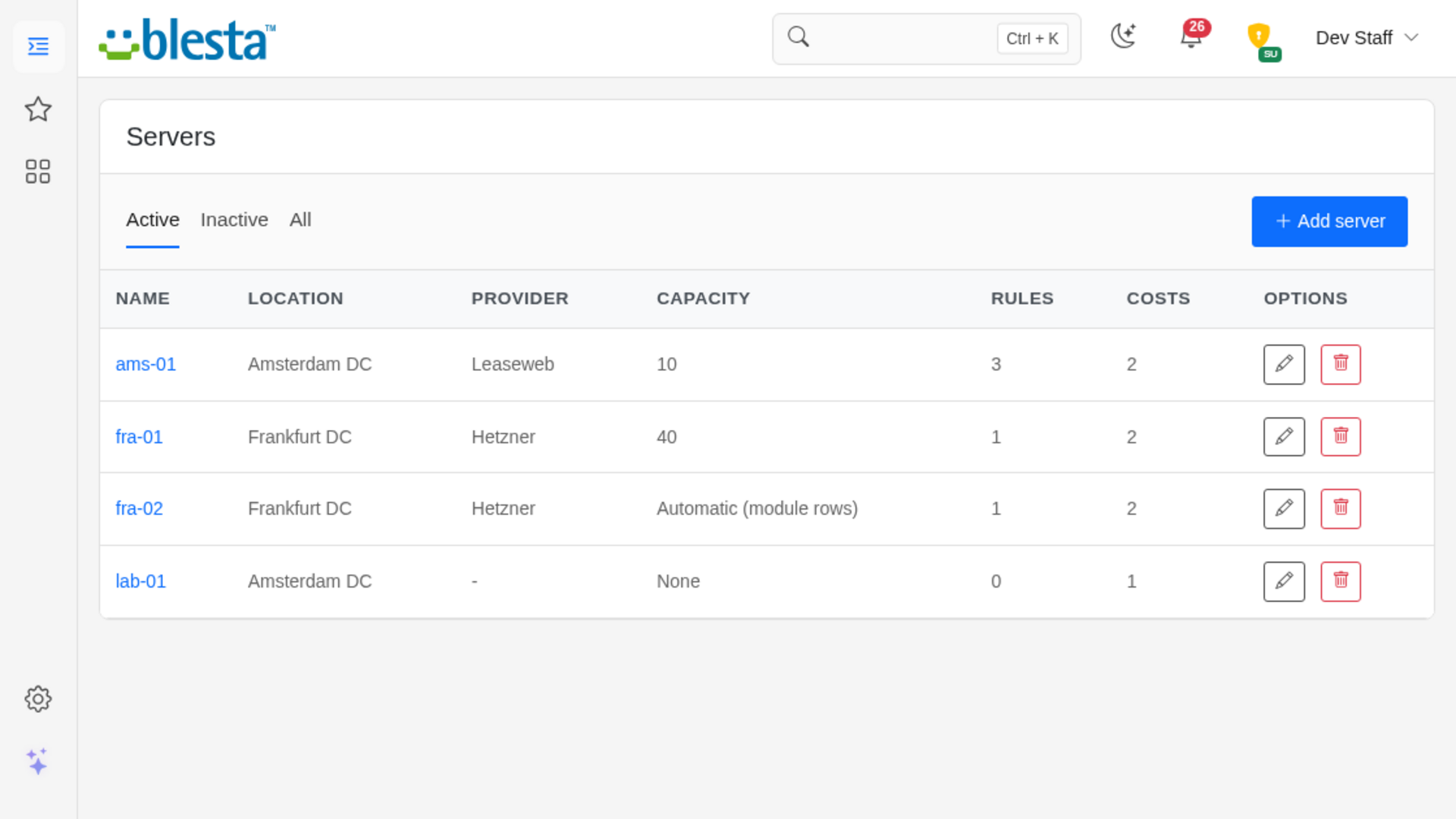
Open Servers and click Add server. A server is whatever you rent or own that your services run on.
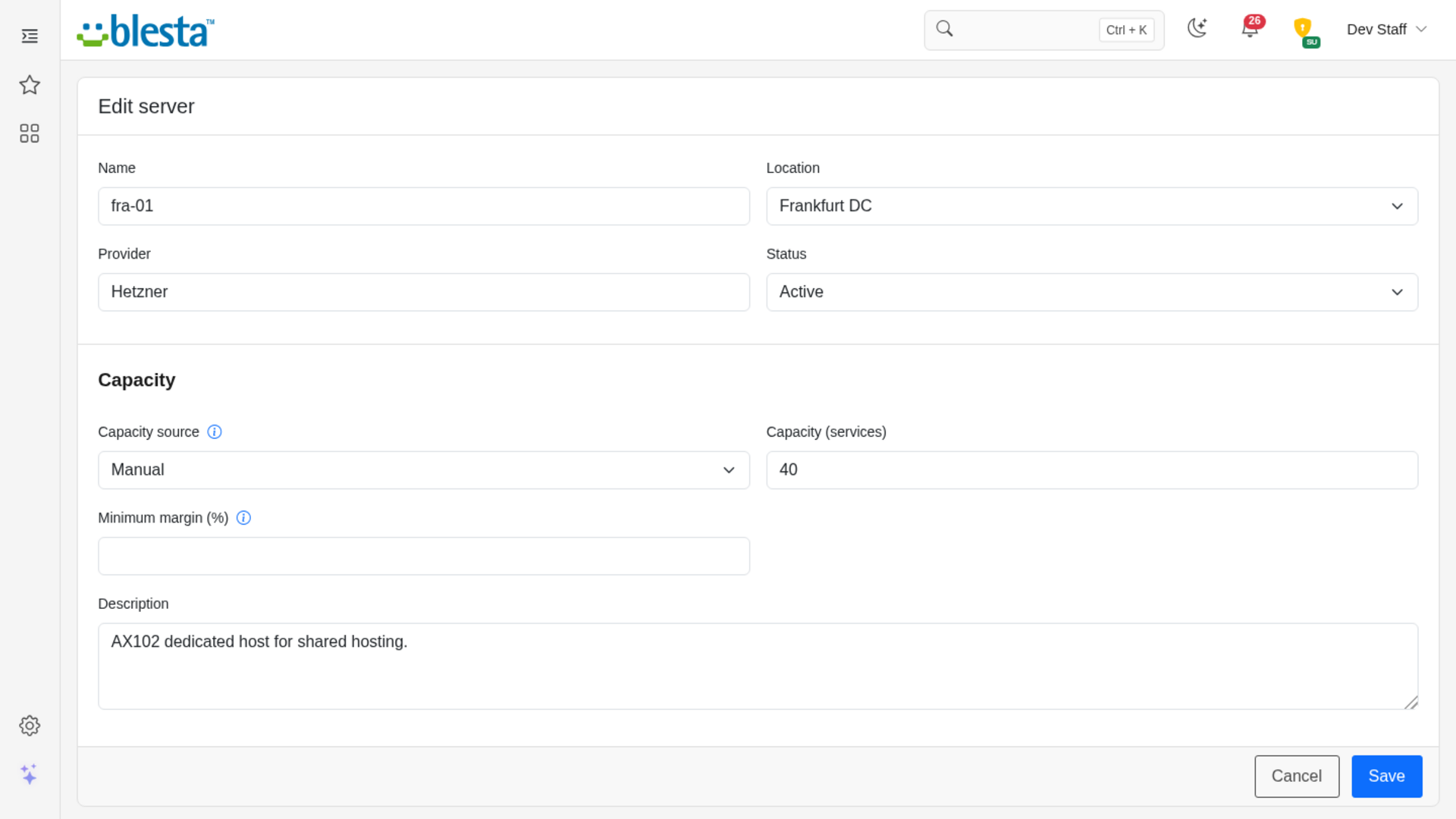
- Name, Location and Provider: Name the server, pick the location it belongs to (a server cannot exist without one, so the first location is preselected) and note who you rent it from.
- Capacity source: Choose Automatic (module rows) to read the capacity from the module rows you map to the server, Manual to type the number of services it can hold in Capacity (services) (a whole number from 1 to 1,000,000), or None if you do not want utilisation for this server.
- Minimum margin (%): Raise a low-margin alert below this margin. Leave it blank to use the default from the plugin settings.
After you save a server, its page has Costs and Mapping rules panels with buttons to add more, and shows how many services are pinned to it by hand with a Manage overrides link. The list on the Servers page can be filtered by Active, Inactive or All. Deleting a server removes its cost lines, its manual overrides and its alerts, and is refused while a mapping rule still points at it ("Mapping rules still point at this server. Delete or retarget them first.").
Mapping
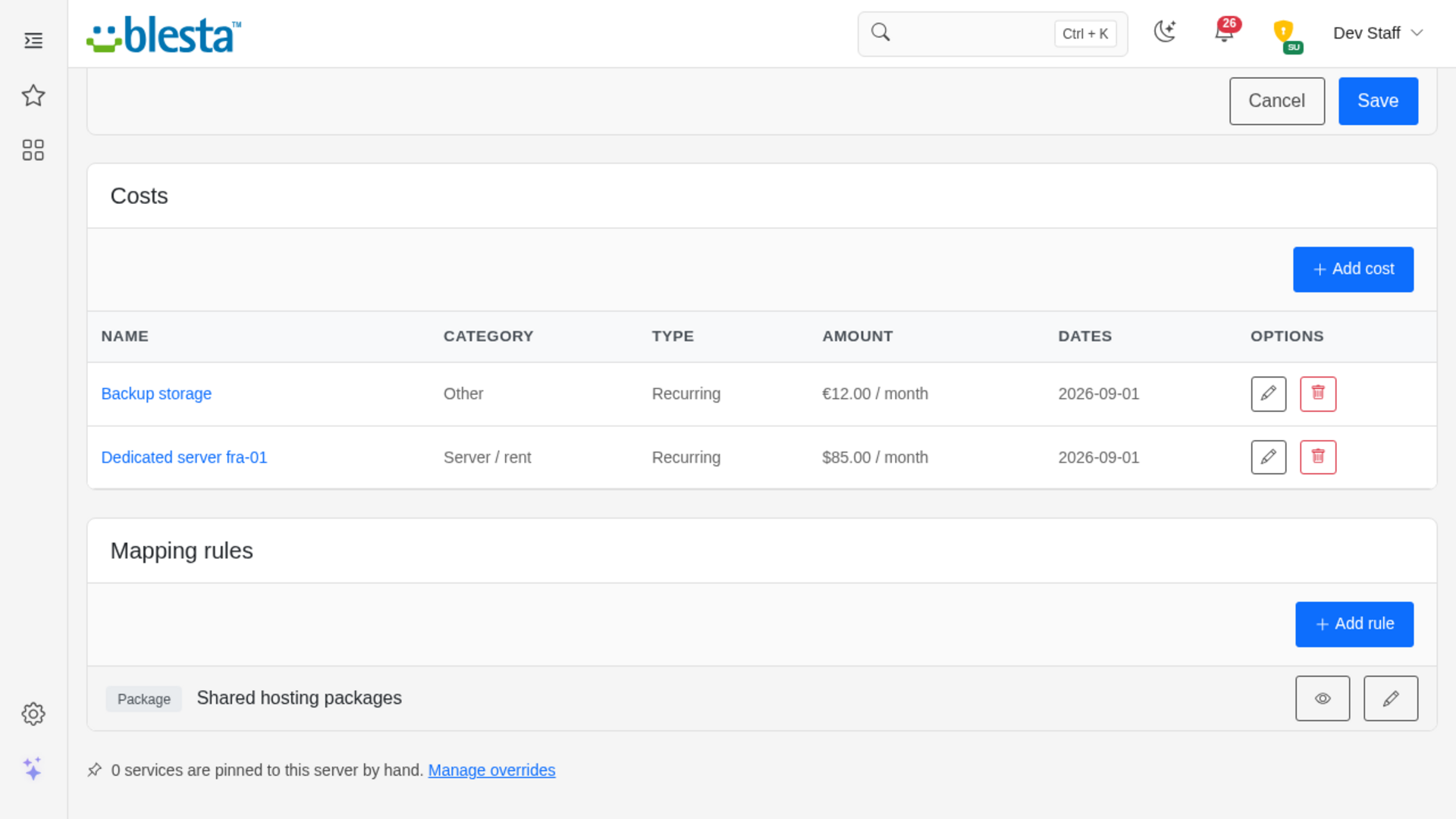
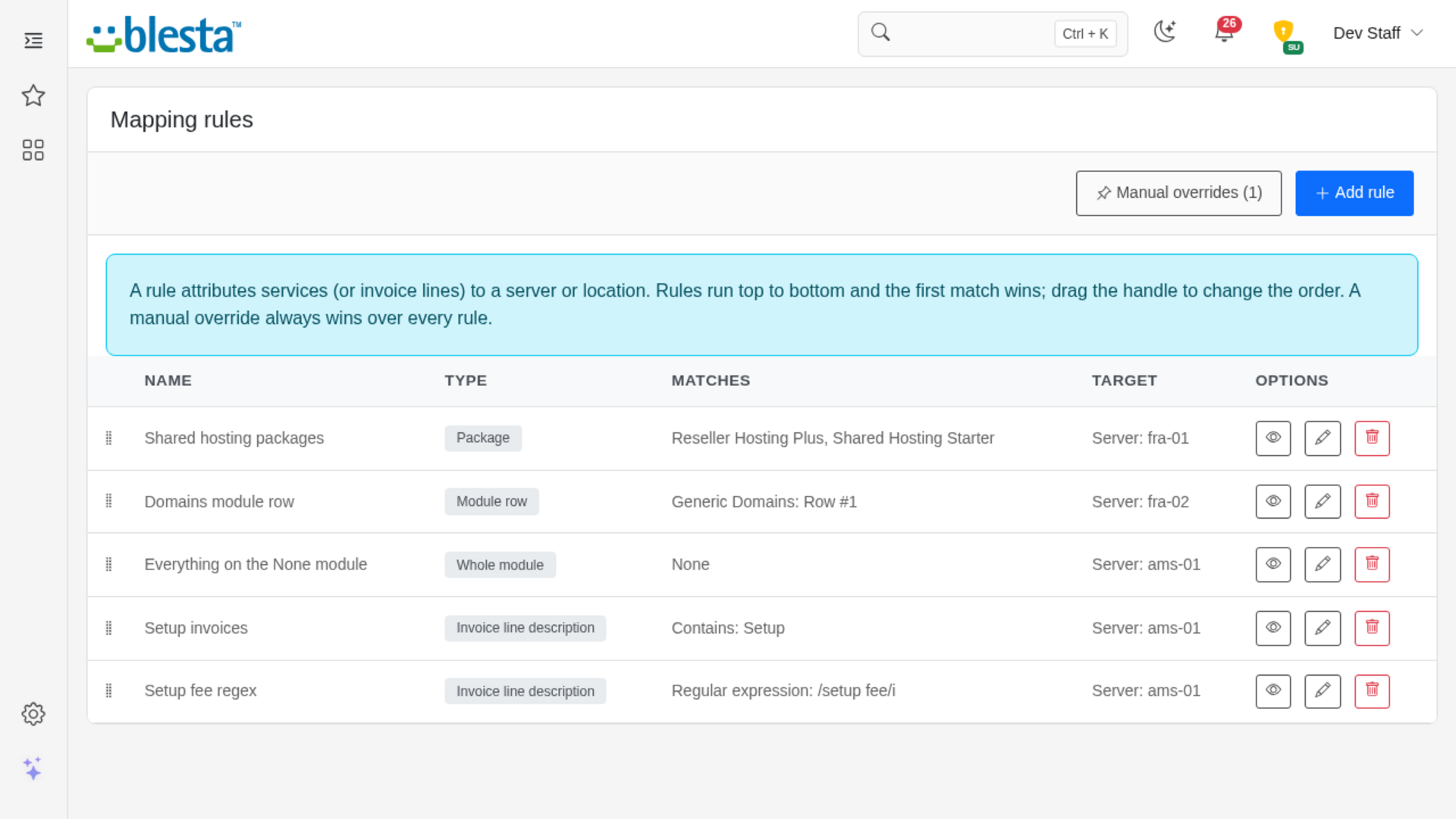
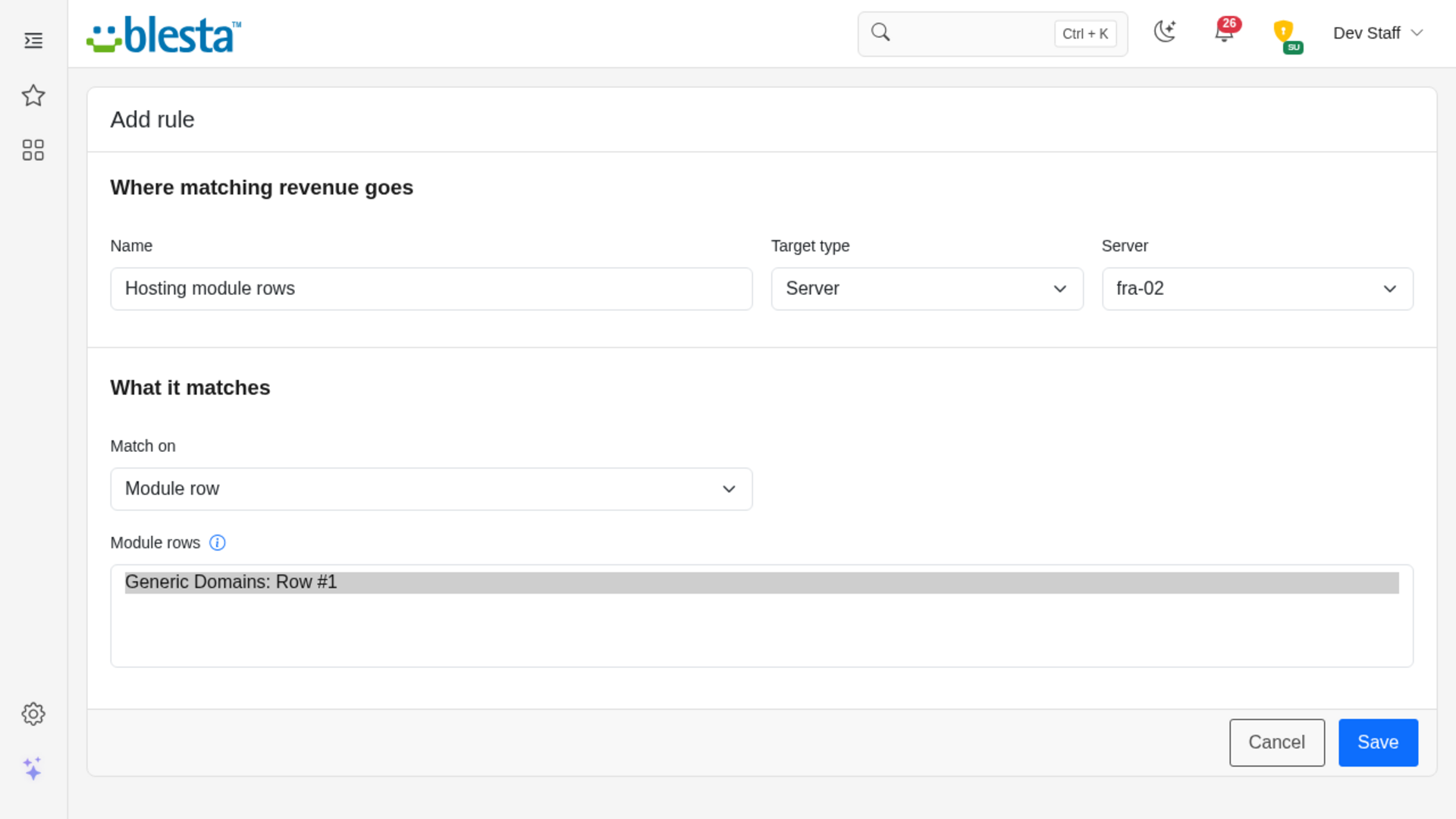
Open Mapping to tell the plugin which revenue belongs to which server or location. Click Add rule:
- Target: the server or location that matching revenue goes to. Pick one of your own, or you will be told to "Choose one of your servers or locations as the target."
- Match on: a Module row, a Package, a Whole module, a Configurable option value, or an Invoice line description. For the first four, pick one or more values to match. For a description rule, enter the text to look for and choose Contains or Regular expression. A regular expression needs delimiters, for example
/setup fee/i, and must not match empty text or every text.
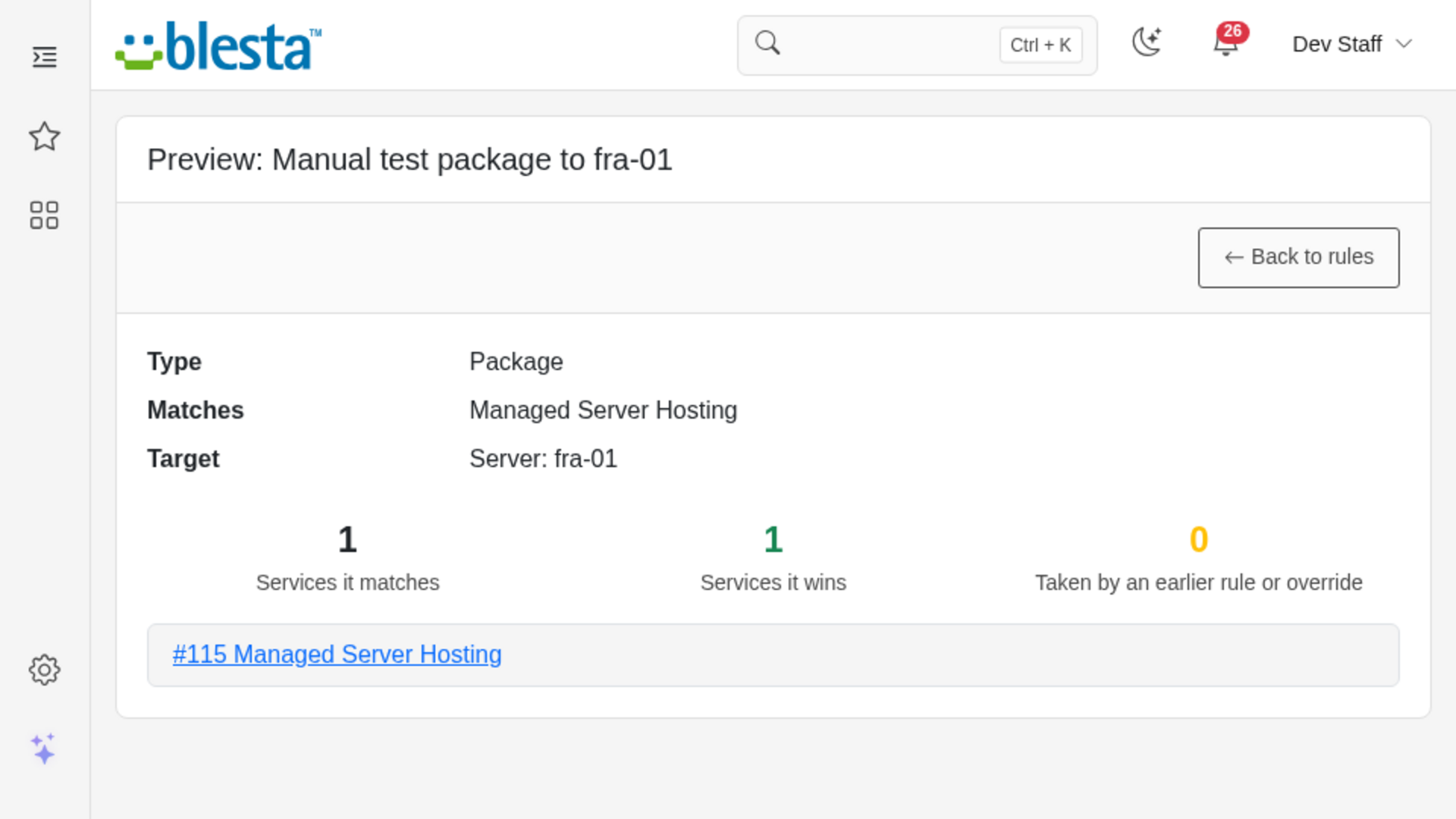
Rules run from top to bottom and the first one that matches wins. Drag a rule by its handle to change the order; it is saved as soon as you drop it. Each row has icons to Preview, Edit and Delete. The preview page, "Preview: " followed by the rule name, shows how many services the rule matches, how many it wins, and how many are taken by an earlier rule or override. A description rule only claims invoice lines that do not belong to a service, such as a one-off setup invoice. A line that belongs to a service follows that service.
Anything no rule claims is shown as Not assigned, so you can always see how much of your revenue you have not placed yet.
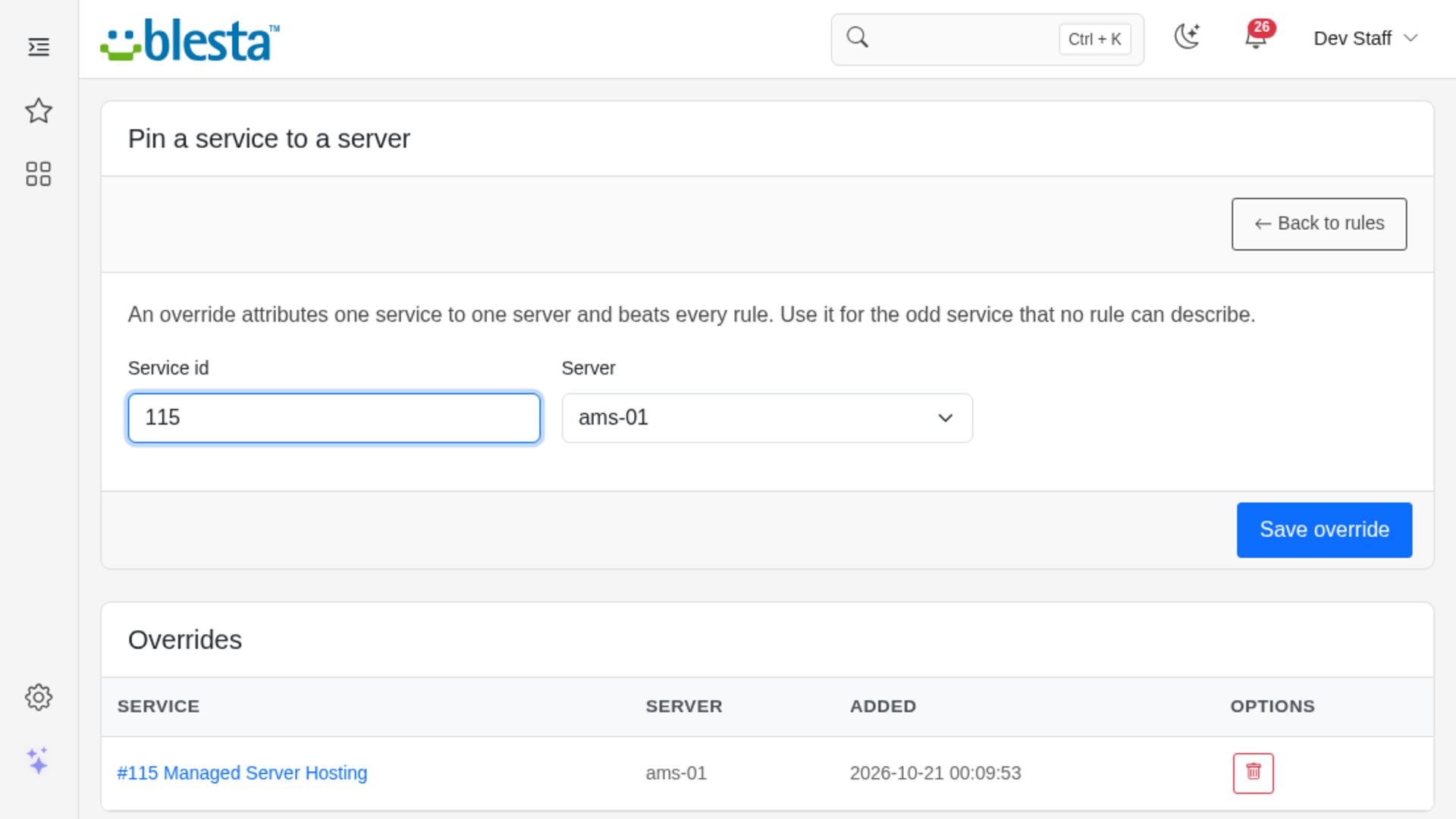
The Manual overrides button (with the number of overrides in brackets) opens a page called "Pin a service to a server". Enter the Service id, choose the Server and click Save override; use Back to rules to return. An override beats every rule, which makes it the way to place the odd service no rule can describe. The service must belong to your company.
Costs
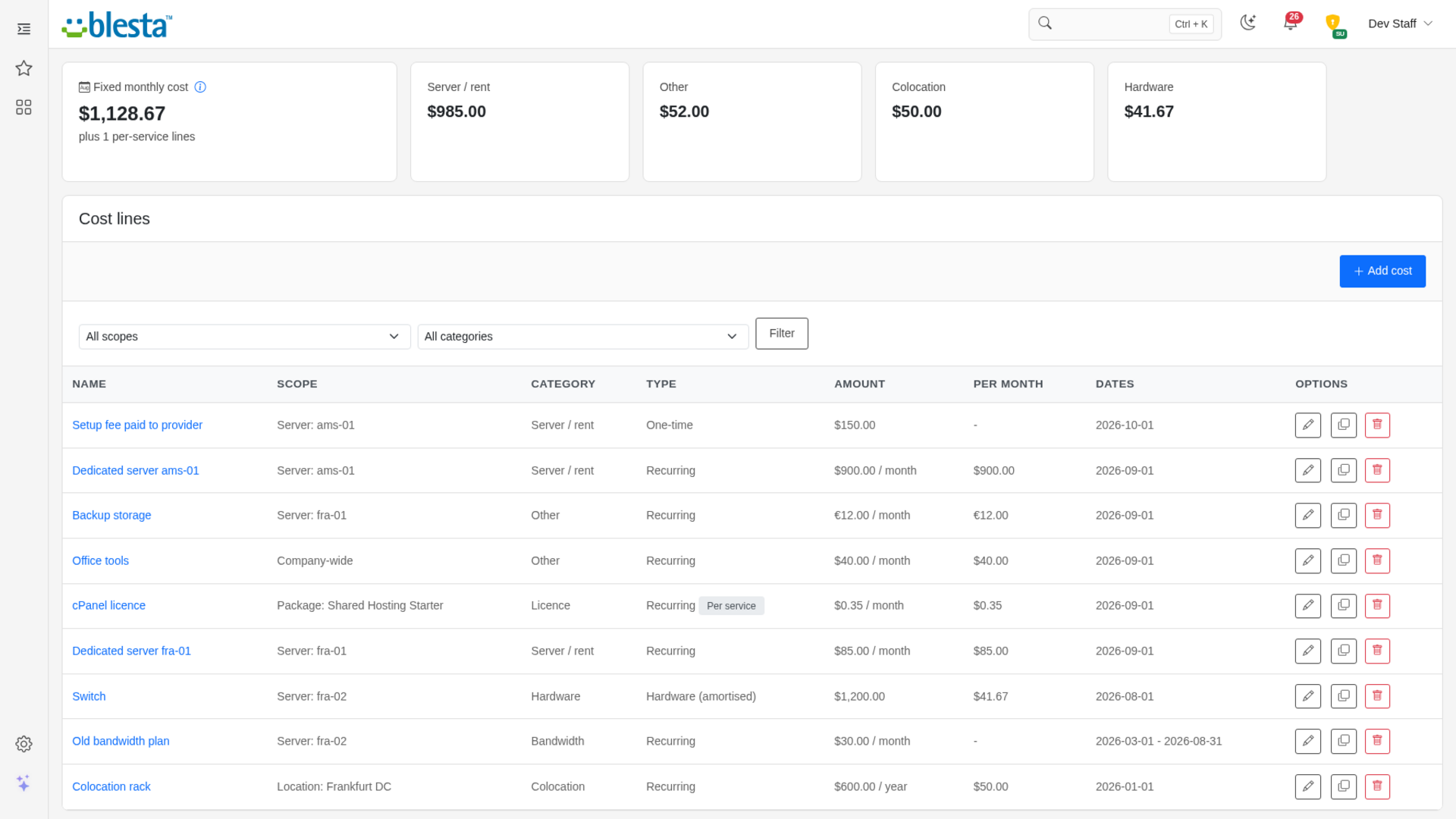
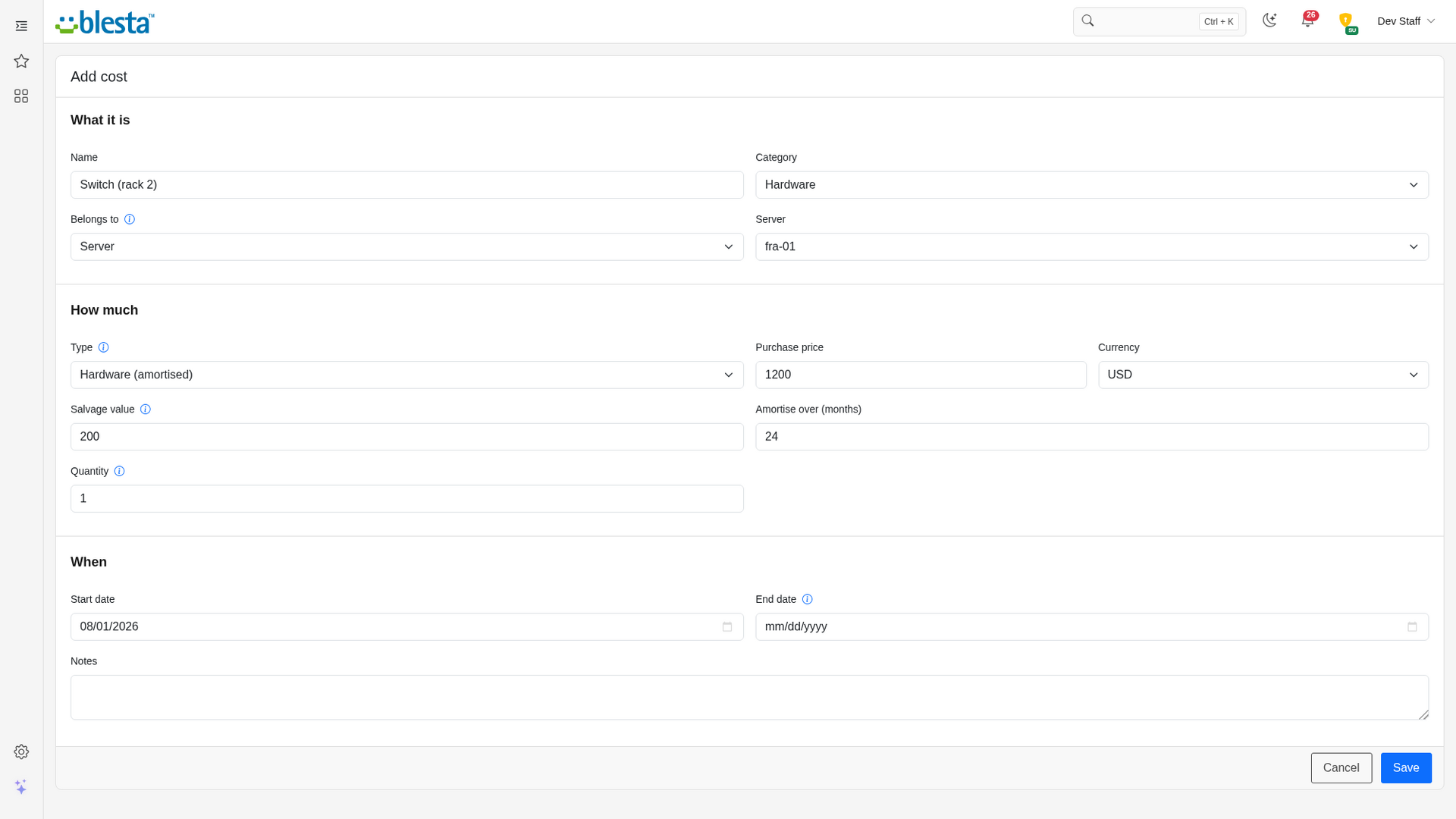
Open Costs and click Add cost. The top of the page shows your fixed monthly cost today, "plus N per-service lines" when you have any, and the biggest categories. The form has three sections, What it is, How much and When:
- Belongs to: a server, a location, a package or the whole company. Server and location costs land on that server or location. A package cost applies to every service of the package, for example a wholesale cost. Company costs are overhead and are never split over servers.
- Type: Recurring is charged every billing cycle (monthly, quarterly, every 6 months, yearly, every 2 years or every 3 years) and can have a Setup fee. One-time counts once on its start date. Hardware (amortised) has a Purchase price, a Salvage value (what you expect it to be worth at the end, plain number from 0 up to below the purchase price) and Amortise over (months) (whole months, 1 to 600); the difference is written off evenly over that window.
- Multiplied by: a Fixed quantity (for example 16 IP addresses) or Per service, which multiplies the amount by the number of services in that scope, for example a licence per account.
- Start date and End date: a cost counts from its start date. Leave the end date blank while it is still running; an end date must be on or after the start date.
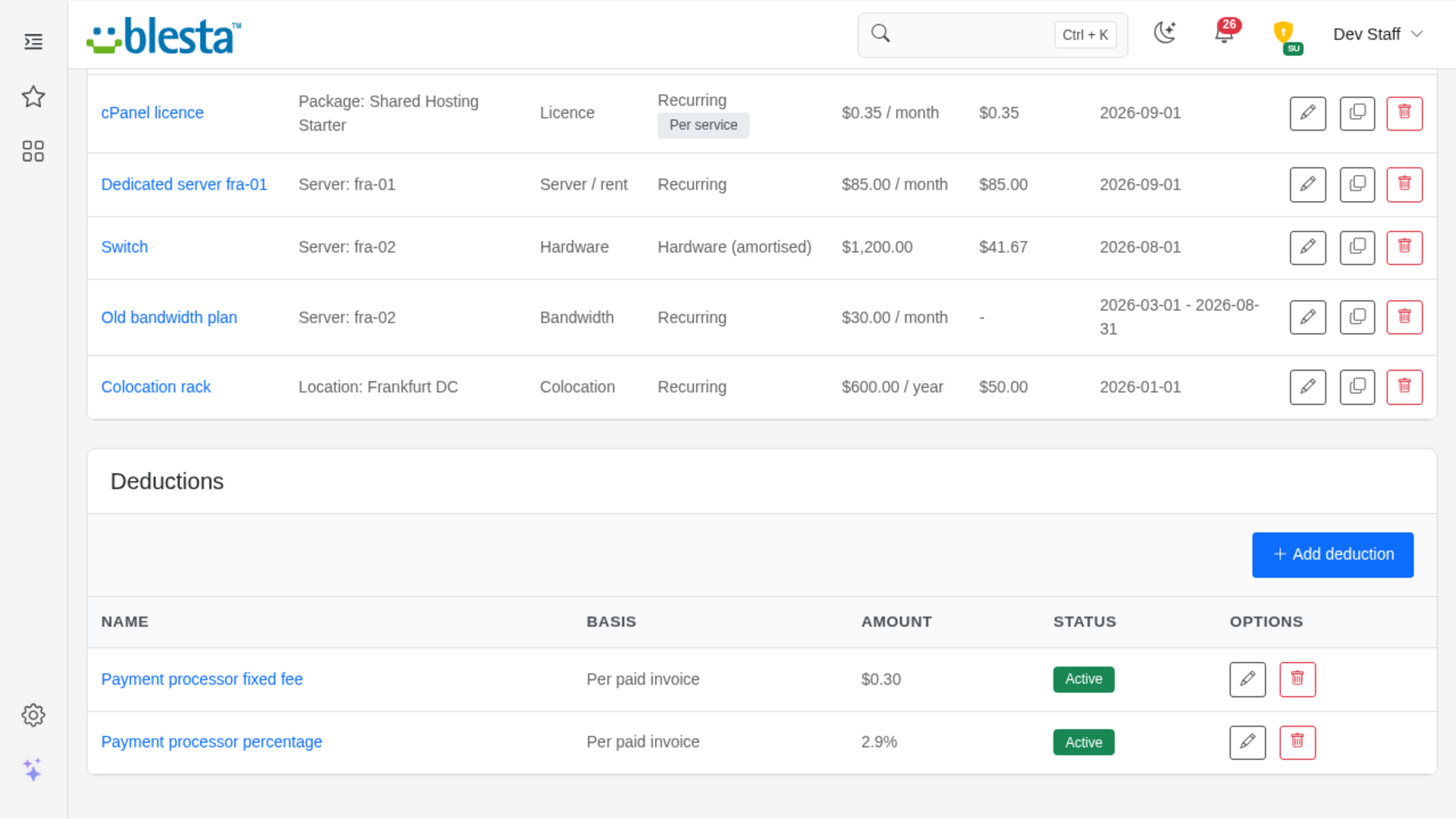
Amounts are plain numbers from 0 to 9999999999.9999. A whole calendar month always costs exactly one month, whatever its length. You can filter the list by scope and category, Duplicate a line (you are asked "Duplicate this cost line?" and land on the copy to adjust it), edit it, or delete it ("Delete this cost line?").
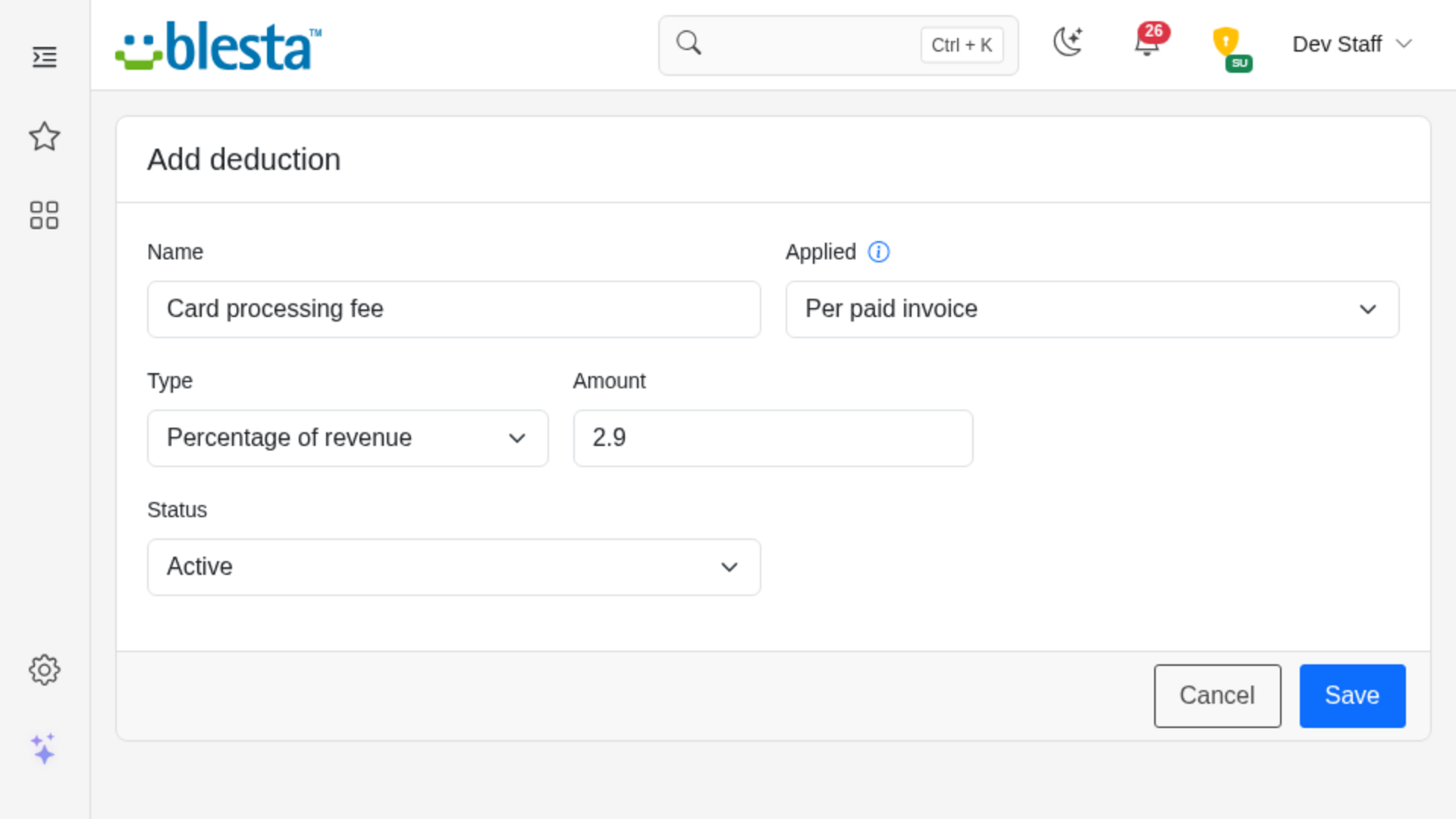
Below the cost lines, Deductions are company-wide fees taken from revenue, such as payment processor fees. A deduction is a flat amount or a percentage of revenue, applied once per report, per paid invoice or per service billing term. Deductions are never split over packages.
Overview
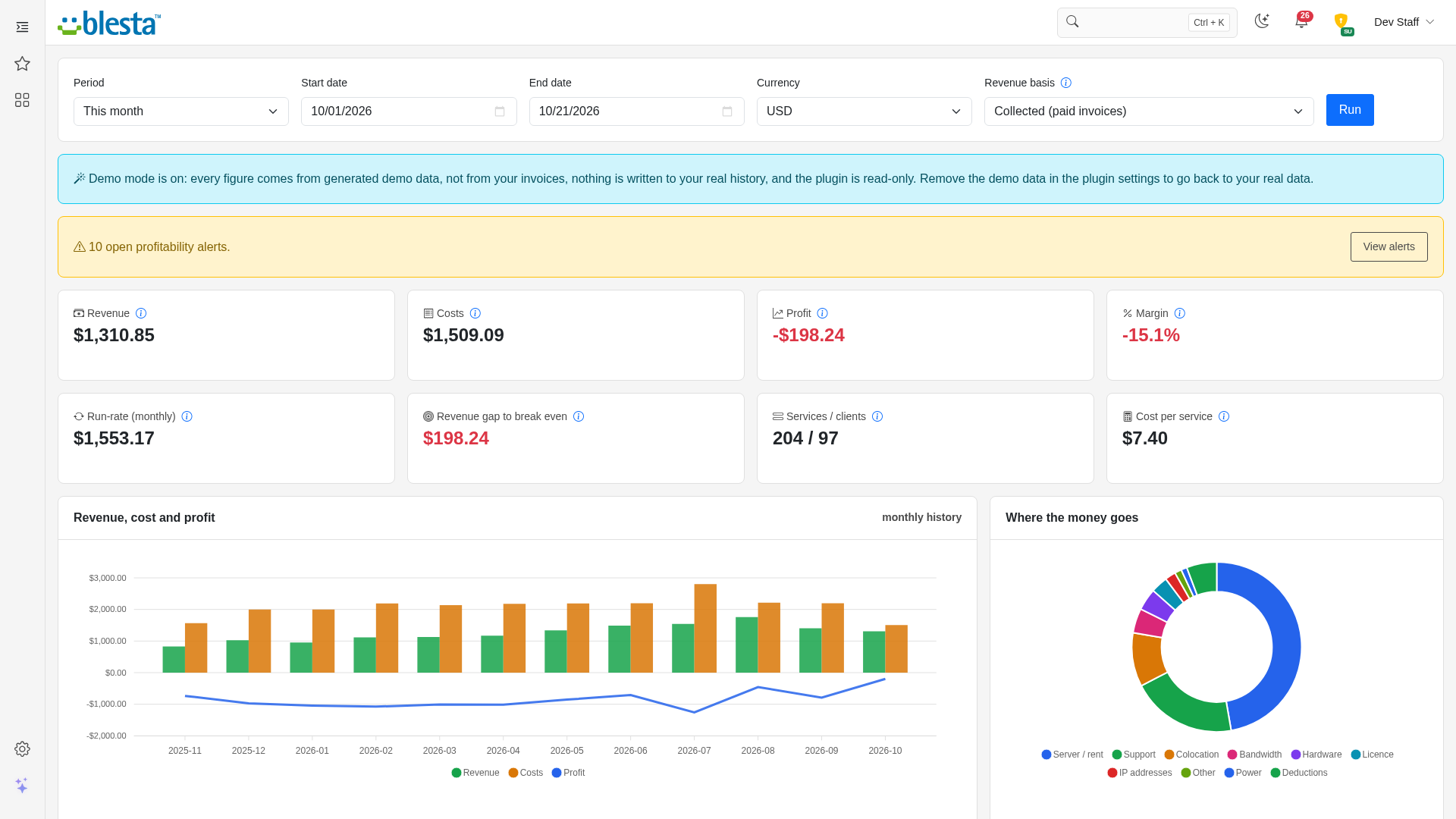
The Overview is the main report. At the top, pick a Period (This month, Last month, Last 30 days, This quarter, Last quarter, This year, Last year, or your own start and end dates), a reporting currency and a revenue basis, then click Run. Choosing a period fills in the dates; editing a date switches the period back to Custom.
- Collected counts the invoice lines that were paid in the period.
- Run-rate counts what your active services bill per month, scaled to the period. Use it for a month that is not over yet.
Date ranges are kept sensible for you: a range longer than 1830 days keeps its start date, a range that ends before it starts collapses to one day, a future end date on the Collected basis is cut back to today, and unreadable dates or an unknown currency fall back to the defaults. Exchange rates come from the currency settings of your company in Blesta.
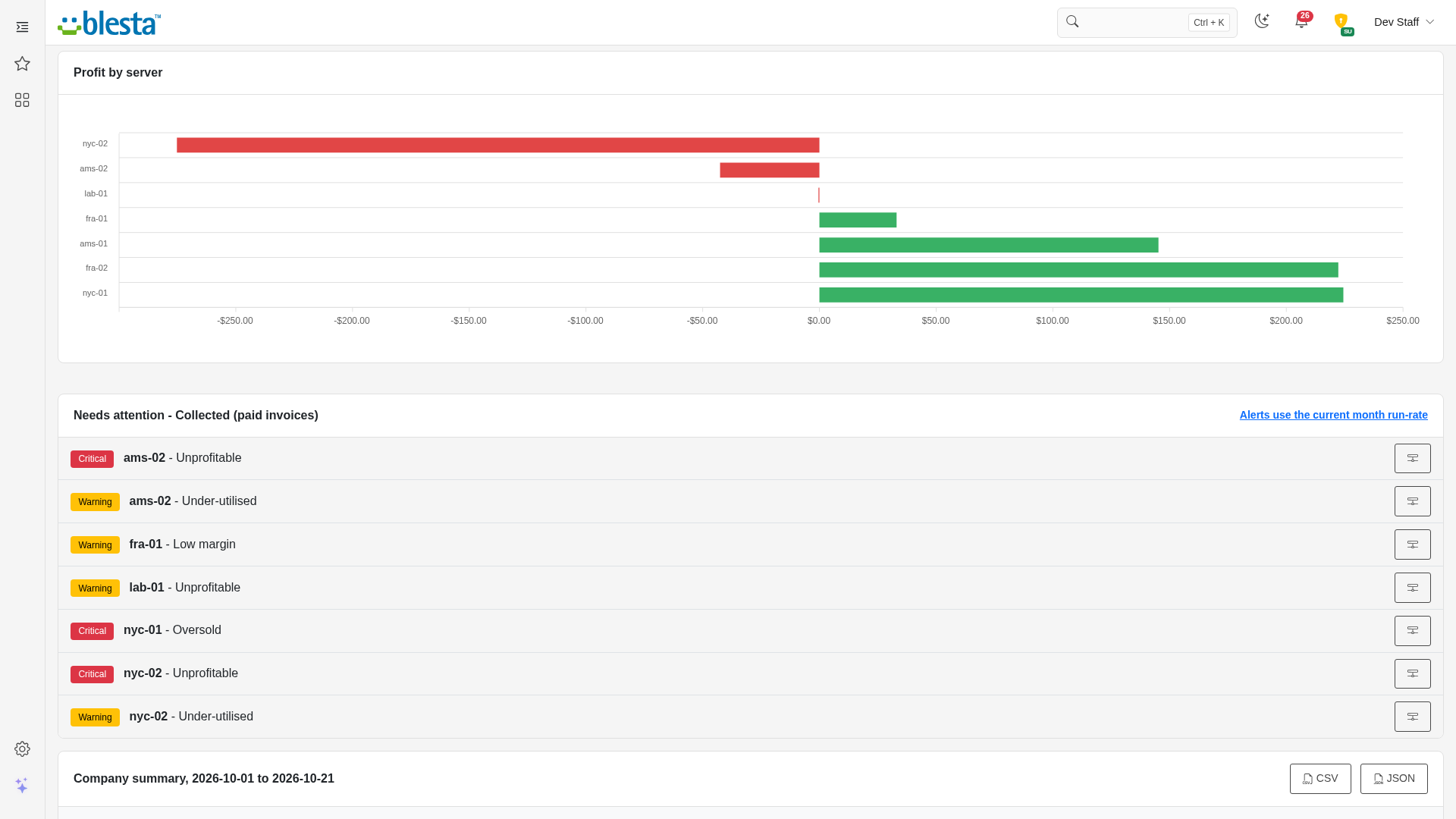
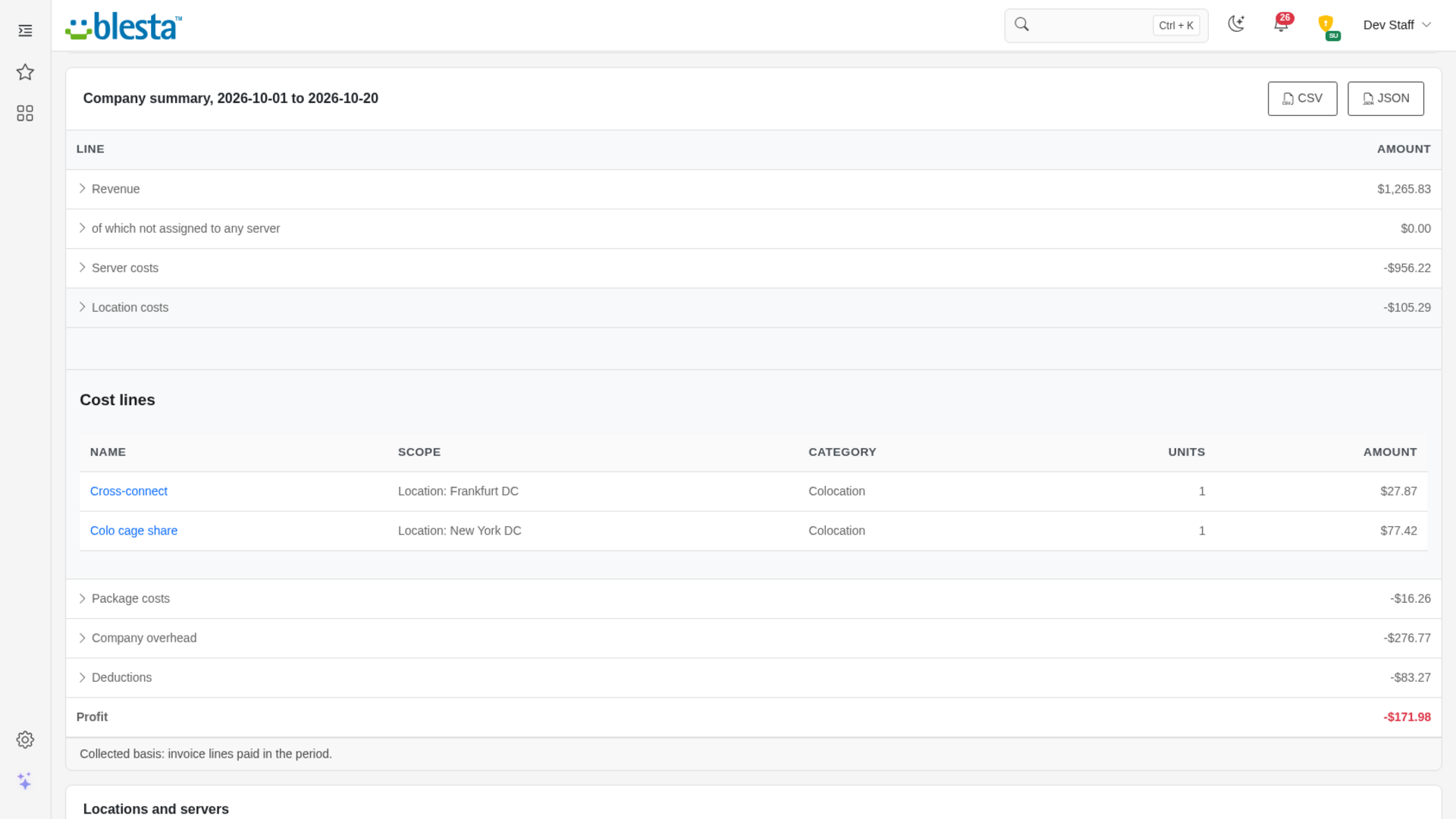
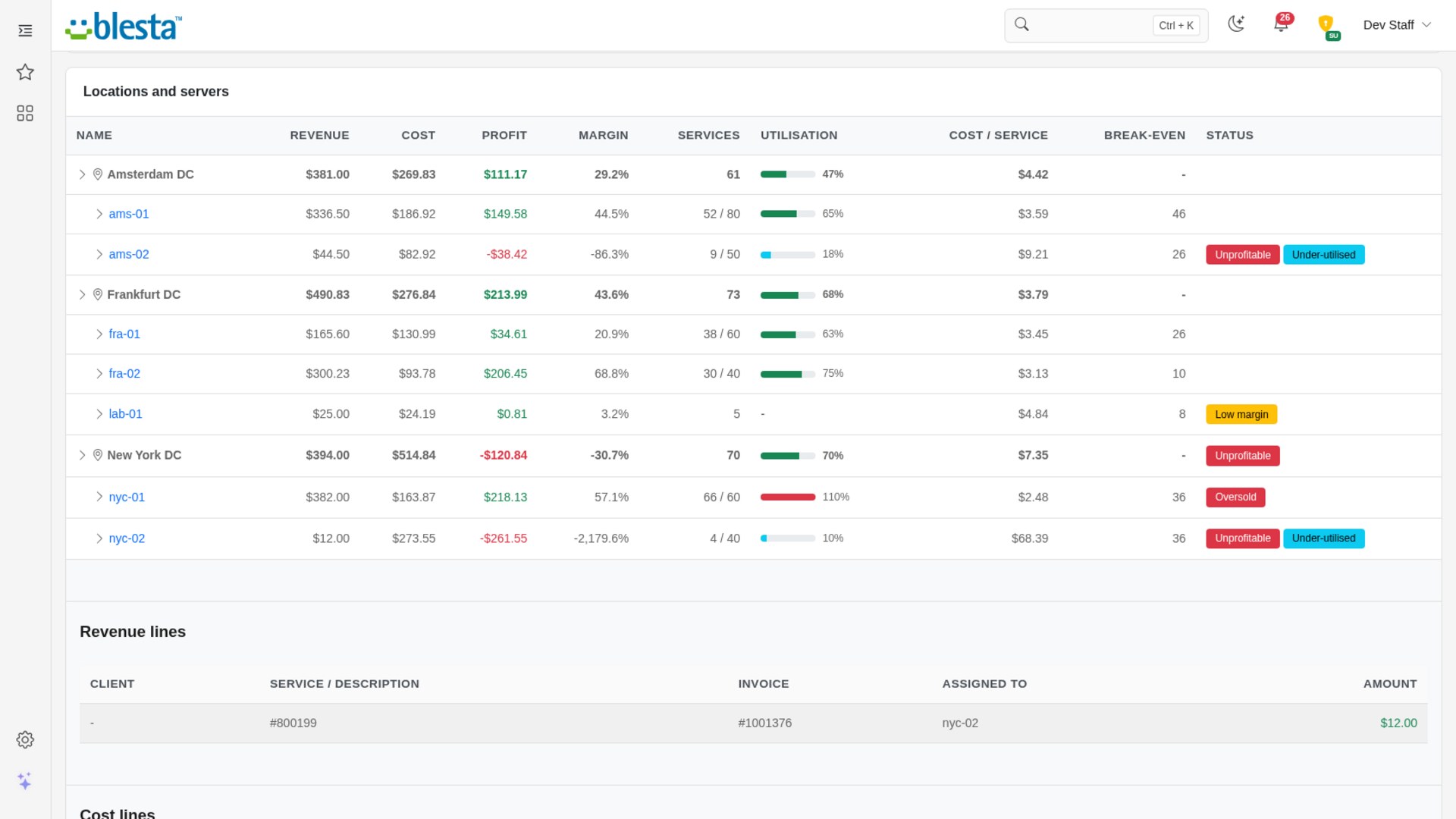
Tiles show revenue, costs, profit, margin, run-rate, the revenue gap to break even, services and clients, and cost per service. Charts show the revenue, cost and profit trend, where the money goes, and profit by server. The company summary lists revenue, what is not assigned to any server, server, location and package costs, overhead and deductions; click a line to see the invoice lines, services or cost lines behind it. The Locations and servers table shows revenue, cost, profit, margin, services against capacity, utilisation, cost per service, break-even and any status flags; click a location or server to open its detail rows, or the server's name to open the server. A Needs attention list names the servers with problems, and the CSV and JSON buttons download the table.
Taxes are never included, and costs are prorated by calendar month. Each service counts towards the server it is mapped to today.
Reports
Reports has three tabs. Packages and Capacity use the same period, currency and basis bar as the Overview.
- Packages: revenue, direct cost, the share of server and location costs allocated to the package, profit, margin, services and revenue per service. How shared costs are split (equally per service or by revenue share) is a setting. Company overhead and deductions are not allocated. CSV and JSON download.
- Capacity: for every server, the services it holds, its capacity, utilisation, headroom, clients, cost per client and how many more services it needs to break even, with oversold and under-used flags. CSV download.
- History: the stored monthly figures for the company, a location, a server or a package over 6, 12, 24 or 36 months, with a chart and a table, shown in your reporting currency. History needs a few runs of the background task, or use Rebuild history in the plugin settings. CSV and JSON download.
The break-even figure on the Overview is the total number of services a server needs to cover its costs; the one on the Capacity tab is how many more it still needs beyond the services it has, so the two differ by design. Hover over either column heading for the explanation.
What-if
The What-if calculator starts from the current month's run-rate for the whole company, a location, a server or a package, and shows what a change would do. You can change the price, add an extra discount, add or remove services, apply churn, change every cost by a percentage or add an extra monthly cost. Percentage deductions such as a payment fee follow revenue in the projection. Click Calculate to see the figures before and after, with a chart. Enter a target margin to see the revenue per service you would need to reach it. Nothing is saved, and if any field is invalid the result is hidden until you correct it.
Alerts
Alerts lists conditions that need your attention on three tabs: Open, Acknowledged and Resolved, each with its count. The alert types are Unprofitable, Low margin, Oversold and Under-utilised, each with a Warning or Critical severity. Alerts are always judged on this month's run-rate against every monthly cost, with one-time costs and setup fees left out.
- The Acknowledge icon keeps an alert listed but marks that you have seen it ("The alert was acknowledged."). The Mark resolved icon closes it ("The alert was marked resolved. It reopens if the condition still holds at the next check.").
- Check now runs the check straight away instead of waiting for the morning task and reports how many alerts are new or escalated.
- Alert emails go to the recipients you set in the plugin settings, once for each new alert. A second check does not send it again; an alert that was resolved and then reopens is emailed once more. An email that fails to send is tried again at the next check.
Plugin settings
Go to Settings > Company > Plugins, open the Installed tab and click Manage next to Server Profitability.
- Settings: reporting currency, default revenue basis, how package costs are allocated, whether monthly snapshots are stored, whether alert emails are sent, the margin and utilisation thresholds, and the alert recipients. A margin must be between -1000 and 100, and recipients must be "valid email addresses separated by commas". Save returns you to the Installed tab.
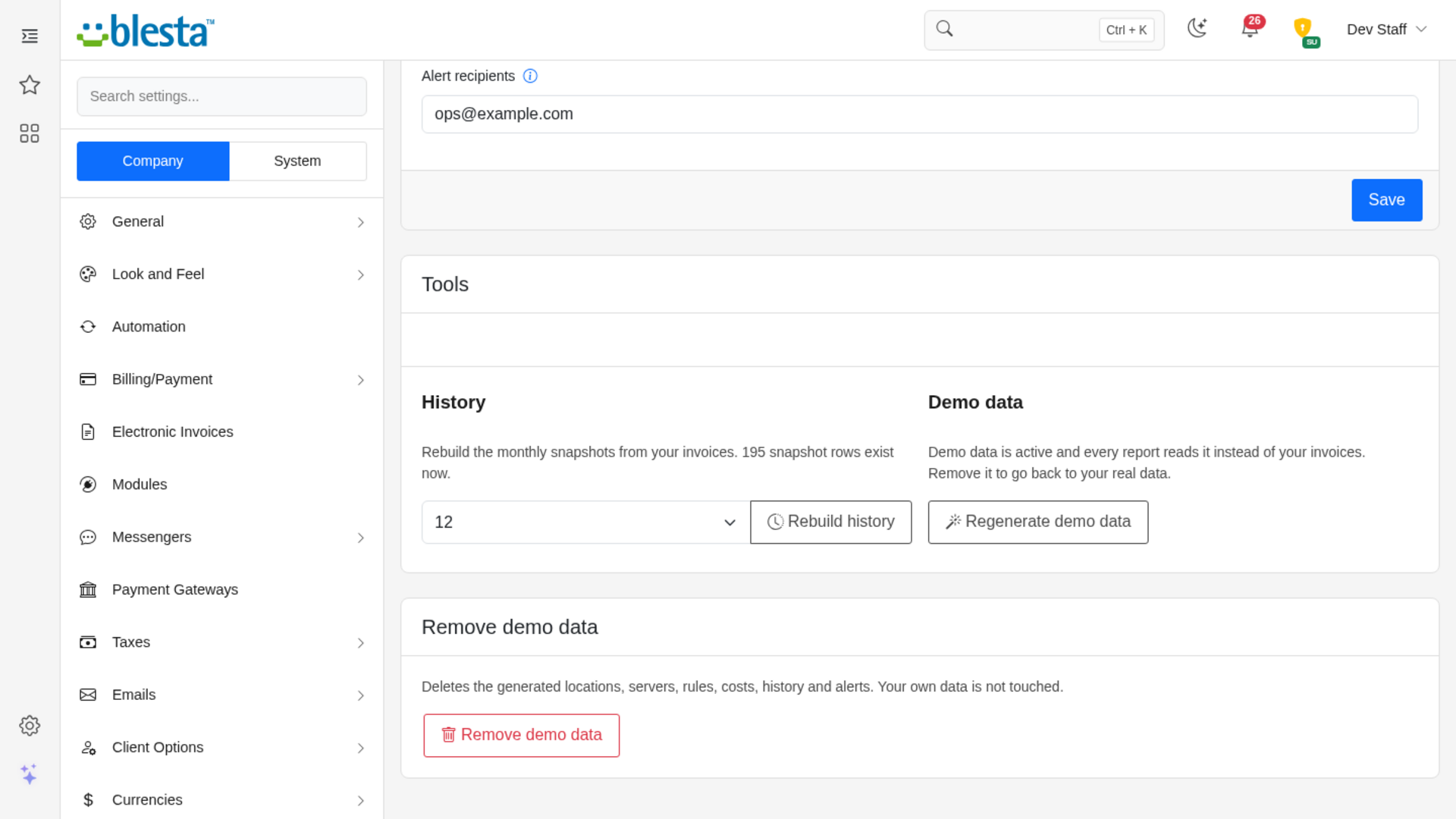
- Tools: the History card has Rebuild history, which rebuilds the monthly snapshots from your invoices for the last 3, 6, 12, 24 or 36 months. The Demo data card has Generate demo data (or Regenerate demo data), which fills the plugin with a fictional hosting business so you can explore every screen. These stay on the Manage page.
- Remove demo data: while demo data exists a separate card offers Remove demo data; Blesta asks "Remove all demo data?" and only the generated records are deleted, taking you back to your real data.
Demo mode
While demo data exists every page shows a demo notice and reads the demo data instead of your invoices. Demo mode is read-only: adding, editing, deleting, reordering and pinning are refused with "Demo mode is read-only. Remove the demo data in the plugin settings before changing anything.", rebuilding history is refused too ("History cannot be rebuilt while demo mode is on. Remove the demo data first."), and the overrides page explains that overrides need real service ids. You can still use Check now, Acknowledge and Mark resolved on the demo alerts; no email is ever sent for them.
Good to know
- Revenue comes from paid invoice lines (collected) or from active services (run-rate). Refunds and credit notes are not netted off.
- A service counts towards the server it is mapped to today; moving a service does not rewrite earlier months.
- Package cost allocation is an estimate by design.
- Past monthly snapshots do not store run-rate or service counts, because those are today's figures. Snapshots are stored in the currency they were written in and converted for display.
- The nightly background task stores the current month, and also the previous month during the first three days of a new month. If cron was off for longer, use Rebuild history.
- The email sent for alerts can be reworded under Settings > Company > Emails, on the Plugin Emails tab.
v1.0.0 - 2026-10-31
PHP 8.2 - 8.4 · Blesta 6.x
Initial release
Pricing Options
Get exactly what you need and want.
Requires PHP 8.2 - 8.4 · Blesta 6.x
Included In
Value: Free
- +28 Other Extensions
- Additional Discounts
- Included Support & Updates
Leased
- Partially Encoded
- Full Functionality
- Included Support & Updates
Owned - Source
- Source Available
- Buy Once Use Forever
- 1 Year Support & Updates
Not sure whether to lease or own? Our FAQ explains how the licence types differ.
Reviews
What our customers say
(0 customer reviews)
Seems like this extension doesn't have reviews yet...
Be one of the firsts to leave a review!
It is possible to leave a review only if you have purchased this extension or a Club tier which contains it.
We reserve the right to alter wording or formatting for presentation.
We will discuss any changes made and offer the option to withdraw review text if the changes can't be agreed on.
It may take up to 1 hour for a review to appear or update due to caching.
You might also like
More extensions to explore

Plugin
Announcements
Integrate the Announcements plugin to provide updates and news to your clients.
PHP 8.2 - 8.4 · Blesta 6.x


Plugin
Client Data Changelog
See what changed on a client's account, when it changed and who changed it.
PHP 8.2 - 8.4 · Blesta 6.x



Plugin
Credit Awards
Give your clients rewards based upon service purchases.
PHP 8.2 - 8.4 · Blesta 6.x