OAuth Login
The OAuth Login plugin adds sign-in buttons for 16 built-in providers, plus any OpenID Connect provider, to your login page and order form. Clients can connect and disconnect their accounts themselves from a Connected Accounts page.
Free - View Pricing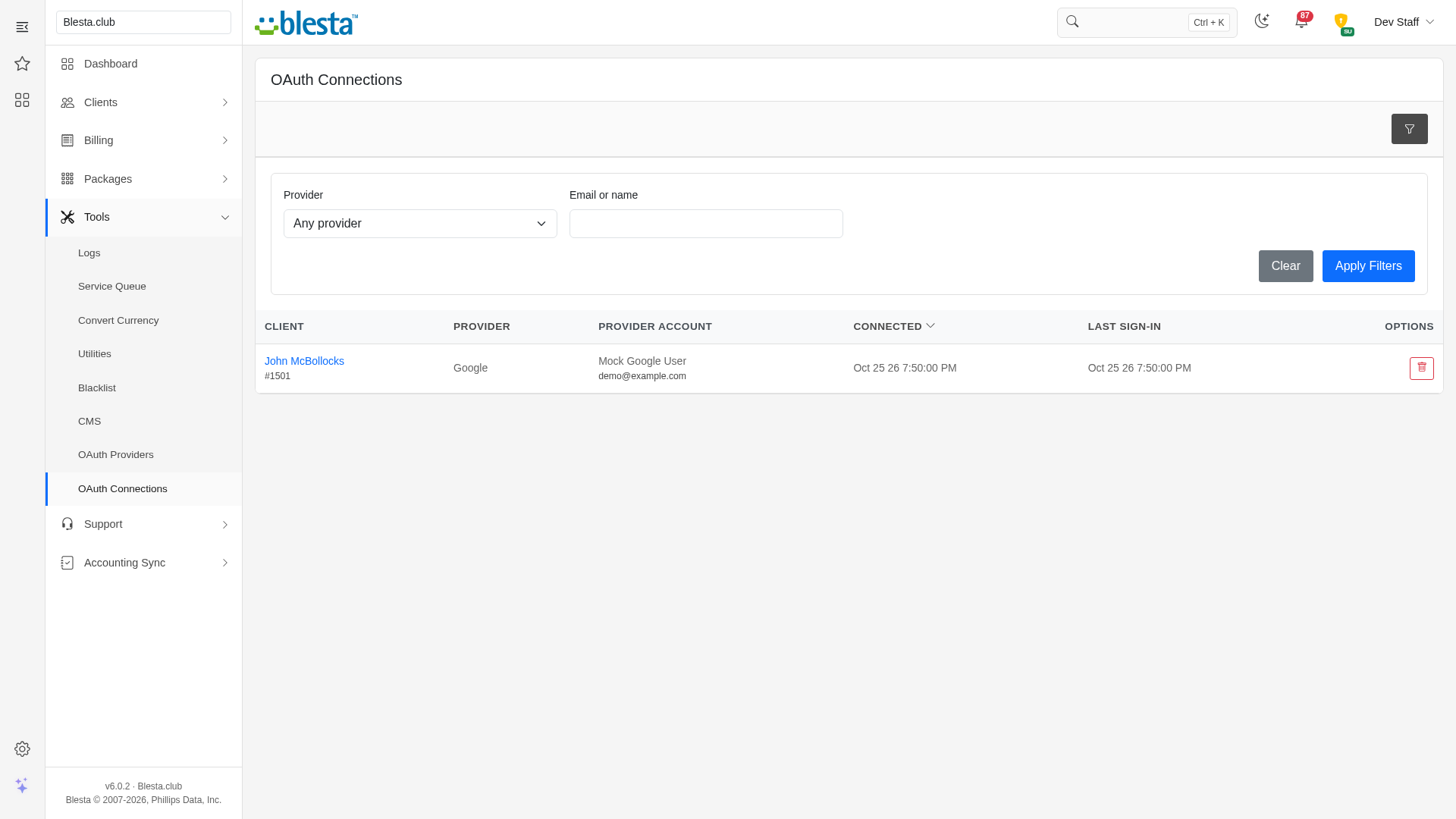
Features
What OAuth Login gives you
Staff and Client Area
Gives both your staff and your clients a purpose-built interface in their own area of Blesta.
Per-Company Configuration
Configure it independently for each brand on a multi-company install, so every company runs with its own settings.
Two-Factor Accounts Stay Protected
Accounts that use two-factor authentication are never signed in by a provider, so the second factor can never be skipped.
Fully Translatable
Every staff and client label ships in editable language files, ready to translate into any language or reword to match your brand.
Security Notices for Every Change
Clients are emailed whenever a sign-in method is connected or disconnected, so a connection they did not make is noticed straight away.
Per-Staff-Group Permissions
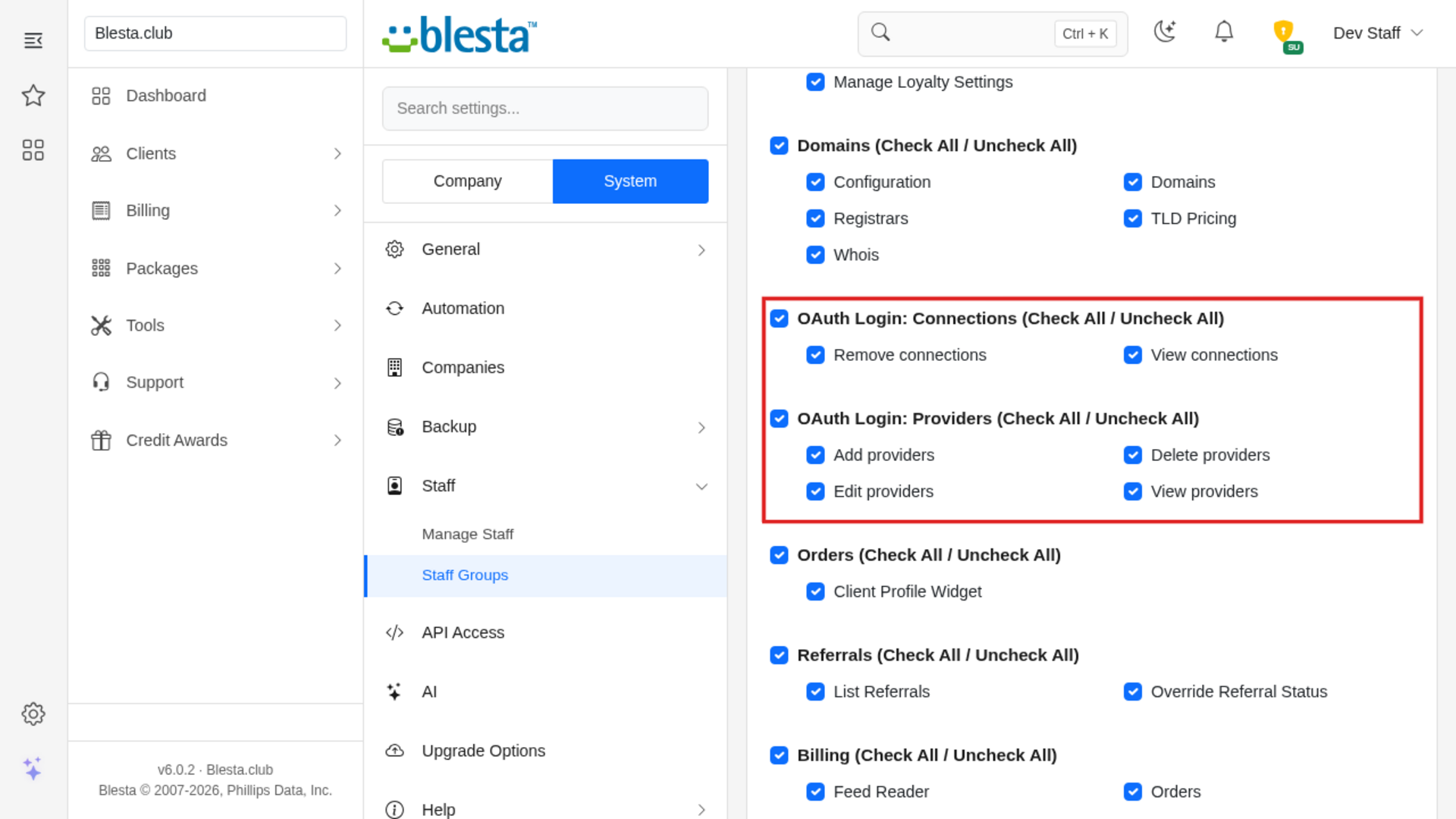
Each staff action it adds is a separate permission you grant per staff group, so each team gets exactly the access it needs and nothing more.
Built-In Demo Mode
A built-in demo mode runs the whole extension from bundled sample data, so you can trial every screen and action before you have an account or API key.
Per-Provider Controls
For each provider choose the button label and order, whether it is enabled, whether email matching and sign-up are allowed, and which scopes it requests.
Staff Overview of Every Connection
Staff see every connected account with its client, provider, connection date and last sign-in, can search and filter the list, and can remove any connection.
Any OpenID Connect Provider
Connect your own identity provider by entering its discovery address, or its sign-in, token and profile addresses by hand, and add as many custom providers as you need.
Editable Email Templates
The emails it sends install as standard Blesta templates in every language you have enabled, so you can reword them, restyle the HTML and choose which details they carry.
Write-Only Credential Fields
Stored credentials are never rendered back into the settings page, and leaving a field blank when you edit keeps the saved value, so a secret is never exposed in day-to-day admin work and cannot be wiped by accident.
Closed Accounts Stay Closed
Only active clients are ever signed in by a provider, and a client's connections are removed automatically when the client, or a contact's own login, is deleted, so a provider account never outlives the account it opened.
Clients Manage Their Own Connections
A Connected Accounts page lets each client connect or disconnect any provider, see which account is linked and when it was last used, and sign in even when the provider's email differs from the one on their Blesta account.
Sixteen Providers Built In
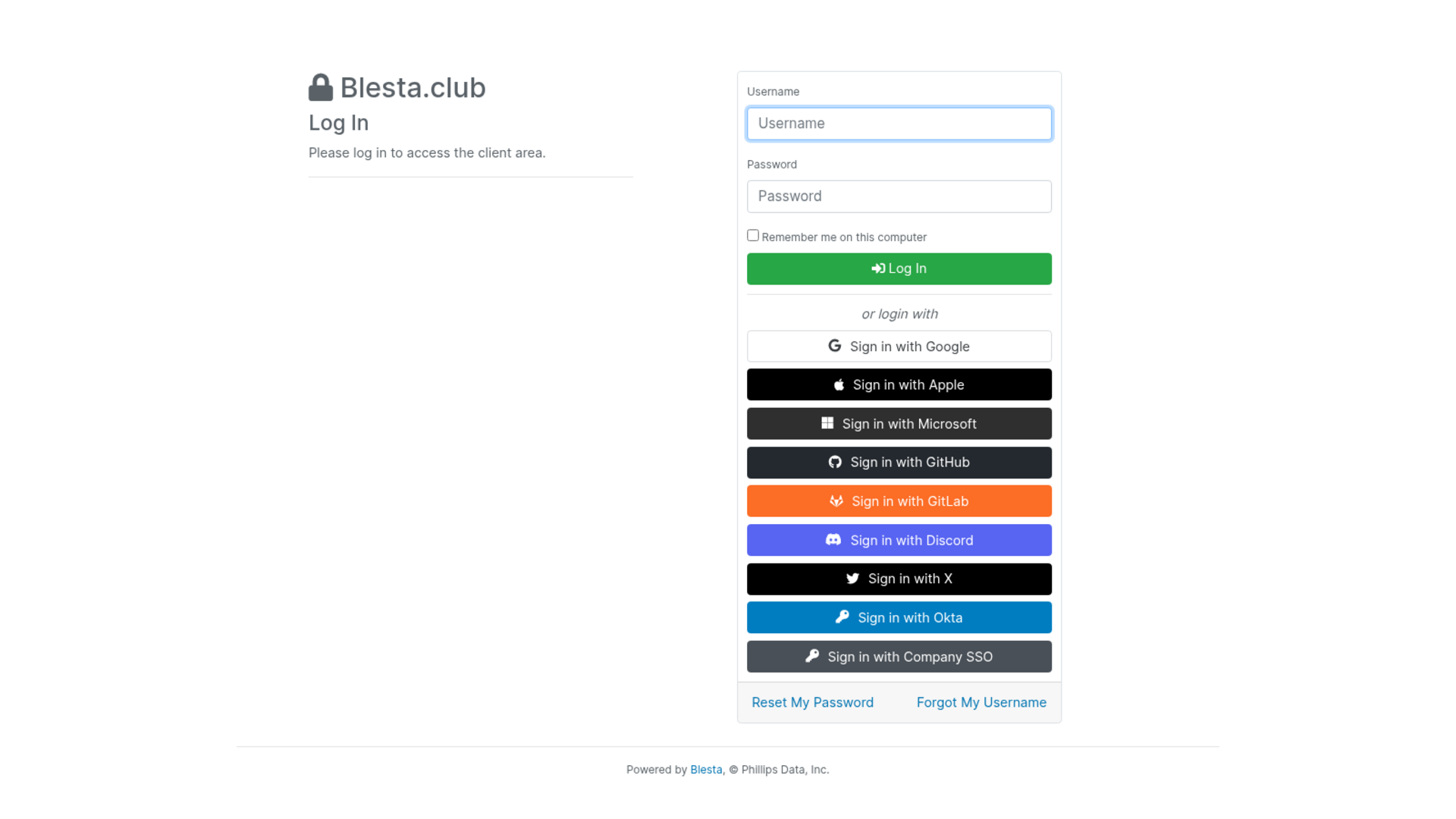
Offer Google, GitHub, Discord, Microsoft, GitLab, Bitbucket, Twitch, Slack, LinkedIn, Facebook, Amazon, Yahoo, Apple, X, Auth0 and Okta from one plugin, each with its own branded button on your login page and no template edits.
Sign Up With a Provider
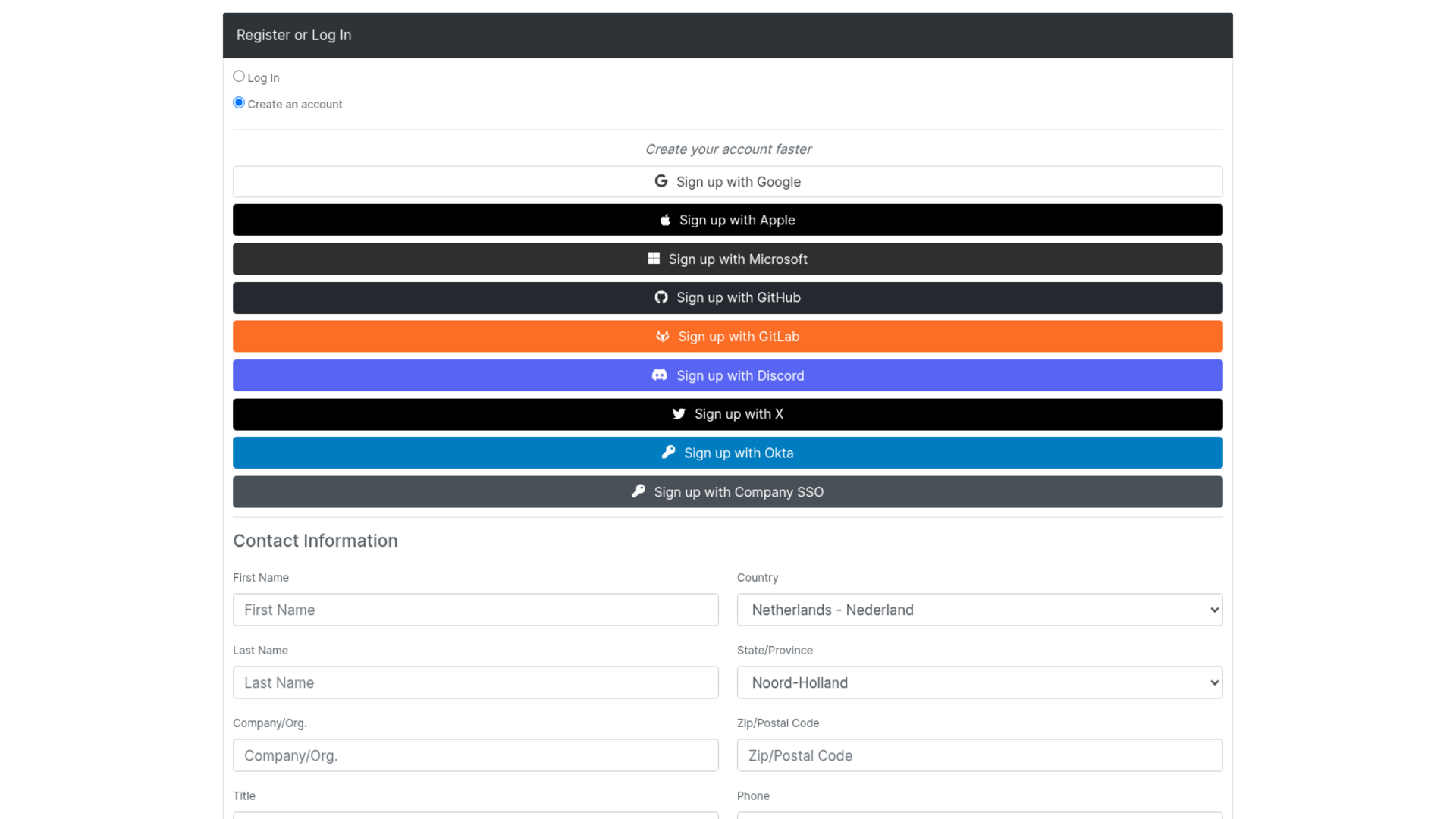
Clients can start an order with a provider account instead of typing their details, and their name and verified email are filled in and locked on your order form. Sign-up is refused when the provider account is already connected or its verified email already belongs to a client.
Automatic Matching by Verified Email
Optionally connect a first-time sign-in to the client who uses the same email address, but only when the provider vouches for it and the account holder has confirmed that address through Blesta's email verification, so nobody can claim an account by registering with someone else's email or through a contact who has no login of their own.

OAuth Login
Let clients sign in and sign up with the accounts they already have, from Google and Apple to your own identity provider, and manage those connections themselves.
What it does
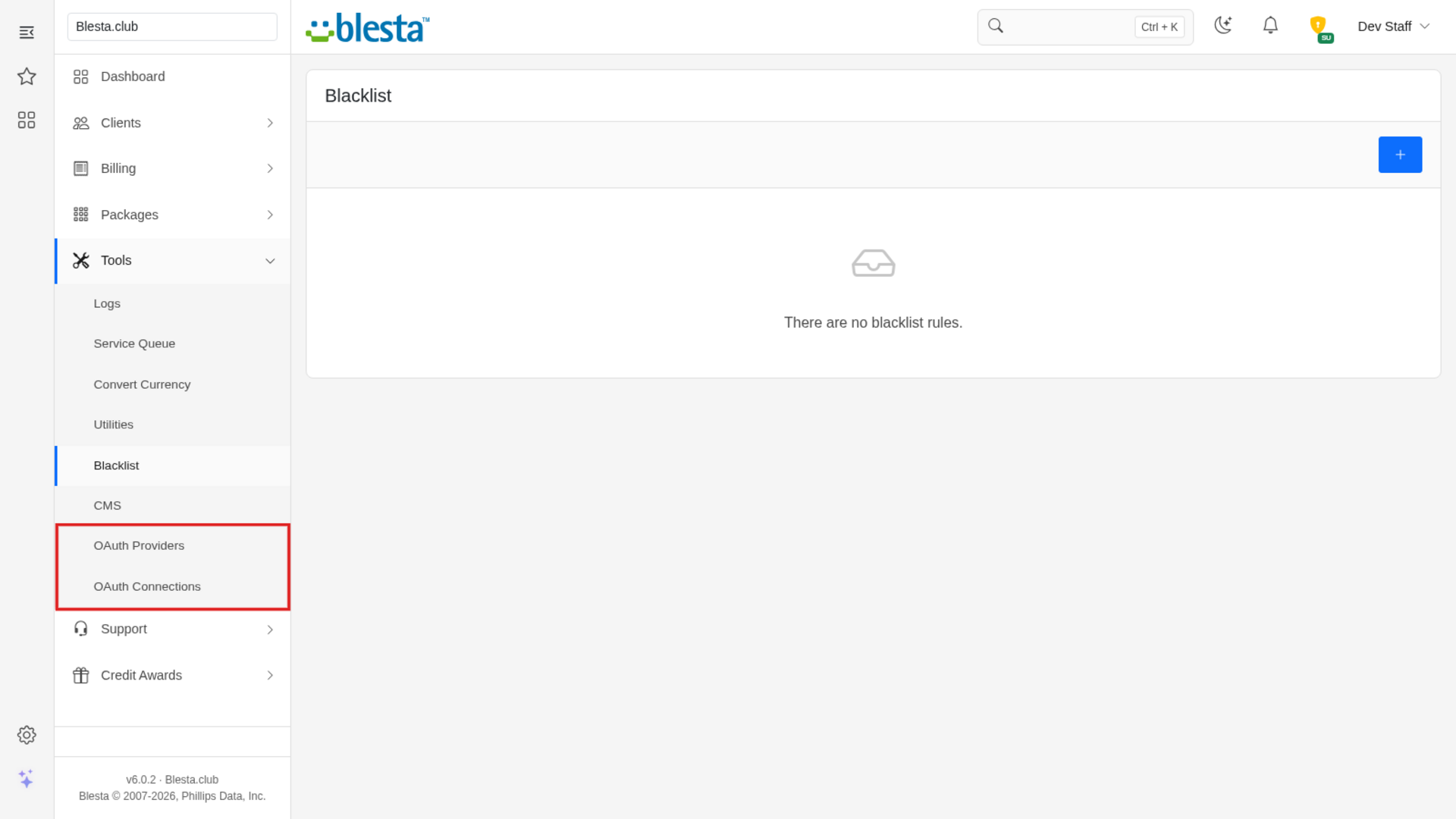
Every extra password is friction for your clients, and every forgotten one is a support ticket for you. OAuth Login adds a branded button for each provider you enable to your client login page and to your order form, so a client can sign in or start an order with an account they already use. Clients connect and disconnect those accounts themselves from a Connected Accounts page, and your staff manage the providers and see every connection from the Tools menu. Nothing about your login page template needs editing.
Key features
- Fully Translatable: Every staff and client label ships in editable language files, ready to translate into any language or reword to match your brand.
- Per-Company Configuration: Configure it independently for each brand on a multi-company install, so every company runs with its own settings.
- Built-In Demo Mode: A built-in demo mode runs the whole extension from bundled sample data, so you can trial every screen and action before you have an account or API key.
- Staff and Client Area: Gives both your staff and your clients a purpose-built interface in their own area of Blesta.
- Editable Email Templates: The emails it sends install as standard Blesta templates in every language you have enabled, so you can reword them, restyle the HTML and choose which details they carry.
- Write-Only Credential Fields: Stored credentials are never rendered back into the settings page, and leaving a field blank when you edit keeps the saved value, so a secret is never exposed in day-to-day admin work and cannot be wiped by accident.
- Per-Staff-Group Permissions: Each staff action it adds is a separate permission you grant per staff group, so each team gets exactly the access it needs and nothing more.
- Sixteen Providers Built In: Offer Google, GitHub, Discord, Microsoft, GitLab, Bitbucket, Twitch, Slack, LinkedIn, Facebook, Amazon, Yahoo, Apple, X, Auth0 and Okta from one plugin, each with its own branded button on your login page and no template edits.
- Any OpenID Connect Provider: Connect your own identity provider by entering its discovery address, or its sign-in, token and profile addresses by hand, and add as many custom providers as you need.
- Clients Manage Their Own Connections: A Connected Accounts page lets each client connect or disconnect any provider, see which account is linked and when it was last used, and sign in even when the provider's email differs from the one on their Blesta account.
- Automatic Matching by Verified Email: Optionally connect a first-time sign-in to the client who uses the same email address, but only when the provider vouches for it and the account holder has confirmed that address through Blesta's email verification, so nobody can claim an account by registering with someone else's email or through a contact who has no login of their own.
- Sign Up With a Provider: Clients can start an order with a provider account instead of typing their details, and their name and verified email are filled in and locked on your order form. Sign-up is refused when the provider account is already connected or its verified email already belongs to a client.
- Security Notices for Every Change: Clients are emailed whenever a sign-in method is connected or disconnected, so a connection they did not make is noticed straight away.
- Per-Provider Controls: For each provider choose the button label and order, whether it is enabled, whether email matching and sign-up are allowed, and which scopes it requests.
- Staff Overview of Every Connection: Staff see every connected account with its client, provider, connection date and last sign-in, can search and filter the list, and can remove any connection.
- Closed Accounts Stay Closed: Only active clients are ever signed in by a provider, and a client's connections are removed automatically when the client, or a contact's own login, is deleted, so a provider account never outlives the account it opened.
- Two-Factor Accounts Stay Protected: Accounts that use two-factor authentication are never signed in by a provider, so the second factor can never be skipped.
Installing and updating extensions can now be done automatically through the Blesta Club Subscription Manager - this is the recommended way going forward.
Installing OAuth Login
Before you start
- OAuth Login requires Blesta 6.0 or later.
- If you are on the leased (subscription) licence, the Blesta Club Subscription Manager must be installed and your subscription active. The owned and owned-source licences have no such requirement.
- Letting clients sign up with a provider on your order form also needs the Order System plugin that ships with Blesta. Sign-in and Connected Accounts work without it.
1. Upload the files
Upload the extension folder into your Blesta installation so it lands under your Blesta directory at:
plugins/oauth_login/For example, on a typical install: /var/www/html/blesta/plugins/oauth_login/
2. Install it in Blesta
- Log in to your Blesta admin area with a staff account that has the Plugins permission (with Install Plugin, Plugin Settings, Uninstall Plugin and Upgrade Plugin) under the Settings group in Settings > System > Staff > Staff Groups.
- Go to Settings > Company > Plugins and click the Available tab. Blesta may ask for your password again the first time you open a Settings page.
- Find OAuth Login in the list and click Install. Blesta confirms with "The plugin was successfully installed. It may have registered ACL permissions for various resources. You may need to grant your staff group access to these permissions in order to access these resources."
The plugin then appears on the Installed tab with Settings, Disable and Uninstall buttons. It has no Manage button: you configure it from the Tools menu instead.
3. Grant staff permissions
Installing adds two permission groups, OAuth Login: Providers and OAuth Login: Connections. Blesta ticks them for the staff group of the person who installed the plugin (Administrators on a default install). To let another staff group use them:
- Go to Settings > System > Staff > Staff Groups and click edit next to the group.
- In the Access Control List, tick OAuth Login: Providers (view, add, edit and delete providers) and OAuth Login: Connections (view and remove connections).
- Save the group.
Staff with access see two new entries under Tools: OAuth Providers and OAuth Connections.
4. Configure it
- Create an application with the provider you want to offer (for example in its developer console) and copy its Client ID and Client Secret.
- In Blesta open Tools > OAuth Providers and click the provider under Add Provider.
- Copy the read-only Redirect URI shown on the form and add it to your application at the provider. Without it the provider will refuse the sign-in.
- Paste in the Client ID and Client Secret, leave Enabled ticked and click Save. Blesta confirms with "The provider was added."
The provider's button now appears on your client login page and on the sign-up step of your order forms. A few providers need extra details:
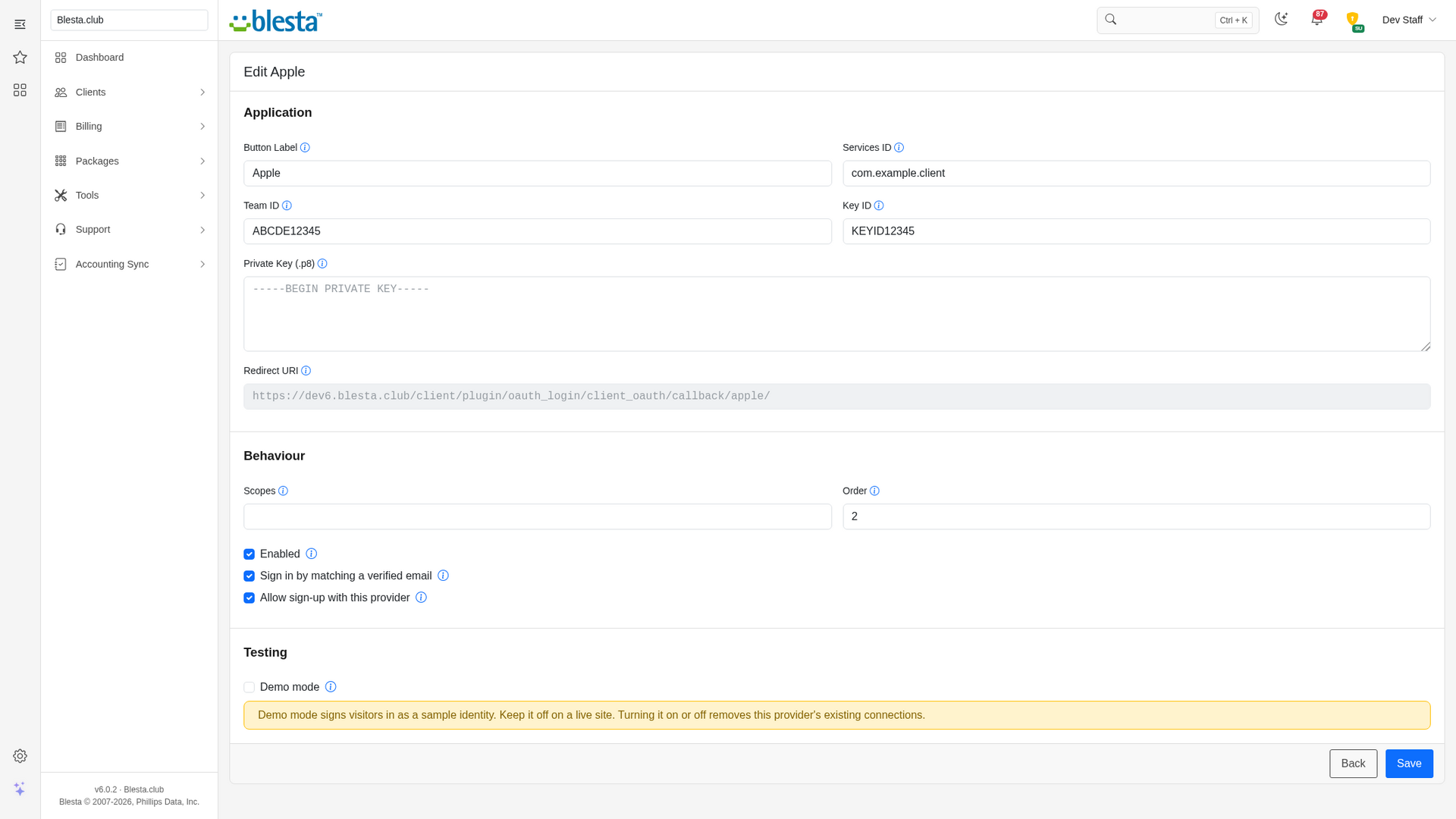
- Apple asks for the Services ID, your Team ID, the Key ID and the contents of the .p8 private key file Apple lets you download once, instead of a client secret.
- Microsoft has an optional Tenant field. Leave it blank (the same as
common) to accept any Microsoft account, enterorganizationsfor work and school accounts only orconsumersfor personal Microsoft accounts only, or enter a directory (tenant) ID to limit sign-in to one organisation. - Auth0 and Okta ask for your Domain (for example
example.okta.com, withouthttps://). - Custom OpenID Connect asks for a button label and either a Discovery URL or the authorize, token and userinfo URLs. You can add as many custom providers as you need.
Secrets are stored encrypted and are never shown again. When you edit a provider, leave the secret field blank to keep the saved one.
Email matching and Blesta email verification. The Sign in by matching a verified email option only connects a first-time sign-in to an account whose address was confirmed through Blesta's own email verification (the client clicked the link in the verification email, or a staff member marked the address verified on the client's profile) after OAuth Login was installed. Addresses that were already marked verified before the install do not count until they are verified again, for example when the client changes their email address and confirms the new one. Until then those clients connect a provider themselves from Connected Accounts, which works exactly as before. If your client groups do not use Blesta email verification at all, email matching never connects anyone automatically.
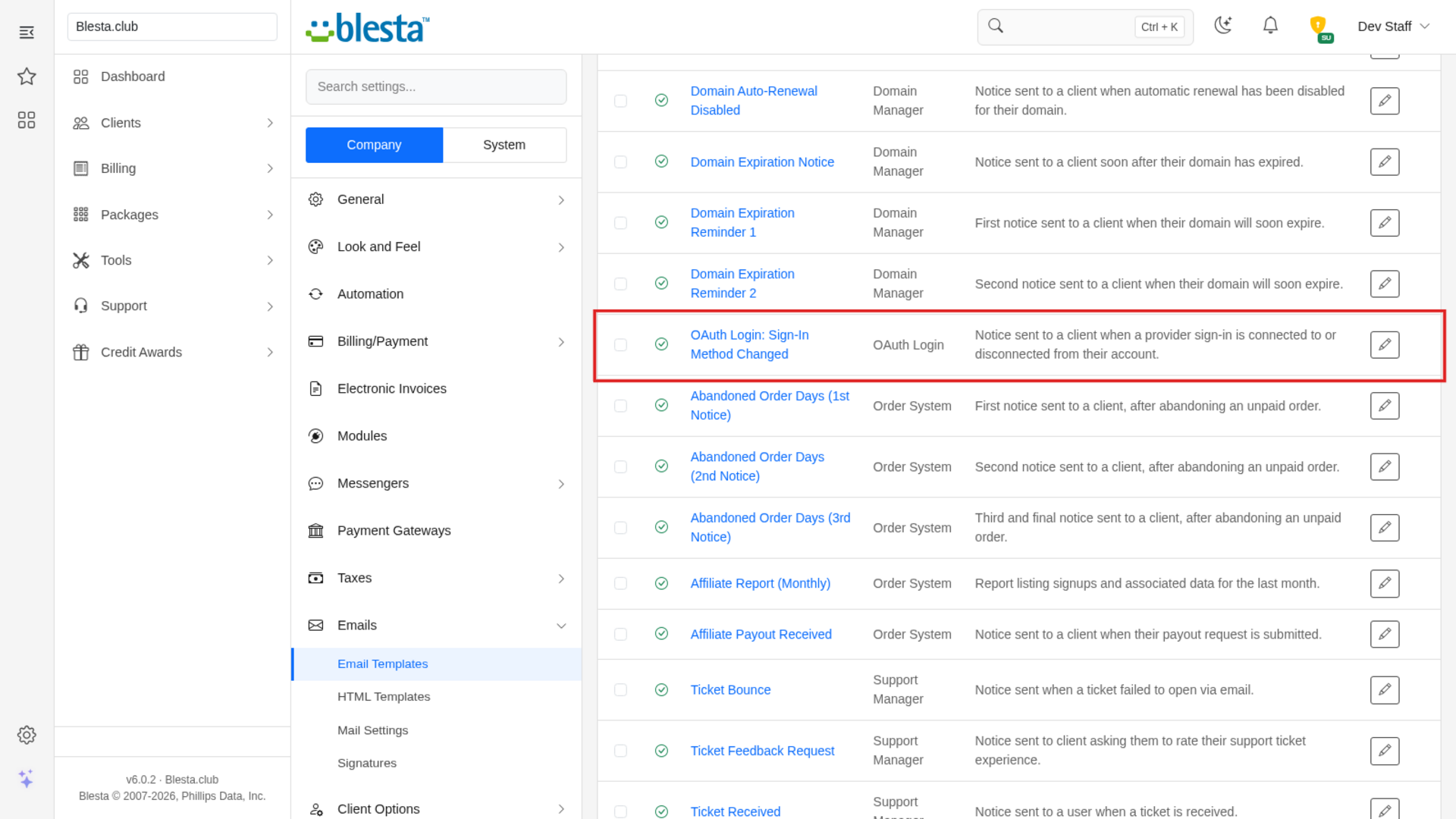
Email template. Clients are emailed whenever a sign-in method is connected or disconnected. The template is installed for you and can be reworded under Settings > Company > Emails > Email Templates, on the Plugin Emails tab, as OAuth Login: Sign-In Method Changed.
OAuth Login has no cron task and nothing else to configure. The Demo mode option on each provider is for trying the plugin without a real application. Keep it off on a live site.
You're ready to go - see the usage guide for a walkthrough of day-to-day use.
Installing and updating extensions can now be done automatically through the Blesta Club Subscription Manager - this is the recommended way going forward.
Updating OAuth Login
Upgrading works just like installing: upload the new files over the old ones, then run the upgrade from the same page you installed it on.
- Back up your current extension files first - good practice before any upgrade.
- Upload the new version over the existing folder, replacing the old files.
- Log in to your Blesta admin area and go to Settings > Company > Plugins, on the Installed tab.
- Find OAuth Login and click Upgrade to run the upgrade.
On the leased (subscription) licence your subscription must be active to run the upgrade. This is the first release, so there are no version-specific notes yet.
Using OAuth Login
For your staff
Manage your providers
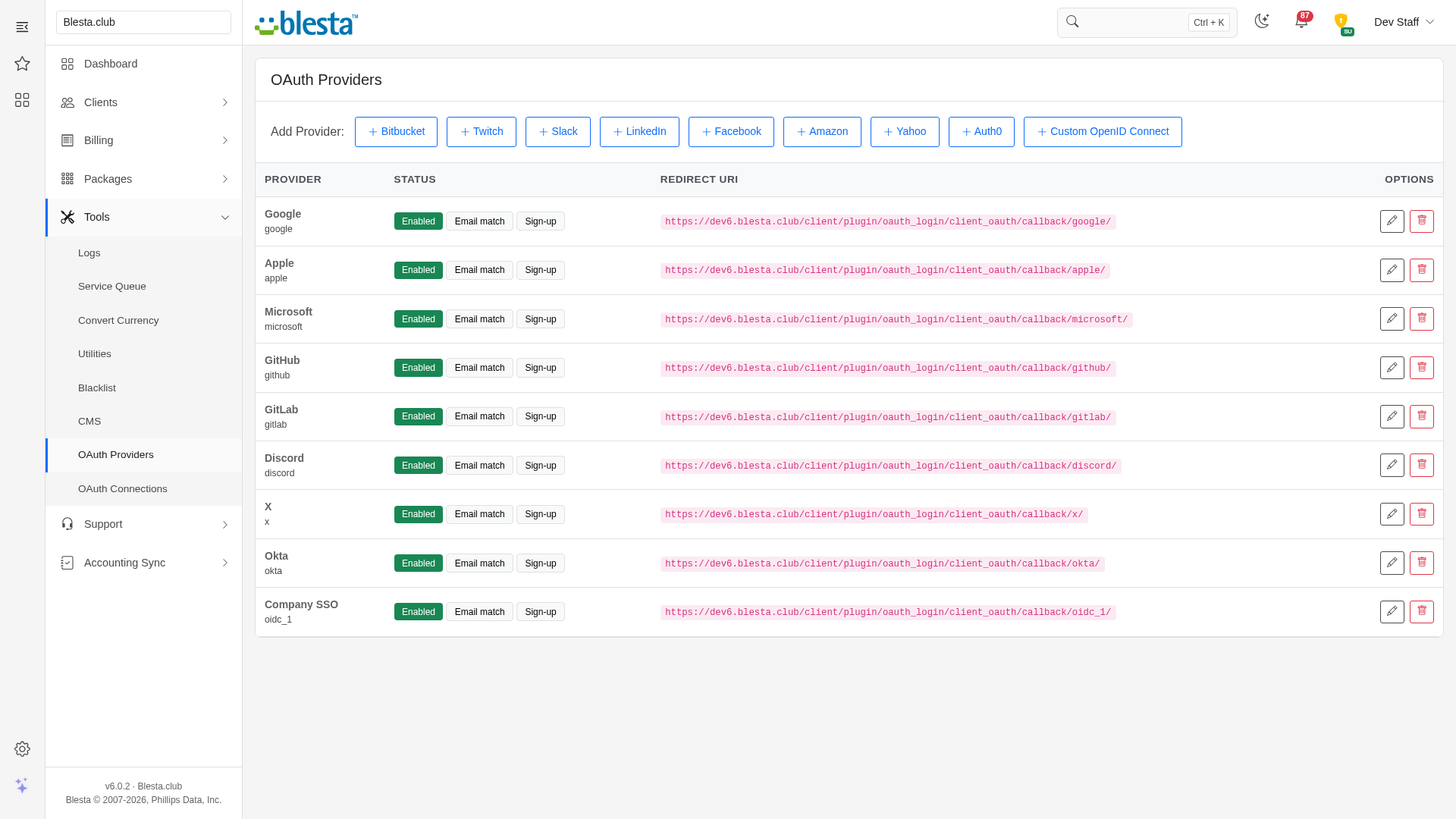
Open Tools > OAuth Providers. The page lists every provider you have added with its status, its Redirect URI and an edit (pencil) and delete (trash) button. The status badges show a green Enabled or a grey Disabled, then Email match and Sign-up when those options are on, and Demo mode if it is on. Above the list, the Add Provider row offers every provider you have not added yet, and Custom OpenID Connect stays there so you can add more than one.
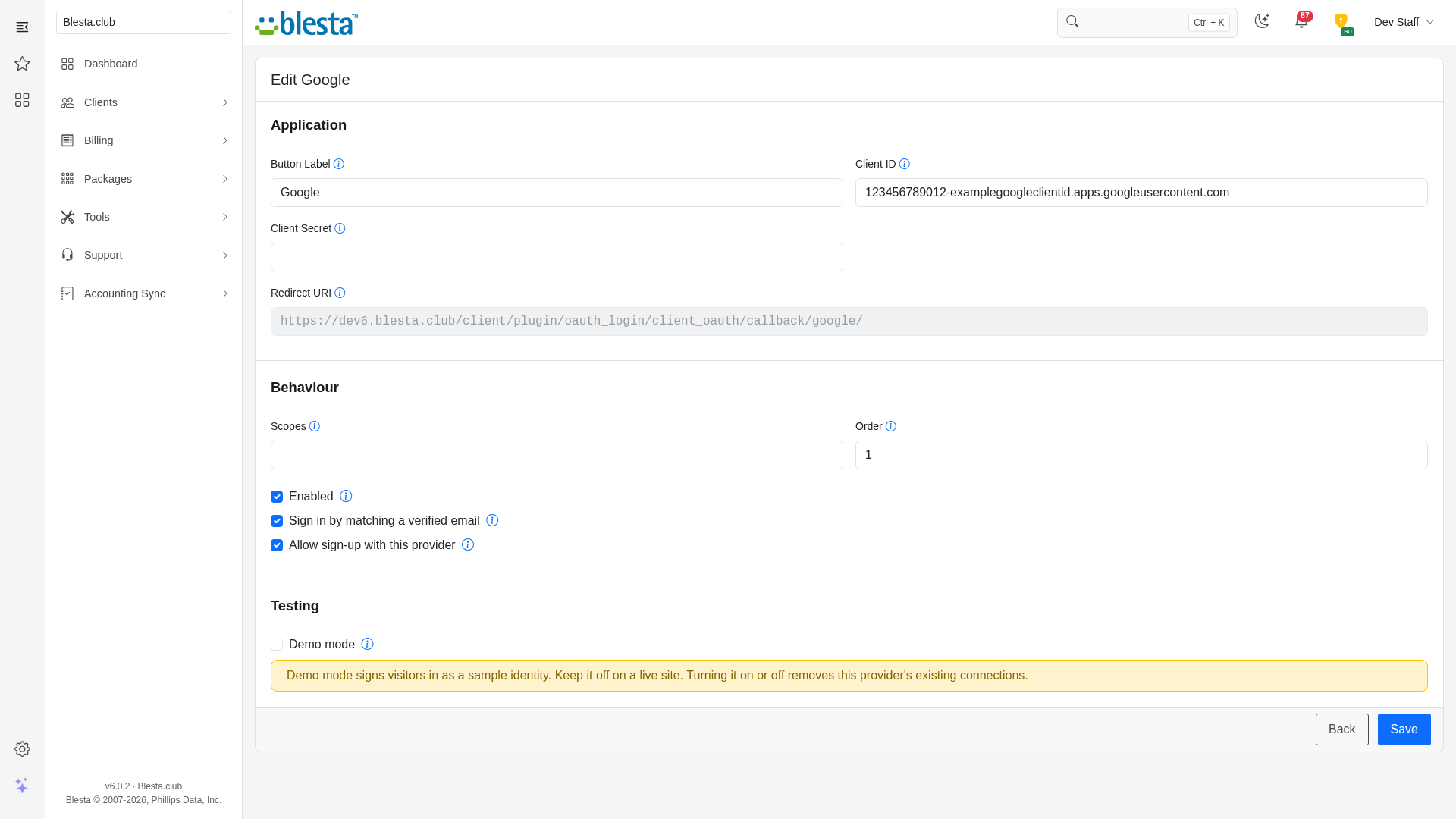
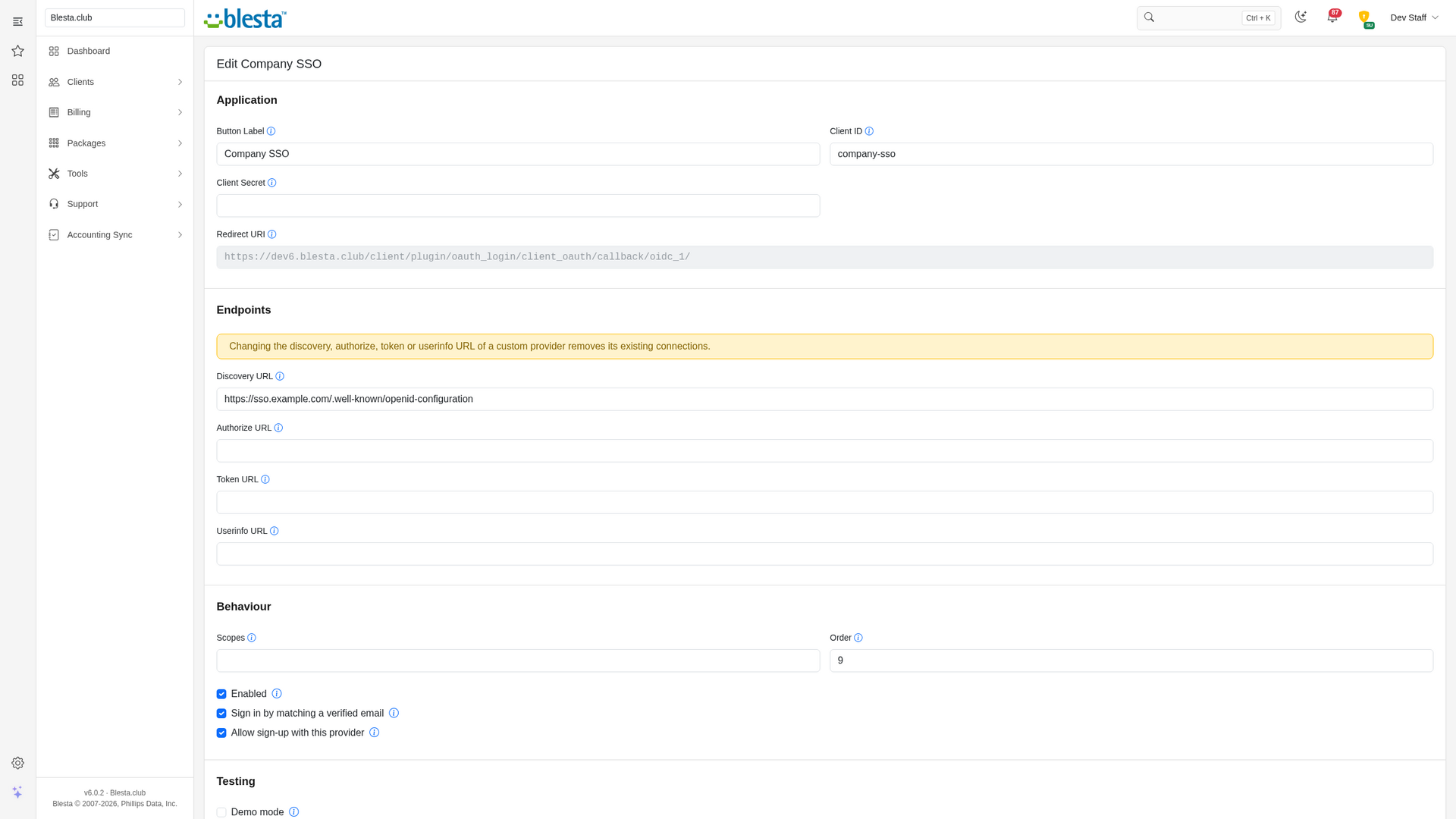
Click a provider under Add Provider, or the pencil next to an existing one. The form has three sections, and a Custom OpenID Connect provider has a fourth (Application, Endpoints, Behaviour, Testing):
- Application: the Button Label shown to clients, the Client ID, the Client Secret and the read-only Redirect URI to register at the provider. Apple asks for a Services ID, Team ID, Key ID and Private Key (.p8) instead, Microsoft adds an optional Tenant, and Auth0 and Okta add a required Domain, with the note "Changing the domain removes this provider's existing connections."
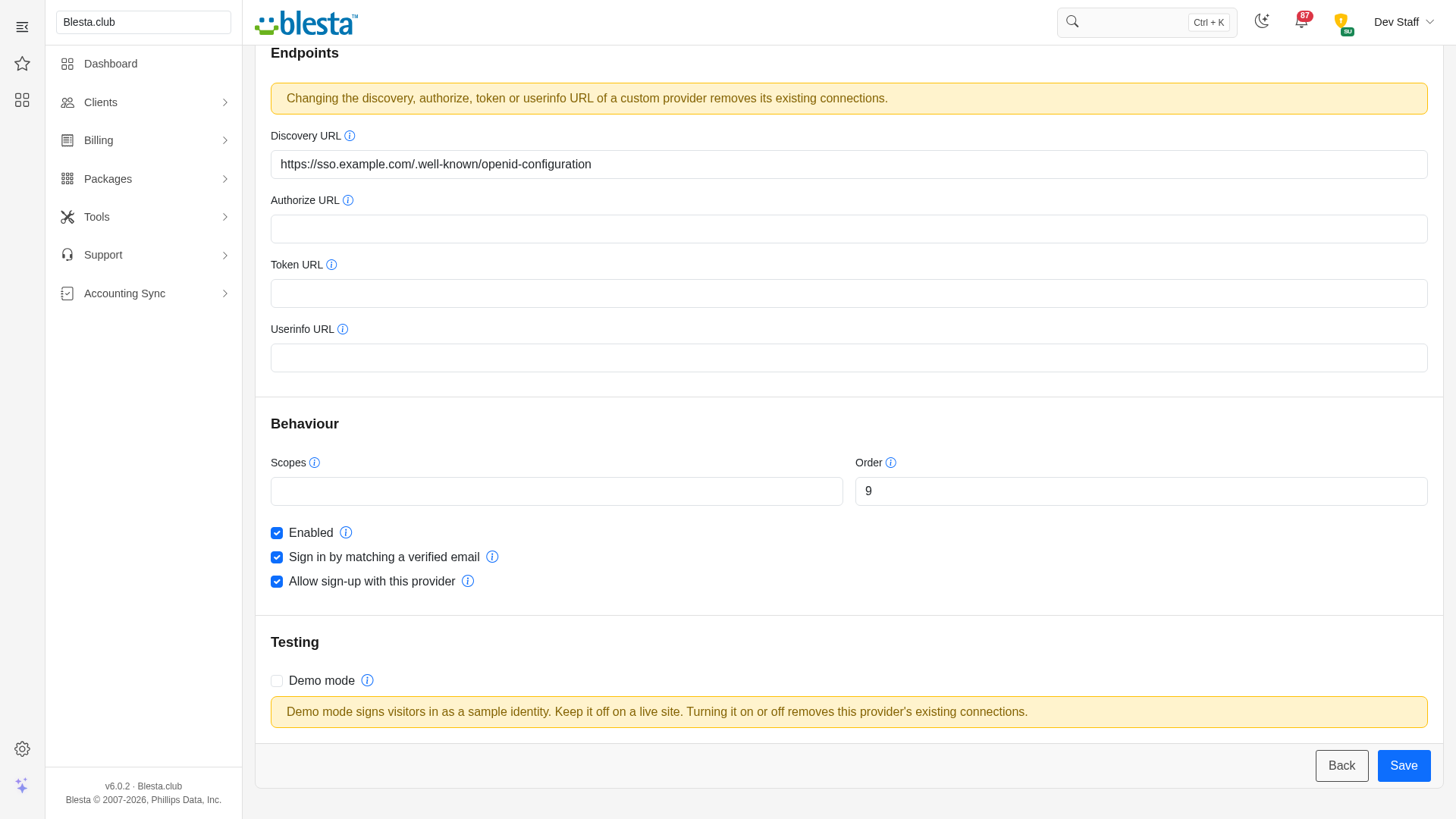
- Endpoints (custom providers only): the Discovery URL, or the Authorize URL, Token URL and Userinfo URL, under the warning "Changing the discovery, authorize, token or userinfo URL of a custom provider removes its existing connections."
- Behaviour: Scopes (leave blank for the default), Order (lower numbers are shown first) and three tick boxes, described below.
- Testing: Demo mode, which signs visitors in as a sample identity. The note below it reads "Demo mode signs visitors in as a sample identity. Keep it off on a live site. Turning it on or off removes this provider's existing connections."
If a save fails validation, the form comes back with your entries and tick boxes as you left them (secret fields are always blank).
Saving a provider removes every connection made through it when you turn Demo mode on or off, change a custom provider's endpoints, or change the Auth0 or Okta Domain, because the accounts behind those connections may no longer be the same. The affected clients connect the provider again from Connected Accounts.
Secrets are stored encrypted and are never shown again, so the secret field is always blank when you edit. Leave it blank to keep the saved one. Click Save; Blesta confirms with "The provider was added." or "The provider was saved."
The three tick boxes control where and how a provider is used:
- Enabled: shows the provider's button on the client login page and lists it on the client's Connected Accounts page. Untick it and the button disappears from both the login page and the sign-up page. A client who is already connected to it still sees it on their Connected Accounts page, so they can disconnect it, but nobody else sees it.
- Sign in by matching a verified email: when a client signs in with a provider they have not connected yet, the provider vouches for their email address, and that address was confirmed through Blesta's email verification (by the client or by staff marking it verified), the client is connected to that account automatically. Only the client's primary contact, or a contact with their own login, counts: a billing or other contact without a login never connects anyone. Accounts whose email is not verified in Blesta are never connected this way, and neither are addresses that were marked verified before OAuth Login was installed until they are verified again. Turn it off to allow only accounts clients have connected themselves.
- Allow sign-up with this provider: offers the provider on the sign-up step of your order forms. Untick it and the sign-up button disappears while the sign-in button stays on the login page.
To remove a provider, click its trash button. A Confirm Delete window warns that "Every connection made through it is removed and those clients can no longer sign in with it." Confirm and Blesta shows "The provider and its connections were deleted."
Review every connection
Open Tools > OAuth Connections. The list shows each connected account with its Client (linked to the client's profile), Provider, Provider Account, when it was Connected and the Last Sign-In. Click the funnel button to filter by Provider or search the account's name or email under Email or name, then click Apply Filters (or Clear).
To cut a client off from a provider, click the trash button on its row. The Confirm Delete window says "Remove this connection? The client can no longer sign in with it." and Blesta confirms with "The connection was removed."
When you use Login as Client from a client's profile, the client's Connected Accounts page shows "Only the client can connect this" where a Connect button would be, so nobody on staff can attach their own provider account to a client. You can still disconnect a connection from there.
For your clients
Sign in with a provider
On your client login page, below the usual form, an or login with divider is followed by a Sign in with ... button for each enabled provider. A client who has connected that provider is signed in and lands in their client area.
A client who has not connected the provider yet is sent back to the login page with "No account is connected to that provider account. Log in with your email address and password, then connect it under Connected Accounts." (unless email matching connected them automatically, as described above).
Connected Accounts
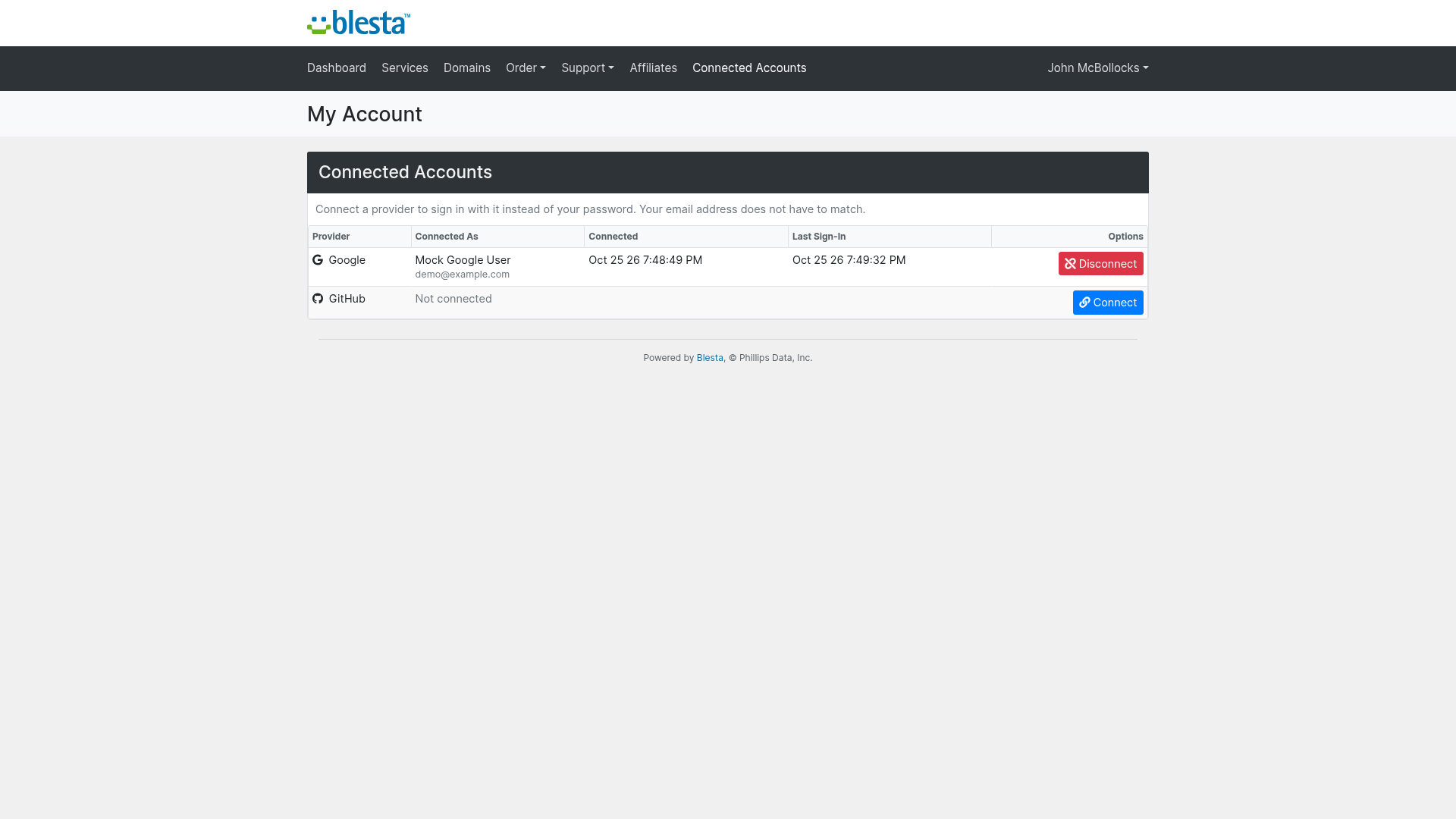
After logging in, clients open Connected Accounts in the top navigation. The page explains "Connect a provider to sign in with it instead of your password. Your email address does not have to match." and lists every provider with the account it is connected as, when it was connected and the last sign-in.
- Click Connect next to a provider, approve the request at the provider, and the client returns to the page with "Your ... account is now connected." The row then shows the provider account's name and email.
- Click Disconnect, confirm "Disconnect this account? You will no longer be able to sign in with it.", and Blesta shows "Your ... account was disconnected."
Each time a sign-in method is connected or disconnected, the client is sent an email so a change they did not make is noticed straight away.
Sign up with a provider
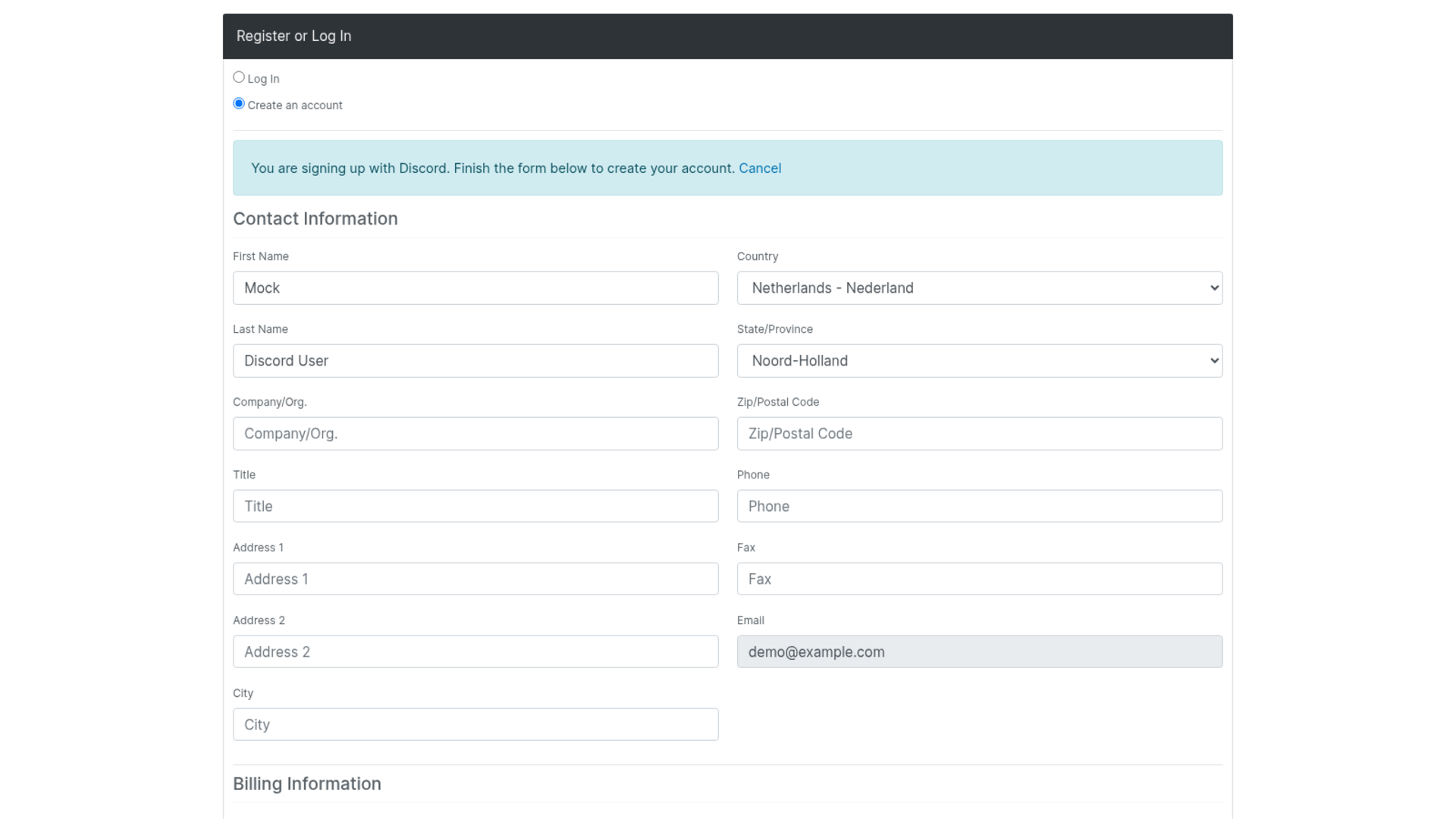
On the sign-up step of an order form, a Create your account faster heading is followed by a Sign up with ... button for each provider that allows sign-up. After the client approves the request at the provider they return to the same page with the message "You are signing up with ... Finish the form below to create your account." Their name is filled in and their verified email address is filled in and locked. They complete the rest of the form as usual, and the provider account is connected as the account is created. Cancel in the message clears everything and brings back the buttons.
Sign-up is refused, with a message on the same page, when:
- the provider account is already connected to a client ("That provider account is already connected to a client account. Please log in, then manage it under Connected Accounts."), or
- the provider's verified email address already belongs to an account ("An account already uses the email address on that provider account. Please log in, then connect the provider under Connected Accounts.").
Good to know
- If a first-time sign-in cannot be matched automatically, the client is asked to log in with their password and connect the provider from Connected Accounts. This happens when the matching account's email is not verified in Blesta ("An account uses the email address on that provider account, but that address has not been verified with us, so it can not be connected automatically. Log in with your email address and password, then connect it under Connected Accounts."), when more than one account uses the email address, or when the account is already connected to a different account at that provider.
- Providers that do not vouch for a verified email address, including X, Facebook, Amazon and Slack, can only be connected by the client from Connected Accounts. Email matching never applies to them.
- Accounts that use two-factor authentication are not signed in by a provider, because the second step cannot be completed that way. Those clients log in with their password as usual.
- A client can connect one account per provider, and one provider account can belong to only one client.
- Only active clients are signed in by a provider. A connected client whose status is not active sees "The account connected to that provider account no longer has client access. Please log in with your email address and password.", and a client who is not active is never connected automatically.
- Deleting a client removes their connections, and so does deleting a contact or removing a contact's login, so a provider account never keeps a way into an account that has gone.
v1.0.0 - 2026-10-31
PHP 8.2 - 8.4 · Blesta 6.x
- Initial release
Pricing Options
Get exactly what you need and want.
Requires PHP 8.2 - 8.4 · Blesta 6.x
Included In
Value: Free
- +28 Other Extensions
- Additional Discounts
- Included Support & Updates
Leased
- Partially Encoded
- Full Functionality
- Included Support & Updates
Owned - Source
- Source Available
- Buy Once Use Forever
- 1 Year Support & Updates
Not sure whether to lease or own? Our FAQ explains how the licence types differ.
Reviews
What our customers say
(0 customer reviews)
Seems like this extension doesn't have reviews yet...
Be one of the firsts to leave a review!
It is possible to leave a review only if you have purchased this extension or a Club tier which contains it.
We reserve the right to alter wording or formatting for presentation.
We will discuss any changes made and offer the option to withdraw review text if the changes can't be agreed on.
It may take up to 1 hour for a review to appear or update due to caching.
You might also like
More extensions to explore

Plugin
Announcements
Integrate the Announcements plugin to provide updates and news to your clients.
PHP 8.2 - 8.4 · Blesta 6.x


Plugin
Client Data Changelog
See what changed on a client's account, when it changed and who changed it.
PHP 8.2 - 8.4 · Blesta 6.x



Plugin
Credit Awards
Give your clients rewards based upon service purchases.
PHP 8.2 - 8.4 · Blesta 6.x