Login Notifications
The Login Notifications plugin emails the account holder whenever a sign-in comes from a new browser, a new location or an impossible distance away. A one-click "this was not me" link signs the account out everywhere and starts a password reset.
Free - View Pricing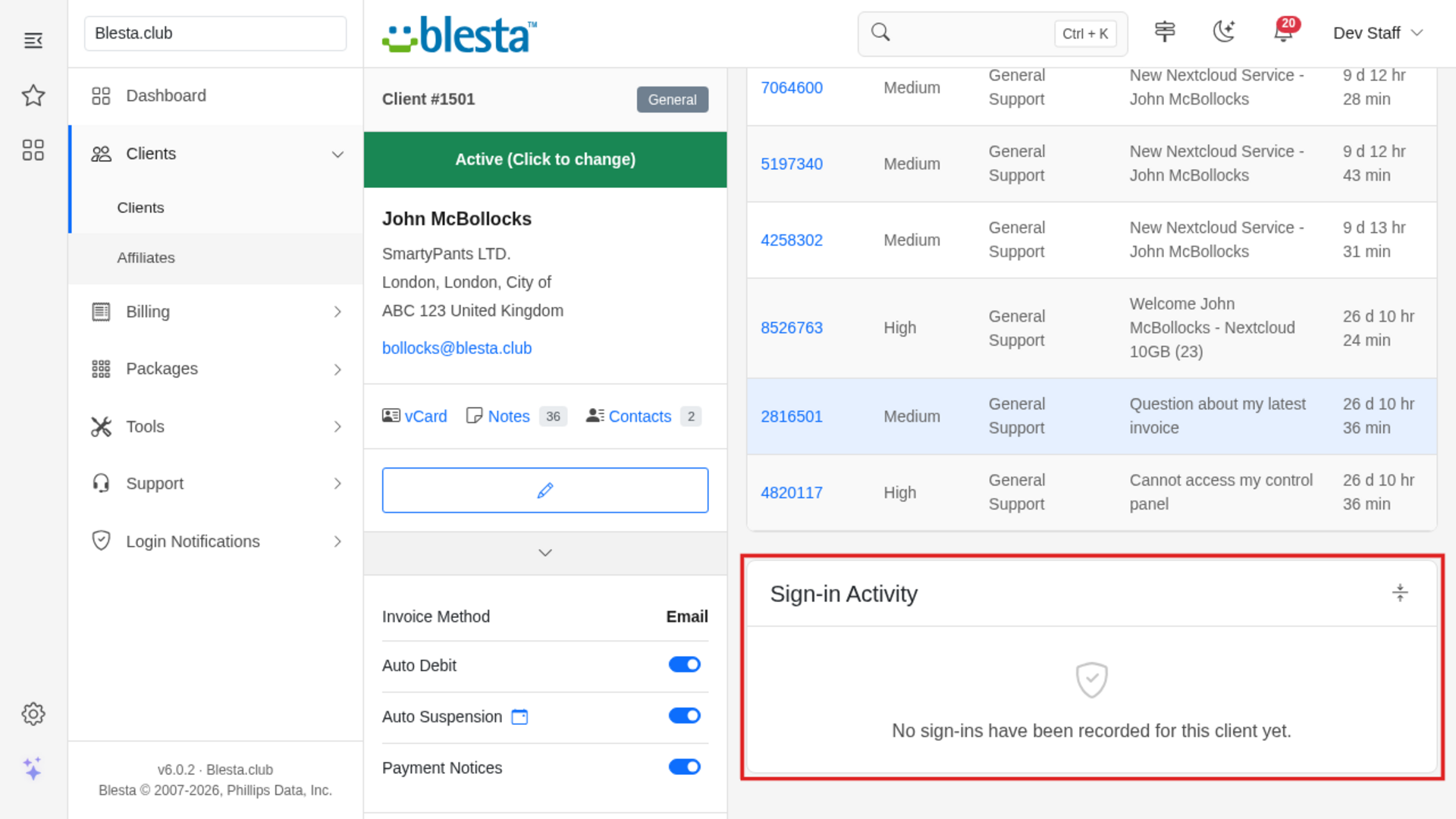
Features
What Login Notifications gives you
Automatic Background Processing
Runs on Blesta's cron with no manual upkeep, so everything stays up to date on its own.
Staff and Client Area
Gives both your staff and your clients a purpose-built interface in their own area of Blesta.
Per-Company Configuration
Configure it independently for each brand on a multi-company install, so every company runs with its own settings.
Fully Translatable
Every staff and client label ships in editable language files, ready to translate into any language or reword to match your brand.
Login Security Dashboard Widget
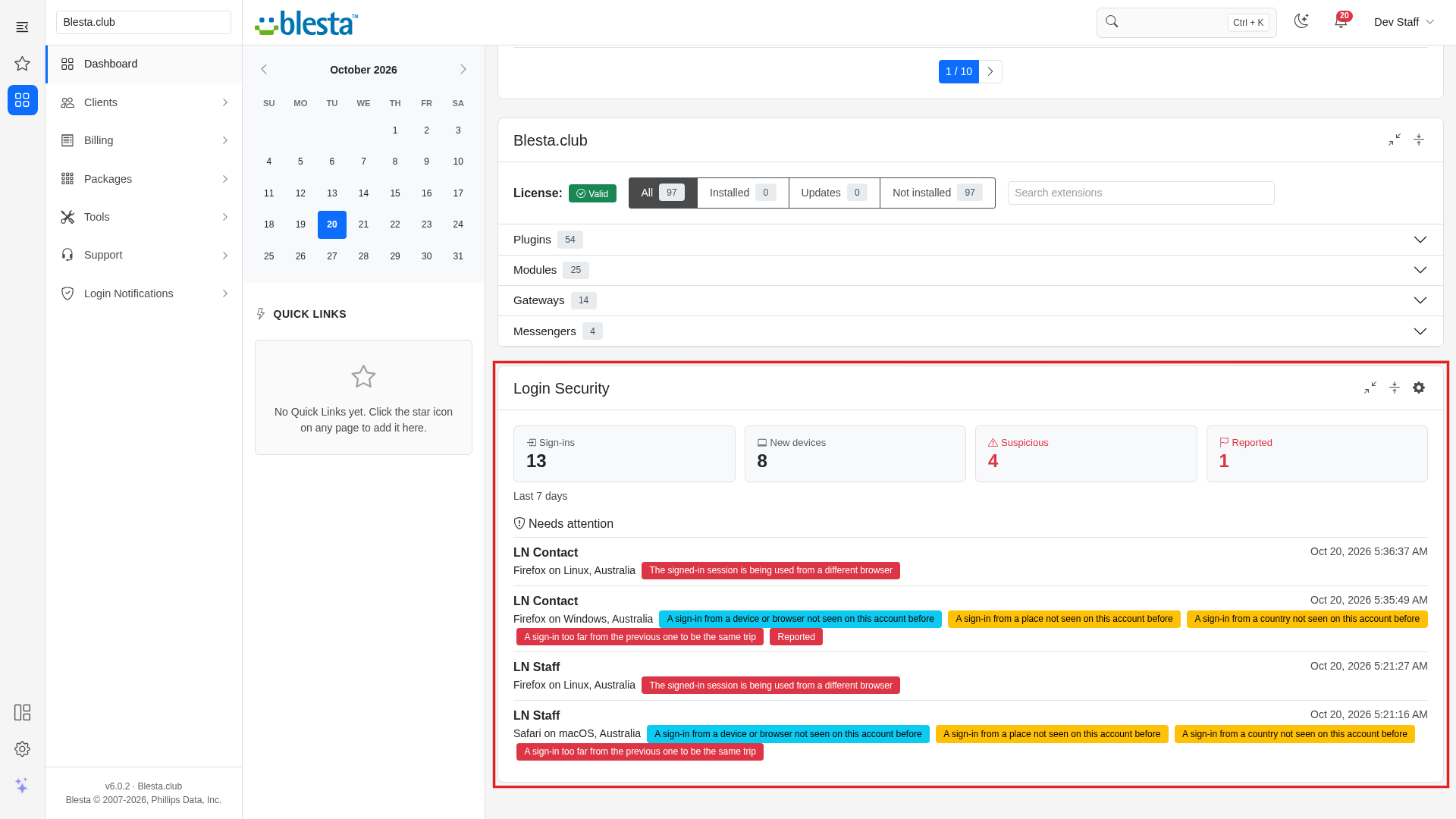
A dashboard card counts the last week's sign-ins, new devices, suspicious sign-ins and reports, and lists the ones that need a look.
Per-Staff-Group Permissions
Each staff action it adds is a separate permission you grant per staff group, so each team gets exactly the access it needs and nothing more.
Test Emails on Demand
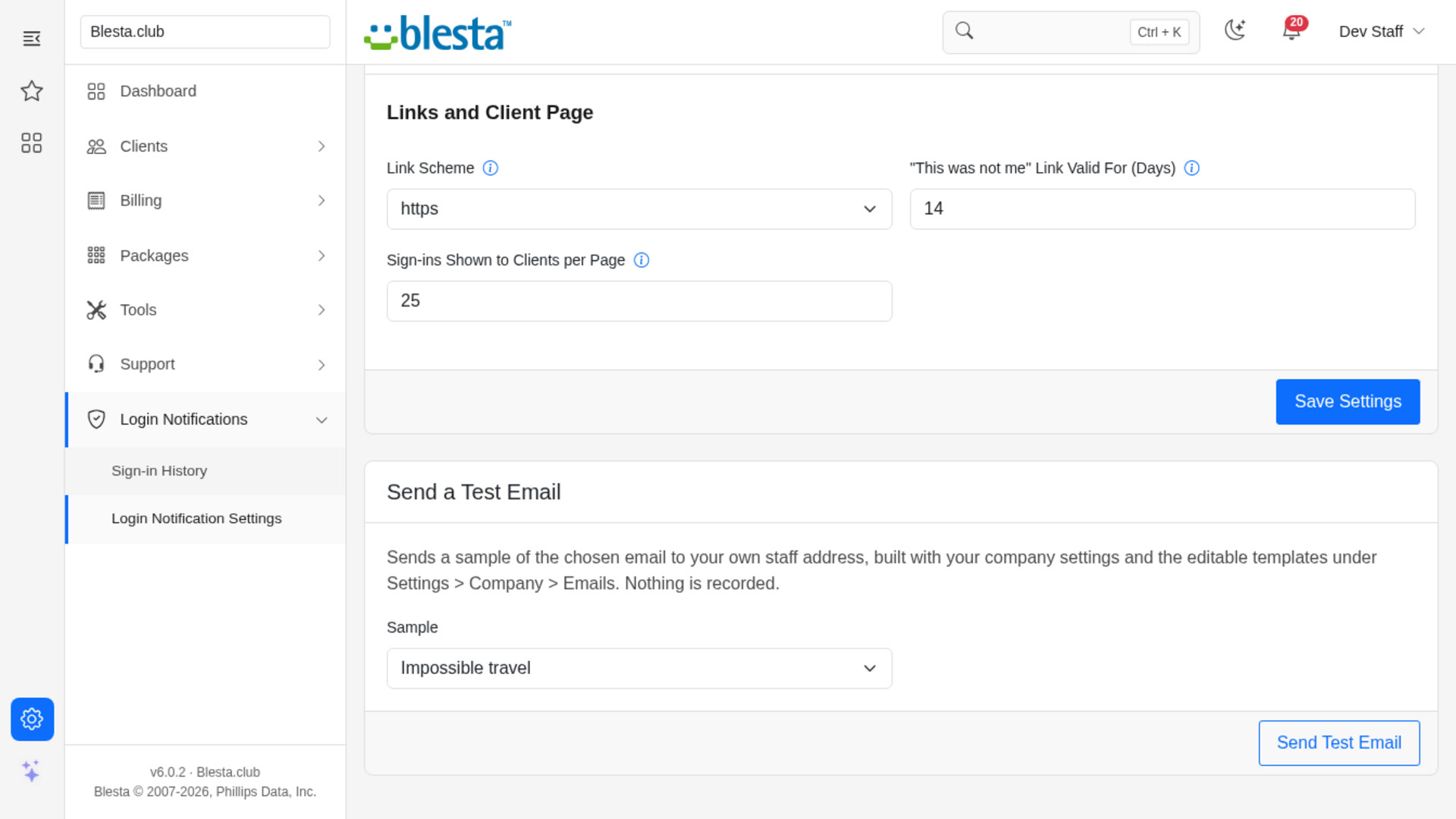
Send yourself a sample of any alert, the digest or the staff alert from the settings page to check wording, links and delivery before clients see them.
Client Notification Preferences
Let clients opt out of the alerts or choose one daily summary instead of an email per sign-in. Suspicious sign-ins are still sent right away unless you decide otherwise.
Editable Email Templates
The emails it sends install as standard Blesta templates in every language you have enabled, so you can reword them, restyle the HTML and choose which details they carry.
Sign-in Activity Page for Clients
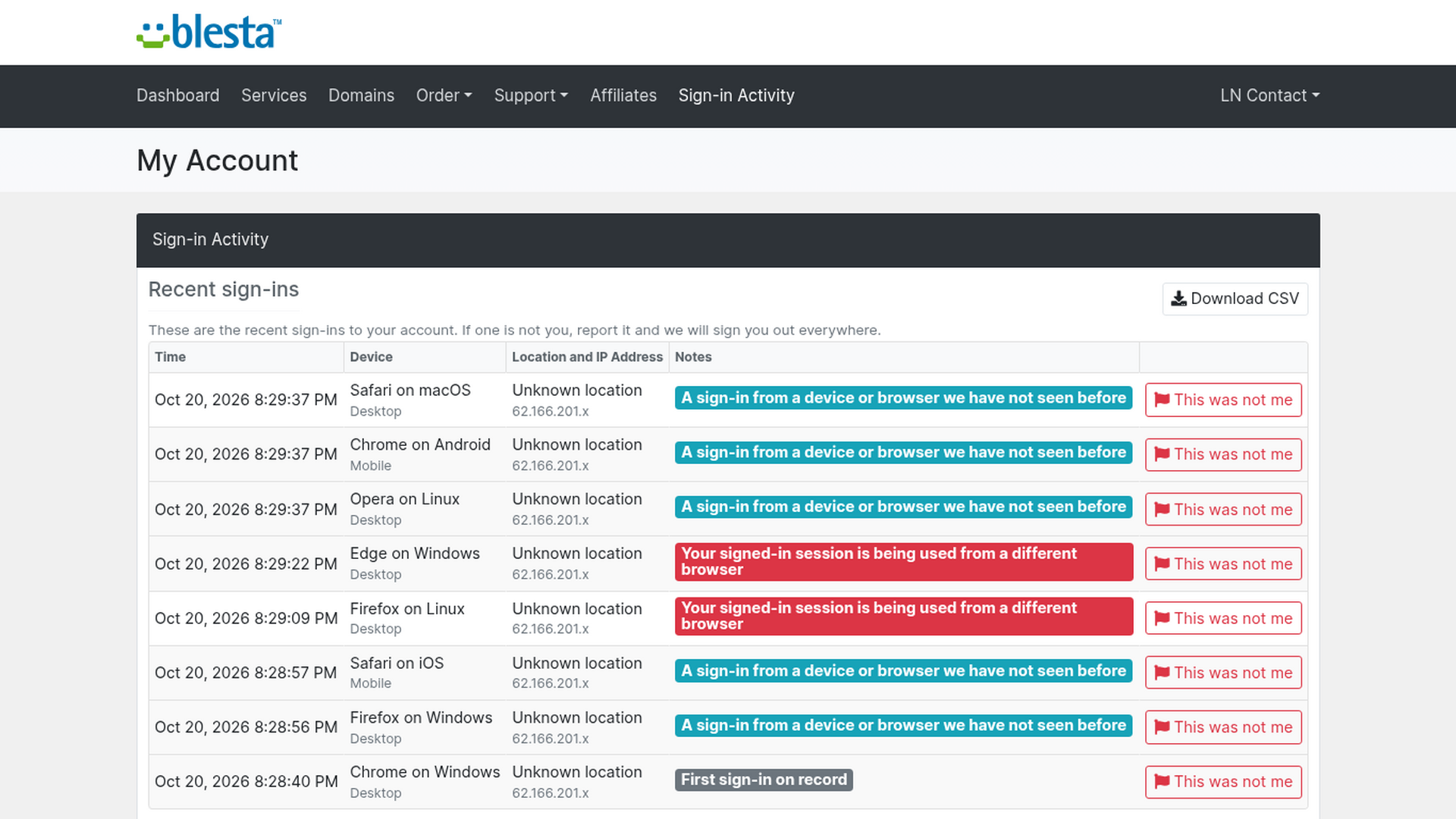
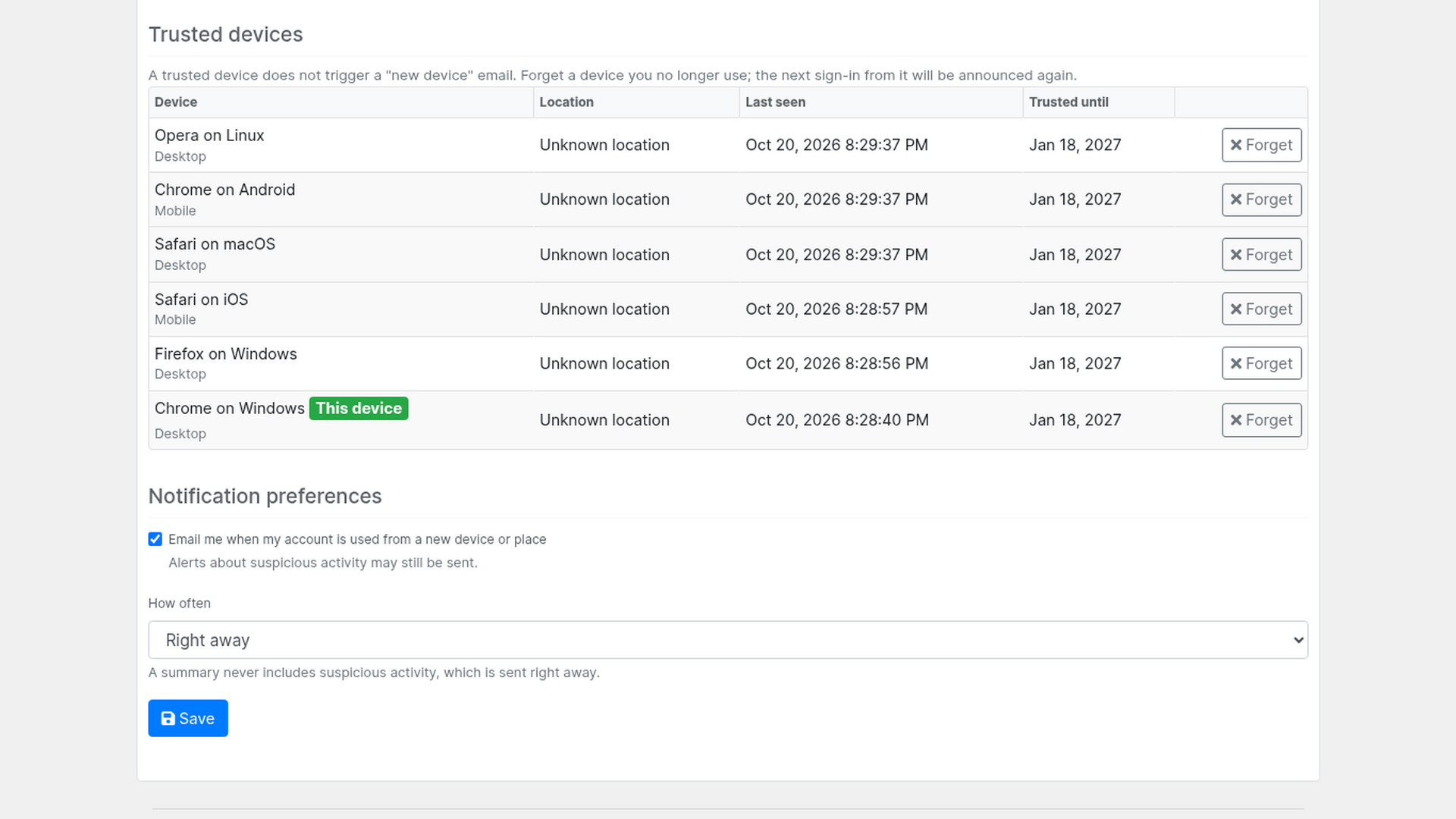
Clients see their recent sign-ins with device, place and IP address, report any they do not recognize, manage their trusted devices and download their history as a CSV file.
Stolen Session Detection
If a signed-in session suddenly starts being used from a different browser or operating system, the account holder is told straight away, which is what a stolen session cookie looks like.
New Place and New Country Alerts
Choose whether a new country, a new region or a new city counts as a new place. A sign-in from somewhere the account has never been before is announced, and a new country is called out as such.
Impossible Travel Detection
A sign-in that is too far from the previous one for the time between them is flagged as suspicious. You set the speed, the minimum distance and, where only the country is known, the time window.
Client Profile Widget
On a client's profile staff see the latest sign-ins and the number of trusted devices, and can sign the client out everywhere, forget their devices or erase their sign-in data with a confirmation.
Staff Alerts for Suspicious Sign-ins
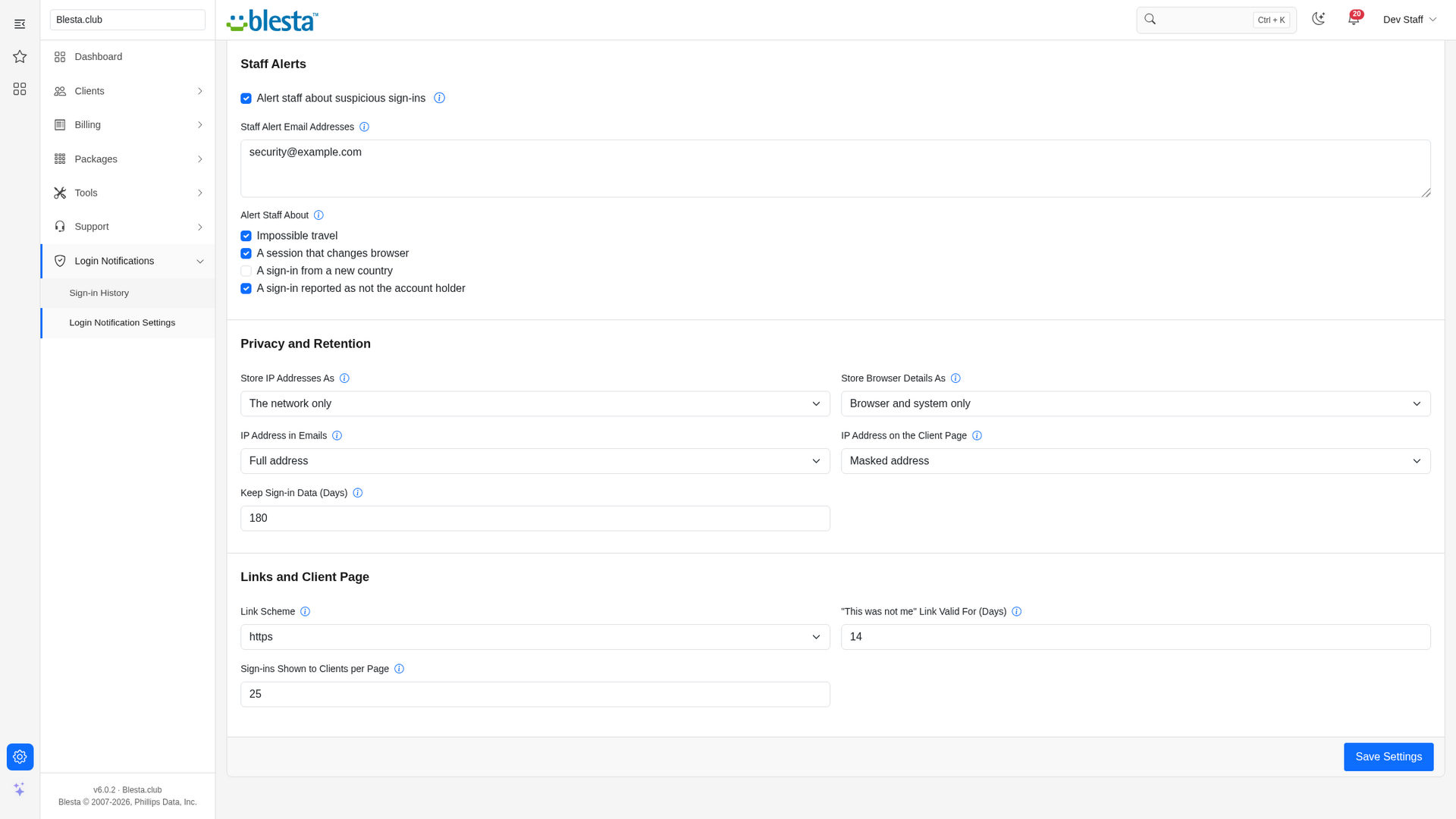
Send a copy of suspicious sign-ins to the addresses you choose. Pick which reasons raise an alert: impossible travel, a changed browser, a new country or a sign-in reported as not the account holder.
New Device Sign-in Alerts
Clients, contacts and staff get an email when their account is used from a browser or device that has not signed in before, with the time, device, place and IP address, so a stolen password does not go unnoticed.
Trusted Devices That Expire
A browser that signs in becomes a trusted device for the number of days you choose, renewed on every sign-in. Clients can see their trusted devices and forget any of them, and a device whose trust has lapsed is announced again.
Location Without Third Parties
Use your own MaxMind GeoLite2 or GeoIP2 file, or the location headers Cloudflare already adds to your traffic. Nothing is sent to an outside service and nothing is bundled, and without either source the plugin still detects new devices.
One-Click "This Was Not Me"
Every alert carries a secure link. One button signs the account out of every session, forgets every trusted device and sends the person to reset their password. A mail scanner opening the link changes nothing, and the link works once and expires.
Staff Sign-in History
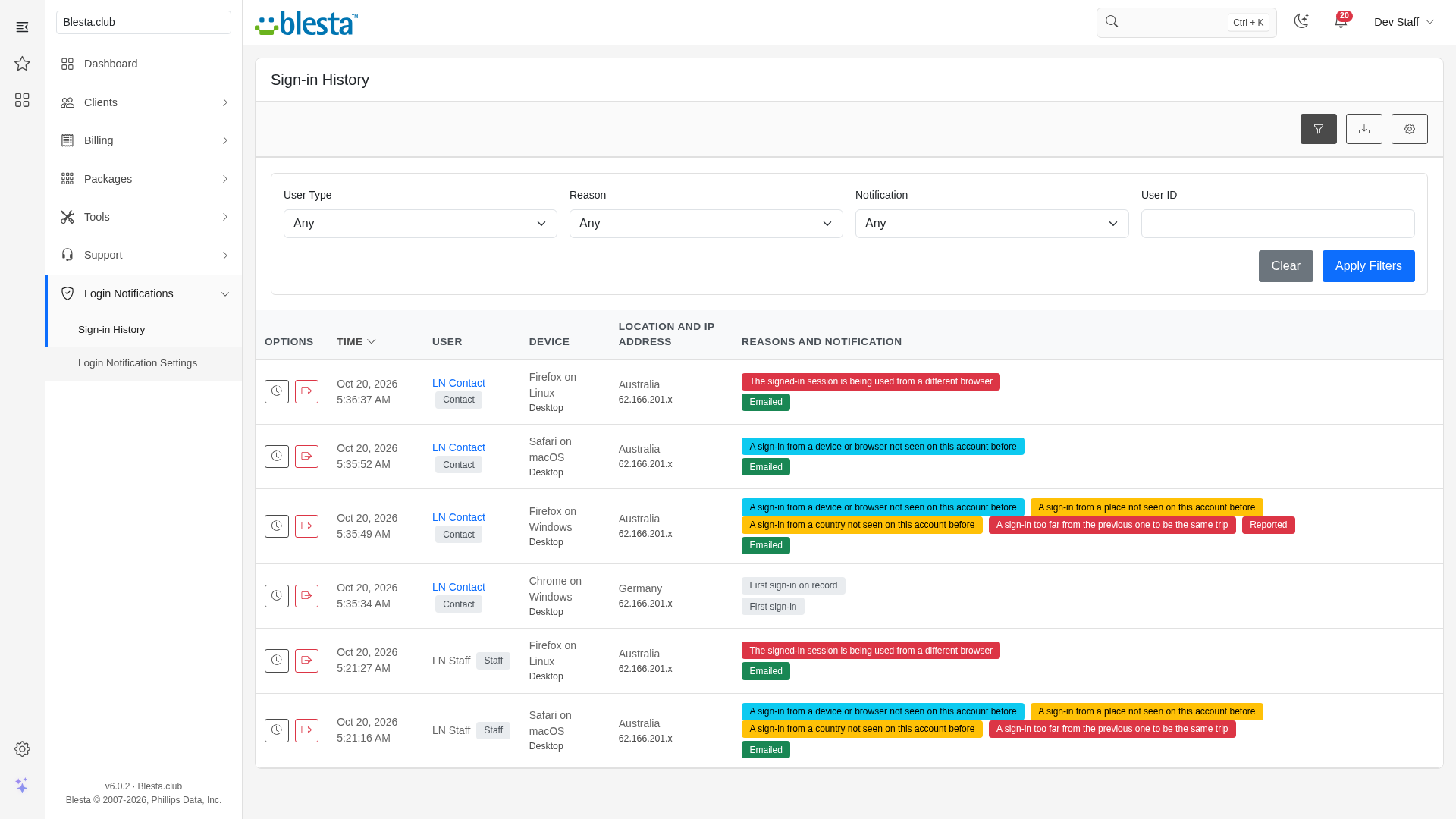
A filterable history of every sign-in across clients and staff, with the reason it was flagged and what happened to the notification, sortable, paged and exportable to CSV, with sign out, forget devices and erase data for any user from their history.
Optional Recognition Without the Cookie
Switch on to recognize a browser that has cleared its cookies by its browser, operating system, public network and country, so cookie cleaners do not bury your clients in alerts. It is off by default because on a shared network it is weaker than the cookie.
Privacy Controls
Store the full IP address, only its network, or only a keyed hash. Keep the browser as a short description, the full user agent or only a hash. Mask the IP in emails and on the client page, and delete old data automatically after the number of days you set.
Email Flood Protection
A quiet period, a daily cap per user and an hourly cap for the whole company keep alerts from turning into a flood without ever holding back a suspicious sign-in. Staff alerts are capped too, and the first sign-in on record only sets a baseline, so installing the plugin does not email every client.
Login Notifications
Know the moment someone signs in to an account from a device or place you have not seen before, and let the owner shut it down in one click.
What it does
Passwords leak, and the first sign that an account has been taken over is usually a sign-in nobody noticed. Login Notifications watches every sign-in to your Blesta installation, for clients, for contacts who have their own login and for your staff, and emails the account holder when something is new: a browser that has never signed in before, a place the account has never been used from, a trip that is too far to be real, or a signed-in session that suddenly turns up in a different browser.
Every alert carries a secure "this was not me" link. One button signs the account out of every session, forgets every trusted device and sends the person to reset their password, so a stolen password stops being useful within minutes instead of days. Clients get a Sign-in Activity page in their area with their recent sign-ins, trusted devices and notification preferences. Your staff get a company-wide sign-in history, a widget on every client profile, a card on the dashboard and optional alerts for the sign-ins that matter most.
It watches and tells. It does not stop a sign-in from happening, and it does not ask for a verification code: Blesta's own two-factor authentication does that, and this plugin sits alongside it.
Key features
- New Device Sign-in Alerts: Clients, contacts and staff get an email when their account is used from a browser or device that has not signed in before.
- New Place and New Country Alerts: Choose whether a new country, region or city counts as a new place.
- Impossible Travel Detection: A sign-in too far from the previous one for the time between them is flagged as suspicious.
- Stolen Session Detection: A session that starts being used from a different browser or operating system is reported right away.
- Trusted Devices That Expire: A browser that signs in is trusted for the days you choose; clients can forget any of their devices.
- Optional Recognition Without the Cookie: Switch on to recognize the same browser from the same public network and country after the cookie is cleared (off by default, because it is weaker on shared networks).
- One-Click "This Was Not Me": A single-use link in every alert signs the account out everywhere, forgets its devices and leads to a password reset.
- Sign-in Activity Page for Clients: Recent sign-ins, trusted devices, notification preferences and a CSV download.
- Staff Sign-in History: A filterable, exportable history of every sign-in with the reason it was flagged.
- Client Profile Widget and Dashboard Widget: Sign-in activity where staff already work, with sign-out, forget-devices and erase actions.
- Staff Alerts for Suspicious Sign-ins: Copies of the sign-ins that matter to the addresses you choose.
- Location Without Third Parties: Your own MaxMind database file or Cloudflare's location headers; nothing is sent to an outside service.
- Privacy Controls: Store the full IP, the network only or a hash; mask it in emails; delete old data automatically.
- Email Flood Protection and Test Emails: Quiet period, daily and hourly caps that never hold back a suspicious alert, a cap on staff alerts, and sample emails you can send yourself.
What you need to know
Location is optional and not bundled. Without a location source the plugin still detects new devices and a changed browser. For new places and impossible travel, either download a free GeoLite2 database from MaxMind with your own account and put its path in the settings, or, if your site runs behind Cloudflare, tick the option that trusts Cloudflare's location headers.
The first sign-in is a baseline. When you install the plugin, each account's first recorded sign-in sends nothing; it only teaches the plugin what is normal for that person. Alerts start from their second sign-in, so an account that is first used by someone else after the install is not reported until its owner signs in; a setting lets you email the first sign-in as well.
Behind a proxy, tell Blesta. Tick Blesta's own "behind a proxy or load balancer" setting if your
proxy replaces X-Forwarded-For; otherwise every visitor looks like the proxy.
Mobile networks and VPNs cause some noise. A phone that changes network, a person who switches VPN or someone who clears their cookies can look like a new device or a long trip. The quiet period, the daily cap, the daily digest option and the trusted-device window exist to keep that manageable.
Some sign-ins bypass Blesta's login event. The plugin also checks each signed-in session on its next request, so a sign-in made through a plugin that does not announce itself is still recorded, usually on the following page load.
Ending sessions is not instant against a live attacker. A request already running in a hijacked session can write it back when it finishes. The "this was not me" flow therefore ends by sending the person to reset their password.
The "this was not me" page must be reachable. It is a public page. If you protect your site with a
gate such as Cloudflare Access, allow the path /plugin/login_notifications/client_report/ through it,
or the link in an email will not open for your clients.
Privacy. The plugin stores IP addresses, browser descriptions and places for as long as you set (180 days by default). It sets one security cookie on the browsers that sign in. Describe both in your privacy policy and cookie notice, and use the privacy settings to store less if you need to.
Contact Us
If you encounter any issues or have suggestions for improving the plugin, please get in touch with us. We are committed to providing robust updates and welcome customer feedback.
Installing and updating extensions can now be done automatically through the Blesta Club Subscription Manager - this is the recommended way going forward.
Installing Login Notifications
Before you start
- Login Notifications requires Blesta 6.0 or later.
- Blesta's cron must be running. The plugin adds two daily tasks (the daily digest and the removal of old data) that run from it.
- If you are on the leased (subscription) licence, the Blesta Club Subscription Manager must be installed and your subscription active. The owned and owned-source licences have no such requirement.
- Your Blesta emails must be able to send. The plugin sends its alerts through Blesta's normal email system and its editable templates.
1. Upload the files
Upload the extension folder into your Blesta installation so it lands under your Blesta directory at:
plugins/login_notifications/For example, on a typical install: /var/www/html/blesta/plugins/login_notifications/
2. Install it in Blesta
- Log in to your Blesta admin area with a staff account that has the Plugins permission, including Install Plugin and Manage Plugin (found under the Settings group in Manage Staff Groups).
- Go to Settings > Company > Plugins and click the Available tab.
- Find Login Notifications in the list and click Install. Blesta installs it immediately, there is no confirmation step, and shows "The plugin was successfully installed. It may have registered ACL permissions for various resources. You may need to grant your staff group access to these permissions in order to access these resources." The plugin then moves to the Installed tab, where it offers Settings, Disable and Uninstall.
3. Grant staff access
Blesta registers a plugin's permissions switched off, and a plugin is not allowed to grant its own, so right after installing only the staff group of the account that ran the install can use it. For every other staff group:
- Go to Settings > System > Staff > Staff Groups. Blesta may ask for your password again before it opens a group.
- Click Edit Group on each staff group that should use the plugin.
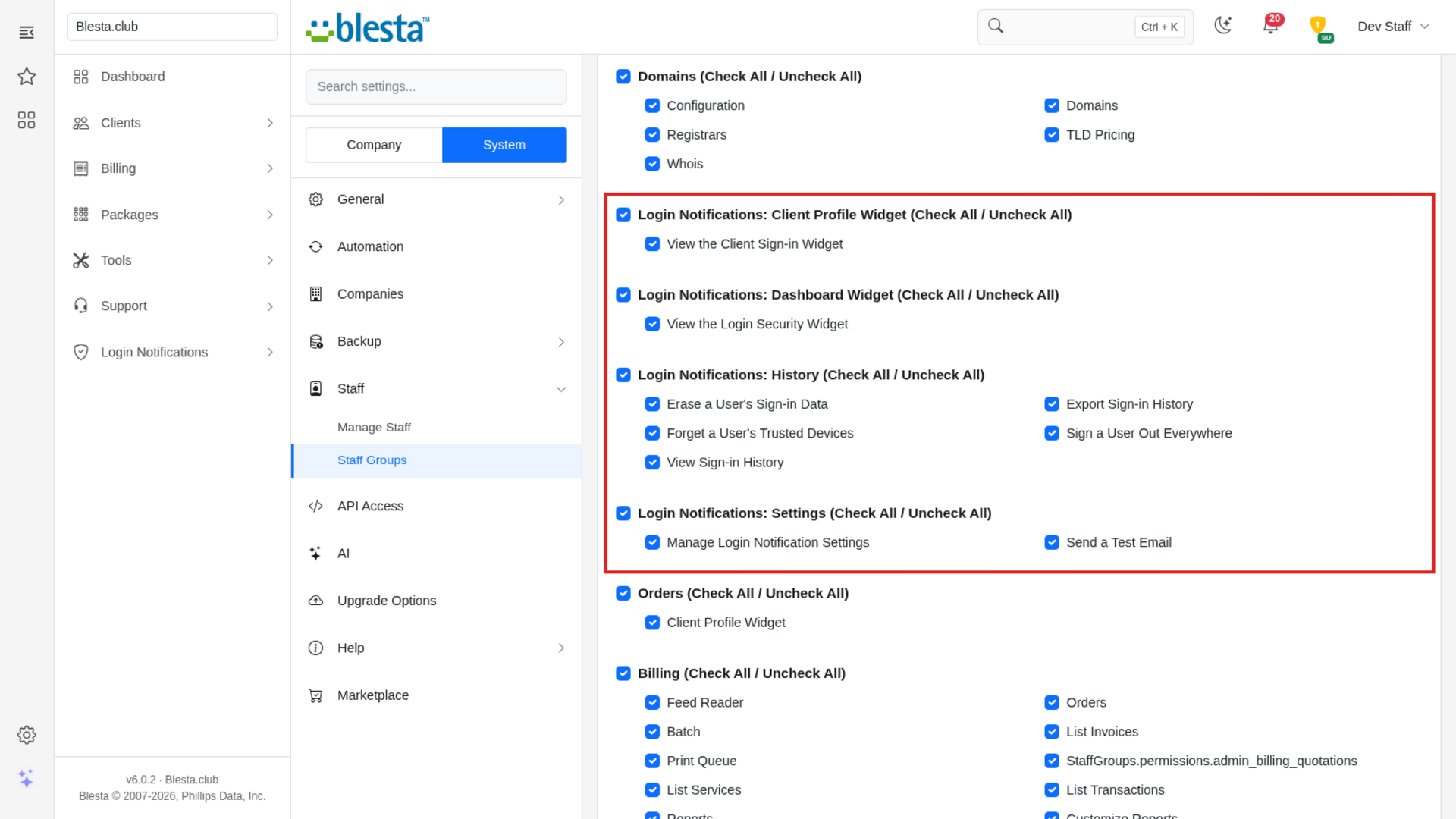
- Tick the permissions that group needs, in the blocks named Login Notifications: History, Login Notifications: Settings, Login Notifications: Dashboard Widget and Login Notifications: Client Profile Widget (each block has a Check All / Uncheck All link):
- Under Login Notifications: History: View Sign-in History, Export Sign-in History, Sign a User Out Everywhere, Forget a User's Trusted Devices, Erase a User's Sign-in Data.
- Under Login Notifications: Settings: Manage Login Notification Settings, Send a Test Email.
- Under Login Notifications: Dashboard Widget: View the Login Security Widget.
- Under Login Notifications: Client Profile Widget: View the Client Sign-in Widget.
- Save.
Clients need no permission: they get a Sign-in Activity link in the client area.
Let a contact use it
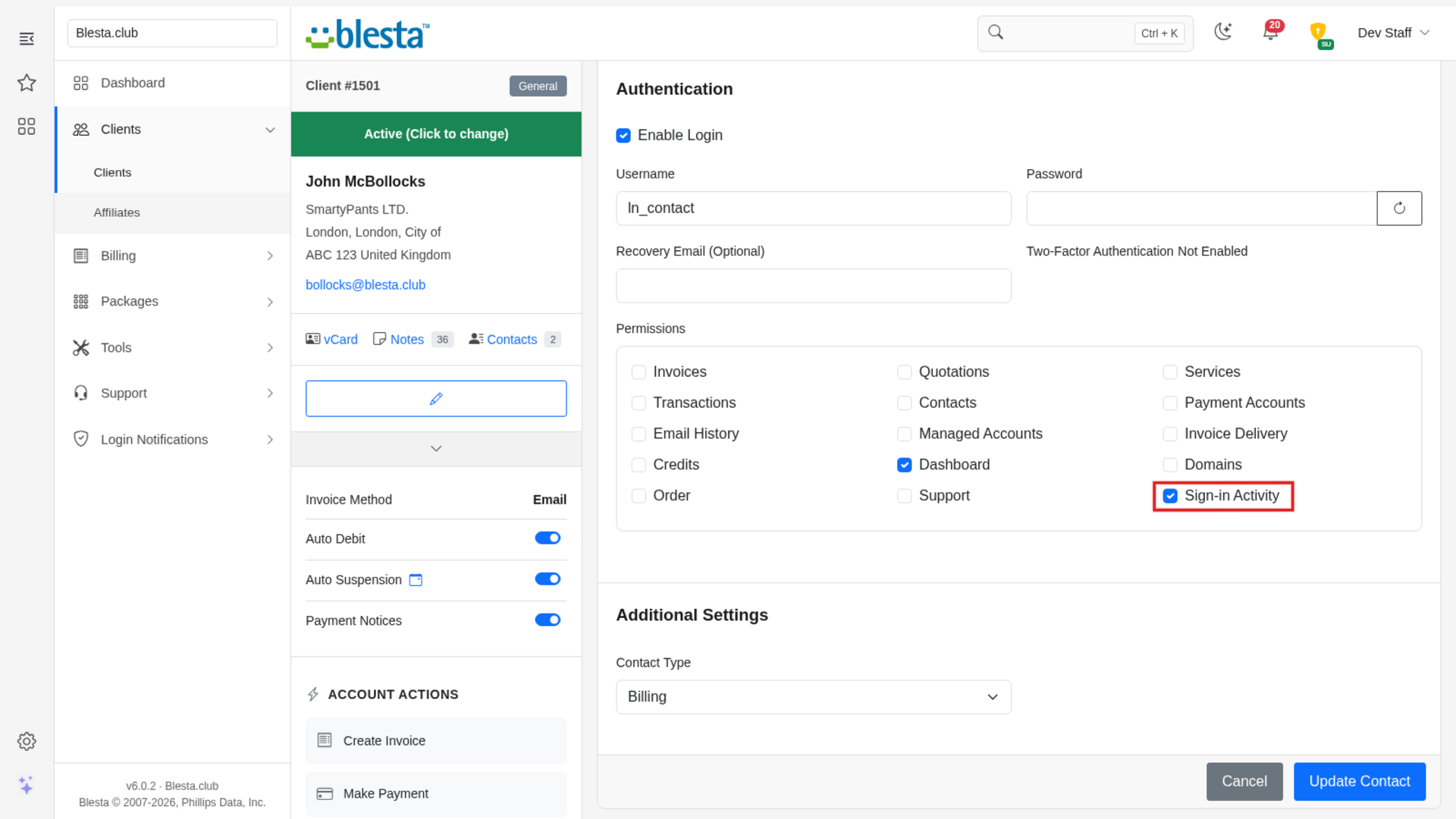
A contact who has their own login sees their own sign-ins, but only once Blesta is told the contact may use the plugin. New contacts start without it, so they do not see the Sign-in Activity link at all. For each contact that should have it:
- Open the client's profile, go to Contacts and edit the contact (the client can do the same under Contacts in the client area).
- Under the contact's permissions, tick Sign-in Activity.
- Save. The link appears in that contact's menu from their next page load.
This is a Blesta contact permission, so it is the one setting that decides it. Contacts without it are never emailed less: they still get sign-in alerts, they just cannot open the page.
4. Configure it
Open Login Notifications > Login Notification Settings. The defaults work as they are: alerts for new devices and new places, a 90 day trusted-device window, a daily cap of 6 ordinary emails per user and 180 days of history. Recognizing a browser without its cookie is off by default. The things worth deciding on day one:
- Behind a proxy or Cloudflare? Tick My installation is behind a proxy or load balancer in
Settings > System > General only if your proxy replaces the
X-Forwarded-Forheader; otherwise Blesta sees the proxy's address for every visitor and the plugin's networks and places mean nothing. See "Behind Cloudflare or another proxy" in the usage guide. - Location source. Either enter the path of a MaxMind GeoLite2-City or GeoLite2-Country
.mmdbfile that is on your server (see the usage guide), or, if every visitor reaches your server through Cloudflare, tick Trust Cloudflare location headers. Without one of these only new devices and a changed browser are detected. - Who is notified and whether clients may opt out or choose a daily digest.
- Staff alerts, if you want a copy of suspicious sign-ins sent to your security team.
- Privacy options and how long to keep the data. Blesta keeps its own copy of every email it sends, so if you do not want IP addresses stored, set IP Address in Emails to masked or hidden as well.
- Send yourself a test email at the bottom of the page for each sample to check the wording and delivery. The samples go to your own staff address; Sign-in alert as a client receives it shows the client version of the alert.
The alert emails are standard Blesta email templates under Settings > Company > Emails; reword them there.
5. Check the public report page
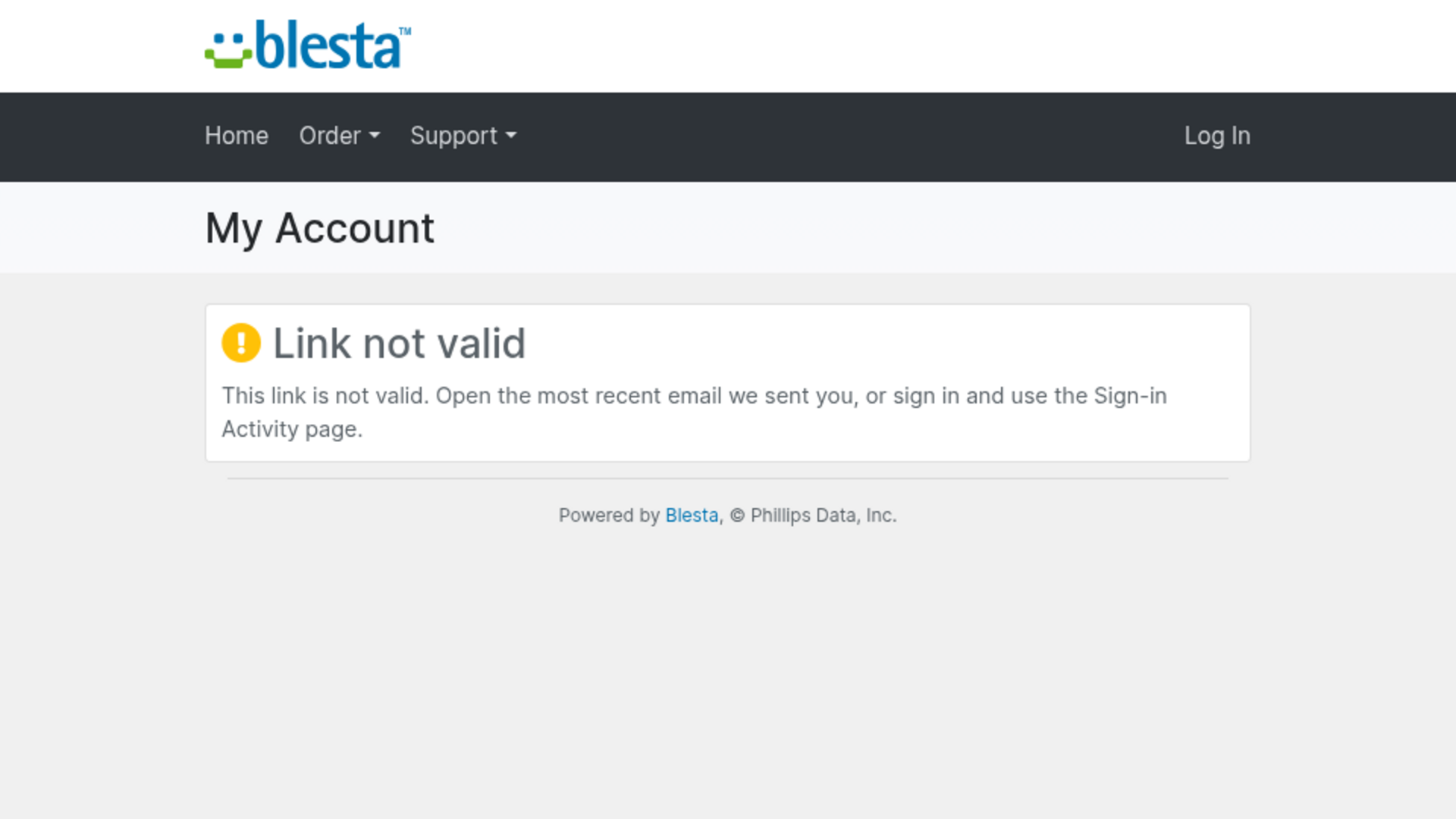
The "this was not me" link in each alert opens a public page at /plugin/login_notifications/client_report/.
The link in a test email goes to the sign-in history instead, so it does not exercise that page. To make sure
the page is reachable, open https://<your Blesta address>/plugin/login_notifications/client_report/ in a
private window where you are not signed in: it should show Link not valid. If a gate such as Cloudflare
Access protects your site and asks for a login instead, allow that path through it.
Uninstalling
On the Installed tab click Uninstall and confirm Really uninstall this plugin?; Blesta answers "The plugin was successfully uninstalled." Uninstalling deletes this company's sign-in history, trusted devices, places, preferences and settings (the tables go when the last company removes the plugin), the two background tasks and the four email templates. Download any history you want to keep first (the CSV export on the Sign-in History page). Copies of sent alerts stay in Blesta's own email log.
Blesta keeps the plugin's staff permissions after an uninstall, including which staff groups were allowed or denied. If you install the plugin again, those groups get the same access back without you ticking anything, so check Settings > System > Staff > Staff Groups after a reinstall.
Installing and updating extensions can now be done automatically through the Blesta Club Subscription Manager - this is the recommended way going forward.
Updating Login Notifications
Upgrading works just like installing: upload the new files over the old ones, then run the upgrade from the same page you installed it on.
- Back up your current extension files first, which is good practice before any upgrade.
- Upload the new version over the existing folder, replacing the old files at
plugins/login_notifications/. - Log in to your Blesta admin area and go to Settings > Company > Plugins.
- Find Login Notifications on the Installed tab and click Update to run the upgrade.
Version-specific notes
-
Version 1.0.1: This is the first release, so there is nothing to upgrade from and no steps beyond installing it (see the install guide). Requires Blesta 6.0 or later. Good to know when you set it up:
- Staff permissions are registered unchecked, so staff will not see the pages until you grant
them. Only the staff group of the account that installed the plugin can use it straight away. To grant
the rest:
- Go to Settings > System > Staff > Staff Groups.
- Click Edit Group on each staff group that should use the plugin.
- Tick the permissions you want under Login Notifications: History, Login Notifications: Settings, Login Notifications: Dashboard Widget and Login Notifications: Client Profile Widget.
- Save.
Only give Sign a User Out Everywhere, Forget a User's Trusted Devices and Erase a User's Sign-in Data to staff you trust with those actions. They work on any user the company has a record for, administrators included, and are written to the application log with the staff member's id.
- Uninstalling keeps the staff permissions. If you uninstall and install again, staff groups that were granted access before get it back automatically; check the groups after a reinstall.
- Contacts need the Sign-in Activity permission. Blesta lists the plugin under each contact's permissions as Sign-in Activity. A contact without it does not see the link in the client area. See "Let a contact use it" in the install guide.
- Nobody is emailed about their first sign-in after installing. Each account's first recorded sign-in only sets the baseline; alerts start from the second one. An account nobody signs in to after the install is therefore not covered until its owner has signed in once.
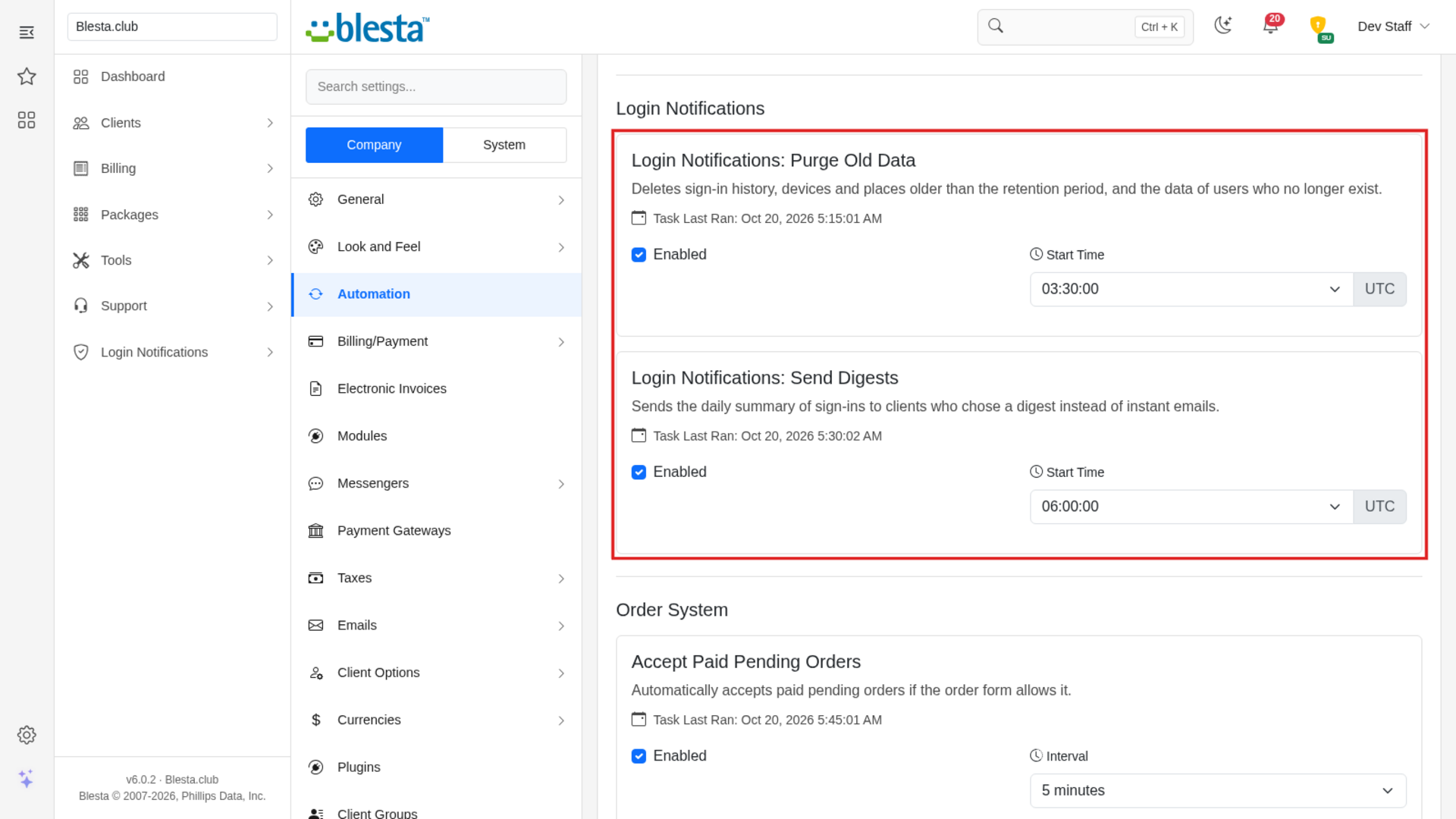
- Two daily tasks are scheduled for every company: one sends the daily digest, one removes sign-in data older than your retention setting and the data of users that no longer exist. Make sure Blesta's cron is running.
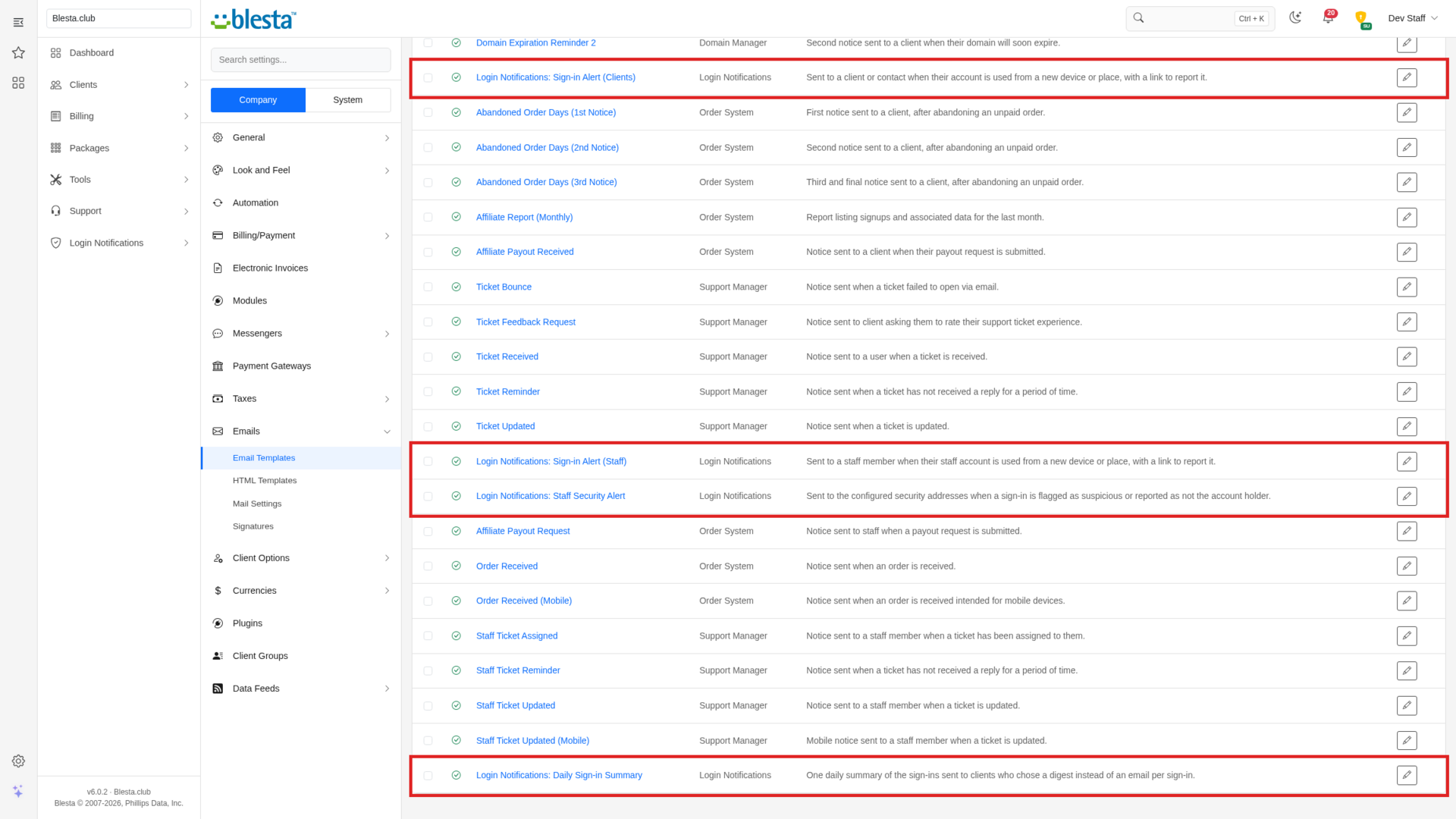
- Four email templates are added under Settings > Company > Emails: the sign-in alert for
clients, the sign-in alert for staff, the daily digest and the staff security alert. Edit them
there to match your wording. The sign-in alert subjects use the
{headline}tag, which names the reason; keep it in the subject if you reword it. - The "this was not me" page is public. If a gate such as Cloudflare Access protects your site,
allow
/plugin/login_notifications/client_report/through it.
- Staff permissions are registered unchecked, so staff will not see the pages until you grant
them. Only the staff group of the account that installed the plugin can use it straight away. To grant
the rest:
Using Login Notifications
How it decides to email someone
Every time someone signs in, the plugin records the sign-in and asks four questions:
- Is this a device we know? A browser that has signed in before carries a small security cookie. A browser without it counts as new. Optionally (Recognize a browser without its cookie, off by default) the same browser family and operating system from the same public network and country (the first three parts of an IPv4 address, or the first 48 bits of an IPv6 address) that signed in recently is recognized too. Leave it off on sites whose clients sit behind shared networks: someone who stole a password and sits on the same office, campus or mobile-carrier network with the same kind of browser would be taken for the owner and nobody would be emailed.
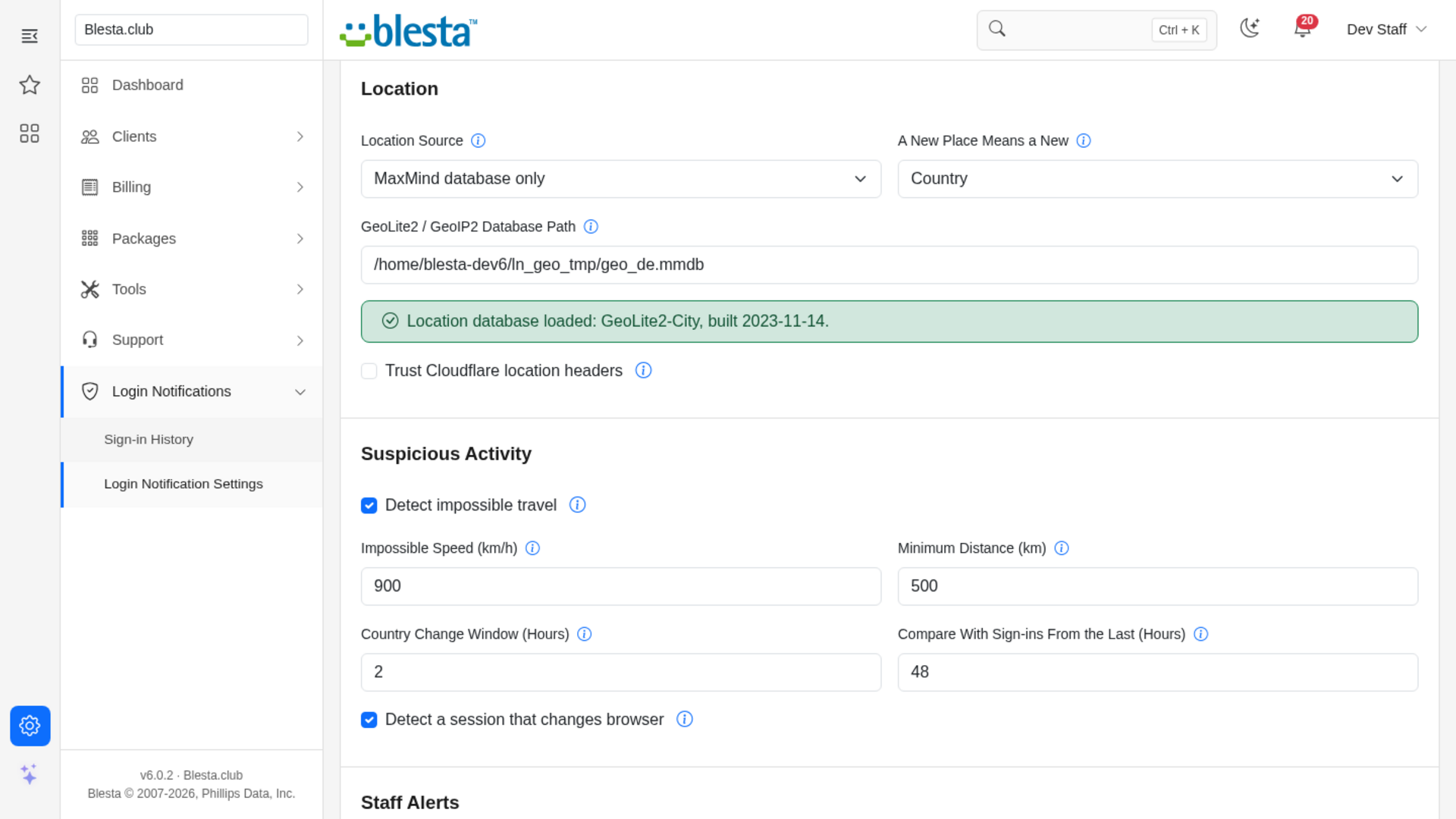
- Is this a place we know? Country, region or city, whichever you chose. This needs a location source (below).
- Is it too far from their last sign-in for the time between? Impossible travel.
- Is the signed-in session still being used from the same kind of browser? Checked on later requests, by browser and operating system family. iOS counts with macOS and Android with Linux, so Safari on a Mac and on an iPhone are not different browsers.
Depending on Notify On, a new device, a new place or both produce an email; every sign-in produces one if you chose "Every sign-in". Suspicious sign-ins (impossible travel, a changed browser) are emailed whatever Notify On says, unless the plugin is switched off, that user group (clients or staff) is switched off, or a client opted out and Always send suspicious-sign-in alerts is off. They are not held back by the ordinary daily and hourly caps; they have a cap of their own (20 per user per day). The very first sign-in the plugin ever records for an account only sets the baseline: an account nobody has signed in to since you installed the plugin is not covered until its owner has signed in once, so a stolen password used on such an account first is silent. Tick Notify on the first sign-in on record if you prefer an email there too.
For your staff
Sign-in History
Login Notifications > Sign-in History lists every recorded sign-in of the current company: time, user (linked to the client profile) and type, device, location, IP address, the reasons it was flagged, and what happened to the notification (emailed, waiting for the digest, opted out, held back by a limit, failed). Toggle Filters opens the filter bar (User Type, Reason, Notification and User ID, with Apply Filters and Clear); sort by clicking the Time heading. The Export CSV button in the box header downloads the filtered list as a CSV file with the columns Time (UTC), Device, Device Type, Location, IP Address, Reasons, Notification, Reported, User, User ID and User Type.
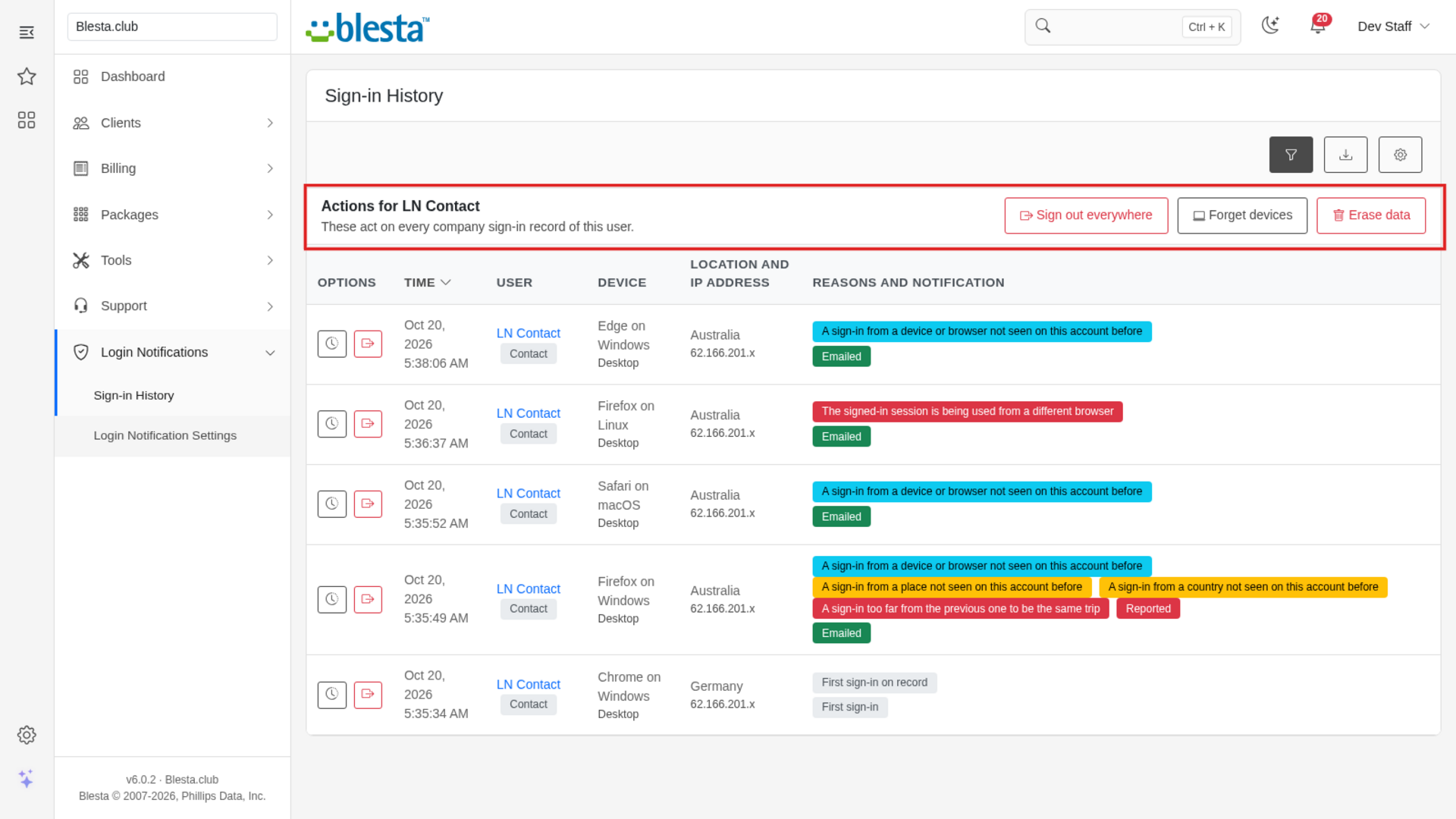
On each row, the clock icon (All sign-ins of this user) shows all sign-ins of that user and the sign-out
button (Sign out everywhere) ends every session that user has (you are asked to confirm). If you sign out your own user, your own session ends too and
you land on the staff sign-in page. Open the clock icon (or filter by User ID) and a bar above the
list reads Actions for
The pages are for staff only: the plugin refuses a session that is not a staff session, even if it is asked for under the client area address.
If no location source is configured, a notice at the top says that new-place and impossible-travel checks are off.
Client profile widget
On a client's profile, Sign-in Activity shows their latest five sign-ins and how many trusted devices they have, with three actions, each behind a confirmation:
- Sign out everywhere ends every session of the client. The widget covers the client's own login only; sign-ins of the client's contacts are in the company-wide history, where you can filter by user type or user ID.
- Forget devices removes trust from every device, so the client is told about the next sign-in from each.
- Erase data deletes every sign-in, device, place and preference recorded about the client.
Dashboard widget
Login Security counts the last seven days: sign-ins, new devices, suspicious sign-ins and sign-ins reported as "not me", and lists the most recent suspicious or reported ones.
Settings
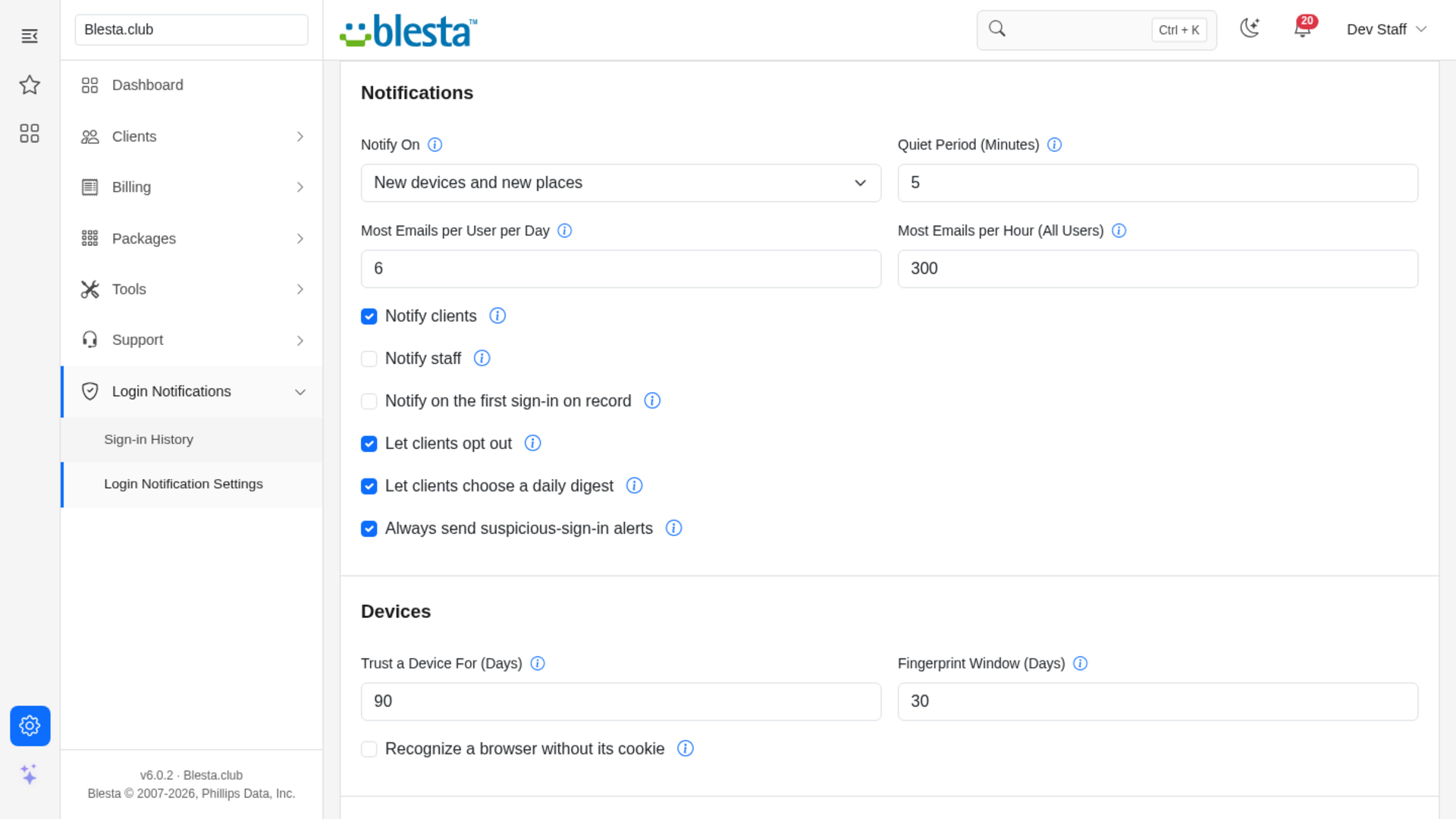
Login Notifications > Login Notification Settings. Every field has a help icon. On a fresh install everything works as it is: alerts for new devices and new places, Notify clients and Notify staff on, a Quiet Period of 5 minutes, 6 emails per user per day, 300 per hour for the company, devices trusted for 90 days, 25 sign-ins per page on the client page and 180 days of history. Saving shows "The settings were saved."; a value outside its range is refused with a message such as "The quiet period must be a whole number of minutes from 0 to 1440." and nothing is saved. In short:
- Notifications
- Notify On: nothing (switches the plugin off), new devices, new devices and new places, or every sign-in.
- Quiet Period: no second email to the same user within these minutes (suspicious alerts ignore it).
- Most Emails per User per Day and Most Emails per Hour (All Users): hard caps on ordinary alerts. A capped sign-in is still recorded and shows as "Held back", and when the hourly company cap holds an email back a line is written to the application log. Suspicious alerts are counted apart and are not held back by these two caps.
- Notify clients and Notify staff: switch each group on or off. Contacts with their own login count as clients.
- Notify on the first sign-in on record: off by default, see above.
- Let clients opt out and Let clients choose a daily digest: add those controls to the client's page.
- Always send suspicious-sign-in alerts: sends them even to clients who opted out or chose the digest.
- Devices
- Trust a Device For (Days): renewed on every sign-in; when it lapses the device counts as new again.
- Recognize a browser without its cookie and its Fingerprint Window (Days).
- Location
- Location Source: automatic (trusted Cloudflare headers first, then your database), database only, Cloudflare only, or none.
- GeoLite2 / GeoIP2 Database Path and Trust Cloudflare location headers: see "Location sources".
- A New Place Means a New: country, region or city.
- Suspicious Activity: impossible travel on or off, the speed (km/h) and minimum distance (km) that make a trip impossible, the country change window used when only the country is known, how far back to compare, and the changed-browser check.
- Staff Alerts: on or off, the addresses (one per line, up to 10) and which reasons raise an alert. To stop one customer from flooding the mailbox, a user raises at most 3 staff alerts per hour and the company at most 30; the sign-in is still recorded and a line is written to the application log.
- Privacy and Retention: how to store IP addresses (full, network only, hash only) and browser details (short description, full user agent, hash only); how much of the IP an email and the client page show; and how many days to keep data (0 keeps everything, otherwise 30 to 3650).
- Links and Client Page: the link scheme (use http only on a test site), how many days the "this was not me" link works, and how many sign-ins the client page shows per page.
At the bottom, Send a Test Email sends a sample (new device, new location, impossible travel, session changed browser, daily digest, staff alert or the sign-in alert as a client receives it) to your own staff email address using your real templates and settings. Nothing is recorded. The "this was not me" link in a sample leads to the sign-in page instead of a working report.
Background tasks
Two tasks are listed under Settings > Company > Automation, on the Plugin tab, in the group Login Notifications: Login Notifications: Send Digests (daily at 06:00 UTC) and Login Notifications: Purge Old Data (daily at 03:30 UTC). There is no run-now button; Blesta's cron runs them, and a task whose time has already passed on the day you install runs soon after, so the purge may log "Old sign-in data purged" right away. You can change a task's start time there.
Location sources
Location is what makes new-place and impossible-travel detection possible. Two sources are supported, and nothing is ever sent to an outside service.
Your own MaxMind database. MaxMind's free GeoLite2 databases need a free account and their licence terms forbid redistributing them, so the plugin cannot include one.
- Create a MaxMind account and download GeoLite2 City (or GeoLite2 Country) in the
.mmdbformat. - Put the file on your server in a folder that is not served by your web server, and make sure the PHP user can read it.
- Enter the full path in GeoLite2 / GeoIP2 Database Path and save. A path that is not a readable
.mmdbfile, or a file that is not a MaxMind database, is refused with an error and nothing on the page is saved. Once saved, the page confirms the database type and build date. - Keep the file updated (MaxMind's
geoipupdatetool does this). The City database gives place names and coordinates, so impossible travel uses real distances; the Country database gives only the country, so impossible travel falls back to "a different country within a few hours".
Cloudflare's headers. If every request to your Blesta reaches it through Cloudflare, Cloudflare adds the visitor's country to the request, and with its "Add visitor location headers" managed transform also the city, region and coordinates. Tick Trust Cloudflare location headers. Only do this when your server cannot be reached directly: anyone who can reach it directly can send those headers themselves.
With Location Source on Automatic, trusted Cloudflare headers are used when they are present and the database answers otherwise. The database looks up the address Blesta sees, which behind a proxy is the proxy's unless you tell Blesta about the proxy (next section).
Behind Cloudflare or another proxy
Blesta reads the visitor's address from the connection unless Settings > System > General > My
installation is behind a proxy or load balancer is ticked; only then does it use the proxy's
X-Forwarded-For header. Without that setting every visitor of a proxied site appears to come from
the proxy's addresses, so networks and places mean nothing. With it, Blesta trusts the first public
address in that header, which a visitor can write themselves unless your proxy replaces the header.
Tick the setting only when your proxy overwrites X-Forwarded-For, keep Recognize a browser without
its cookie off, and tick Trust Cloudflare location headers only when your server accepts
connections from Cloudflare alone.
For your clients
Clients (and contacts who have their own login and the Sign-in Activity permission) find Sign-in Activity in the client area:
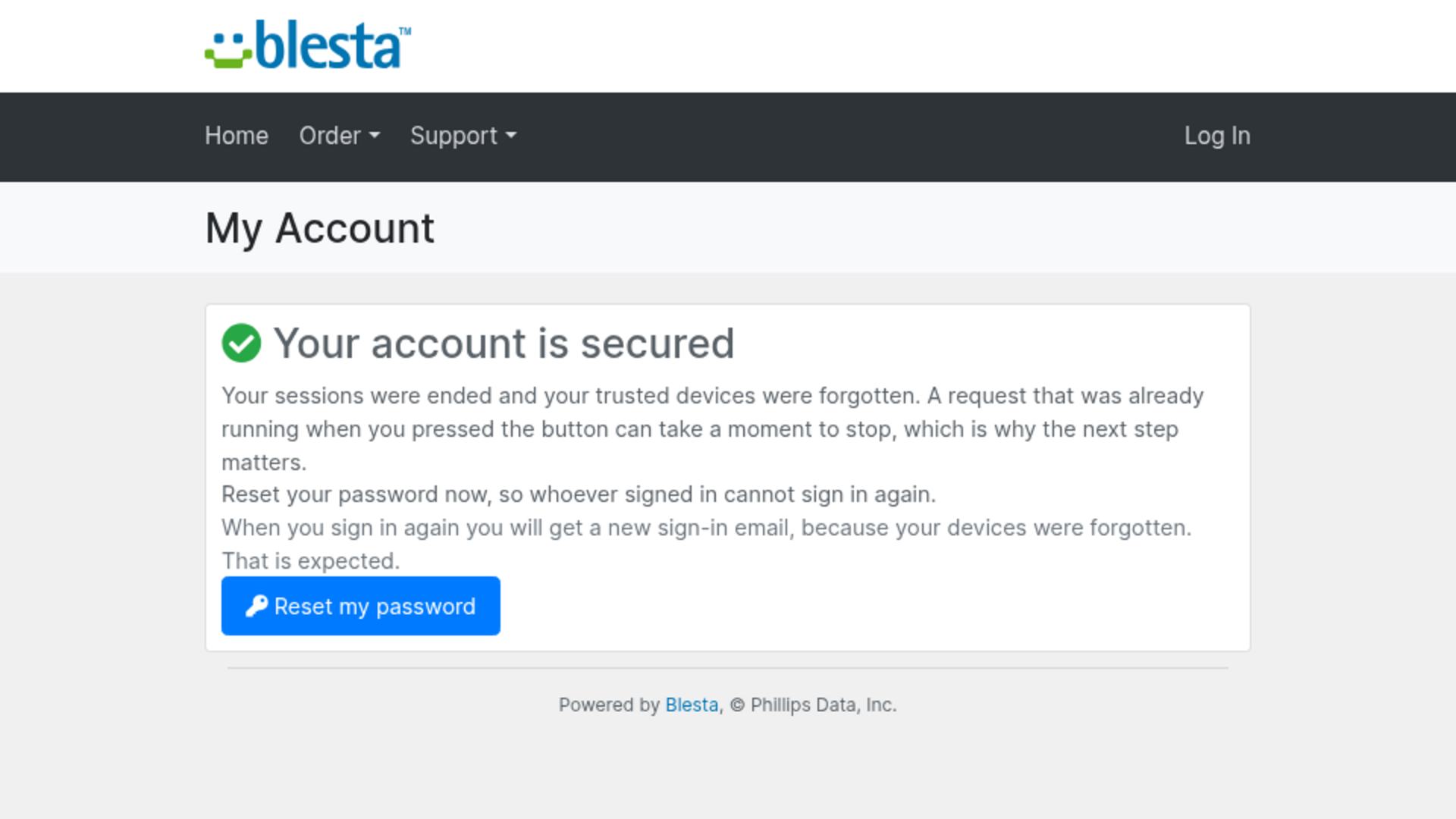
- Recent sign-ins: time, device, place, IP address (full or masked, as you chose) and a note for anything flagged. This was not me next to any sign-in asks "This signs you out of every session, including this one, and forgets all trusted devices. You will then be asked to reset your password. Continue?" and then secures the account at once: every session is ended (including the one they are using), every trusted device is forgotten, and they land on Your account is secured with a Reset my password button. Download CSV exports their own history.
- Trusted devices: the devices that will not trigger a "new device" email, with when they were last seen and until when they are trusted. Forget removes one.
- Notification preferences: opt out of alerts, or get one summary a day instead of an email per sign-in, if you allowed it. Suspicious sign-ins are sent immediately.
A contact without the Sign-in Activity permission does not see the link, and Blesta refuses the page if they open its address; tick the permission on the contact (see the install guide). The page shows only the signed-in person's own sign-ins. Staff who open it with "Login as Client" see that client's sign-ins, read only: an amber notice reads "You are viewing the client's sign-in activity as staff. It is read only.", the preferences panel and the action buttons are not shown, and a change posted anyway is answered with "You are viewing this page as staff, so nothing can be changed here."
The emails
Four templates install under Settings > Company > Emails and can be edited like any other:
- Sign-in alert (clients) and Sign-in alert (staff): tags
{user},{login}(time,ip),{device}(label,browser,os,type),{location}(label,country,region,city),{reasons}(a list),{headline}(a short title of the most serious reason, such as "New device sign-in" or "Impossible travel detected", used in the subject),{not_me_url}and{history_url}. - Daily digest:
{user},{count},{logins}(a list of items withtime,ip,device,locationandreasons) and{history_url}. - Staff security alert: the sign-in alert tags plus
{user_type}and{admin_url}, minus{not_me_url}. Its reasons are worded for the staff reading about someone else's account.
Links in the emails are built from the hostname of your company, never from the visitor's request. If your company has no hostname set, the links are left out and the templates simply omit that sentence.
Privacy and data
- The plugin stores the time, the device (browser and system, or only a hash), the place and the IP address (in full, as a network, or not at all) of each sign-in, plus one security cookie per browser (named bc_ln_device, HttpOnly, SameSite Lax, Secure on HTTPS, valid for the trust period, 90 days by default).
- The place is stored only as finely as you need: the region and city are kept only when A New Place Means a New is Region or City, and the coordinates only while impossible-travel detection is on.
- Data older than the Keep Sign-in Data (Days) setting is removed every day (0 keeps everything). A small record per user (their notification choices and the fact that they have signed in before) stays, so removing old history never turns a returning user into a first sign-in; it is deleted with the user or by Erase data. When a client is deleted in Blesta their sign-in data is erased at once, and so is that of a contact deleted from the client's profile. What belongs to a staff member, or to a contact that was removed another way, is erased by the daily purge task. Staff can also erase one user's data from the client profile widget, and clients can download their own history.
- Blesta writes every email it sends, with its body, to its own email log, and the plugin does not control that copy. The "this was not me" link is masked there, but the IP address and place in the email are not: use IP Address in Emails (masked or hidden) together with Store IP Addresses As (network or hash) if you do not want addresses kept in the email log.
- Tell your clients about the cookie and the data in your privacy policy and cookie notice.
- A "keyed hash" is a one-way fingerprint made with your Blesta system key. Devices can still be matched with it, but the address or browser cannot be read back from it.
Limits to know about
- It reports sign-ins; it cannot stop one. Pair it with Blesta's two-factor authentication.
- Ending sessions deletes them from the session table. A request that was already running in a hijacked session when the button was pressed can write that session back when it finishes, so the session may survive for as long as that browser keeps sending requests. This is why the confirmation page sends the person to the password reset: changing the password is what closes the door.
- A sign-in whose email was held back by a limit (quiet period or caps) shows as Held back (limit). Its browser is stored with trust already lapsed (Trust expired on the client page) and its place is not remembered, so the next sign-in from it is announced.
- After This was not me, signing in again brings the same browser back in place and announces it as a new device.
- A staff group that has none of the plugin's permissions may still see the menu entries; opening a page answers "Access Denied". Tick the permissions to give the group access.
- Several requests arriving at once do not multiply the alerts: a changed browser, or a sign-in found through a session, from the same browser and network is recorded and emailed once within two minutes.
- After the password reset the person signs in again, their devices having been forgotten, and gets a new sign-in email. That is expected.
- A sign-in made by a plugin that does not announce itself to Blesta (some single-sign-on or shared login tools) is picked up on the next page after it, because the plugin also checks each signed-in session.
- A changed browser is reported, not blocked, and does not end the session by itself. The account holder can use the link in the email to do that.
- Two sign-ins from different browsers are never treated as one, however close in time and network. Only a sign-in event that arrives twice for the same browser session within two minutes is recorded once.
- Blesta caches the admin sidebar, so the plugin's links stay visible for a while after it is disabled, and a staff user who has just been created sees an empty dashboard until they add widgets. Both are Blesta behaviours, not the plugin's.
- Sending the email and checking the licence happen while the person signs in. A slow mail server slows that sign-in down.
- Mobile networks, travel VPNs and cleared cookies can look like new devices or places. Use the quiet period, the caps, the digest option and a coarser A New Place Means a New setting to tune the noise.
- Location checks need a location source. Without one, only new devices and changed browsers are detected.
- Without a hostname on the company record, emails cannot carry links.
v1.0.0 - 2026-10-31
PHP 8.2 - 8.4 · Blesta 6.x
- Initial release
Pricing Options
Get exactly what you need and want.
Requires PHP 8.2 - 8.4 · Blesta 6.x
Included In
Value: Free
- +28 Other Extensions
- Additional Discounts
- Included Support & Updates
Leased
- Partially Encoded
- Full Functionality
- Included Support & Updates
Owned - Source
- Source Available
- Buy Once Use Forever
- 1 Year Support & Updates
Not sure whether to lease or own? Our FAQ explains how the licence types differ.
Reviews
What our customers say
(0 customer reviews)
Seems like this extension doesn't have reviews yet...
Be one of the firsts to leave a review!
It is possible to leave a review only if you have purchased this extension or a Club tier which contains it.
We reserve the right to alter wording or formatting for presentation.
We will discuss any changes made and offer the option to withdraw review text if the changes can't be agreed on.
It may take up to 1 hour for a review to appear or update due to caching.
You might also like
More extensions to explore

Plugin
Announcements
Integrate the Announcements plugin to provide updates and news to your clients.
PHP 8.2 - 8.4 · Blesta 6.x
Plugin
Client Data Changelog
See what changed on a client's account, when it changed and who changed it.
PHP 8.2 - 8.4 · Blesta 6.x


Plugin
Credit Awards
Give your clients rewards based upon service purchases.
PHP 8.2 - 8.4 · Blesta 6.x