Revolut
The Revolut gateway lets your clients pay any invoice on Revolut's secure hosted checkout, with each payment recorded in Blesta automatically. Refunds, chargebacks and disputes from Revolut are synced back to the matching transaction.
Free - View Pricing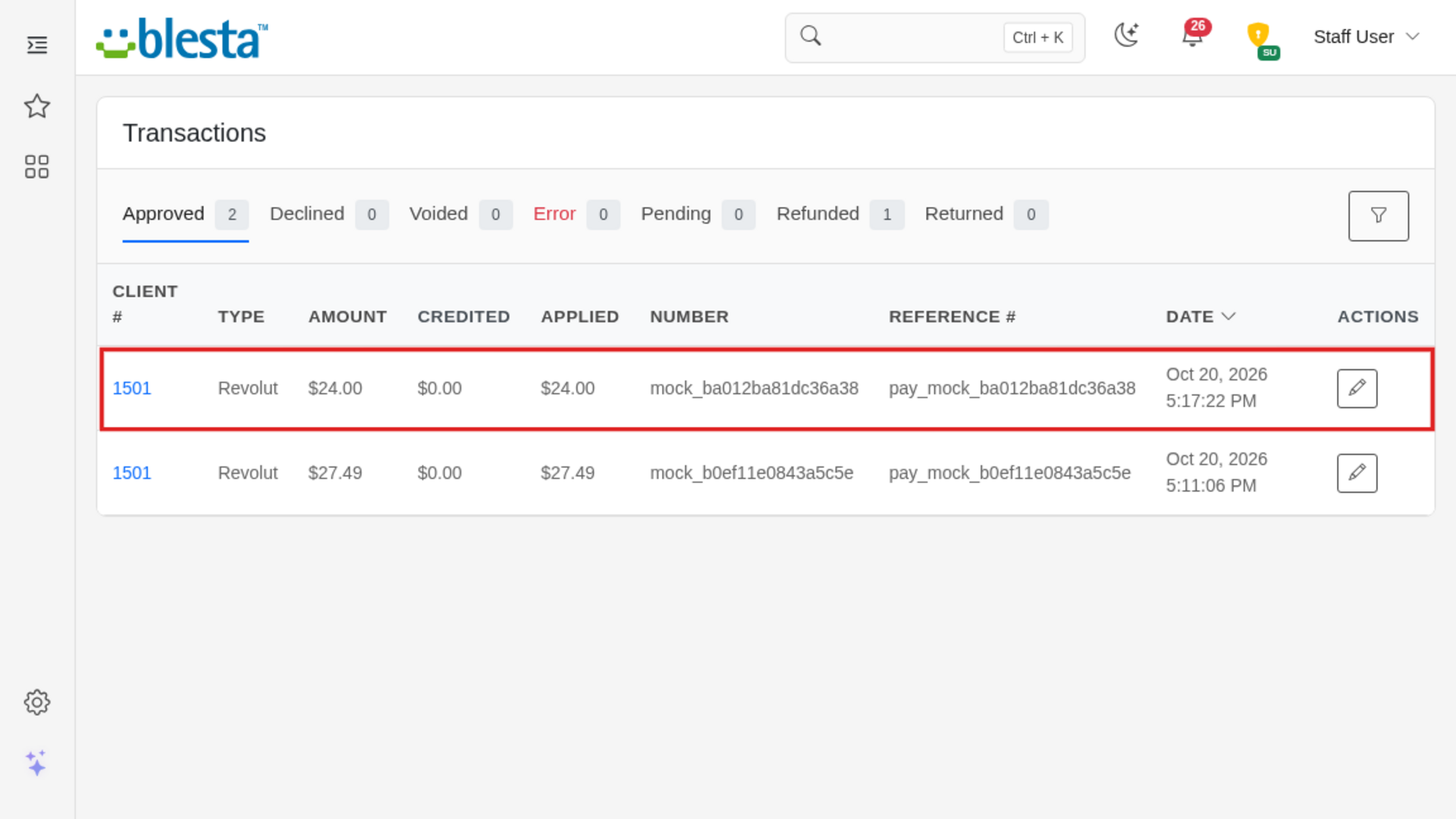
Features
What Revolut gives you
Per-Company Configuration
Configure it independently for each brand on a multi-company install, so every company runs with its own settings.
Sandbox and Live Environments
Flip a single switch to run everything against the provider's sandbox while you test, then turn it off to go live.
Fully Translatable
Every staff and client label ships in editable language files, ready to translate into any language or reword to match your brand.
Checkout Expiry and Statement Text
Choose how many minutes an unpaid checkout stays open and add your own suffix to the statement descriptor your clients see on their card statement.
Several Invoices in One Payment
A client can settle many invoices, or invoices plus extra credit, in one payment, and every invoice is applied for exactly the amount it was paid for.
Built-In Demo Mode
A built-in demo mode runs the whole extension from bundled sample data, so you can trial every screen and action before you have an account or API key.
Declined Attempts Recorded
Optionally log each failed card attempt as a Declined transaction, so your staff can see why a client could not pay. Turn it off if you would rather not see them.
Full Request Logging
What it sends and what comes back is recorded in Blesta's own log, with credentials never written to it, so you can see exactly what happened without leaving your admin area.
Dashboard Refunds Sync Back
A full or partial refund you issue in the Revolut dashboard is applied to the matching Blesta transaction automatically, so your records stay in step without manual reconciliation.
Exact Amounts in Every Currency
Amounts are converted correctly for currencies with no decimals such as JPY and ISK and for those with three decimals such as KWD and BHD, so clients are never over- or undercharged.
Chargebacks and Lost Disputes
A chargeback, or a dispute Revolut reports as lost, marks the matching transaction as returned, and a reversed chargeback restores it, so your books follow what Revolut actually settled.
Credentials Verified When You Save Them
Your API credentials are checked with the provider the moment you save them and the save is refused if they do not work, so a typo is caught immediately instead of the first time it matters.
Revolut Hosted Checkout
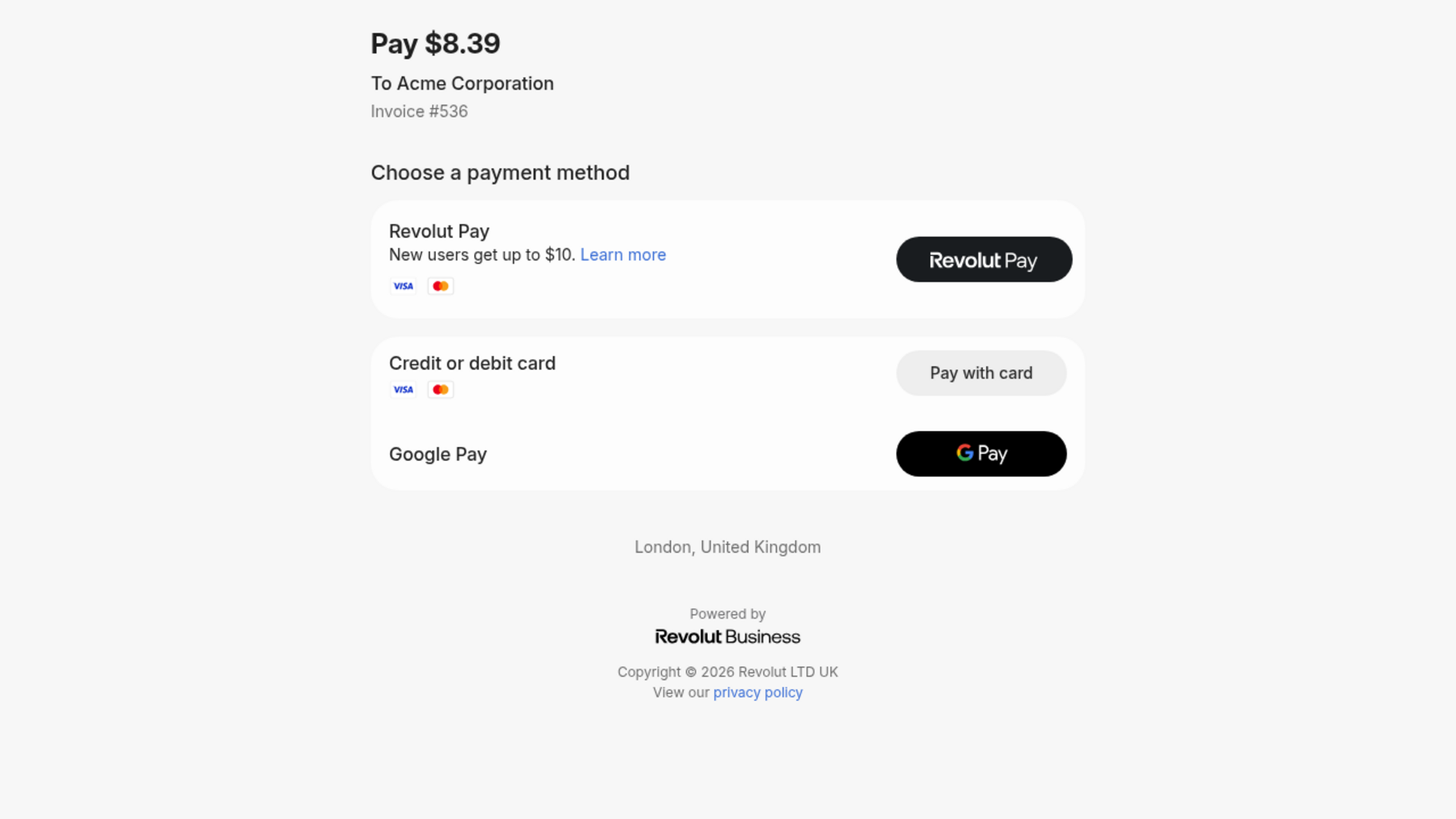
Clients pick Revolut on the invoice payment page and finish on Revolut's own checkout by card, or with Revolut Pay, Google Pay or Apple Pay where available, then land back on your receipt page.
Safe on a Shared Revolut Account
Only payments this Blesta gateway started are recorded, so other systems using the same Revolut account, or a second Blesta install, are ignored, and a repeated notification is never recorded twice.
Confirmed Before It Is Recorded
Every incoming payment notification is verified and re-confirmed with the payment provider before anything is applied, so an invoice is only ever marked paid on a payment the provider itself confirms.
Secrets Stored Encrypted
Your secret key and webhook signing secret are stored encrypted and only ever shown as dots on the settings page. Leave the dots as they are to keep a secret; a blank secret key is refused, and a blank signing secret keeps the stored one.
Webhook Set Up For You
Save a valid secret key and the payment notification address is registered with Revolut automatically, with its signing secret stored encrypted. If it cannot be registered, the settings page says why and lets you paste a secret you registered yourself.
Refunds From Inside Blesta
Issue a refund straight from the transaction in your admin area and it is sent to the payment provider for you, with no need to open their dashboard. Blesta's admin refunds the transaction's full amount; for a partial refund, issue it from the provider's dashboard instead.

Revolut
Let your clients pay any Blesta invoice on Revolut's hosted checkout by card, Apple Pay, Google Pay or Revolut Pay, with payments, refunds and chargebacks recorded automatically.
What it does
If you already take money through Revolut Business, you probably reconcile it by hand: watching the dashboard, marking invoices paid and keying in refunds twice. Clients, meanwhile, have no Revolut option on your invoices at all.
This gateway puts Revolut next to your other payment options on every Blesta invoice. Your client picks Revolut, pays on Revolut's own secure checkout and comes back to your receipt page. When Revolut confirms the payment, Blesta records the transaction and applies it to the right invoices on its own. Refunds, chargebacks and lost disputes that happen on the Revolut side are carried back into Blesta too, so your records follow the money.
This is an independent gateway built by Blesta Club. It is not published by Revolut, and Revolut cannot provide support for it.
Key features
- Revolut hosted checkout: Clients pay on Revolut's own checkout by card, or with Revolut Pay, Google Pay or Apple Pay where available, and return to your Blesta receipt page afterwards.
- Webhook set up for you: Saving a valid secret key registers the payment notification address with Revolut and stores its signing secret encrypted, so there is nothing to copy by hand in the normal case.
- Confirmed before it is recorded: Every notification is signature-checked and re-confirmed with Revolut before anything is applied, so an invoice is only marked paid on a payment Revolut itself confirms.
- Several invoices in one payment: A client can settle many invoices, or invoices plus extra credit, in a single payment, and each invoice is applied for exactly the amount it was paid for.
- Refunds and chargebacks sync back: Refund a transaction from Blesta, and refunds issued in the Revolut dashboard, chargebacks and lost disputes are applied to the matching transaction.
- Declined attempts on record: Optionally log each failed card attempt as a Declined transaction so your staff can see why a client could not pay.
- Exact amounts in every currency: Currencies without decimals, such as JPY and ISK, and with three decimals, such as KWD and BHD, are converted correctly.
- Sandbox and demo mode: Test against the Revolut sandbox, or switch on the built-in demo mode to try the whole flow without a Revolut account.
Installing and updating extensions can now be done automatically through the Blesta Club Subscription Manager - this is the recommended way going forward.
Installing Revolut
Before you start
- If you are on the leased (subscription) licence, the Blesta Club Subscription Manager must be installed and your subscription active. The owned and owned-source licences have no such requirement.
- You need a Revolut Business account with the Merchant API enabled. A sign-up link is shown beside the gateway's name in the Payment Gateways list in Blesta.
- Revolut must be able to reach your Blesta site over the internet to deliver payment notifications. If your site sits behind an access gate or firewall, see the end of this guide.
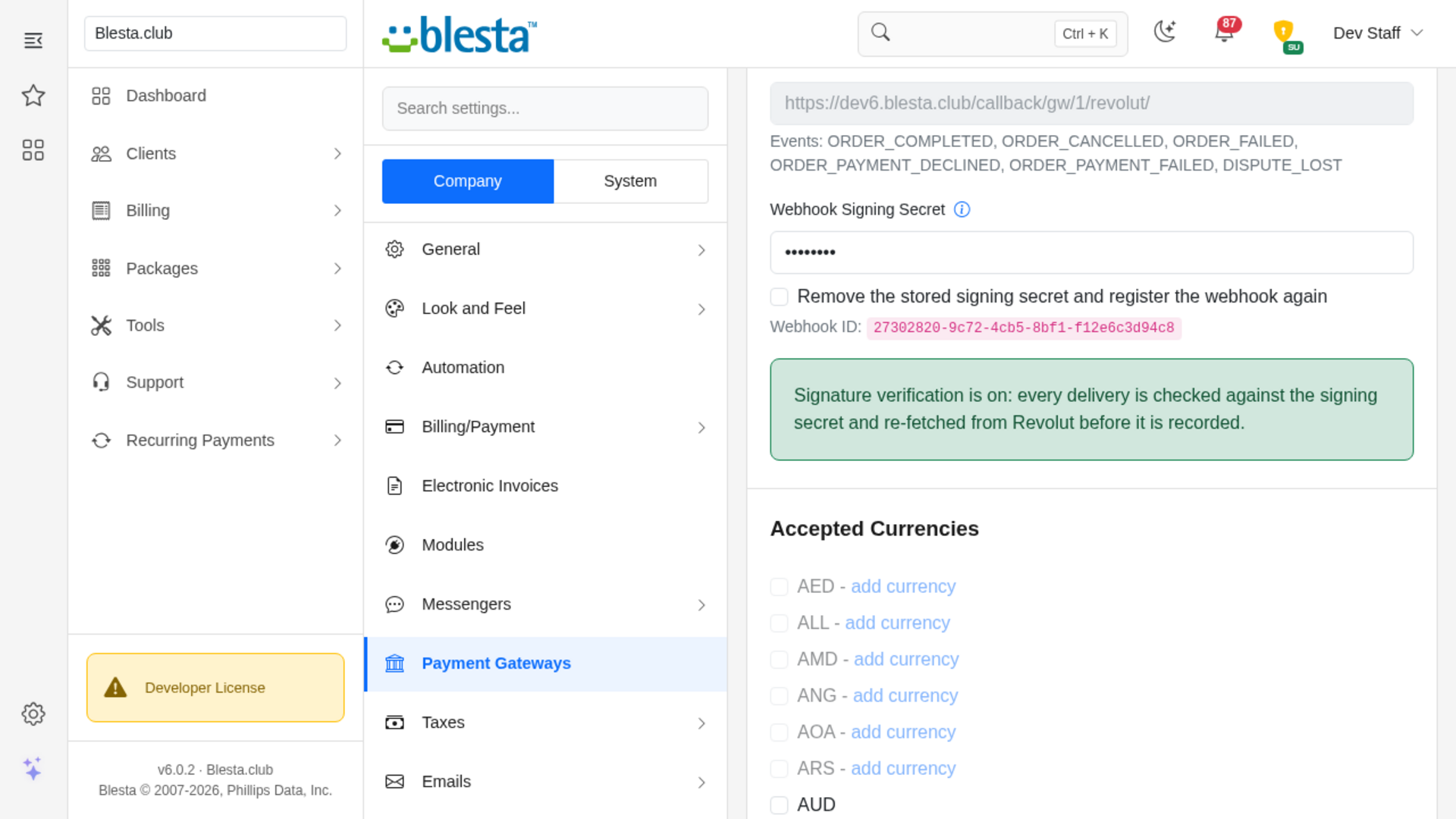
Important: the webhook is the only way a payment reaches Blesta. When a client pays, Revolut sends a notification to your site and that notification is what records the payment and marks the invoice paid. The page the client returns to only says the payment is being processed. If Revolut cannot deliver the notification (the webhook is not registered, your site is down or blocked), it retries 3 times, 10 minutes apart, and then gives up: the client has paid in Revolut but the invoice stays open in Blesta. Check that the green "Signature verification is on" note shows on the settings page after setup, and if a client reports a payment that never appeared, find it in Revolut Business and record it in Blesta under Billing > Transactions by hand.
1. Upload the files
Upload the extension folder into your Blesta installation so it lands under your Blesta directory at:
components/gateways/nonmerchant/revolut/For example, on a typical install: /var/www/html/blesta/components/gateways/nonmerchant/revolut/
2. Install it in Blesta
- Log in to your Blesta admin area with a staff account that has the Payment Gateways permission together with Install Gateway, Manage Gateway, Uninstall Gateway and Upgrade Gateway as needed. You will find these as checkboxes in the Access Control List on the Edit Group page under Settings > System > Staff > Staff Groups. The first time you open a Settings page in a session, Blesta shows an Access Verification page and asks for your password again.
- Go to Settings > Company > Payment Gateways and click the Available tab.
- Find Revolut in the Non-Merchant section of the list and click Install.
Blesta opens Revolut's settings page and shows "The gateway was successfully installed." From then on Revolut is listed on the Installed tab, under the Non-Merchant heading, with Manage and Uninstall links beside it.
3. Configure it
- If you are not already on the settings page, go to the Installed tab and click Manage next to Revolut.
- Paste your Secret API Key. In Revolut Business you create it under Merchant > APIs > Merchant API. The sandbox and the production environment use different keys, so tick Sandbox when you use a sandbox key. The key is stored encrypted and is never shown again: the field shows dots, and leaving them as they are keeps the stored key.
- The remaining settings are optional: Checkout Expiry (minutes), Statement Descriptor Suffix and Record declined payment attempts. They are explained in the usage guide.
- Scroll to Accepted Currencies on the same page and tick the currencies you want to bill in.
- Click Update Settings. Blesta checks the key with Revolut and registers the webhook for you, then returns to the Installed list with "The gateway was successfully updated." Open Manage again: with a key Revolut accepted, the signing secret is filled in under Webhook and a green note confirms that signature verification is on.
The gateway registers no cron tasks and creates no database tables.
If the webhook was not registered automatically
If no signing secret is stored, the settings page shows a note saying so, or a red note with the reason registration failed. Register the webhook yourself:
- In Revolut Business open Merchant > APIs > Merchant API and add a webhook with the Webhook URL shown in the gateway settings, using the events listed beside it.
- Copy the webhook's signing secret into Webhook Signing Secret and click Update Settings.
You can also simply click Update Settings again to retry the automatic registration.
If your site is behind an access gate or firewall, allow Revolut's webhook source addresses: production 35.246.21.235 and 34.89.70.170, sandbox 35.242.130.242 and 35.242.162.241.
Trying it out first
To try the gateway without a Revolut account, tick Sandbox and Mock API, type any placeholder as the Secret API Key and save. The gateway then answers from built-in sample responses instead of contacting Revolut, and the Webhook section shows a yellow note that Mock API is on instead of registering a webhook. Mock API only works together with Sandbox. Never leave it enabled on a live site.
You're ready to go - see the usage guide for a walkthrough of day-to-day use.
Installing and updating extensions can now be done automatically through the Blesta Club Subscription Manager - this is the recommended way going forward.
Updating Revolut
Upgrading works just like installing: upload the new files over the old ones, then run the upgrade from the same page you installed it on.
- Back up your current extension files first - good practice before any upgrade.
- Upload the new version over the existing folder, replacing the old files.
- Log in to your Blesta admin area and go to Settings > Company > Payment Gateways, on the Installed tab.
- Find Revolut in the Non-Merchant section and click Upgrade to run the upgrade. That button only appears once Blesta sees uploaded files newer than the installed version.
This upgrade is drop-in - no steps are needed beyond replacing the files and running the upgrade. Your settings are carried over.
If you ever uninstall Revolut instead, remember that its webhook stays registered at Revolut until you delete it in Revolut Business under Merchant > APIs > Merchant API.
Using Revolut
For your staff
The gateway settings page
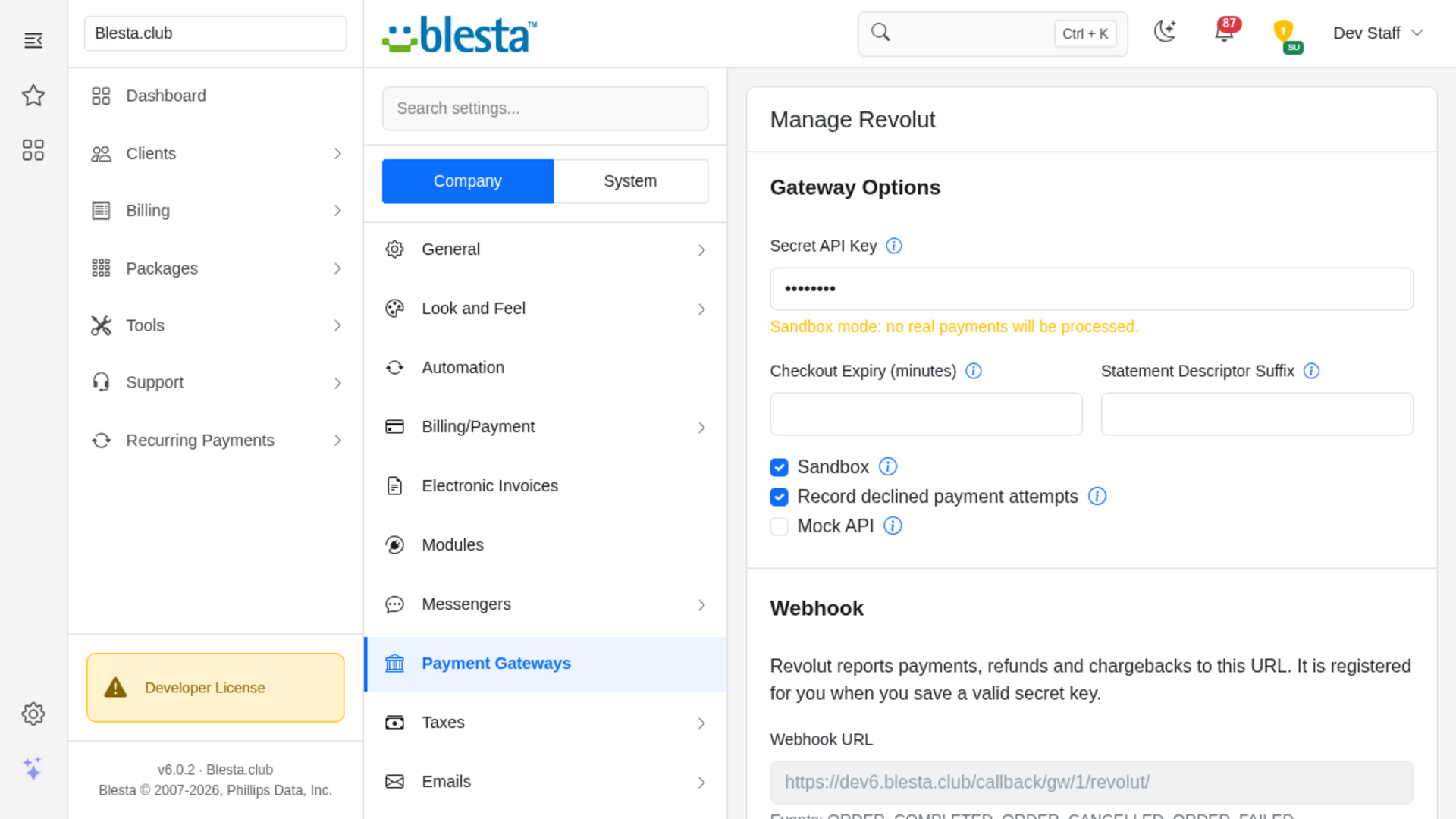
Go to Settings > Company > Payment Gateways, stay on the Installed tab, and click Manage next to Revolut in the Non-Merchant section. Most settings have an information icon next to the label that shows a short explanation.
- Secret API Key is your Revolut Merchant API secret key. Once a key is stored the field shows dots instead of the key; leave them as they are to keep it. Below it a note tells you whether you are in sandbox mode or live mode (with Mock API on, that note is hidden).
- Checkout Expiry (minutes) is how long an unpaid checkout stays open, from 1 to 43200 minutes. Leave it empty to use Revolut's default.
- Statement Descriptor Suffix is optional text of up to 19 characters, without an asterisk or backslash, added to your statement descriptor on the cardholder's statement. The field stops you typing more than 19 characters.
- Sandbox switches to the Revolut sandbox, which needs a sandbox key. No real payments are processed.
- Record declined payment attempts is on by default. Each failed attempt then appears as a Declined transaction with no invoice applied.
- Mock API serves built-in sample responses instead of contacting Revolut. It requires Sandbox, and any non-empty key works.
The Webhook section shows the Webhook URL and the events Revolut reports to it. The Webhook Signing Secret is filled in automatically; paste one only if you registered the webhook yourself. If a secret is stored you can tick Remove the stored signing secret and register the webhook again to start over. Below the Webhook section, Blesta's own Accepted Currencies list lets you tick which currencies Revolut may be offered for. Click Update Settings to save; Blesta returns to the Installed list with "The gateway was successfully updated."
If you change the Secret API Key or the Sandbox setting, the stored signing secret is cleared, because a secret belongs to one account and one environment. The page then warns, for example: "The webhook signing secret was cleared because the Secret API Key changed: a secret belongs to the account that issued it. A webhook is registered again for the new key when possible; if no signing secret is shown below, paste the one of your webhook or save again."
When a setting is refused
Blesta refuses the save and shows one of these messages:
- A blank key: "Please enter your Revolut Merchant API secret key."
- A key Revolut does not accept: "Revolut did not accept this secret key. Check that it is a Merchant API secret key and that the Sandbox box matches the environment it was created in."
- Mock API without Sandbox: "Mock API can only be used together with Sandbox, so a live install never accepts mock payments."
- A bad expiry: "The checkout expiry must be a whole number of minutes between 1 and 43200, or empty."
- A bad suffix: "The statement descriptor suffix may be at most 19 characters and may not contain an asterisk, a backslash, a line break or any other control character."
- A bad signing secret: "The webhook signing secret must be 8 to 200 characters of letters, numbers, hyphens and underscores."
- A value with a line break or other control character, or one that is far too long: "This value is not valid, is too long or contains a control character such as a line break."
Seeing a payment land
When Revolut confirms a payment, the gateway records an approved transaction against the paying client and applies it to the invoices that payment was raised for. An invoice that no longer exists, or that belongs to another client, is skipped and that part of the payment is kept as client credit, which Blesta may then apply automatically to the client's oldest open invoice. You will see it under Billing > Transactions and on the client's profile, and the invoice balance updates on its own. The invoice is settled by Revolut's confirmation, not by the client returning to your site, so expect a short gap between the client seeing the receipt page and the invoice showing as paid.
Refunds
To refund a payment from Blesta, go to Billing > Transactions, click the pencil icon on the transaction to open Edit Transaction, set Status to Refunded, tick Process this status change with the payment gateway (Revolut) and click Update Transaction. Blesta shows "The transaction was successfully updated.", the refund is sent to Revolut and the transaction is marked refunded. Blesta warns you that changing the status removes the transaction from all invoices it was applied to, so the invoice is reopened.
Blesta always refunds the full amount. If part of the payment was already refunded in the Revolut dashboard, a refund from Blesta refunds only what is left. Some rows cannot be refunded through Revolut: a declined attempt shows "The Revolut order for this transaction could not be retrieved.", a refund row shows "Amount must be greater than zero.", and a payment with nothing left to refund shows "The refund amount is more than what is left to refund on this Revolut order."
A refund you issue in the Revolut dashboard is recorded automatically. A full refund marks the original transaction refunded and reopens the invoice. A partial refund is recorded as a separate refund transaction and the original stays approved; partial refunds that add up to the whole payment still leave the original approved and the invoice paid.
Revolut completes a refund a few seconds after accepting it. If it fails or is cancelled at Revolut instead, Blesta cannot undo the status change, so the gateway adds a failed entry to Tools > Logs > Gateway naming the payment. Check the payment in Revolut Business and refund the client another way.
Chargebacks and disputes
A chargeback, or a dispute that Revolut reports as lost, marks the original transaction as returned for its full amount, even when only part of it was disputed. If a chargeback is reversed, the transaction returns to approved.
Checking what was sent and received
Go to Tools > Logs and open the Gateway tab. Calls made while taking payments and refunds, and the notifications Revolut sends, are listed with their input and output, with secrets masked, and so is any notification that was rejected. Saving the settings is not logged: if the webhook cannot be registered, the reason is shown on the settings page. A rejected signature usually means the signing secret belongs to the other environment (sandbox or live), or your server clock is off by more than five minutes.
For your clients
Choosing Revolut at checkout
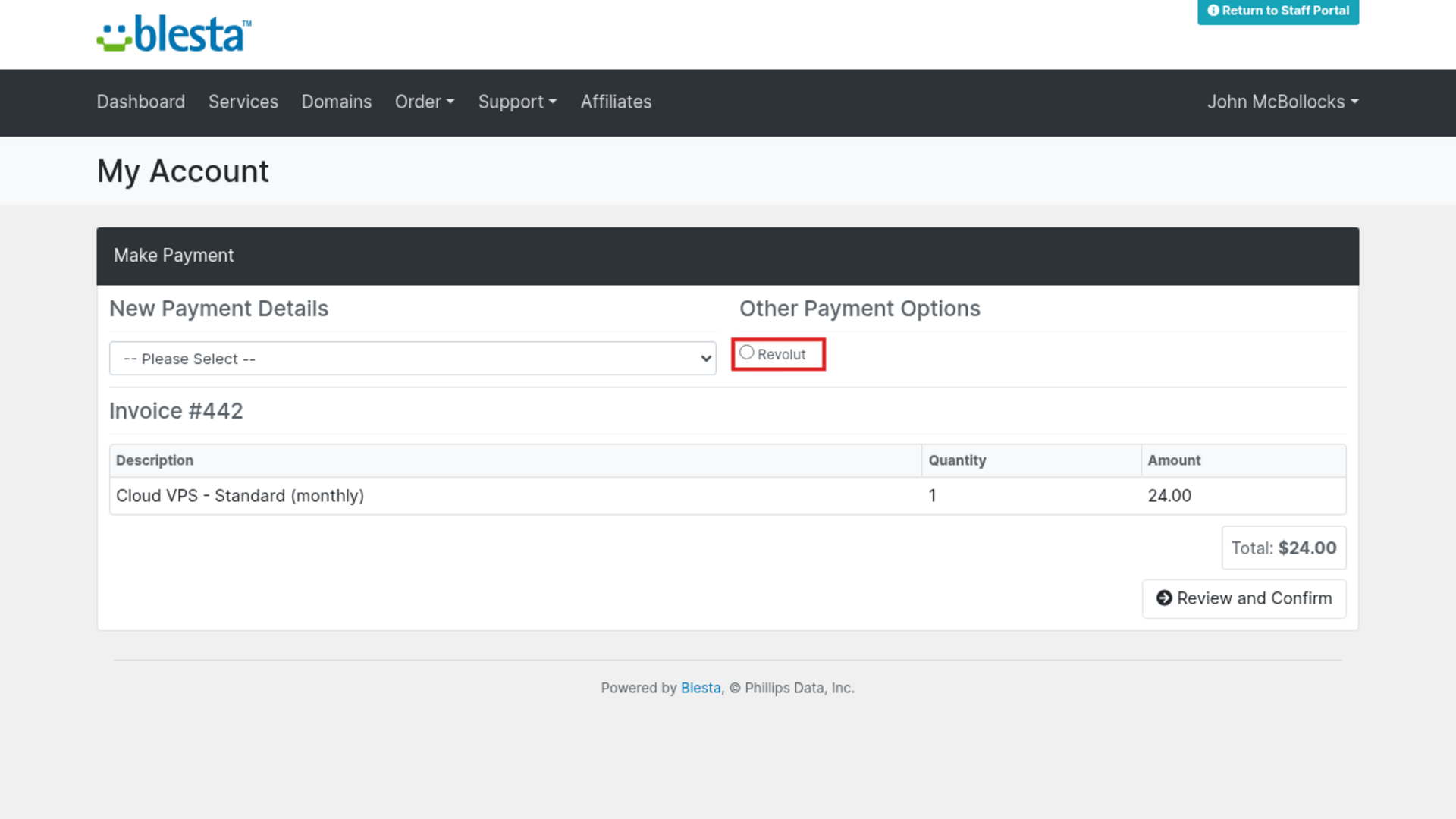
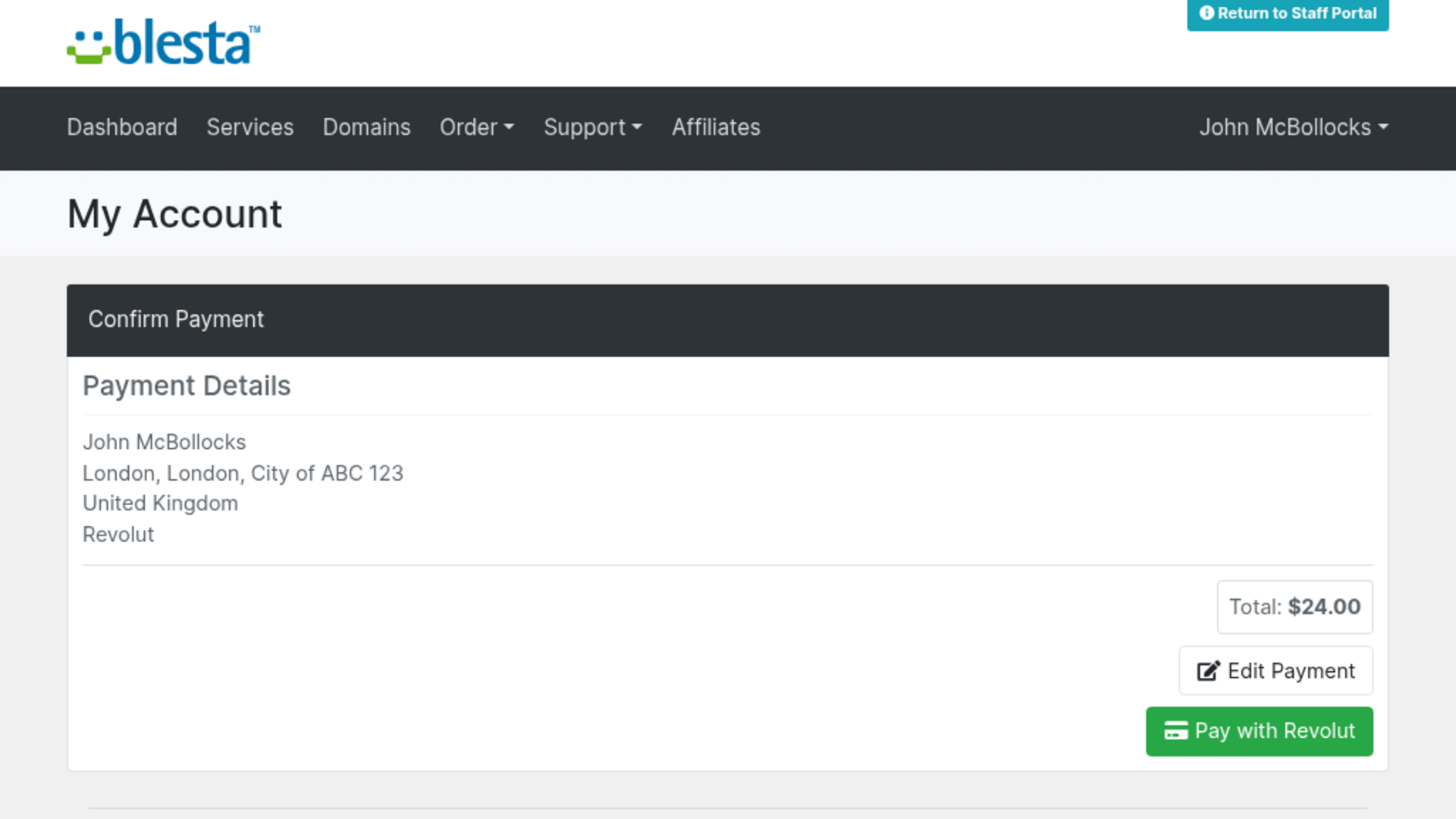
Your client opens an invoice in their client area and starts a payment. On the Make Payment page, Revolut appears in the Other Payment Options list, below the card and bank details section Blesta always shows. They select Revolut and click Review and Confirm. Blesta then shows a Confirm Payment page with the payment details and total, an Edit Payment link and a green Pay with Revolut button.
The payment page opens in the currency the client last used, and other currencies are available through the currency choice on that page. Revolut is only offered for currencies you ticked under Accepted Currencies.
Paying on Revolut
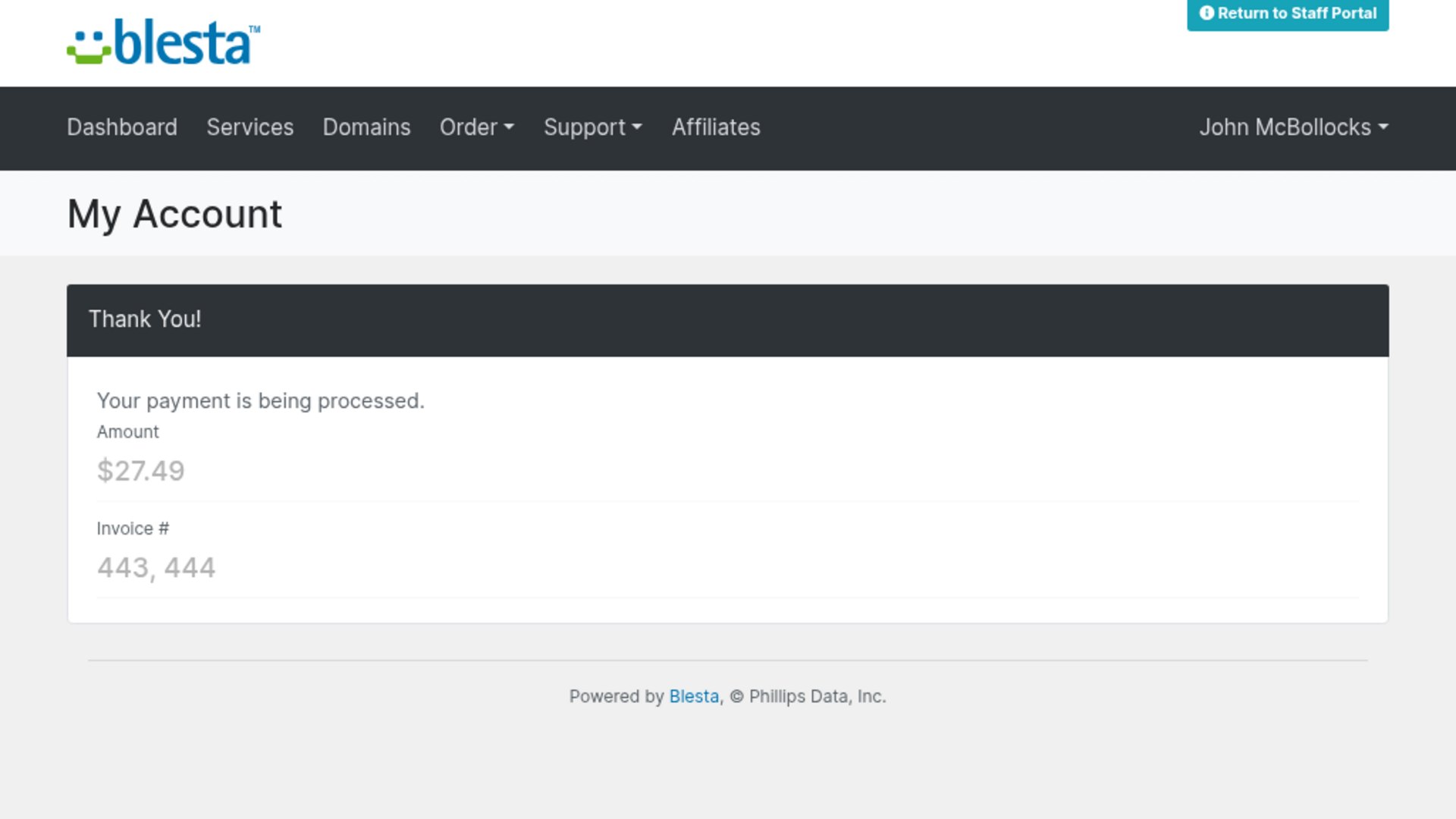
The button takes the client to Revolut's secure hosted checkout, where they pay with card, Apple Pay, Google Pay or Revolut Pay, depending on what Revolut offers them. After a successful payment they return to your Blesta receipt page. It is titled "Thank You!", says "Your payment is being processed." and lists the amount and the invoice numbers. If something goes wrong when the payment is started, the client sees a short message asking them to try again or contact you, and the cause is in the gateway log.
Good to know
- Uninstalling does not remove the webhook at Revolut. If you uninstall the gateway for good, delete its webhook in Revolut Business under Merchant > APIs > Merchant API, because Revolut allows a limited number of webhooks per merchant.
- Currencies: the list of currencies that can be ticked is broad, but Revolut decides what your account can accept. A currency your Revolut account does not accept fails when the payment is started.
- Checkout address rules: Revolut only sends clients back to a secure (https) site address that is not an IP address or localhost.
- Shared Revolut account: only payments that this gateway started are recorded. Other systems using the same Revolut account are ignored.
- Mock API is for testing and demos only. In mock mode no payment is made at Revolut, the checkout sends the client straight to the receipt page, and the payment is recorded once a payment notification for that order reaches your webhook address. While no signing secret is stored, mock notifications are accepted unsigned; once one is stored, every notification must be signed.
v1.0.0 - 2026-10-31
PHP 8.2 - 8.4 · Blesta 6.x
Initial release
Pricing Options
Get exactly what you need and want.
Requires PHP 8.2 - 8.4 · Blesta 6.x
Included In
Value: Free
- +28 Other Extensions
- Additional Discounts
- Included Support & Updates
Leased
- Partially Encoded
- Full Functionality
- Included Support & Updates
Owned - Source
- Source Available
- Buy Once Use Forever
- 1 Year Support & Updates
Not sure whether to lease or own? Our FAQ explains how the licence types differ.
Reviews
What our customers say
(0 customer reviews)
Seems like this extension doesn't have reviews yet...
Be one of the firsts to leave a review!
It is possible to leave a review only if you have purchased this extension or a Club tier which contains it.
We reserve the right to alter wording or formatting for presentation.
We will discuss any changes made and offer the option to withdraw review text if the changes can't be agreed on.
It may take up to 1 hour for a review to appear or update due to caching.
You might also like
More extensions to explore

Gateway
Cryptomus
Integrate Cryptomus for cryptocurrency payment processing.
PHP 8.2 - 8.4 · Blesta 6.x

Gateway
Dual PayPal Payment Buttons
Integrate Dual PayPal Payment Buttons for handling multiple payment accounts.
PHP 8.2 - 8.4 · Blesta 6.x



Gateway
PayPal Billing Agreements
Integrate PayPal Billing Agreements for subscription management.
PHP 8.2 - 8.4 · Blesta 6.x

Gateway
PayPal Payment Buttons
Integrate PayPal Payment Buttons for simple payment processing.
PHP 8.2 - 8.4 · Blesta 6.x