Pterodactyl Advanced
The Pterodactyl Advanced module creates the game server on your Pterodactyl panel automatically when an order is provisioned, for any egg and with every port it needs. Clients get the console, files, backups, databases, schedules and more right in your client area.
Free - View Pricing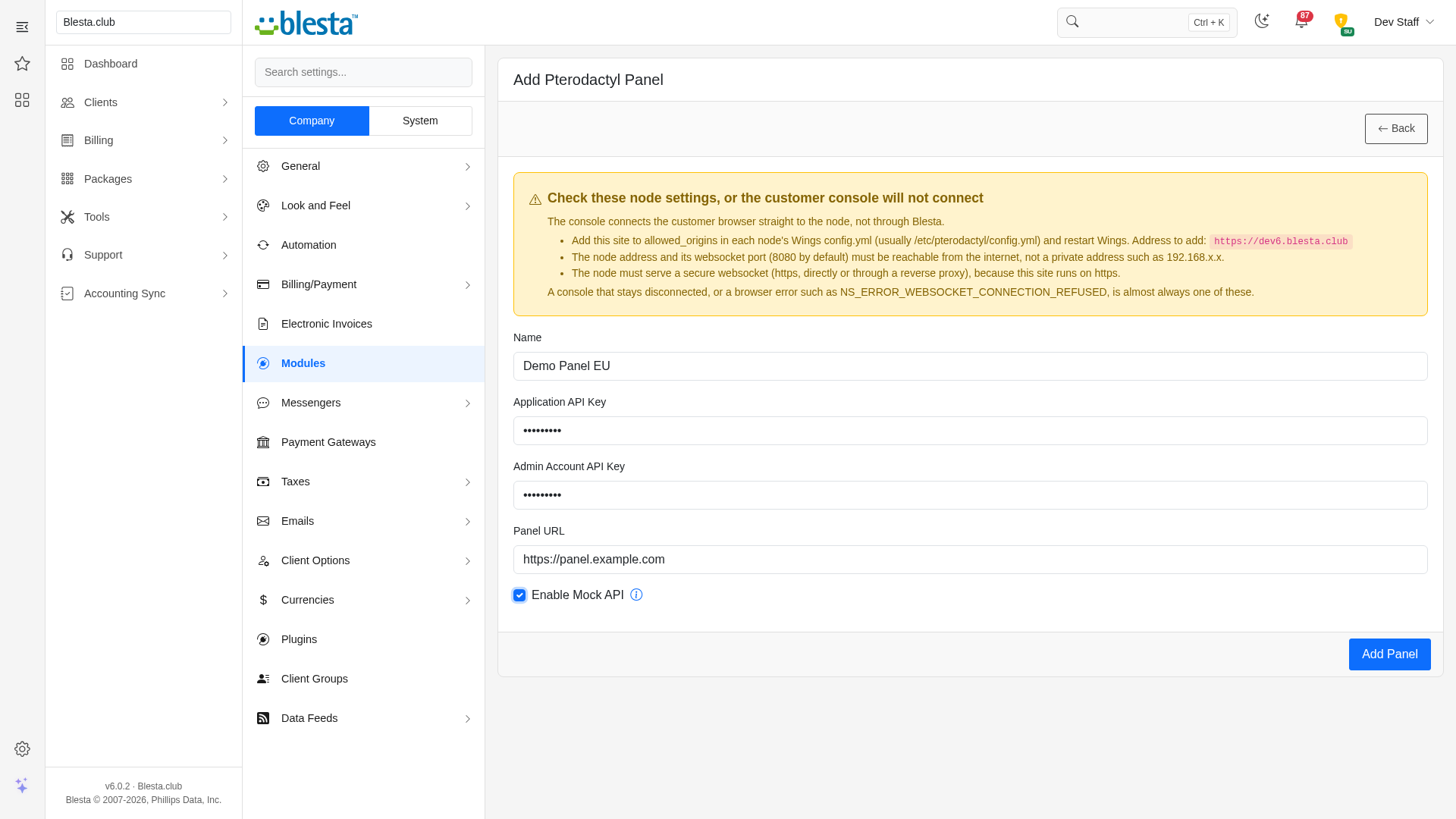
Features
What Pterodactyl Advanced gives you
Staff and Client Area
Gives both your staff and your clients a purpose-built interface in their own area of Blesta.
Private Activity Log
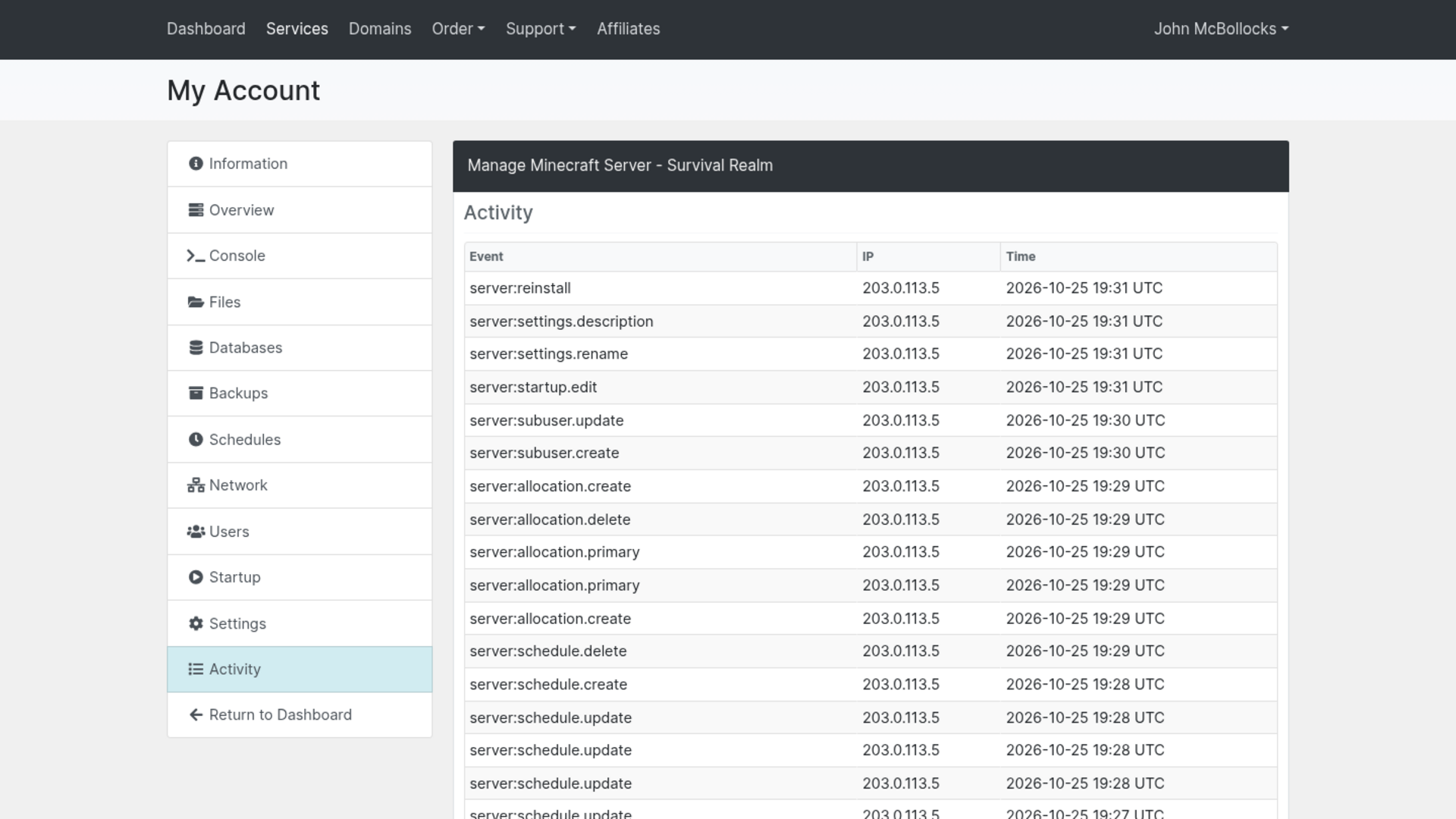
Clients see the recent actions on their server, with IP addresses shown only for their own actions.
Per-Company Configuration
Configure it independently for each brand on a multi-company install, so every company runs with its own settings.
Fully Translatable
Every staff and client label ships in editable language files, ready to translate into any language or reword to match your brand.
No Half-Built Servers
An order that no node can host, or that leaves a required egg variable empty, stops with a clear message before anything is created on the panel.
Staff Server Controls
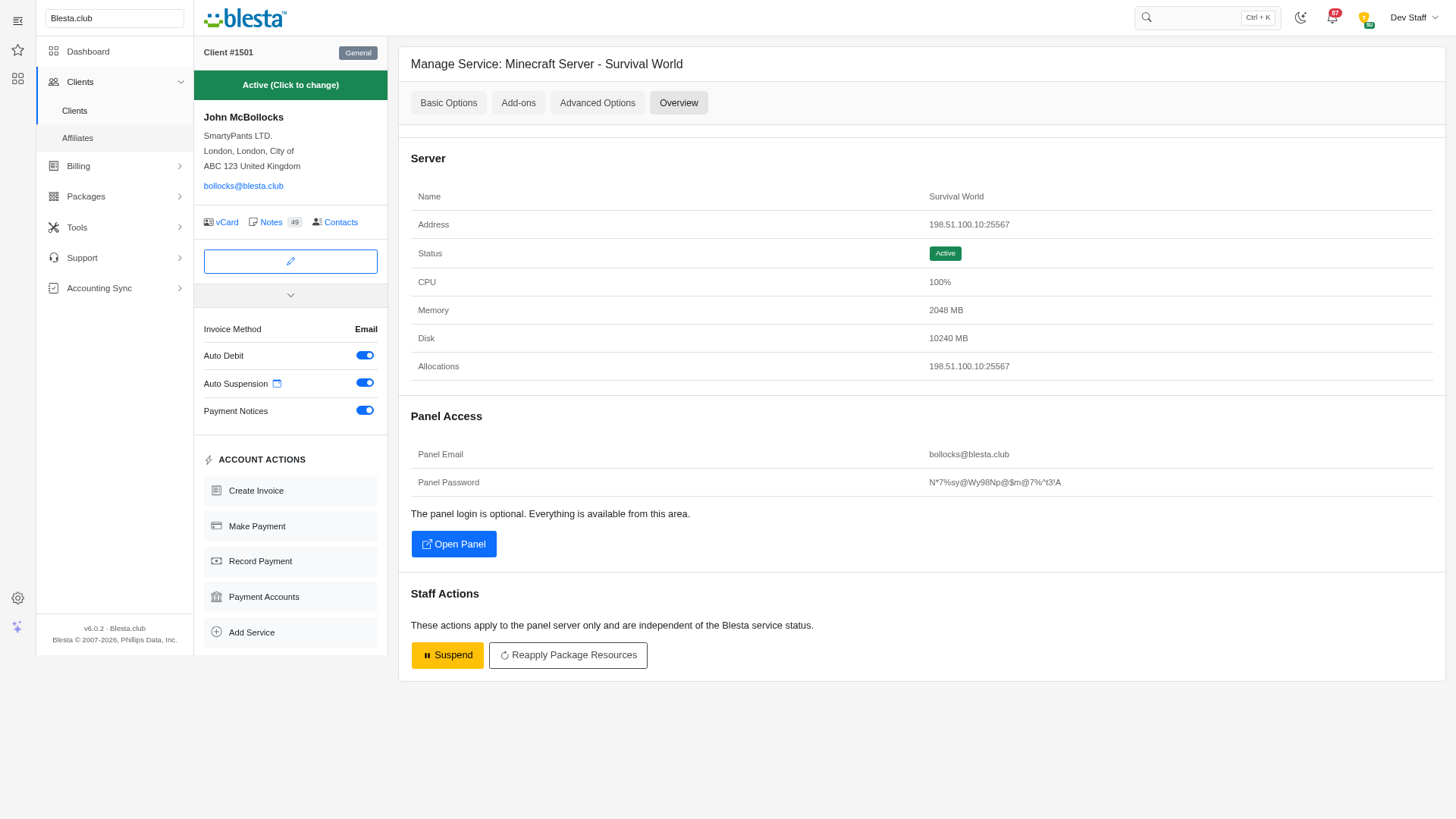
Suspend, unsuspend or reapply the package resources to a server from the admin service page, and package changes resize the server automatically.
Built-In Demo Mode
A built-in demo mode runs the whole extension from bundled sample data, so you can trial every screen and action before you have an account or API key.
Client-Set Egg Variables
Choose which egg variables your clients may fill in when ordering, and every value is checked against the egg's own rules before the order goes through.
Any Egg in Any Nest
Pick the nest and egg on the package and the startup command, Docker image and variables come from the egg, with optional overrides for the image and startup command.
Smart Node Placement
Place servers by location or on hand-picked nodes; the node with the most free memory is tried first, over-allocation is honoured and nodes in maintenance are skipped.
Ready-Made Welcome Email
A welcome email template ships with the extension and loads onto any package in one click, already filled with the details the client needs to start using what they bought.
Full Request Logging
What it sends and what comes back is recorded in Blesta's own log, with credentials never written to it, so you can see exactly what happened without leaving your admin area.
Multi-Port Games Made Easy
Reserve extra ports as offsets of the primary port or from a range, all on the same IP, plus spare ports, and scope each line to one egg, so games that need consecutive ports just work.
Credentials Verified When You Save Them
Your API credentials are checked with the provider the moment you save them and the save is refused if they do not work, so a typo is caught immediately instead of the first time it matters.
One-Click Game Picker
Build Configurable Options creates a Game Server list and each egg's variables in one go, shown only for the egg the client picks, and can be re-run to add new eggs without touching what exists.
Write-Only Credential Fields
Stored credentials are never rendered back into the settings page, and leaving a field blank when you edit keeps the saved value, so a secret is never exposed in day-to-day admin work and cannot be wiped by accident.
Sell Every Tier From One Package
Attach Blesta configurable options named for the package's own settings and clients pick their own sizing or extras at checkout, overriding or adding to the package defaults - so one package can sell your whole range.
Fully Automated Game Servers
A provisioned order finds or creates the client's panel account and builds the server with the package's memory, swap, disk, CPU, I/O, database, backup and port allowances, so a paid order becomes a running game server with no staff involvement.
Full Client Area Control
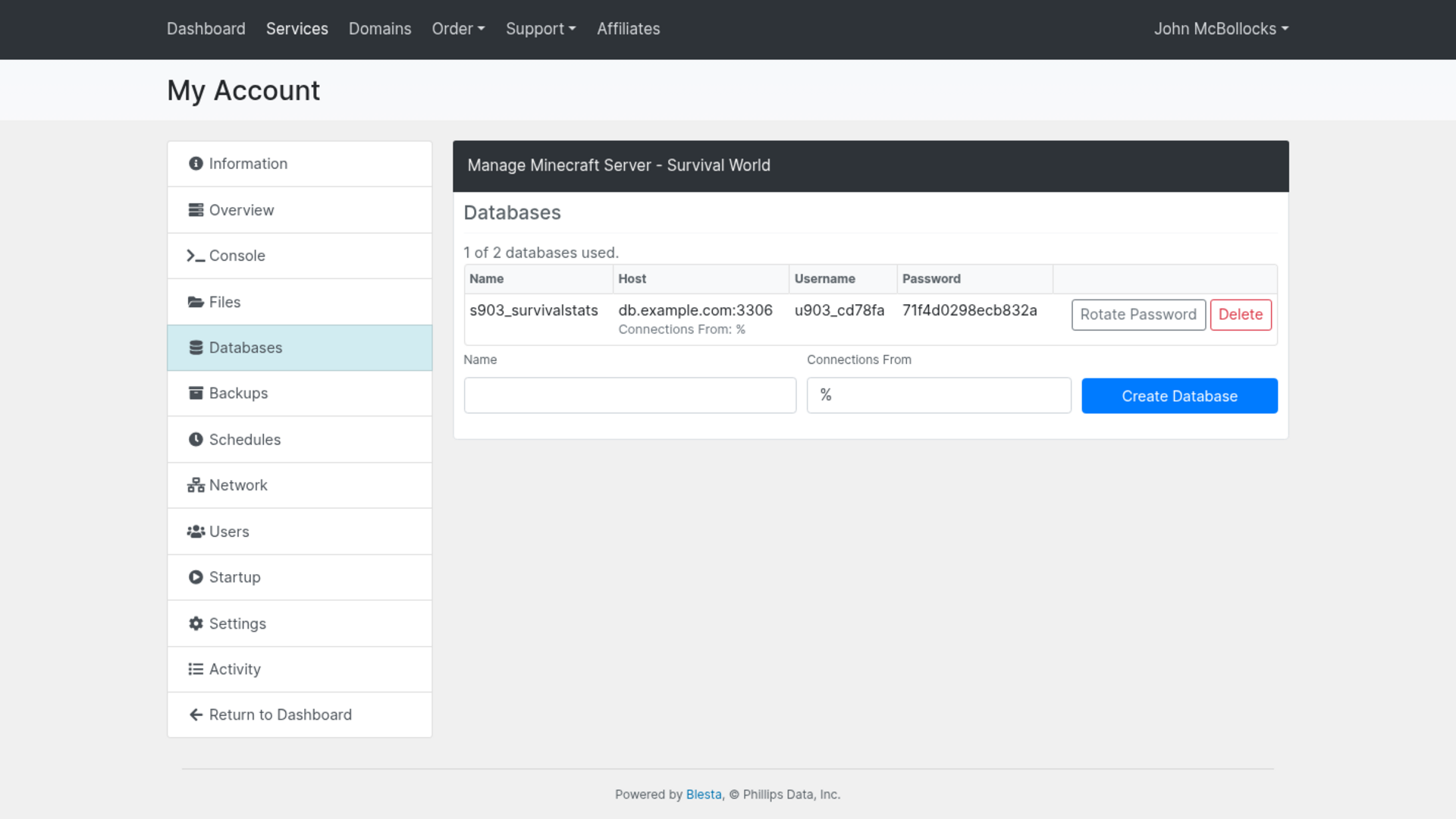
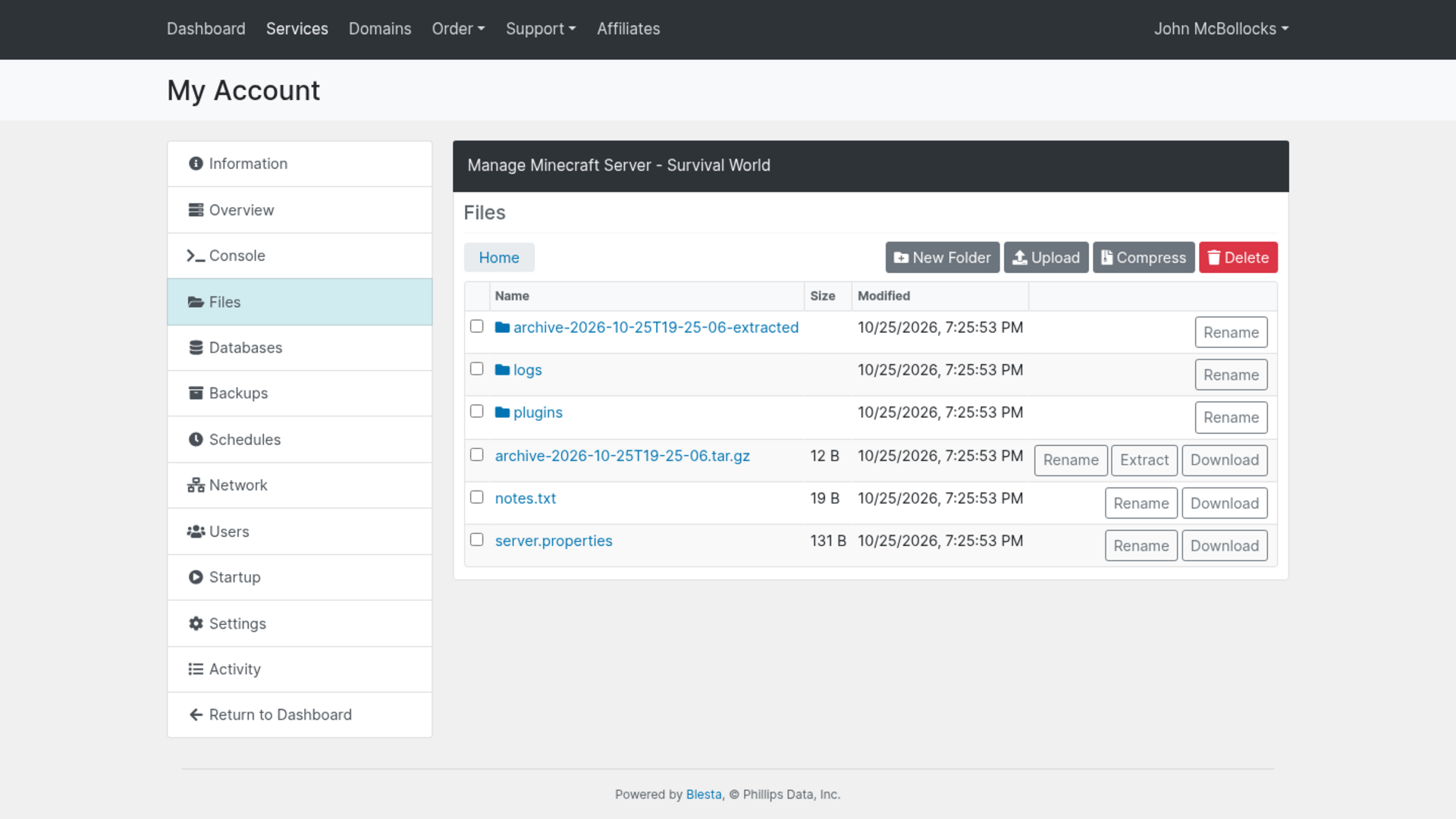
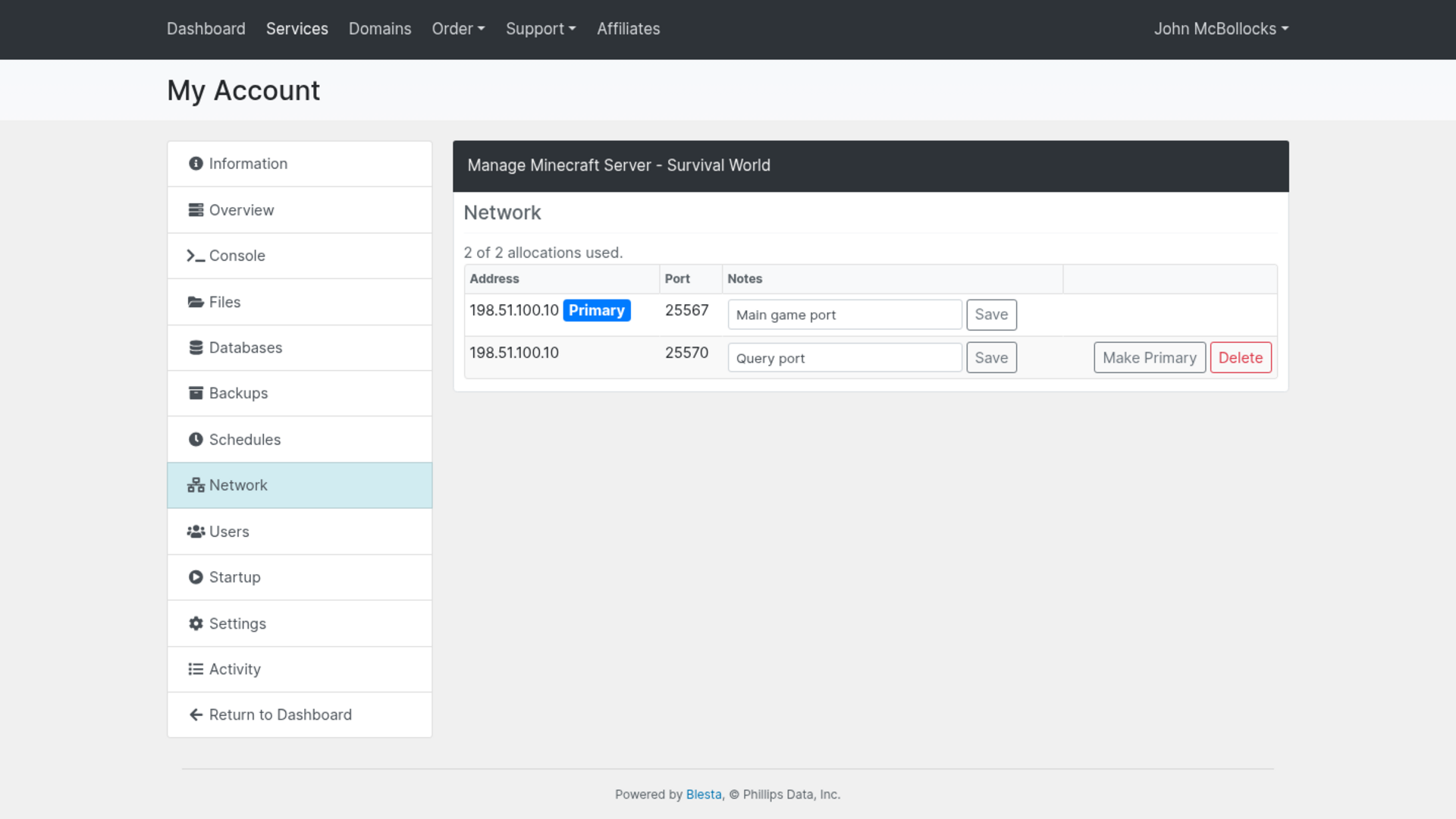
Clients get live stats and power controls, the server console, a file manager with upload, download, editing and archives, databases, backups, schedules, network ports, subusers, startup settings, rename and reinstall, all inside your client area.

Pterodactyl Advanced
Sell game servers on your Pterodactyl panel and let your clients run them entirely from your Blesta client area.
What it does
Selling game servers usually means sending every customer off to a separate panel login, then answering tickets about ports, consoles and backups. Pterodactyl Advanced creates the server on your Pterodactyl panel the moment an order is provisioned, for any egg in any nest, on a node picked by location or by hand, with every extra port the game needs reserved on the same IP. Your clients then get the console, file manager, databases, backups, schedules, network, subusers, startup settings, reinstall and activity log in your client area, without ever opening the panel.
Key features
- Fully automated game servers: A provisioned order creates the panel account and the server with the package's limits, egg, startup command and Docker image.
- Any egg in any nest: Pick the nest and egg on the package, and choose which egg variables the client may fill in at checkout.
- Multi-port games handled: Reserve extra ports as offsets or ranges on one IP, plus spare ports, set per egg.
- Let clients pick the game: One click builds a Game Server option with each egg's variables, shown only for the egg the client picks.
- Everything in your client area: Live stats, power, console, files, databases, backups, schedules, network, subusers, startup, settings and activity, all in Blesta.
- Staff controls: Suspend, unsuspend and reapply package resources from the admin service page.
- Demo mode: Try every screen against a built-in demo panel before you connect a real one.
Installing and updating extensions can now be done automatically through the Blesta Club Subscription Manager - this is the recommended way going forward.
Installing Pterodactyl Advanced
Before you start
- This module requires Blesta 6.0 or later.
- If you are on the leased (subscription) licence, the Blesta Club Subscription Manager must be installed and your subscription active. The owned and owned-source licences have no such requirement.
- You need a Pterodactyl panel and two API keys from it to provision real servers, see The two API keys. To try the module first you need neither: the built-in Mock API mode runs it from bundled sample data.
1. Upload the files
Upload the extension folder into your Blesta installation so it lands under your Blesta directory at:
components/modules/pterodactyl_advanced/For example, on a typical install: /var/www/html/blesta/components/modules/pterodactyl_advanced/
2. Install it in Blesta
- Log in to your Blesta admin area with a staff account that has the Modules permission under the Settings group in Manage Staff Groups.
- Go to Settings > Company > Modules and click the Available tab.
- Find Pterodactyl Advanced in the list and click Install.
3. Configure it
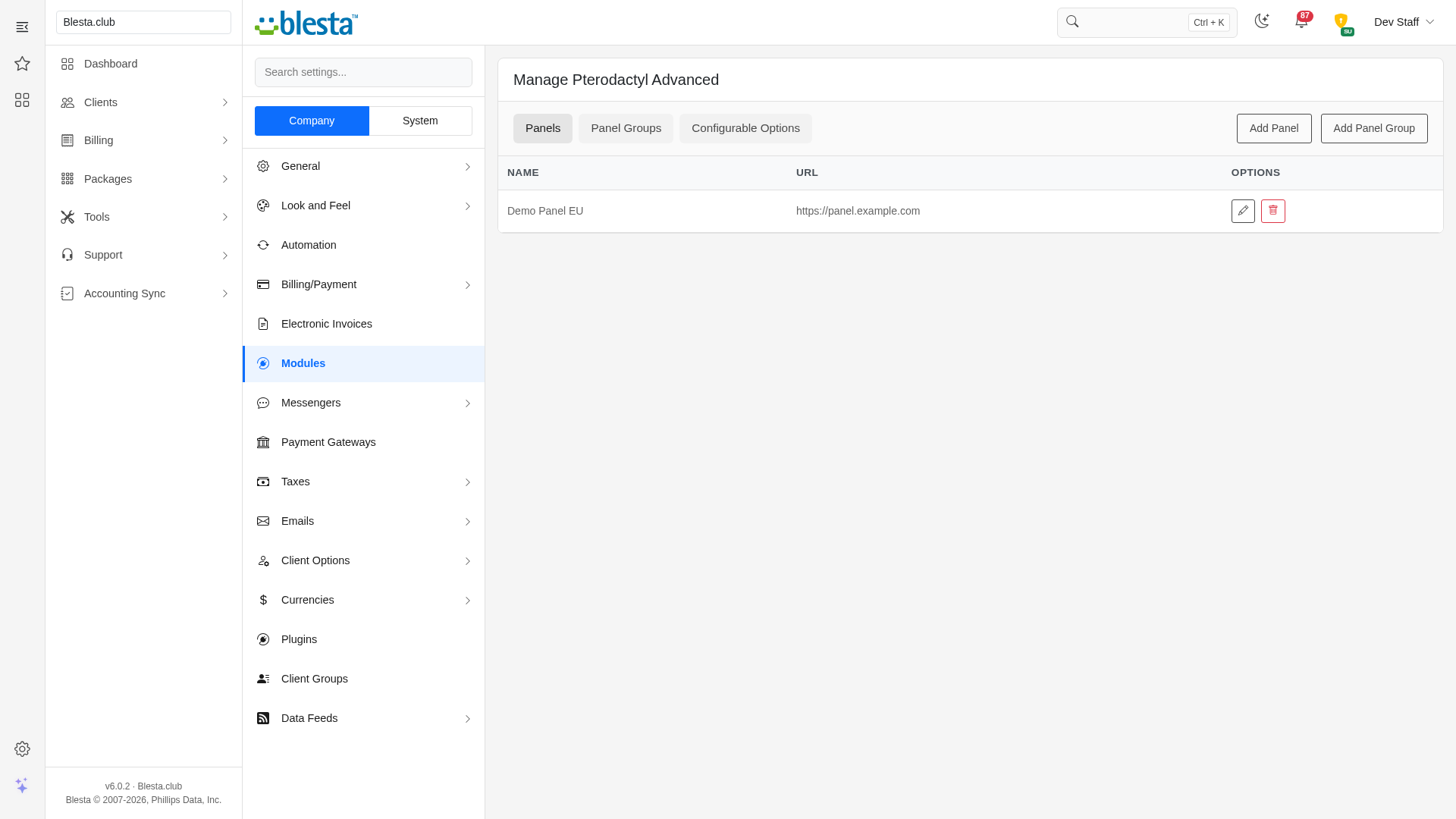
- Under the Installed tab, click Manage next to Pterodactyl Advanced.
- Click Add Panel and fill in:
- Name - a label for this panel, shown in the panel list.
- Panel URL - the address of your panel, for example
https://panel.example.com, with no path. - Application API Key - an application key starting with
ptla_. - Admin Account API Key - the account key of a root administrator, starting with
ptlc_. - Enable Mock API - leave this unticked for a real panel. Tick it to run the module from bundled sample data instead; no keys are checked.
- Save the panel. Unless Mock API is ticked, Blesta contacts the panel as you save and refuses it if the URL or a key does not work.
- Create a package on this module and open its module settings: pick the panel, the Nest, the Egg, the Placement (by location or on selected nodes) and the limits. See the usage guide for every field.
- On each node, make the console work: allow your Blesta site in the Wings allowed origins, make the node reachable from the internet and serve it over https. See Console requirements.
- To let clients add ports from the Network tab, enable client allocations on the panel (
PTERODACTYL_CLIENT_ALLOCATIONS_ENABLED=trueand a port range).
You're ready to go - see the usage guide for a walkthrough of day-to-day use.
The two API keys
A panel needs two different keys. They look alike, they come from different pages of the panel, and they are not interchangeable. Pasting each one into the other's field is an easy mistake to make, and the panel will not save until each key is in its own field.
| Field in Blesta | Key type | Starts with | Created at | Used for |
|---|---|---|---|---|
| Application API Key | Application key | ptla_ |
Admin > Application API | Provisioning: servers, users, nodes, locations, nests, eggs and allocations |
| Admin Account API Key | Account key of a root administrator | ptlc_ |
Account (top right) > API Credentials | Everything clients do in the client area: console, files, databases, backups, schedules, network, users, startup, settings, activity |
Check the prefix before you paste: ptla_ goes in Application API Key, ptlc_ goes in Admin Account API Key.
- The application key needs read and write access on servers and users, and read access on nodes, locations, nests, eggs and allocations.
- The account key must belong to a user with the root administrator flag, otherwise the client area tabs cannot reach your clients' servers. Create it while logged in as that user, and keep it private: it reaches every server on the panel.
- Pterodactyl shows a full key once, when you create it. The key list afterwards shows only the first characters, so copy the whole value from the creation dialog. A key cut short there is rejected as unauthenticated.
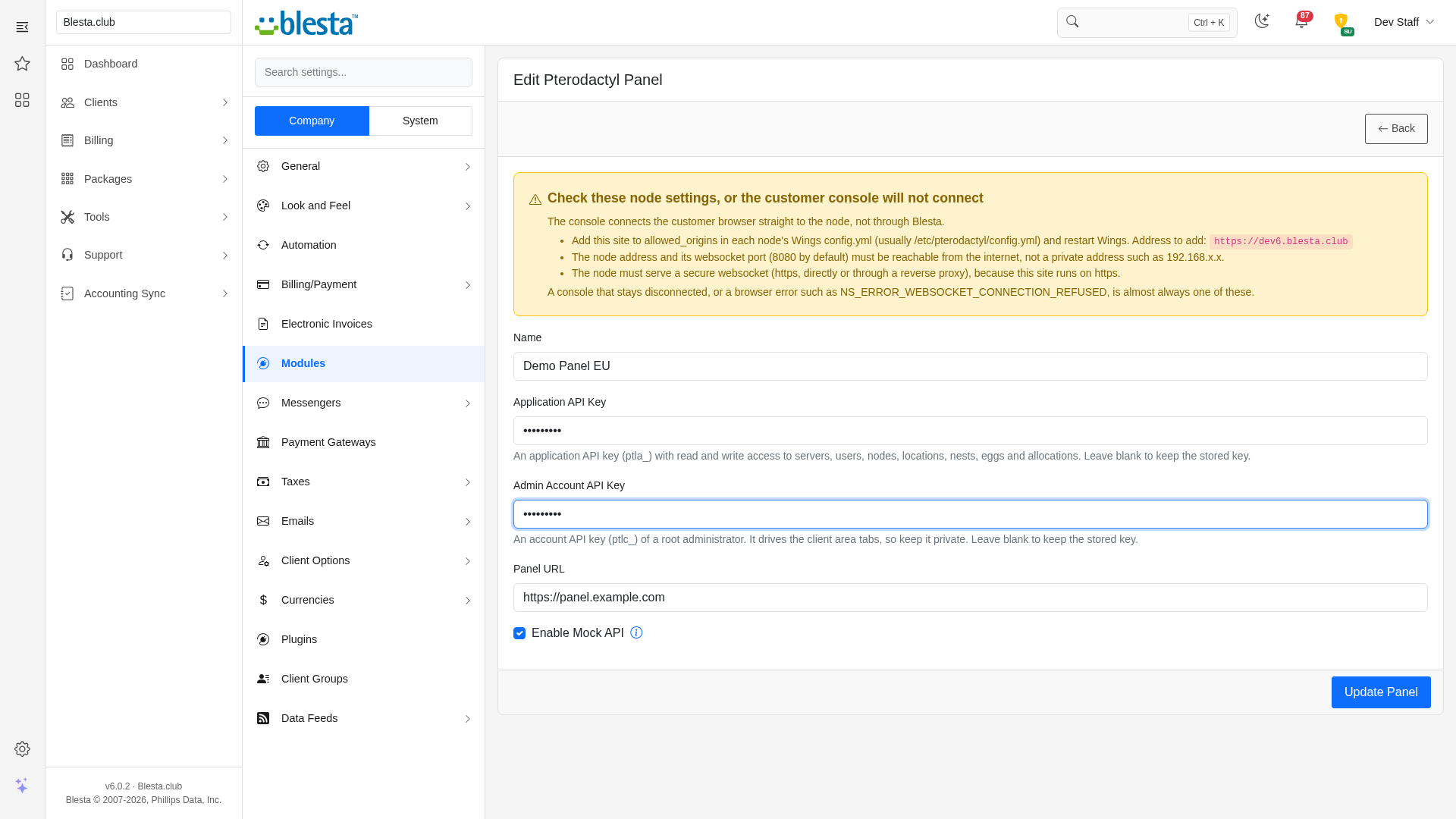
- Leave a key field blank when editing a panel to keep the stored value.
If the panel will not save
Saving a panel makes two read-only requests: a list of nodes with the application key, and a permissions lookup with the account key. If either fails you get "The panel could not be reached or a key was rejected."
Open Tools > Logs > Module. Each request is logged with the panel's answer (key values are masked):
| Log shows | Likely cause |
|---|---|
| 401 Unauthenticated on the nodes request or the permissions request | That key is wrong, incomplete, revoked, or pasted in the wrong field. Check the prefixes above. |
| 403 on the nodes request | The application key lacks read access on Nodes. Edit the key on the panel and grant it. |
| 403 on the permissions request | An application key is in the Admin Account API Key field. The panel's reply says an application key is being used on an endpoint that requires a client (account) key. Swap the two keys. |
| 301 or 302 | The URL redirects, usually http:// instead of https://. Enter the final URL. |
| 404 | The URL has a path on it. Enter only the panel address, for example https://panel.example.com. |
| Request did not respond | The server running Blesta cannot reach the panel, or the panel certificate is not trusted. |
If the package form shows no eggs
The panel saves fine but the Egg list stays empty, or ordering fails before a server is created, and the module log shows a 403 on an eggs request: the application key lacks read access on Eggs. Edit the key on the panel, grant read access on Eggs (and on Nests), and reload the package form.
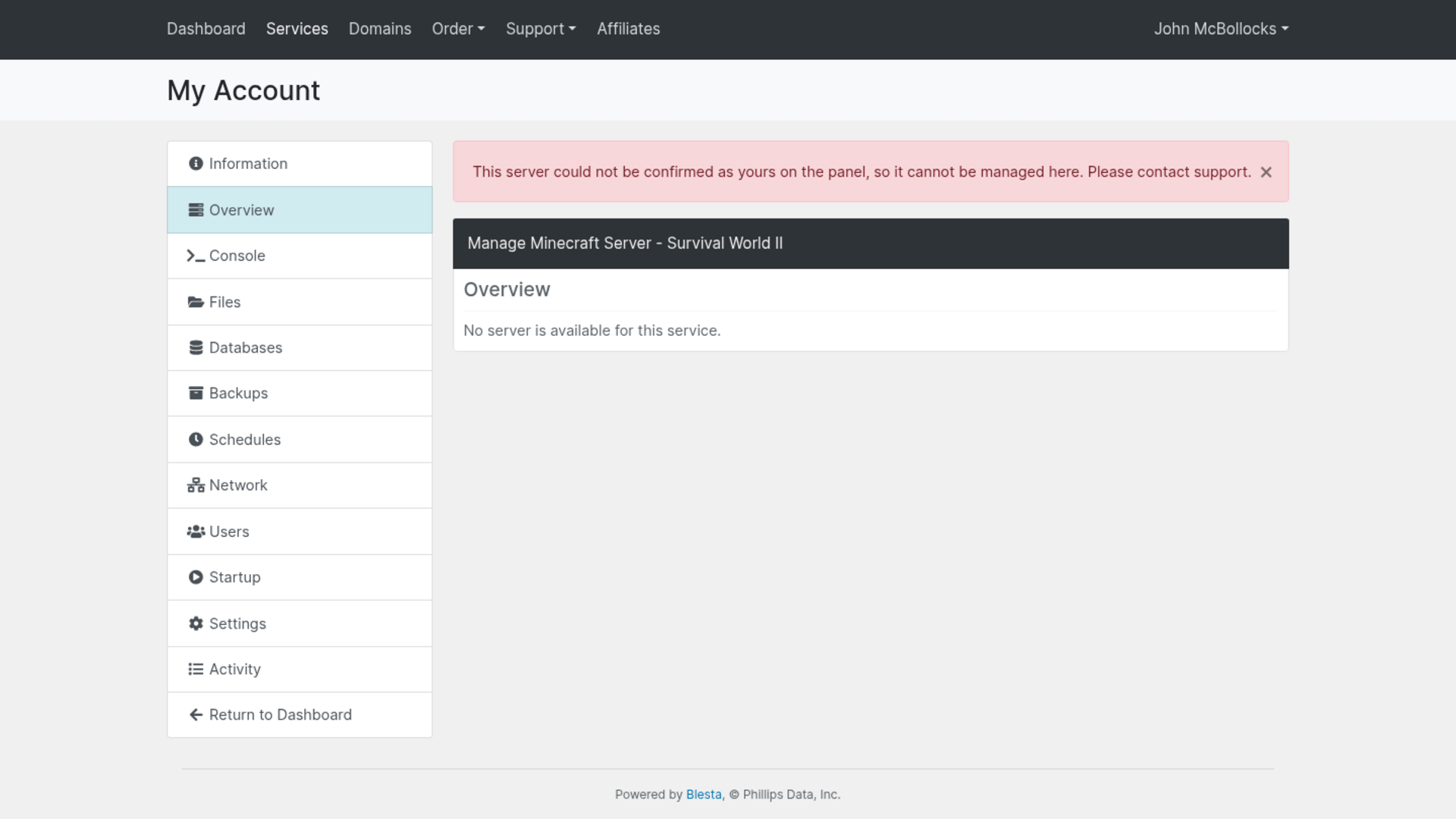
If a client sees "This server could not be confirmed as yours"
Before any client tab acts, Blesta checks with the panel that the server stored on the service belongs to that client's panel account. The message means the check failed:
- The service holds the wrong Server ID or Server UUID, for example a mistyped ID when you attached an existing server. Correct it on the service.
- The server belongs to a different panel user. A server is recognised as the client's when its panel owner has the same email address as the client in Blesta. Transfer the server to the client's panel account, or change the email on one side so they match.
- The panel could not be reached. Check Tools > Logs > Module for the server request.
Console requirements
The console connects each client's browser straight to the node that runs their server, not through Blesta. Three things on every node must be true, or the console stays on "Disconnected" and the browser reports an error such as NS_ERROR_WEBSOCKET_CONNECTION_REFUSED. The panel form in Blesta shows the same warning.
- Allow this site. Add your Blesta site to
allowed_originsin the node's Wingsconfig.yml(usually/etc/pterodactyl/config.yml), then restart Wings. Use the scheme and host exactly as clients see them, with no trailing slash, for examplehttps://billing.example.com(add the port if it is not 443). Pterodactyl only lists its own address there by default, so Blesta is rejected until you add it. - Make the node reachable. The node's address and websocket port (8080 by default) must be reachable from clients' browsers over the internet. A private address such as
192.168.1.8only works on that network. - Serve it over https. Blesta runs on https, and browsers refuse an unencrypted
ws://socket from an https page. Give the node a certificate or put it behind a reverse proxy.
To see what the panel hands the browser, open Tools > Logs > Module and find the websocket request for the server: its socket value is the exact address the browser connects to. To tell a rejected origin from a blocked port, open the Console tab with the browser developer tools Network tab on WS: a 403 on the handshake means the origin is not allowed, no response at all means the address or port cannot be reached.
Installing and updating extensions can now be done automatically through the Blesta Club Subscription Manager - this is the recommended way going forward.
Updating Pterodactyl Advanced
Upgrading works just like installing: upload the new files over the old ones, then run the upgrade from the same page you installed it on.
- Back up your current extension files first - good practice before any upgrade.
- Upload the new version over the existing folder, replacing the old files.
- Log in to your Blesta admin area and go to Settings > Company > Modules.
- Find Pterodactyl Advanced and click Update to run the upgrade.
This upgrade is drop-in - no steps are needed beyond replacing the files and clicking Update.
Using Pterodactyl Advanced
For your staff
Adding a panel
Under Settings > Company > Modules > Installed > Pterodactyl Advanced > Manage, click Add Panel, enter its Name, Panel URL, Application API Key and Admin Account API Key, and save. Tick Enable Mock API instead to try the module against a built-in demo panel. The keys are never shown back to you: they appear blank when you edit the panel, and leaving them blank keeps the stored keys. The form also lists what each node needs for the console to connect.
Configuring a package
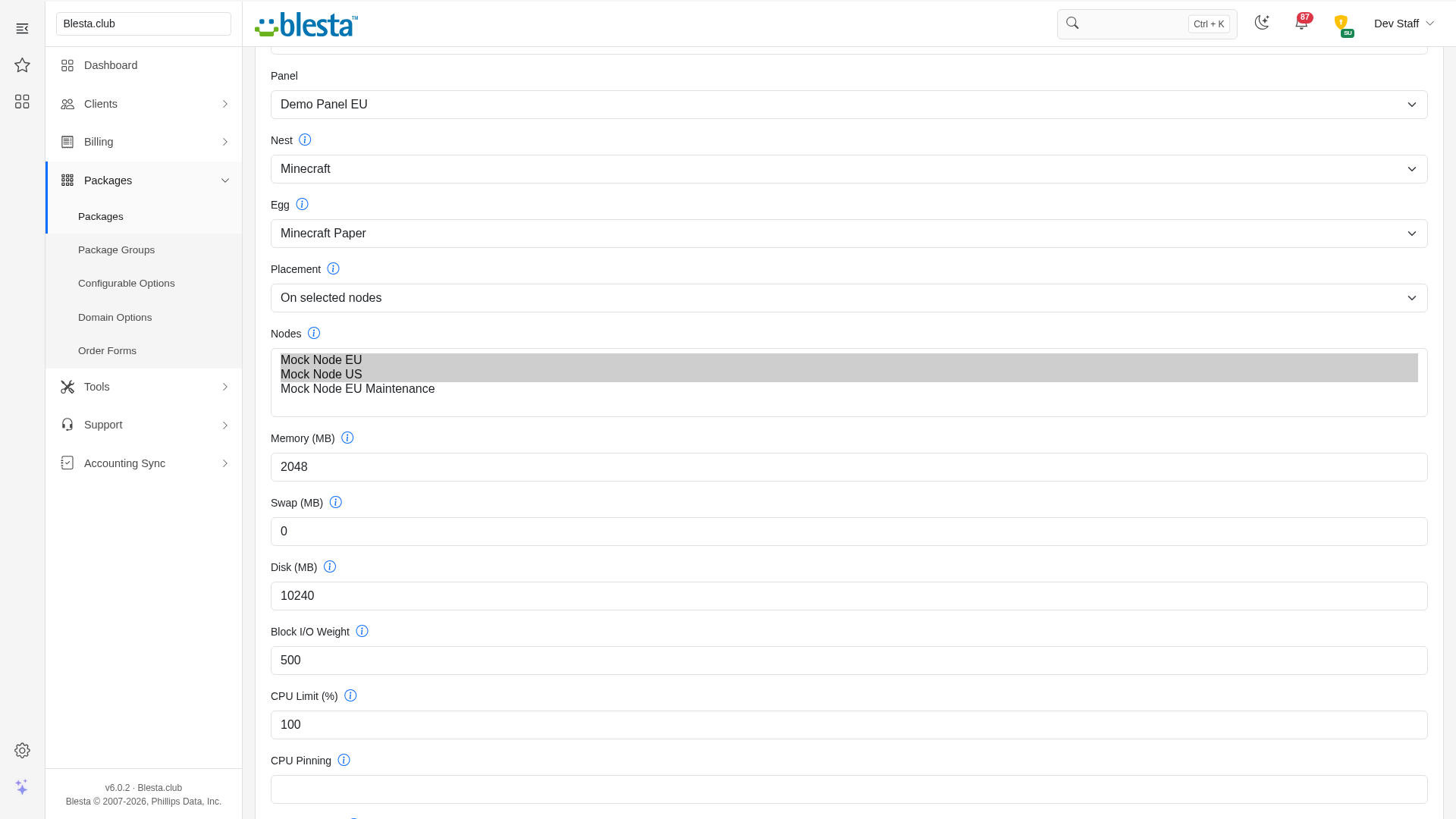
On the package's module settings, pick the Nest and then the Egg; changing either reloads the form, and changing the nest clears the egg. Then:
- Placement: By location places servers on any node of the Locations you select; On selected nodes uses only the Nodes you select. Both are multi-select lists: hold Ctrl (Cmd on a Mac) to select more than one. The node with the most free memory is tried first, nodes in maintenance are skipped and over-allocation is honoured.
- Limits: Memory (MB), Swap (MB), Disk (MB), Block I/O Weight, CPU Limit (%), CPU Pinning, Database Limit, Allocation Limit and Backup Limit.
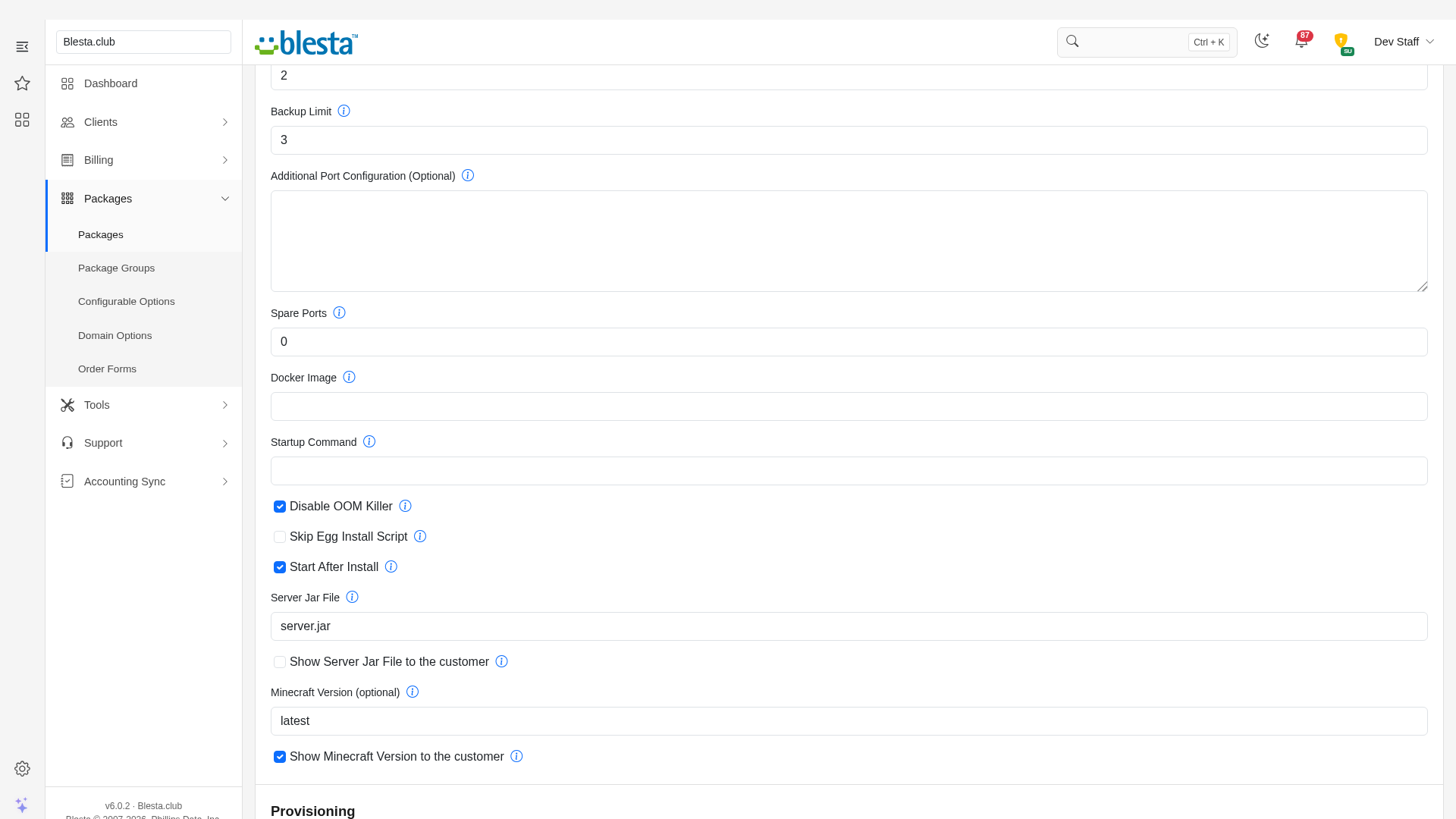
- Additional Port Configuration: one line per extra port.
QUERY_PORT|+1assigns the primary port plus one,RCON_PORT|20010-20110assigns a free port from the range. All ports are on the same IP, and if a neighbouring port is taken the whole group moves up. Start a line with an egg id and a colon (3: SERVER_COMM_PORT|+2) to apply it to that egg only. The Allocation Limit is raised to the number of ports automatically. - Spare Ports: extra ports reserved after the highest offset, for the client to use.
- Docker Image and Startup Command: optional overrides; left blank, the egg's own are used.
- Disable OOM Killer, Skip Egg Install Script and Start After Install.
- Egg variables: each variable has a value field and a "Show ... to the customer" box. Tick the box to let clients set it when ordering; unticked variables use the package value, then the egg default. A required variable with no default must have a value here unless it is shown to clients or filled by a port line.
Letting clients choose the game
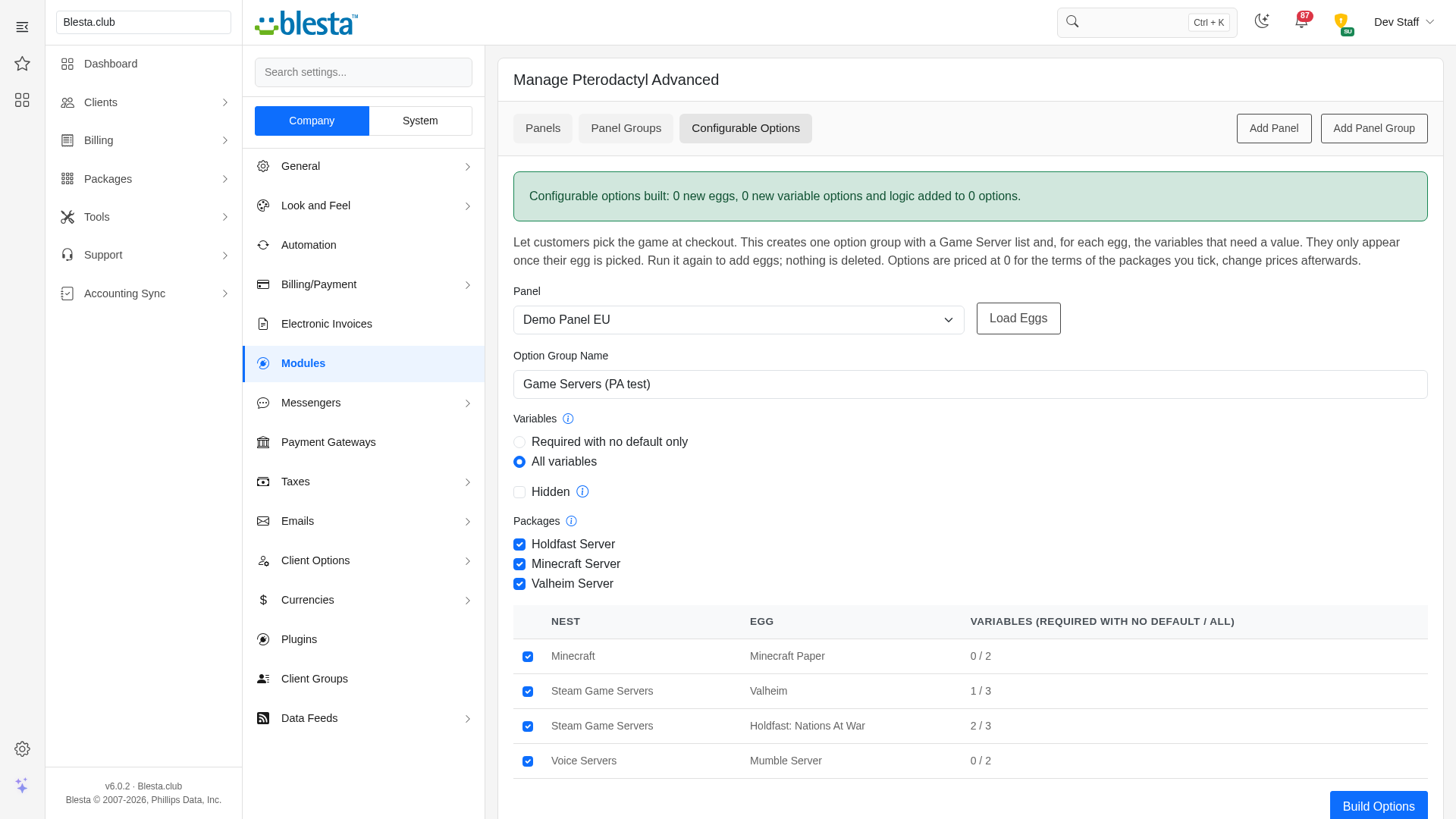
Under Settings > Company > Modules > Installed > Pterodactyl Advanced > Manage, open the Configurable Options tab, pick the panel and click Load Eggs. Every egg is listed with its nest and how many variables are required with no default. Tick the eggs and the packages, choose whether to add only the required variables or all of them, optionally tick Hidden, and click Build Options. This creates a Game Server list and, for each egg, its variables, shown only when that egg is picked. Run it again to add eggs; nothing is deleted. Options are priced at 0 for the terms of the ticked packages, so set your prices afterwards. The staff Add Service form does not apply the show and hide logic, so tick "Disable option logic" there when ordering on a client's behalf. On that form, choose the term first and wait for the options to finish reloading before you pick the Game Server: the reload redraws the options and clears an earlier choice.
Configurable options
Besides the builder, you can add your own configurable options named after a package setting to let clients choose it at checkout: memory, swap, disk, io, cpu, threads, databases, allocations, backups, spare_ports, docker_image or startup. An option named egg_id switches the egg, even to one in another nest. An option named after an egg variable in lower case (minecraft_version) sets that variable for any egg, and one named egg3_server_password sets it only while egg 3 is the chosen egg. Values from options are checked against the egg's own rules before the order is accepted.
Adding a service by hand
The staff Add Service form shows the Server ID and Server UUID fields and every egg variable. Leave the IDs blank to create a new server. To attach a server that already exists on the panel, enter its Server ID (the UUID is optional and read from the panel): no new server is created, now or when a pending service is activated, and the address is read from the panel too. The server must belong to the client's panel account, which is the panel user with the same email address as the client; otherwise the client sees "This server could not be confirmed as yours" instead of the tabs.
The staff Overview tab
On the service page, the Overview tab shows the server's name, address, panel status and limits, the client's panel login, and Suspend or Unsuspend and Reapply Package Resources buttons. These act on the panel server only and do not change the Blesta service status. Reapply resizes the server to the package's current limits.
What happens automatically
- Provisioning finds the client's panel account by email, or creates one, then creates the server. If no node has the capacity and the free ports the server needs, the order stops with a clear message and nothing is left behind on the panel.
- Suspend, unsuspend and cancel follow the Blesta service. Cancelling a service whose server was already deleted on the panel completes normally.
- Package changes and staff edits resize the server to the new limits.
- Every request to the panel and its answer is recorded under Tools > Logs > Module, with keys, passwords and secret egg variables masked. The live stats refresh on the Overview and Console tabs is the only request left out, so an open tab does not fill the log.
For your clients
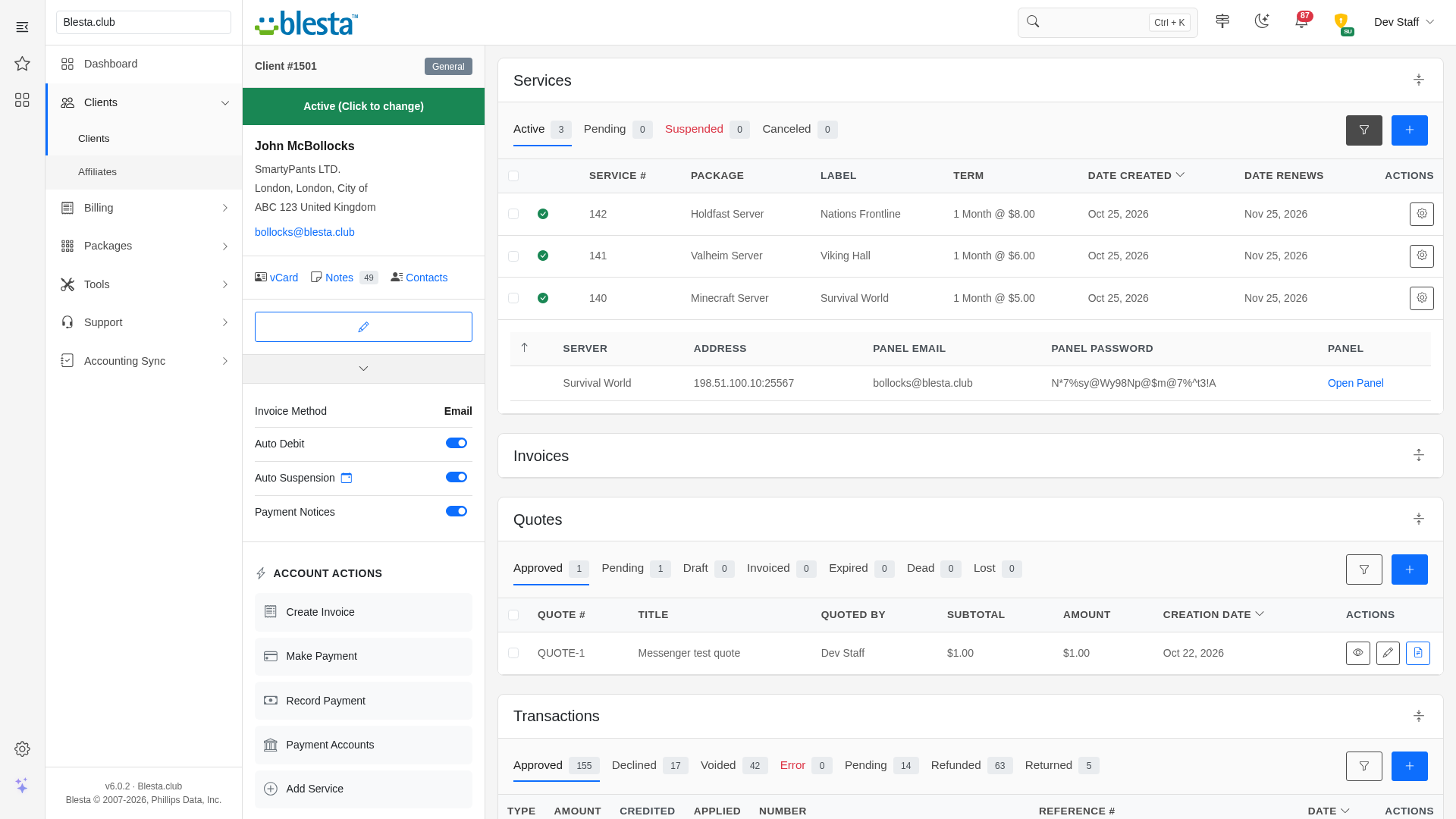
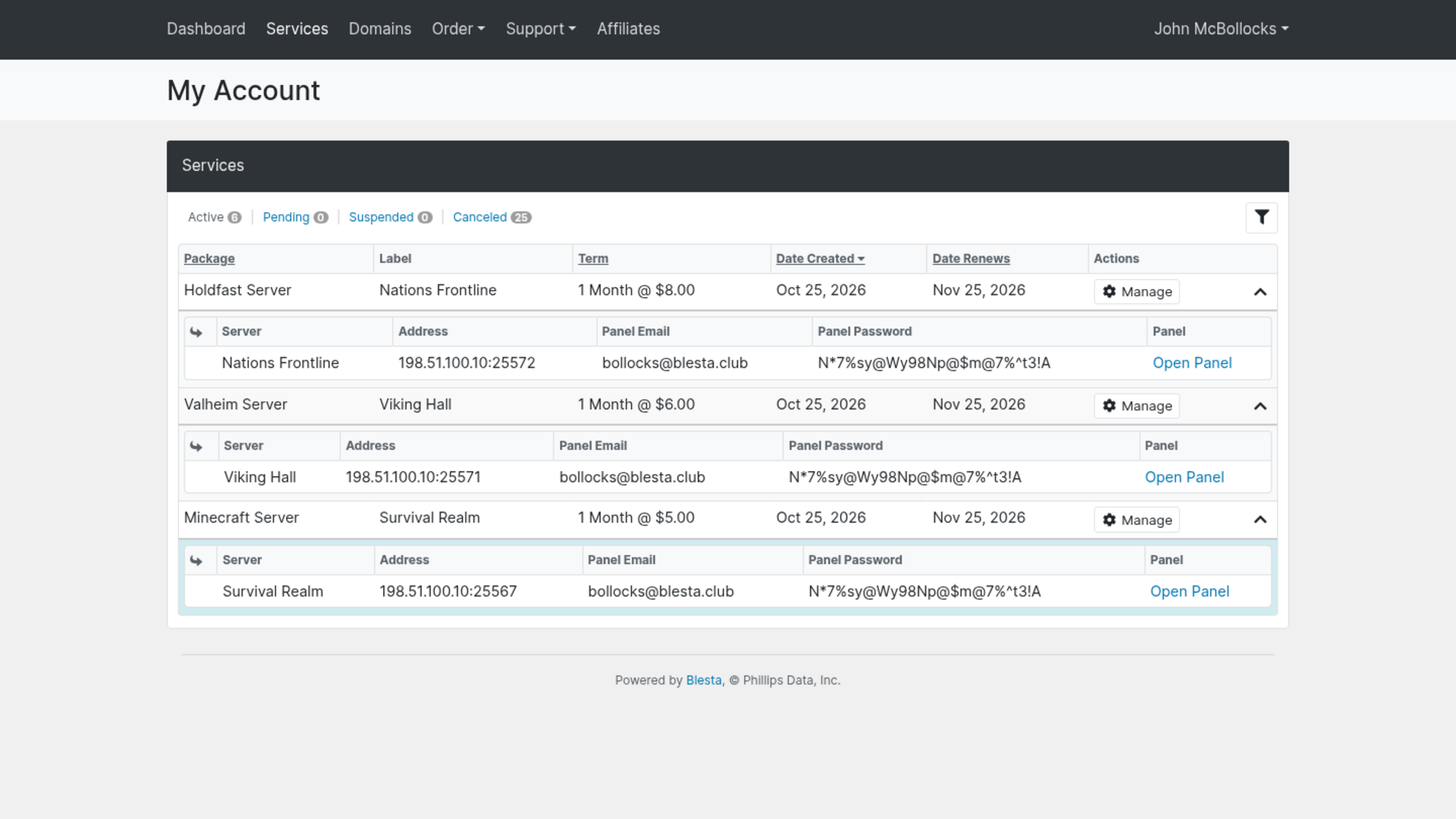
The server's name, address and panel login are shown when you expand the service row in the client's Services list (in the client area, and on the client profile in the admin area). Opening the service then gives these tabs:
- Overview: status, address, live CPU, memory, disk, network and uptime, power buttons (start, restart, stop, kill) and the panel login.
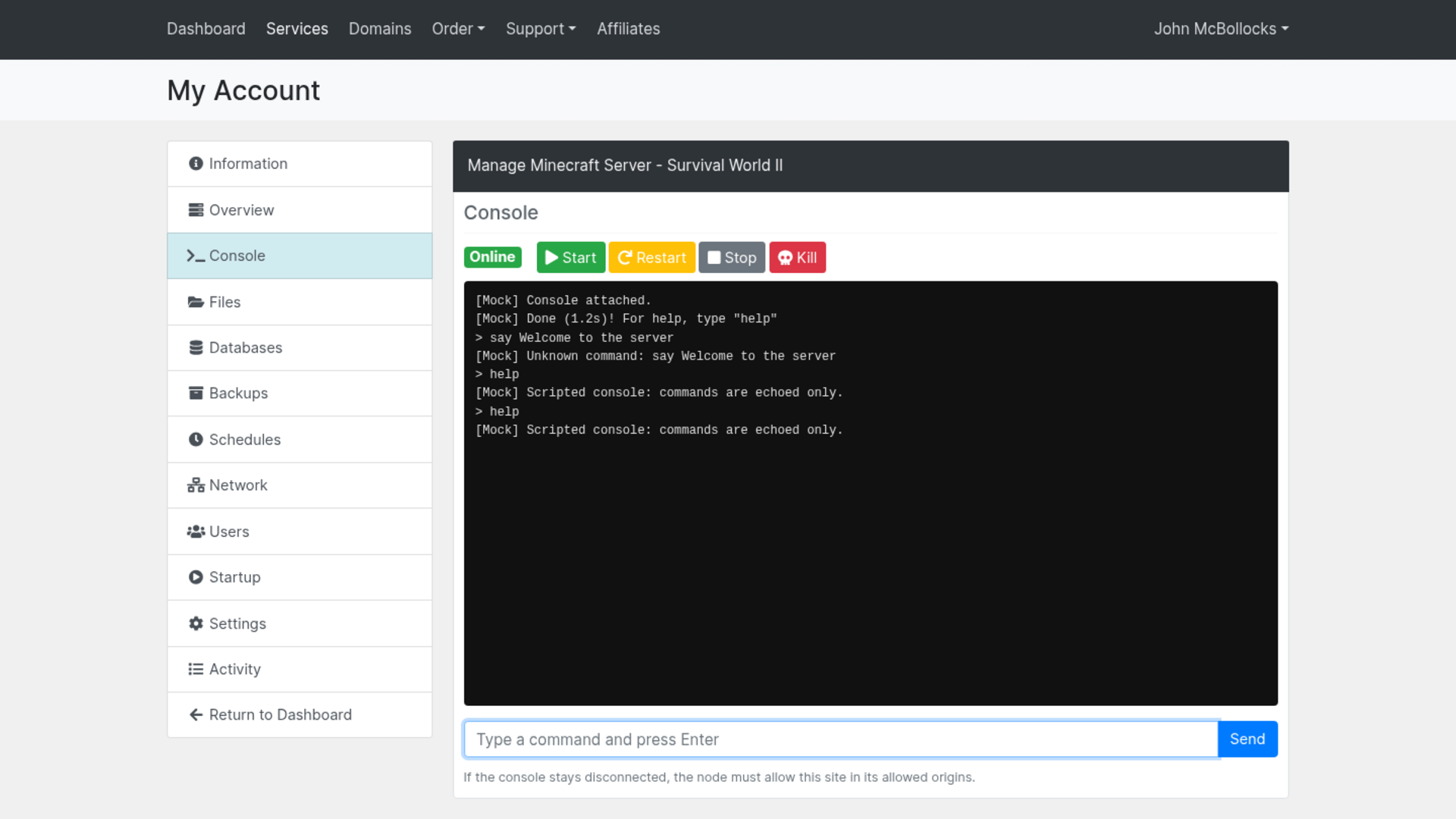
- Console: the live server console with power buttons and a command line.
- Files: browse folders (an upload confirms how many files were uploaded), open and edit text files, create folders, upload, download, rename, delete, compress the ticked files into an archive and extract an archive. Files that are not plain text cannot be opened in the editor; download them instead.
- Databases: create databases up to the package limit, see host, username and password, rotate the password or delete.
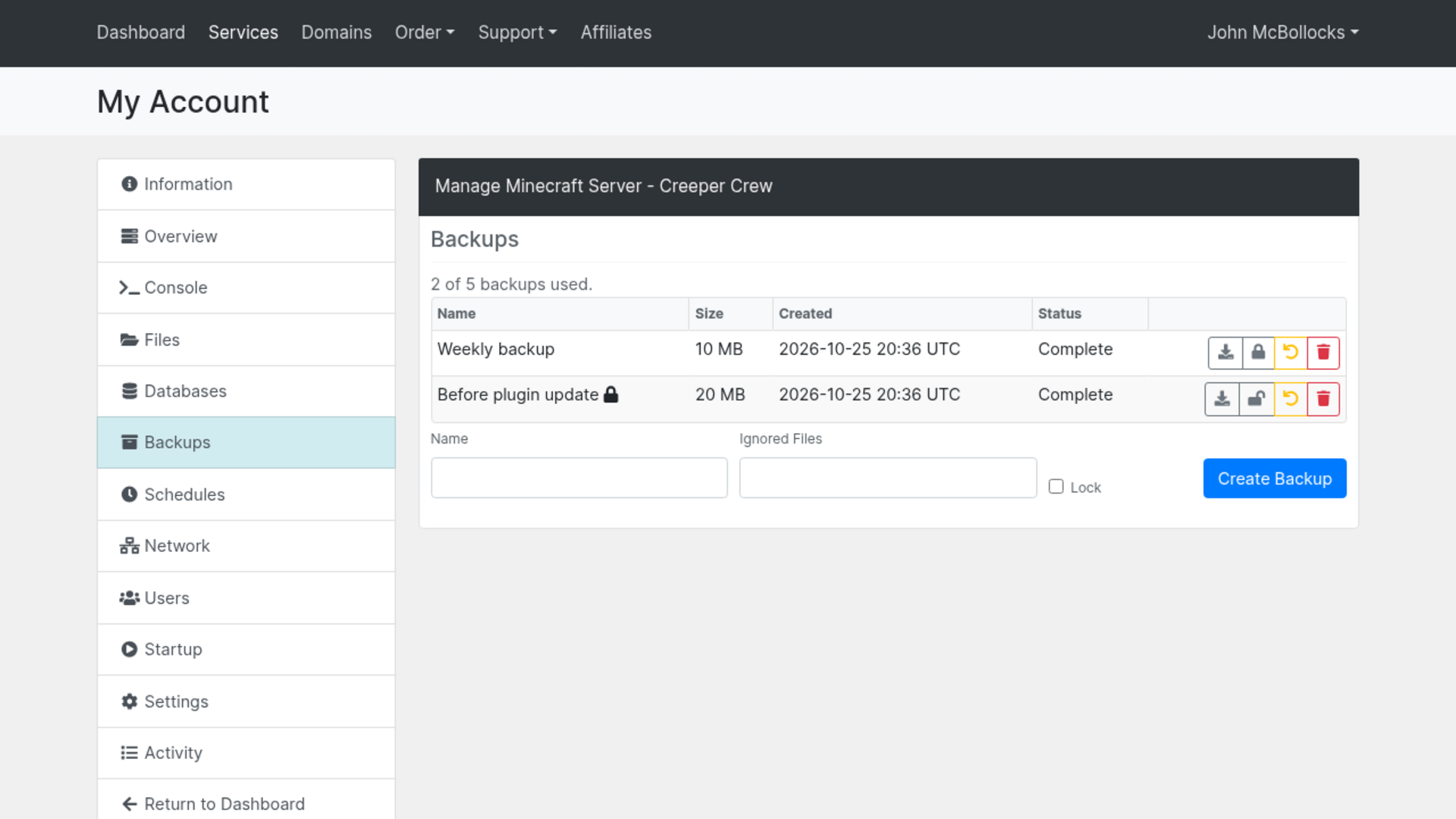
- Backups: create backups up to the limit (optionally locked, with ignored files), download, lock or unlock, restore and delete. Restore asks first whether to delete all current files before restoring.
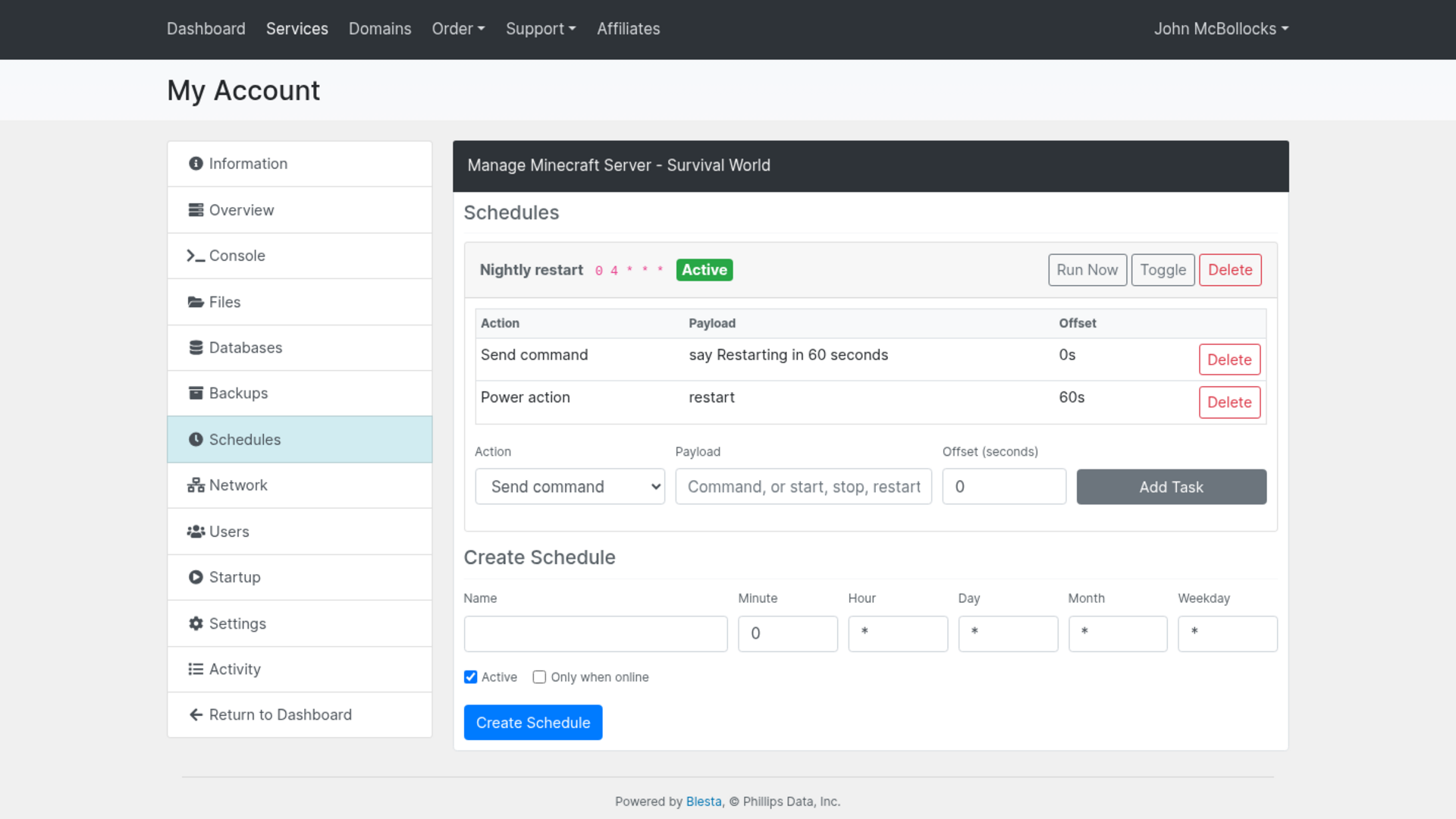
- Schedules: create schedules with cron timing, run, enable or disable and delete them, and add or remove tasks (send a command, a power action or a backup) with an offset in seconds.
- Network: the server's ports, set notes, make a port primary, remove a port, and add one up to the allocation limit.
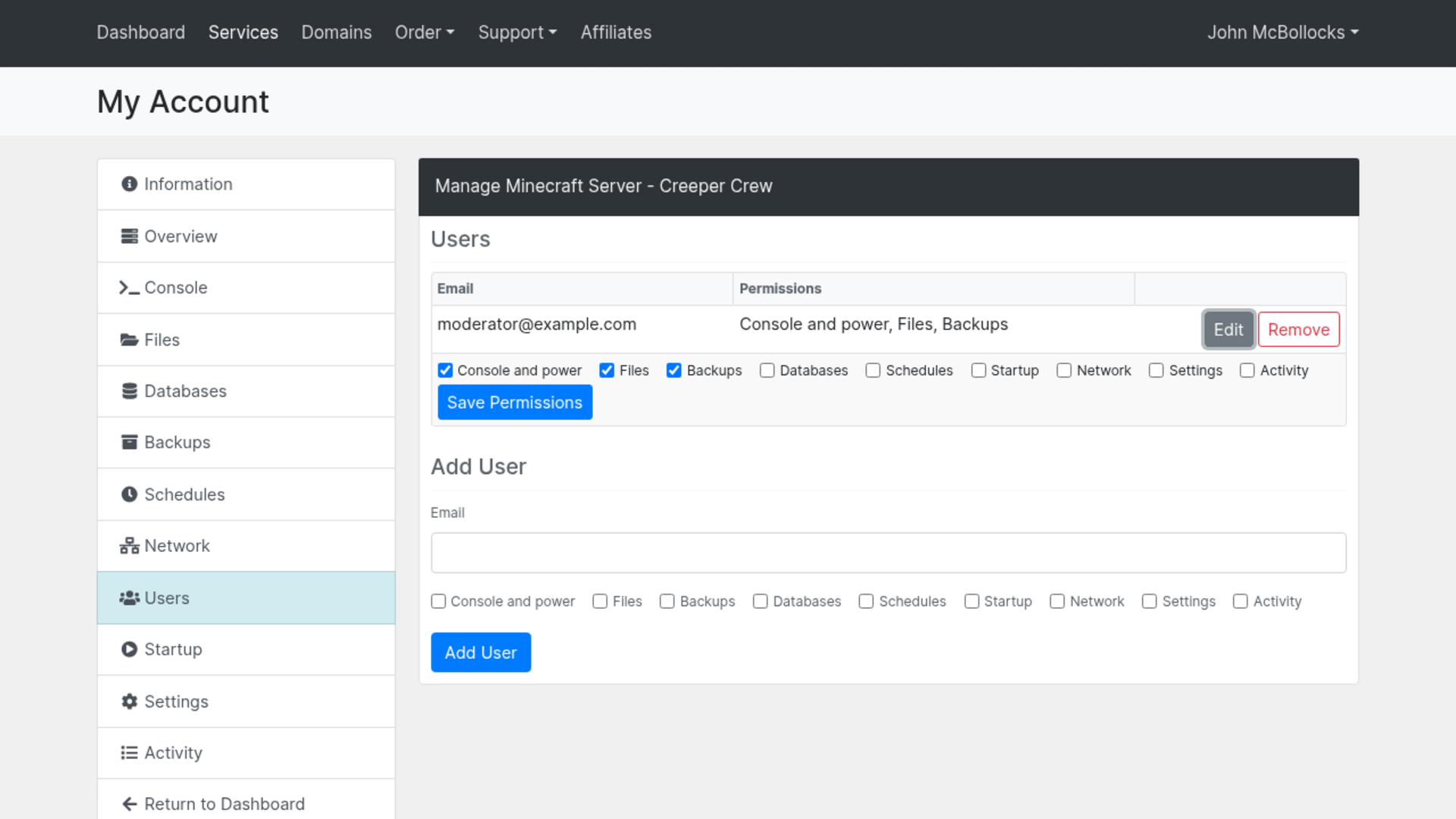
- Users: invite subusers by email with permission groups, change a subuser's permission groups, and remove them.
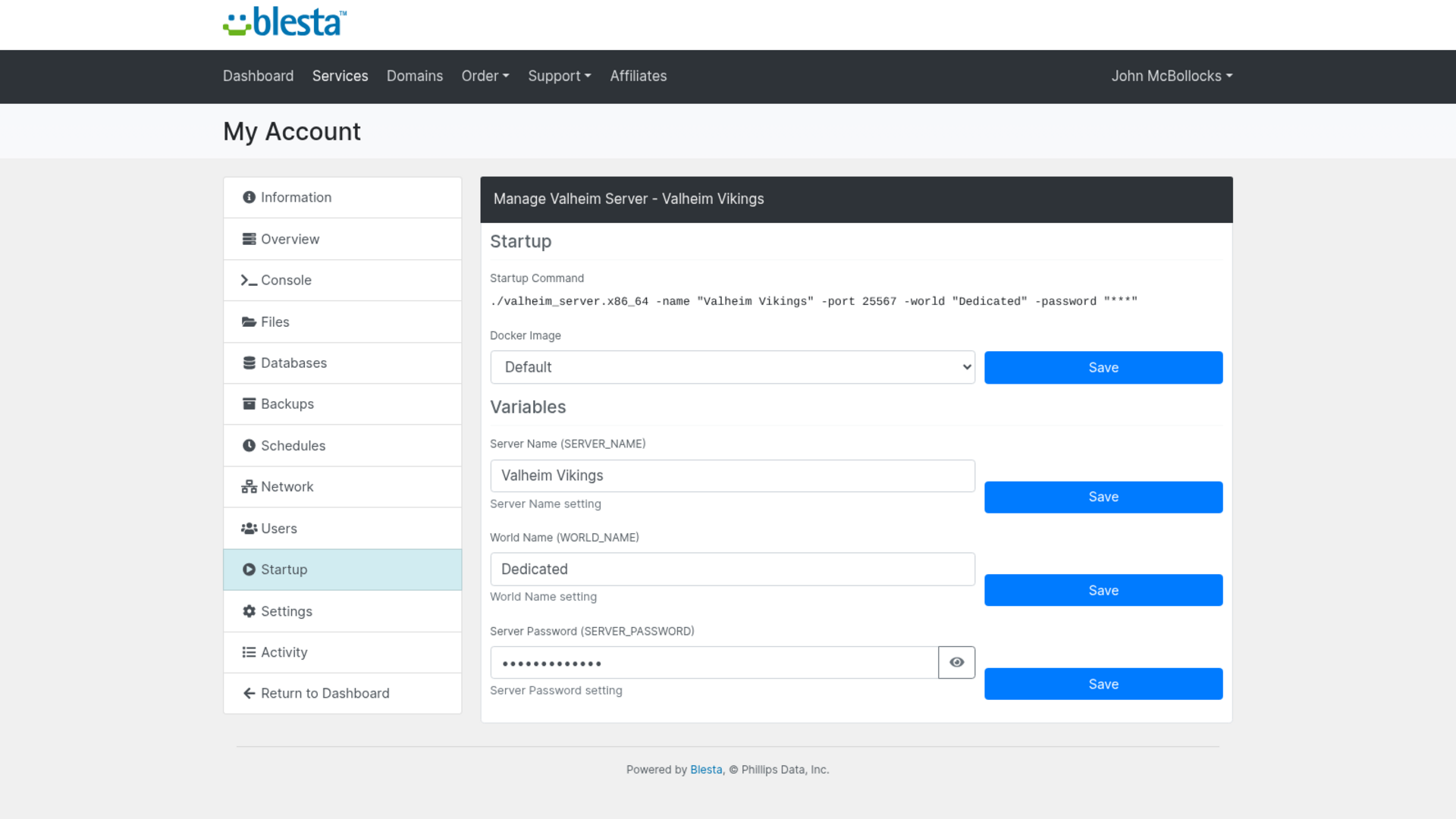
- Startup: the startup command, a choice of the egg's Docker images, and the variables the package lets the client change. Password, secret, token and key values are hidden behind an eye button.
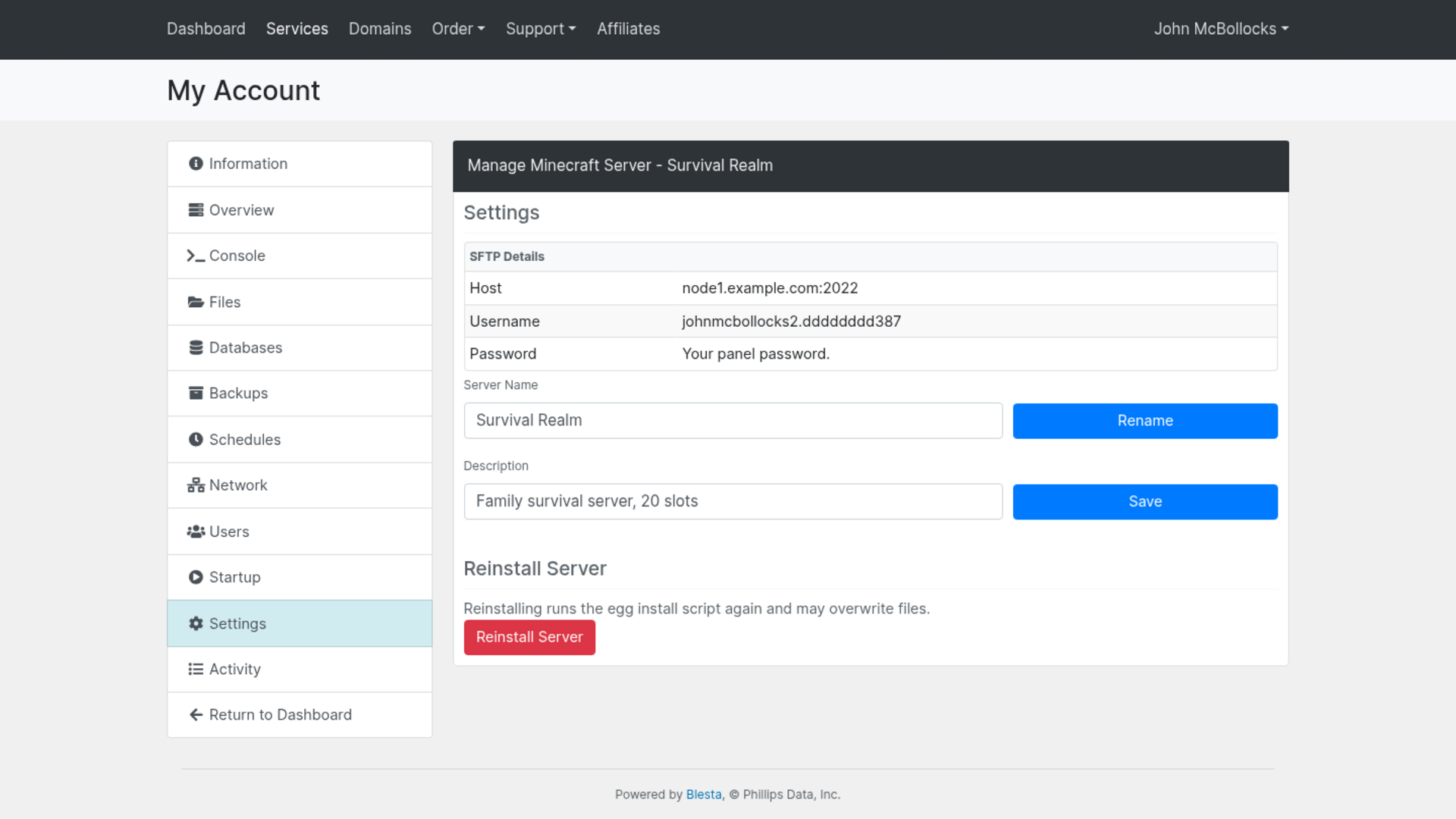
- Settings: SFTP details, rename the server, set its description, and reinstall it.
- Activity: recent actions on the server. The IP address is shown only for the client's own actions.
Good to know
- One panel account per client per panel: every server a client buys on the same panel shares one panel login.
- Email tags: welcome emails can use
{service.name},{service.primary_ip},{service.primary_alias}(the allocation alias, when the panel has one),{service.primary_port}and{service.uuid}, plus{module.name}and{module.url}. The default welcome email shows the alias when there is one, else the IP. The API keys are never email tags. - Mock mode: with Enable Mock API ticked, ordering, every tab and every staff action run against a demo panel that remembers what you do. Downloads and uploads stay within Blesta in mock mode, and the demo panel accepts files up to 512 KB.
v1.0.0 - 2026-10-31
PHP 8.2 - 8.4 · Blesta 6.x
Initial release: provisions Pterodactyl game servers by nest and egg, on nodes picked by location or by hand, with extra and spare ports on the same IP
Added a client area with Overview, Console, Files, Databases, Backups, Schedules, Network, Users, Startup, Settings and Activity tabs
Added a staff Overview tab with suspend, unsuspend and reapply package resources actions
Added a Build Configurable Options tool that lets customers pick the game at checkout
Added a mock mode with a stateful demo panel for testing without a live panel
Pricing Options
Get exactly what you need and want.
Requires PHP 8.2 - 8.4 · Blesta 6.x
Included In
Value: Free
- +28 Other Extensions
- Additional Discounts
- Included Support & Updates
Leased
- Partially Encoded
- Full Functionality
- Included Support & Updates
Owned - Source
- Source Available
- Buy Once Use Forever
- 1 Year Support & Updates
Not sure whether to lease or own? Our FAQ explains how the licence types differ.
Reviews
What our customers say
(0 customer reviews)
Seems like this extension doesn't have reviews yet...
Be one of the firsts to leave a review!
It is possible to leave a review only if you have purchased this extension or a Club tier which contains it.
We reserve the right to alter wording or formatting for presentation.
We will discuss any changes made and offer the option to withdraw review text if the changes can't be agreed on.
It may take up to 1 hour for a review to appear or update due to caching.
You might also like
More extensions to explore

Module
BunnyDNS
Integrate BunnyDNS for automatic DNS provisioning and management.
PHP 8.2 - 8.4 · Blesta 6.x

Module
Cloudmini
Integrate Cloudmini for automatic cloud hosting provisioning.
PHP 7.2 - 7.4, 8.1 - 8.4 · Blesta 5.x

Module
Convoy Panel
Provision servers using Convoy, a Proxmox based VPS management panel
PHP 8.2 - 8.4 · Blesta 6.x

Module
Datalix
Integrate Datalix module into your Blesta install to provision VPS servers.
PHP 8.2 - 8.4 · Blesta 6.x

Module
Enhance
Integrate Enhance for automatic provisioning and management.
PHP 8.2 - 8.4 · Blesta 6.x

Module
Hetzner Cloud
Integrate Hetzner Cloud for automatic server provisioning.
PHP 8.2 - 8.4 · Blesta 6.x